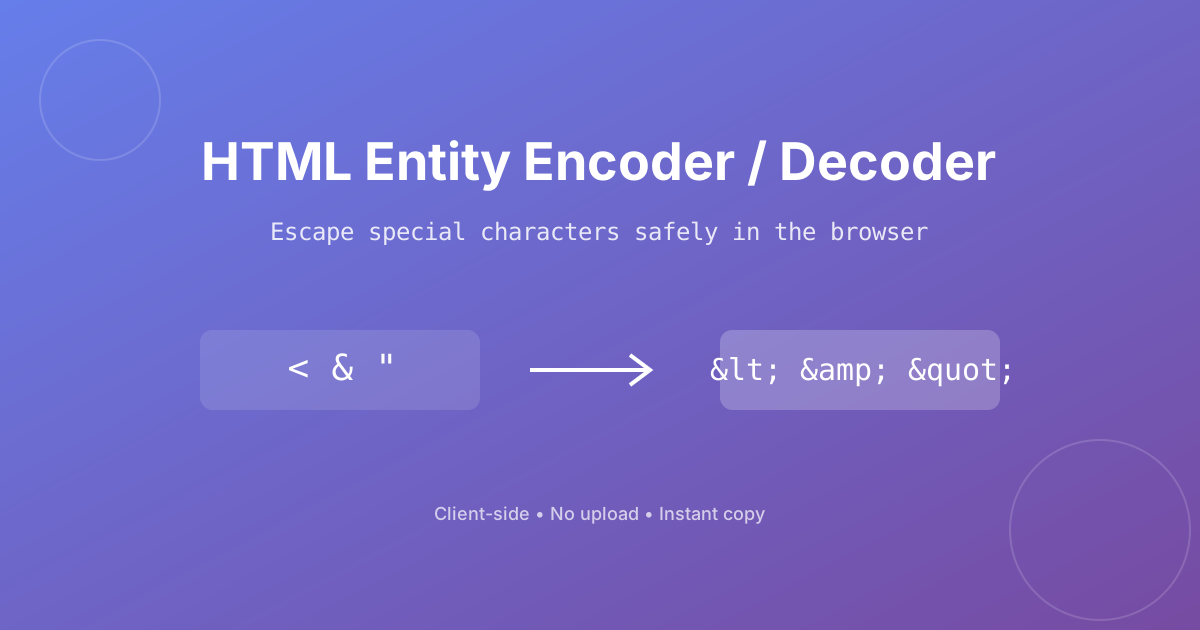
HTML reserves a handful of characters for markup. The angle brackets around a tag, the ampersand in an entity reference, and the quotes that wrap an attribute value all have special meaning. If you want to display one of these characters as plain text, the browser has to be told explicitly that it is not markup. That is exactly what HTML entities do.
An HTML entity is a short escape sequence that represents a reserved character. For example, < renders as the less-than sign, and & renders as an ampersand. With this HTML entity encoder/decoder, you can convert between plain text and entities in either direction without leaving your browser.
<, >, &, ", and ' into their entity equivalents.Because everything runs with JavaScript in your browser, nothing is uploaded. The tool works offline after the page loads, and there is no file-size limit beyond what your tab can comfortably handle.
Here are the entities you will use most often when writing HTML by hand or preparing content for a rich-text editor:
< for < (less than)> for > (greater than)& for & (ampersand)" for " (double quote)' for ' (apostrophe) for a non-breaking spaceNamed entities such as © and — are easy to read, but browsers must recognize the name. Numeric entities use the Unicode code point, for example © or the hexadecimal © for the copyright symbol. Numeric entities are supported everywhere and are the safest choice when you need maximum compatibility across email clients, old browsers, and XML parsers.
Web developers reach for an HTML entity encoder when they are displaying code tutorials, rendering user comments, preparing HTML email templates, or cleaning data exported from a CMS. Content managers use it when raw ampersands in product names break validation. Security teams rely on entity encoding as one layer of XSS defense: if a user submits <script>alert('xss')</script>, encoding turns it into harmless text.
This tool performs every conversion locally in your browser. Your text never reaches our servers, which means proprietary code snippets, customer data, and draft content stay on your device. Combined with the URL Encoder/Decoder and Base64 Encoder/Decoder, it forms a complete client-side text-preparation workflow.
Server-side templating languages and modern frameworks usually escape output automatically. This online encoder is ideal for quick one-off conversions, legacy templates, email markup, or any situation where you do not control the rendering pipeline. It does not replace a proper sanitization library, but it is the fastest way to make a string HTML-safe by hand.
HTML entities are escape sequences that represent reserved characters in HTML. For example, < displays the less-than sign without the browser treating it as the start of a tag.
Reserved characters such as <, >, &, and quotes have meaning in HTML markup. Encoding them ensures they display as text and prevents broken layouts or script injection.
Encoding converts plain text into HTML entities. Decoding reverses the process, turning entities like & back into the original & character.
Encoding user input before displaying it in HTML is a key XSS defense because the browser renders the content as text instead of executing it as markup or script.
Yes. The tool encodes the most common reserved characters, including <, >, &, ", and '. You can then edit the output to keep any characters you do not want changed.
Named entities use memorable names like ©. Numeric entities use Unicode code points like ©. Both render the same character, but numeric entities are supported in every context.
Yes. HTML email clients handle entities well, and numeric entities are especially reliable across older clients.
Once the page is loaded, all encoding and decoding runs in your browser. No network connection is needed for the actual conversion.
No. The tool is purely client-side. Your text never leaves your device.
Yes, it is completely free with no signup, no watermarks, and no usage limits.
Yes. Paste any standard named or numeric entity string and click Decode to restore the original text.
Click the Copy button next to the output panel, or select the text and use Ctrl+C / Cmd+C.
