From Midjourney PNG to Vector
Drop your exported Midjourney image and get editable SVG paths — no manual tracing, no redrawing the artwork by hand.
Your generated portraits, illustrations, and scenes become editable vector paths for Cricut, print, and web — traced offline on your Mac or Windows machine.
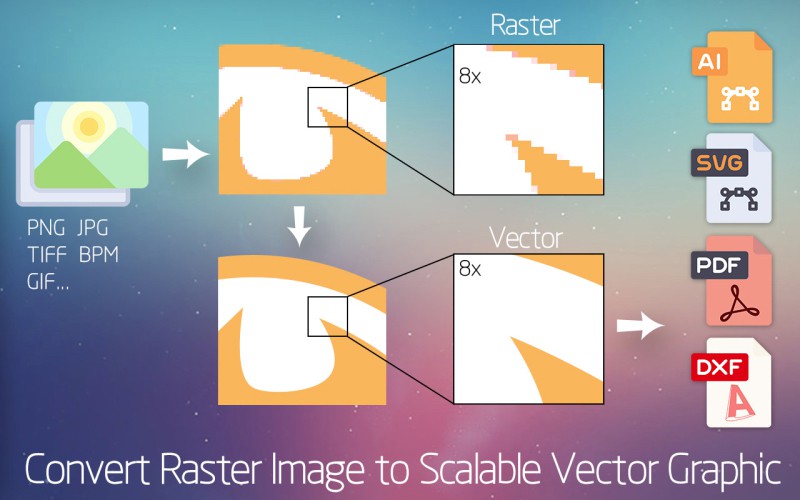
Everything you need to turn AI-generated art into production-ready SVG
Drop your exported Midjourney image and get editable SVG paths — no manual tracing, no redrawing the artwork by hand.
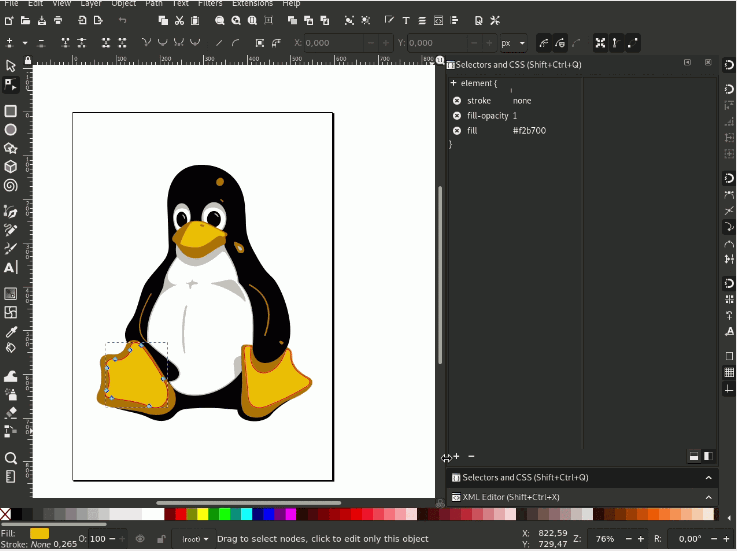
Export SVG with simplified, cut-friendly paths and clean colour separation that import straight into Cricut Design Space and print workflows.
All tracing happens locally on your device. Your Midjourney renders never leave your computer — no uploads, no cloud dependencies.
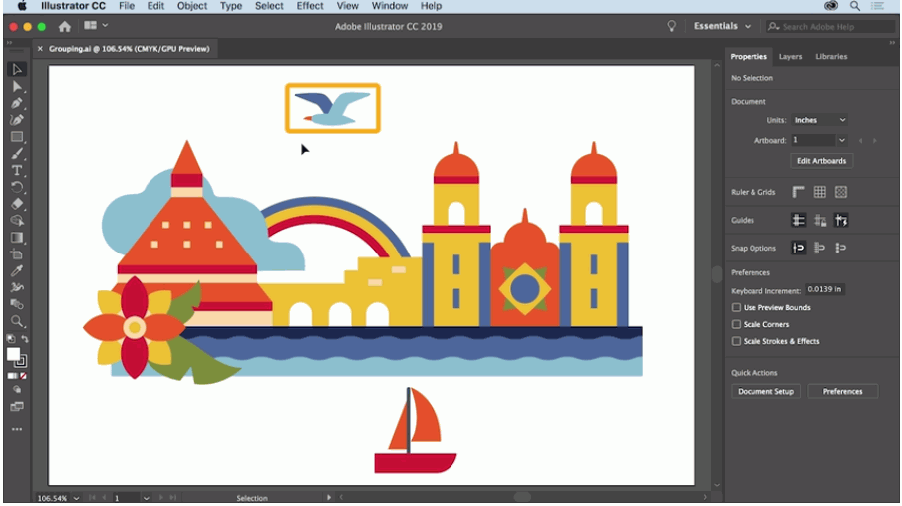
Export SVG, EPS, PDF, AI, or DXF — match Cricut, laser cutting, screen printing, or web with one traced file.
No manual tracing, no cloud uploads — just a clean, scalable SVG
Save the upscaled Midjourney PNG or JPG at the highest resolution Midjourney offers, then open it in Super Vectorizer Pro.
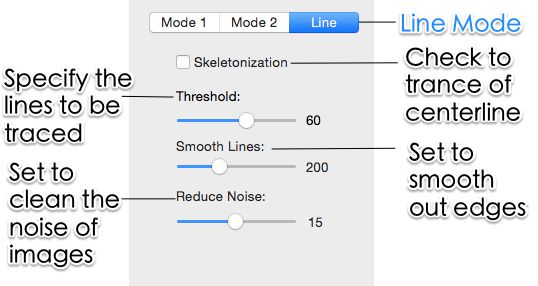
Choose a low colour count for Cricut cuts or higher detail for print, then adjust path smoothing and noise filtering.
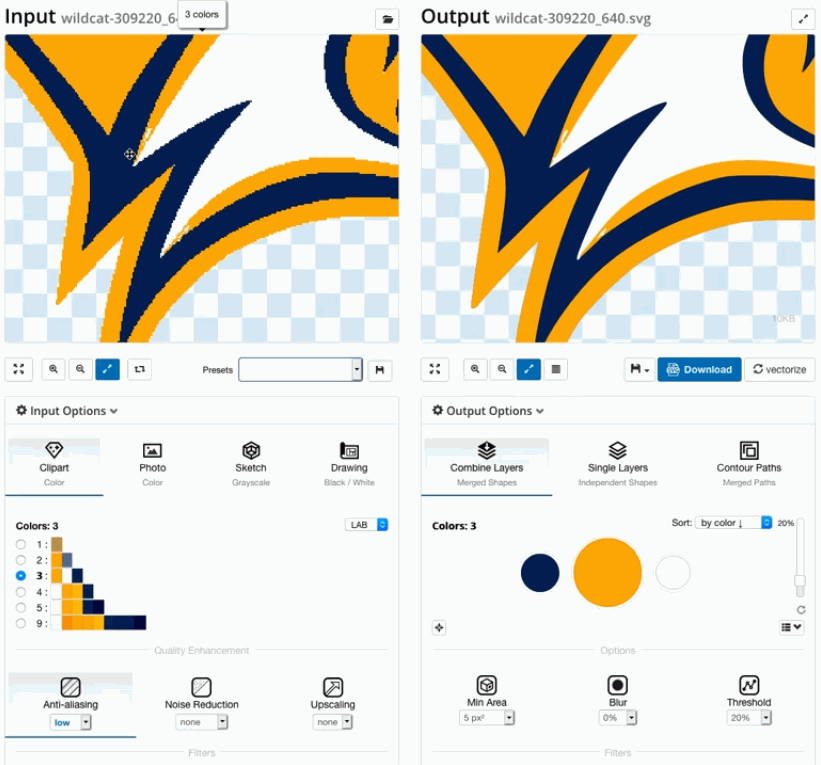
Preview the traced vector, then export SVG (or EPS, PDF, AI, DXF) for your cutter, printer, or design tool.
Ready to vectorize your Midjourney art? Try Super Vectorizer Pro free trial to preview results on your own renders.
Compatible with macOS 10.10+ (M1/M2/M3) & Windows 7/8/10/11
Your Midjourney art becomes reusable, scalable assets the moment it is traced

Simplified paths and per-colour layers import cleanly into Cricut Design Space and Silhouette Studio for stickers, decals, and shirts.

Spot-colour SVG separates into screens; transparent-background SVG feeds DTG and sublimation at any size without pixelation.

Lightweight SVG scales perfectly on responsive sites and looks crisp on retina displays — no more blurry upscaled PNGs.
Everything you need to know about Midjourney to SVG and Super Vectorizer Pro
Save your Midjourney render as a PNG or JPG, open it in Super Vectorizer Pro, and the tracing engine rebuilds the artwork as smooth, editable vector paths. You pick the colour count and path smoothing, preview the result, then export a clean SVG. Try the free trial to see your own Midjourney art as a vector before buying.
Use the largest size Midjourney offers — the upscaled 1024×1024 or the 2× / 4× upscaler outputs. Higher-resolution source images give the tracer more detail to work with, so edges and fine lines trace more accurately before you simplify paths for cutting or print.
Yes. The tracer works on the exported PNG or JPG, not on the Midjourney version itself, so every generation from v1 through the newest model converts the same way. Photorealistic v6 renders and stylized v5 illustrations both trace into scalable SVG.
Both. Photos, paintings, and flat illustrations all convert. Realistic renders tend to need a higher colour count and a little edge-detail tuning, while flat or line-art styles trace into very clean paths. You adjust the settings per image to match the look you want.
Yes. Super Vectorizer Pro exports SVG files that import into Cricut Design Space. Built-in colour reduction and path simplification produce cut-friendly shapes with fewer nodes, which speeds up weeding and improves cut accuracy. For Silhouette Basic Edition, export DXF instead.
Lower the colour count to 2–6 flat colours, raise path smoothing so bold shapes stay bold, and simplify nodes so thin interior pieces do not shatter. Preview the result, then export SVG with one colour per layer — that is what makes weeding fast and cuts accurate in Design Space.
Yes. Alongside SVG you can export DXF, EPS, PDF, and AI. DXF is the format most laser cutters (Glowforge, xTool) and Silhouette Basic Edition expect, while EPS and PDF feed commercial print workflows. One traced file serves every machine.
All tracing happens locally on your computer. Your images never leave the device — no uploads, no cloud, no account required to preview. That matters for unreleased client work or private commissions you do not want sitting on someone else's server.
Super Vectorizer Pro processes one image at a time. That per-image control is actually useful here: you tune the colour count and smoothing for each render individually, which is hard to do well in a bulk batch. Load the next image whenever you are ready.
SVG (default, infinitely scalable), EPS (legacy print and screen-print films), PDF (shared proofs), AI (Adobe Illustrator), and DXF (cutters). Pick the format that matches your cutter, printer, or design tool.
A free trial is available for both Mac and Windows. It is preview-only: you can load your Midjourney image, adjust tracing settings, and see the resulting vector on screen, but saving the finished file requires a license. This lets you confirm quality before paying.
Yes. Native desktop apps ship for macOS 10.10+ (including Apple Silicon M1/M2/M3) and Windows 7/8/10/11. Both include the full feature set and process one image at a time.
Join 50,000+ designers who trust Super Vectorizer Pro for clean, scalable SVG.
30-day money-back guarantee.
Explore other image-to-vector pipelines built into Super Vectorizer Pro