Precise Cutting
SVG paths give clean, sharp cuts every time. No jagged edges from pixel-based sources.
PNG, JPG & any image to cut-ready SVG for Cricut Design Space - Explore, Maker and Joy. Turn raster photos into clean vector paths that import perfectly — offline on your Mac or Windows machine.
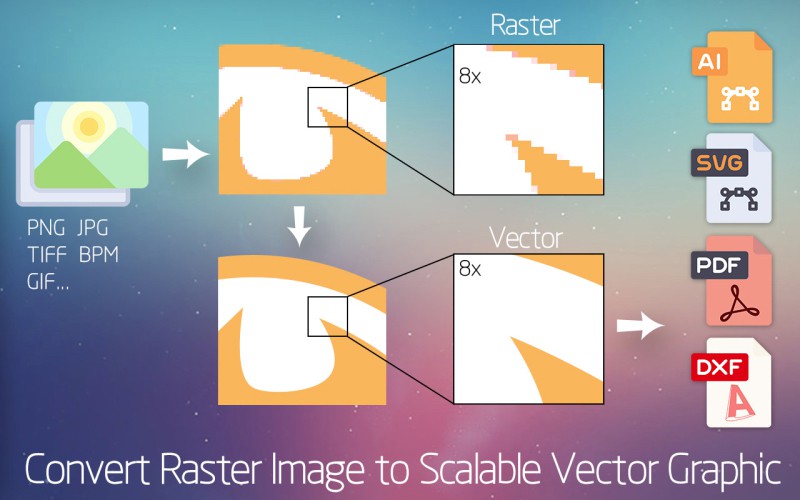
Cricut cutting machines read vector paths for cutting and drawing. Here is why SVG is the format that matters.
SVG paths give clean, sharp cuts every time. No jagged edges from pixel-based sources.
Scale up or down without losing quality. SVG stays sharp at any dimension.
SVG is Cricut Design Space preferred format. Imports as editable layers ready to cut.
Modify and customize after importing. Group colors into separate layers for each mat.

The offline tool built for Cricut crafters who need clean, cuttable SVG files
The offline image to SVG converter for Cricut crafters. Turns any PNG, JPG, BMP image into clean, cuttable SVG files. No subscription, one-time purchase.
| Cricut Model | Max Cut Size | SVG Support | Best For |
|---|---|---|---|
| Cricut Maker 3 | 12 x 24 inches | Yes | All projects, Smart Materials |
| Cricut Explore 3 | 12 x 24 inches | Yes | Vinyl, paper, Smart Materials |
| Cricut Maker | 12 inches wide | Yes | Fabric, leather, balsa wood |
| Cricut Explore Air 2 | 12 inches wide | Yes | Vinyl, iron-on, cardstock |
| Cricut Joy | 4.5 inches wide | Yes | Quick cuts, small projects |

Six steps from raster image to cut-ready SVG file

Get the free trial from svgvector.com. Available for Mac and Windows.
Drag and drop your PNG, JPG, or any image file into Super Vectorizer Pro. Supports photos, logos, clipart, drawings, and more.
Line Mode: For logos, text, and simple shapes. Creates outline-based vectors perfect for vinyl cutting.
Color Mode: For colorful illustrations and photos. Preserves colors as separate layers.
Choose the number of colors (2-64). For simple cuts, use 2-4 colors. For detailed designs, use more colors. Preview in real-time.
Click Export and choose SVG format. The file is ready to upload to Cricut Design Space.
In Design Space, click Upload, Upload Image, Browse. Select your SVG file. It appears as a vector image ready to cut.
Ready to turn your images into cut-ready SVG? Try Super Vectorizer Pro free trial to preview the trace.
Compatible with macOS 10.10+ (M1/M2/M3) & Windows 7/8/10/11
Match the file format to the material and the cut type
Convert any logo, monogram, or illustration to SVG. Cut custom vinyl decals for laptops, water bottles, car windows, and more. Clean vector paths ensure perfect weeding.
Create intricate paper cut designs from any image. Wedding invitations, birthday cards, and scrapbook elements become easy with clean vector cuts.
Convert designs to SVG for iron-on projects. Mirror the design in Cricut Design Space before cutting, then press onto t-shirts, bags, and fabric.
Turn photos and artwork into reusable stencils for painting. Perfect for glass etching, t-shirt painting, and wall art.
Create SVG files for Cricut engraving projects. Works with the Engraving Tip (available for Cricut Maker) to etch metal, leather, and acrylic.

Solutions for the most frequent problems when converting images for Cricut
Cause: Low-resolution source image or too many colors in vectorization.
Solution: Start with a higher quality image. Reduce the color count. Enable smoothing in Super Vectorizer Pro.
Cause: File may contain unsupported elements like embedded images or complex filters.
Solution: Export again from Super Vectorizer Pro. Make sure to select SVG format and not DXF or PDF.
Cause: Paths may be open or shapes may not be properly closed.
Solution: In Super Vectorizer Pro, use Line Mode for simple shapes. Check that all areas you want to cut are filled or outlined.
Cause: Too many anchor points and nodes in the SVG.
Solution: Use the Simplify feature in Super Vectorizer Pro or any vector editor to reduce nodes while maintaining quality.
Everything you need to know about converting images to SVG for Cricut
Cricut Design Space accepts SVG, PNG, JPG, BMP, GIF, and DXF. SVG is the preferred format for cutting because it keeps artwork as editable vector paths, producing the cleanest, most precise cuts without pixelation.
Yes. Cricut Design Space opens PNG files, but PNG is a raster format, so intricate designs can cut with jagged edges. For the best result, convert PNG to SVG with an image vectorizer before importing into Design Space.
Open Super Vectorizer Pro, drag in your JPG, choose Line Mode for simple shapes or Color Mode for multi-color art, set the color count, and export as SVG. Then upload the SVG to Cricut Design Space. The free trial previews the trace; export unlocks after purchase.
SVG is resolution-independent, so it scales to any size with no quality loss. Cricut reads the vector paths directly, keeping cuts sharp. PNG is pixel-based and can look rough when enlarged.
Yes. Super Vectorizer Pro exports standard SVG files compatible with every Cricut machine - Maker, Maker 3, Explore, Explore 3, and Joy - and imports cleanly into Cricut Design Space.
Import the photo into Super Vectorizer Pro, pick Color Mode with 16-32 colors for detailed photos (or 2-4 for bold silhouettes), preview the trace, then export SVG. High-contrast photos produce the best cut files.
No. Cricut machines are blade cutters for vinyl, cardstock, and fabric. For wood, leather, or metal you need a laser cutter - both use SVG files. See our laser cutting SVG guide for that workflow.
A good Cricut converter produces clean, closed vector paths, separates colors into layers, and runs offline for privacy. Super Vectorizer Pro is built for this: it turns PNG, JPG, and scanned art into cut-ready SVG on Mac and Windows.
Start with a PNG that already has a transparent background, or remove the background first. Super Vectorizer Pro traces the visible shape into vector paths; a clean, high-contrast source gives the sharpest cut lines.
That usually means the file was exported as a single merged path or a flattened image. In Super Vectorizer Pro, use Color Mode so each color becomes its own layer, and avoid embedding the source photo inside the SVG.
No. Super Vectorizer Pro runs locally on your Mac or Windows computer, so your images never leave your device. There is no cloud upload and no account required to trace and preview.
Along with SVG, it exports PDF, EPS, AI, and DXF, and supports 70+ input image formats. SVG and DXF are the most common choices for Cricut and other cutting machines.
Super Vectorizer Pro converts PNG, JPG, BMP to clean SVG files that work perfectly with Cricut Design Space
One-time purchase $29.99 - Works offline - macOS & Windows