What Makes TIFF Different From Other Raster Formats?
Before you convert TIFF to SVG, it is helpful to understand what sets TIFF apart from JPEG, PNG, and BMP. These differences directly affect how a vectorization engine interprets the pixel data and, ultimately, the quality of your SVG output.
Lossless Compression: Unlike JPEG, which discards data with every save, TIFF files are typically stored with lossless compression (LZW, ZIP, or uncompressed). This means there are no compression artifacts — no blocky JPEG squares, no ringing along edges. From a vector tracing perspective, this is excellent news: the tracer sees clean, accurate pixel data rather than having to work around compression noise. A TIFF converted to SVG will almost always produce cleaner, more faithful vector paths than a JPEG of the same image.
High Bit Depth: TIFF supports 8-bit, 16-bit, and even 32-bit per channel color depth. A 16-bit TIFF of a photograph contains 65,536 tonal values per color channel, compared to just 256 in an 8-bit JPEG. While this extra precision is valuable for photo editing and archival, it does not directly improve SVG output — SVG uses standard 8-bit sRGB colors. However, the extra bit depth means smoother gradients in the source, which the vector tracer can sample more accurately when it decides where to place color boundaries.
Multi-Page and Multi-Layer Support: TIFF files can contain multiple pages (common in fax documents and scanned multi-page PDFs) and even multiple layers (similar to a PSD file). When you convert TIFF to SVG, you must decide whether to process all pages, a single page, or flatten layers into one composite image. Most vectorization tools treat each TIFF page or layer as a separate conversion task.
Alpha Channels and Transparency: TIFF supports alpha channels for transparency, just like PNG. This is useful when converting logos or product photos that have been masked to a transparent background — the tracer can isolate the subject cleanly without needing to distinguish it from a solid-color background.
| TIFF Feature | Impact on SVG Conversion |
|---|---|
| Lossless compression (LZW/ZIP) | Clean source data → cleaner vectors. No artifact cleanup needed. |
| 16-bit color depth | Smoother gradient sampling; tracer can pick better color boundaries. |
| Multi-page | Must select or batch-process individual pages separately. |
| Alpha channel support | Clean subject isolation; no background removal needed before tracing. |
| Large file sizes (100 MB+) | May exceed online converter upload limits; desktop tools handle this fine. |
| CMYK color space | Must convert to RGB before vectorization; SVG does not support CMYK. |
Convert Your Images to SVG Today
Download Super Vectorizer Pro — free trial to preview results. Mac & Windows.
Compatible with macOS 10.10+ (M1/M2/M3) & Windows 7/8/10/11
How to Convert TIFF to SVG: Step-by-Step Workflow
The process to convert TIFF to SVG is similar to converting any raster format, but with a few TIFF-specific preparation steps that significantly improve results. Here is a comprehensive workflow using Super Vectorizer Pro, which handles TIFF natively on both Mac and Windows:
- Check and prepare your TIFF file. Before importing, verify your TIFF is in an RGB color space — CMYK TIFFs need to be converted first, as SVG does not support CMYK. If the TIFF contains multiple pages, extract the specific page you want to convert (use Preview on Mac or IrfanView on Windows). If the TIFF has an embedded alpha channel for transparency, keep it — the transparency information helps the tracer separate the subject from the background. For 16-bit TIFFs, you may optionally downsample to 8-bit to reduce processing time; the visual difference in the final SVG is negligible.
- Import the TIFF into Super Vectorizer Pro. Drag and drop the TIFF file into the application window. Super Vectorizer Pro reads TIFF files natively, including LZW and ZIP compressed variants. The high-resolution preview will show the full image, and you can zoom in to inspect fine details that you want to preserve in the vector output.
- Select the appropriate vectorization mode. The mode you choose depends on the TIFF content. For scanned maps, architectural drawings, or line art stored as TIFF, use Edge Detection mode — it traces clean outlines from high-contrast boundaries. For logos, illustrations, and graphics with flat colors, use Color Reduction with the number of colors matching the original design palette. For photographic TIFFs (common in archival and fine-art contexts), use Photo Mode with 16-32 colors for a stylized vector result.
- Adjust detail and smoothness for TIFF-specific characteristics. Because TIFF files have no compression artifacts, you can use a tighter detail setting than you would with a JPEG — the tracer does not need to "look past" noise. Set the Smoothness slider conservatively (lower values) to preserve the sharp edges and fine details that lossless TIFF compression retains. If the TIFF is a scanned document with slight paper texture, increase smoothness slightly to prevent the tracer from converting the paper grain into thousands of tiny vector shapes.
- Vectorize and review. Click Vectorize to generate the preview. Compare the vector overlay against the original TIFF, paying special attention to thin lines, small text, and subtle color transitions. Because the source is lossless, the vector output should be noticeably cleaner than what you would get from a JPEG of the same image — edges should be crisp and color boundaries should align naturally with the pixel data.
- Export as SVG and optimize. Save the result as SVG. If the file size is larger than expected (common with high-resolution TIFFs that produce many vector paths), run it through an SVG compressor online to reduce the size by 50-80% without visible quality loss. The compressor simplifies redundant nodes and strips unnecessary metadata that some TIFF-to-SVG converters add.
Online vs. Desktop Tools for TIFF to SVG Conversion
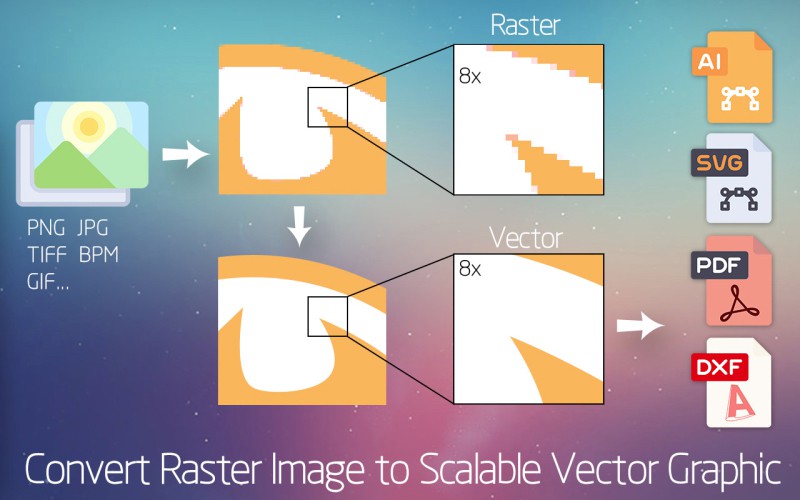
TIFF files present a unique challenge for online converters. TIFF files are often large — a single high-resolution scan can easily exceed 100 MB. Most online tools cap uploads at 5-25 MB, which rules out many TIFF conversions entirely. Here is how the options compare:
Desktop TIFF to SVG Software
Desktop applications like Super Vectorizer Pro are the superior choice for converting TIFF to SVG for several reasons. First, there are no file size limits — you can process 500 MB archival TIFF scans without issue. Second, the vector tracing runs on your local CPU (and GPU if hardware-accelerated), which is significantly faster than uploading a large file, waiting for server-side processing, and downloading the result. Third, you get full control over the vectorization parameters: number of colors, edge detection sensitivity, smoothing level, and output format. For professional work where TIFF is the norm — publishing, archiving, GIS, medical imaging — desktop software is the only practical option.
Online TIFF to SVG Converters
For small TIFF files under 10 MB, online converters can work in a pinch. The free online tools at SVGVector.com include a browser-based raster-to-vector converter that processes TIFF files locally in your browser — no upload needed, which addresses the privacy and size concerns of server-side online converters. Other options like Convertio.co and OnlineConvert.com support TIFF input but produce variable-quality SVG output depending on the tracing algorithm used. The key limitation is that most online tools use a simplified, one-size-fits-all tracing approach — you cannot adjust parameters to handle the specific characteristics of your TIFF.
TIFF to SVG Conversion for Specific Industries
Archival and Cultural Heritage Digitization
Libraries, museums, and archives store master copies of scanned manuscripts, maps, and photographs as TIFF files because the format preserves every pixel exactly as captured. When these institutions want to make their collections available as interactive zoomable images on the web, they often need to convert TIFF to SVG for map overlays, manuscript annotations, or vector-searchable documents. The key consideration here is color fidelity: the vector output must preserve the exact hues of the original scan. Using a desktop tool with full-color vectorization and careful color sampling ensures the resulting SVG faithfully represents the archived material.
GIS and Cartography
Geographic Information Systems commonly export map layers as GeoTIFF files — TIFF images with embedded geographic metadata. When GIS professionals need to overlay these raster layers on web maps (using libraries like Leaflet or Mapbox), converting selected map elements to SVG enables smooth zooming without pixelation. The vector output can also be styled with CSS, making it interactive. For this use case, the Edge Detection mode in Super Vectorizer Pro is particularly effective at tracing road networks, building footprints, and contour lines from scanned or rendered map TIFFs.
Print and Prepress
Commercial printers often receive client artwork as TIFF files — especially for large-format printing where JPEG compression artifacts would be visible at billboard scale. Converting these TIFFs to SVG allows the print shop to scale the artwork to any size without quality loss and to make precise color separations for different printing processes. The vector format also integrates more naturally with industry-standard prepress software like Adobe Illustrator and Esko.
Common TIFF to SVG Conversion Issues and How to Fix Them
SVG Output Is Too Large
Because TIFF files are lossless and often high-resolution, the vector tracer can generate an enormous number of paths — especially on photographic images. A 600 DPI scanned TIFF converted to Photo Mode may produce an SVG that is 50 MB or larger. To fix this: (1) reduce the number of colors in the trace to 8-16, (2) increase the smoothing level, (3) run the output through an SVG compressor to remove redundant nodes, and (4) consider whether the image actually needs to be vector — some high-detail photographs are better served as optimized raster images.
CMYK TIFF Produces Wrong Colors in SVG
SVG does not support the CMYK color space. If you convert a CMYK TIFF directly to SVG, the colors will appear washed out or shifted. Solution: convert the TIFF from CMYK to sRGB before vectorization. On Mac, open the TIFF in Preview and export as PNG (which implicitly converts to RGB), then trace that. On Windows, use a tool like IrfanView or GIMP to perform the CMYK-to-RGB conversion. Super Vectorizer Pro handles this automatically by converting CMYK input to sRGB internally.
Multi-Page TIFF Only Converts the First Page
Most raster-to-vector tools only process the first page of a multi-page TIFF. If you need to convert all pages, split the TIFF into individual single-page files first. On Mac, Preview can export each page as a separate image. On the command line, ImageMagick's convert tool can split a multi-page TIFF: convert multi-page.tiff page-%d.tiff. Then process each single-page TIFF through Super Vectorizer Pro one at a time.
Frequently Asked Questions
Can I convert TIFF to SVG for free?
Yes, you can convert TIFF to SVG for free using several methods. Our browser-based free online tools include a raster-to-vector converter that handles TIFF files locally in your browser — no upload to any server, and no file size cap. For command-line users, the open-source tools Potrace and AutoTrace can convert TIFF to SVG when combined with ImageMagick for preprocessing. However, free tools typically offer limited control over vectorization parameters. For professional use where you need to adjust color count, edge sensitivity, and smoothness, a desktop application like Super Vectorizer Pro provides a free trial to preview results.
What is the best software to convert TIFF to SVG on Mac?
For macOS users, Super Vectorizer Pro is the best all-around TIFF to SVG converter. It reads TIFF files natively (including LZW and ZIP compression), supports 16-bit and 32-bit source files, handles CMYK-to-RGB conversion automatically, and runs natively on both Intel and Apple Silicon Macs. The application offers six vectorization modes tailored to different content types, and the side-by-side preview lets you compare the vector output against the original TIFF in real time. You can open each file quickly and preview the result — useful when processing a directory of archived TIFF scans one at a time.
Does converting TIFF to SVG preserve the high bit depth?
No. The SVG format uses standard 8-bit sRGB color values (expressed as hex codes like #FF6B35 or rgb() functions). A 16-bit TIFF will be downsampled to 8-bit during the conversion process. However, the extra precision of the 16-bit source is not wasted — it gives the vector tracer more accurate data when deciding where to place color boundaries, resulting in smoother gradients and more faithful color transitions in the final SVG. The visual quality of the output is determined by the tracer's algorithm, not by the color depth of the SVG itself.
Why does my TIFF to SVG conversion take so long?
TIFF files are often much larger than JPEG or PNG files of the same image — a 300 DPI scan of an 8.5×11 inch document produces a 25 MB TIFF, while the JPEG equivalent might be only 2 MB. This larger pixel dataset takes longer for the vector tracer to analyze. Additionally, the lack of compression artifacts means the tracer has more "real" edge data to process — it is doing more work because the source is cleaner. If speed is critical, you can downsample the TIFF to a lower resolution before conversion (e.g., from 600 DPI to 300 DPI), which dramatically reduces processing time with minimal impact on vector quality for most use cases.
Convert Your Images to SVG Today
Download Super Vectorizer Pro — free trial to preview results. Mac & Windows.
Compatible with macOS 10.10+ (M1/M2/M3) & Windows 7/8/10/11
Converting TIFF to SVG is a powerful way to turn archival-quality raster images into scalable, web-ready vector graphics. TIFF's lossless nature gives you a cleaner starting point than JPEG or PNG — no compression artifacts to confuse the tracer, more accurate color data, and support for transparency. The trade-off is file size: TIFFs are large, which makes desktop software the practical choice for most conversions. Whether you are a GIS professional vectorizing map layers, an archivist digitizing historical documents, or a designer converting client logos from scanned TIFFs, the right TIFF to SVG converter makes the process straightforward. Start with Super Vectorizer Pro for Mac (it handles TIFFs natively) or explore our free online tools for quick, privacy-respecting conversions right in your browser.