The Best EPS to SVG Converter: How to Convert EPS Files to SVG on Mac & Windows
If you work with vector graphics, you've almost certainly encountered EPS files. Encapsulated PostScript (EPS) has been a staple format for decades — it's used extensively in professional design, print publishing, and older illustration software like Adobe Illustrator and CorelDRAW. But here's the problem: most modern web browsers, design tools, and applications no longer support EPS natively. SVG (Scalable Vector Graphics) has become the standard vector format for the web, and many designers now need a reliable EPS to SVG converter to bring their legacy vector assets into the modern workflow. In this guide, we'll show you exactly how to convert EPS to SVG on Mac and Windows, compare the best tools available, and share expert tips for preserving vector quality throughout the conversion process.
Why Convert EPS to SVG?
EPS was introduced by Adobe in the late 1980s and served as the backbone of professional vector graphics for over 30 years. It supports both vector and raster data, is widely compatible with desktop publishing software, and remains a standard exchange format in the print industry. However, EPS has several critical limitations in today's digital landscape:
- No native browser support — you cannot display an EPS file in Chrome, Safari, Firefox, or Edge without a plugin or conversion
- Limited mobile compatibility — iOS and Android devices cannot render EPS files directly
- Large file sizes — EPS files often contain embedded raster previews and PostScript code that significantly inflates file size
- No CSS or JavaScript interaction — unlike SVG, EPS cannot be styled, animated, or scripted for the web
- Declining software support — newer versions of Adobe software have been phasing out EPS support in favor of more modern formats
SVG, by contrast, is an open standard defined by the W3C. It's supported by every modern browser, can be styled with CSS, animated with JavaScript, compressed with gzip, and indexed by search engines. Converting EPS to SVG gives you a lightweight, web-ready vector file that retains all the scalability of vector graphics while dramatically improving compatibility. If you're using Super Vectorizer Pro on Mac or Windows, the conversion process takes just seconds.
Convert Your Images to SVG Today
Download Super Vectorizer Pro — free trial to preview results. Mac & Windows.
Compatible with macOS 10.10+ (M1/M2/M3) & Windows 7/8/10/11
Understanding EPS and SVG: Key Format Differences
Before diving into the how-to, it helps to understand what happens during an EPS to SVG conversion. EPS is built on PostScript — a page description language designed for printers. SVG is built on XML — a markup language designed for the web. When you convert EPS to SVG, the converter must translate PostScript vector commands (paths, curves, fills, strokes) into their XML equivalents. This translation is not always one-to-one, and the quality of the output depends heavily on the converter you choose.
Here are the key structural differences between EPS and SVG that affect conversion quality:
- Color spaces — EPS supports CMYK, RGB, spot colors, and grayscale; SVG primarily uses RGB with hex or rgba() values. CMYK-to-RGB conversion can cause subtle color shifts if not handled properly.
- Font handling — EPS can embed fonts or reference system fonts; SVG uses web fonts or converts text to outlines. EPS files with embedded PostScript fonts often need text-to-outline conversion before converting to SVG.
- Transparency support — EPS transparency is limited and often relies on clipping paths; SVG has native alpha transparency that works consistently across all rendering engines.
- Metadata structure — EPS uses DSC (Document Structuring Conventions) comments; SVG uses XML attributes and elements. Metadata such as author, title, and creation date typically transfers cleanly.
Understanding these differences helps you anticipate where quality issues might arise and how to address them. A good EPS to SVG converter handles these format translations automatically, preserving your artwork's fidelity with minimal manual adjustment.
Best EPS to SVG Converter Tools in 2026
Not all converters handle EPS input equally well. Some tools are designed specifically for raster-to-vector conversion and struggle with EPS files that contain both vector and embedded raster data. After testing multiple options, here are the top EPS to SVG converter tools for Mac and Windows:
1. Super Vectorizer Pro (Mac & Windows) — Best Overall EPS to SVG Converter
Super Vectorizer Pro is our top recommendation for converting EPS to SVG. While it's best known as a PNG to SVG converter, it also handles EPS input smoothly. It reads legacy EPS files and produces clean, well-structured SVG output with optimized paths and minimal code bloat. It processes one EPS file at a time — ideal when you want to preview and refine each conversion before exporting.
2. Adobe Illustrator (Mac & Windows)
Illustrator is EPS's native home. Opening an EPS file and using "Save As" or "Export As" to SVG gives excellent results — but only if you have an active Creative Cloud subscription ($22.99/month). For occasional users, this is hard to justify compared to one-time purchase alternatives.
3. Inkscape (Mac, Windows & Linux)
Inkscape is a free, open-source vector editor that can open EPS files via Ghostscript and export to SVG. The conversion quality is solid, but the Ghostscript dependency adds friction: you need to install Ghostscript separately and configure Inkscape's path settings. On macOS, the process can be particularly cumbersome due to sandboxing restrictions.
4. CloudConvert (Online)
CloudConvert is a browser-based EPS to SVG converter that works on any platform. Upload your EPS file, select SVG as the output format, and download the result. The free tier limits file size to 25MB, and conversion quality varies depending on the original EPS file's complexity. For sensitive design files, offline desktop tools offer better privacy and consistency.
How to Convert EPS to SVG on Mac — Step by Step
Here's a complete walkthrough for converting EPS files to SVG on macOS using Super Vectorizer Pro. The same steps apply to Windows with minor interface differences.
- Launch Super Vectorizer Pro — Download and install the app from the PNG to SVG converter for Mac page. The free trial lets you preview vectorization results for your EPS files.
- Open your EPS file — Drag and drop your EPS file onto the application window, or use File > Open to browse for it. Super Vectorizer Pro will automatically detect the EPS format and prepare it for vector conversion.
- Choose your vectorization mode — If the EPS contains bitmap/raster data, select the appropriate tracing mode: "Edge" for logos and line art, "Color" for illustrations, or "Grayscale" for black-and-white artwork. For purely vector EPS files, the app preserves existing paths wherever possible.
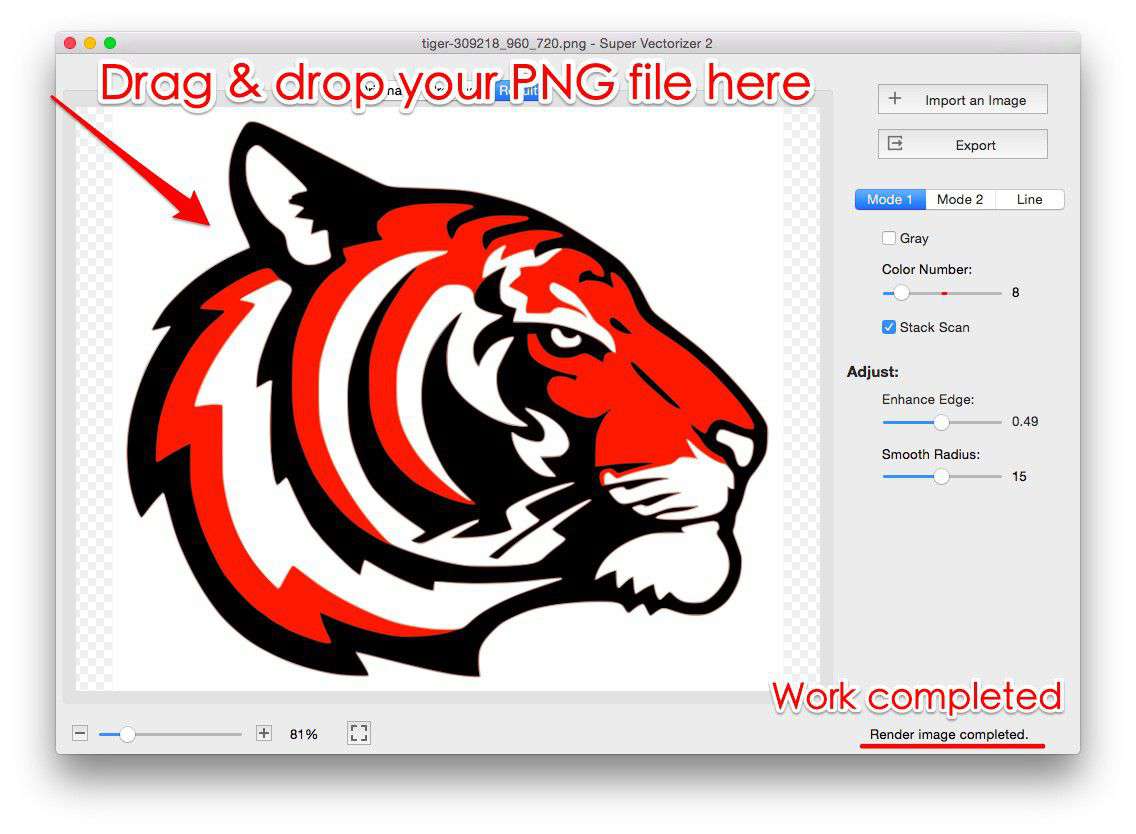
- Preview and adjust — Use the split-pane preview to compare your original EPS with the SVG output. Adjust the number of colors, path smoothness, and noise reduction sliders to fine-tune the result.
- Export as SVG — Click the Export button and select SVG as the output format. Choose "SVG (Plain)" for maximum web compatibility or "SVG (Compressed)" for reduced file size with gzip compression.
How to Convert EPS to SVG Online (Free Methods)
If you're working on a device where you can't install software, or you only need to convert a few EPS files, online converters offer a quick solution. Here are three reliable options:
- CloudConvert — Supports 200+ formats including EPS to SVG. Upload, convert, download. The free tier processes files up to 25MB with reasonable conversion speed.
- Convertio — Another browser-based converter with EPS to SVG support. The free plan allows files up to 100MB but limits you to 10 minutes of conversion time per day.
- Zamzar — A long-standing conversion service. Zamzar sends the converted file to your email, which is convenient for large files but adds a slight delay. Free tier supports files up to 50MB.
After converting with an online tool, we recommend running the resulting SVG through SVG compressor online to strip unnecessary metadata, comments, and editor-specific attributes that online converters often leave behind. This can reduce your SVG file size by 30-60% without affecting visual quality. For maximum quality control, desktop tools like Super Vectorizer Pro remain a good choice, though they process one file at a time.
Common EPS to SVG Conversion Problems and How to Fix Them
Even with the best EPS to SVG converter, you might encounter issues with certain EPS files. Here are the most common problems and their solutions:
Missing Fonts
Problem: The converted SVG displays text as boxes or uses a fallback font that doesn't match the original.
Solution: Before converting, open the EPS file in Illustrator or Inkscape and convert all text to outlines (Type > Create Outlines). This bakes the text shapes into vector paths that transfer perfectly to SVG. If you don't have access to the original EPS editor, use Super Vectorizer Pro's text detection mode, which attempts to preserve text as clean outlines.
Color Shifts
Problem: Colors in the SVG output appear slightly different from the original EPS, especially with CMYK files.
Solution: EPS files designed for print typically use CMYK color space; SVG uses RGB. During conversion, CMYK values get converted to their nearest RGB equivalents. To minimize shifts, convert your EPS to RGB color space before exporting to SVG. Super Vectorizer Pro handles this automatically with its color management system.
Bloated File Size
Problem: The SVG is significantly larger than expected — sometimes even larger than the original EPS.
Solution: Use the SVG Compressor Online tool to compress your SVG after conversion. It removes redundant path data, merges duplicate styles, and strips unnecessary metadata. For complex illustrations, you can shrink SVG files by 50-80% without visible quality loss. Learn more on our free online tools page.
Missing Layers or Elements
Problem: Some objects, layers, or effects from the EPS don't appear in the SVG output.
Solution: This usually happens with EPS files that use PostScript-specific features like complex clipping masks, non-standard blend modes, or printer-specific operators. Try flattening layers and simplifying the artwork before conversion. If preserving layers is critical, export each layer as a separate EPS and convert them individually.
Batch Converting EPS Files to SVG
If you're migrating a large asset library — say, hundreds of logo variations or icon sets stored as EPS — batch conversion is essential. Doing them one by one is simply not practical. Here's how to batch convert EPS to SVG efficiently:
- Super Vectorizer Pro — Open the app, import your EPS file, set SVG as the output format, and click Start. The app processes the file and saves the resulting SVG to your chosen output directory. Repeat for each file.
- Adobe Illustrator — Use File > Scripts to run a batch action that opens each EPS and saves it as SVG. Requires some scripting knowledge but works well for large batches if you already have a Creative Cloud subscription.
After batch conversion, we recommend running all the output SVGs through an SVG optimizer to standardize formatting and remove bloat. This ensures consistent file size and structure across your entire converted library.
FAQs About EPS to SVG Conversion
Can I convert EPS to SVG without losing quality?
Yes, if the EPS file is purely vector-based (no embedded raster images), the conversion to SVG is essentially lossless. Vector paths, curves, and shapes translate directly between the two formats. Quality loss only occurs when the EPS contains embedded raster images or uses PostScript features that have no direct SVG equivalent — in which case a good EPS to SVG converter like Super Vectorizer Pro will trace those elements to approximate vectors with minimal quality degradation.
Is there a free EPS to SVG converter?
Yes. Inkscape (with Ghostscript installed) is a completely free, open-source EPS to SVG converter. Online tools like CloudConvert and Convertio also offer free tiers. However, free converters often have limitations: Inkscape's Ghostscript dependency can be tricky to set up, and online tools have file size limits and require uploading your files to third-party servers. For professional work where quality and privacy matter, a one-time purchase of a desktop converter is usually worth the investment.
Does SVG support all EPS features?
No. SVG and EPS target different ecosystems — SVG is for the web, EPS is for print. EPS-specific features like spot color separations, overprint settings, and certain PostScript operators have no equivalent in SVG. When designing new artwork, it's best to author directly in a modern vector format like SVG or AI. When converting legacy EPS files, you may need to simplify or manually adjust complex elements after conversion.
What's the best EPS to SVG converter on Mac?
For Mac users, Super Vectorizer Pro offers the best balance of conversion quality, ease of use, and price. It's a native macOS app optimized for Apple Silicon (M1/M2/M3), processes one file at a time, and preserves vector fidelity during EPS to SVG conversion. The free trial lets you test it with your own EPS files before purchasing.
Convert Your EPS Files to SVG Today
Download Super Vectorizer Pro — free trial to preview results. Handles EPS, AI, PDF, PNG, JPG, and more. Mac & Windows.
Compatible with macOS 10.10+ (M1/M2/M3) & Windows 7/8/10/11
Converting EPS files to SVG doesn't have to be complicated. With the right EPS to SVG converter, you can bring decades of vector artwork into a modern, web-ready format in just a few clicks. Whether you're migrating a logo library, updating print assets for digital use, or simply archiving old design files, SVG gives you the compatibility, flexibility, and performance that EPS can no longer provide. For desktop users who value quality and privacy, Super Vectorizer Pro for Mac offers a straightforward, reliable conversion workflow. For quick one-off conversions, check out our free online tools — and don't forget to optimize your output SVGs with the built-in SVG compressor to keep file sizes lean.