
Why Convert JPG to SVG?
JPEG is the most common image format on the web, but it has fundamental limitations. JPG files use lossy compression: every time you save or edit a JPEG, some image data is discarded. The format also has a fixed resolution — a 1000×1000 pixel JPG looks sharp at 100% size but becomes a mess of blocky artifacts when scaled to 200% or beyond. SVG (Scalable Vector Graphics) eliminates both problems. An SVG file describes shapes as mathematical curves and polygons rather than as a grid of colored squares, which means it can be displayed at any size on any screen and always look razor-sharp.
The practical use cases for a jpg to svg converter are numerous. Graphic designers convert client logos received as JPEG attachments into editable vector format for business cards, billboards, and merchandise. Web developers convert raster icons and illustrations to SVG for faster page loads and crisp rendering on Retina displays. Crafters and hobbyists convert JPEG designs into SVG files compatible with cutting machines like Cricut and Silhouette. Laser engravers need vector outlines from scanned artwork. In all these scenarios, the core transformation — raster to vector — is what makes the JPEG source useful.
Unlike simple format wrappers that just embed raster data inside an SVG container, a proper conversion performs vector tracing: the software analyzes the pixel data, detects edges and color boundaries, and constructs clean Bezier curves and filled regions. The quality of this tracing is what separates a usable SVG from a messy one. This is where tools like Super Vectorizer Pro excel, offering advanced algorithms that preserve detail while keeping the path count manageable.
Convert Your Images to SVG Today
Download Super Vectorizer Pro — free trial to preview results. Mac & Windows.
Compatible with macOS 10.10+ (M1/M2/M3) & Windows 7/8/10/11
Desktop vs. Online JPG to SVG Converters in 2026: Which Should You Use?
Before you start converting, it is worth understanding the trade-offs between the two main categories of JPG to SVG converter tools. Your choice depends on file sensitivity, quality requirements, and how often you do conversions.
| Feature | Desktop JPG to SVG Converter | Online JPG to SVG Converter |
|---|---|---|
| Processing | Local CPU; no file upload needed | Uploads to remote server for processing |
| Privacy | Files stay on your computer | Files transmitted to third-party servers |
| Output Quality | Full algorithmic control; high-fidelity | Varies widely; often simplified tracing |
| Batch Conversion | Yes; process hundreds at once | Usually one file at a time |
| File Size Limit | No artificial limits | Often capped at 5-25 MB |
| Cost | One-time purchase or free trial | Free tier with constraints |
| Learning Curve | Moderate; more settings available | Low; usually drag-and-drop only |
| Color Mode Control | Full: grayscale, indexed, full color | Limited; often auto-detected only |
How to Convert JPG to SVG with Super Vectorizer Pro (Step by Step)
Super Vectorizer Pro is a dedicated PNG to SVG converter for Mac that also handles JPEG input with the same high-quality vector tracing engine. Available for both macOS and Windows, it supports JPG, PNG, BMP, GIF, TIFF, and more. Here is the complete workflow:
- Import your JPEG file. Launch Super Vectorizer Pro and drag your JPG image into the window, or use File → Open. The software automatically loads the image into the preview area. You can zoom and pan to inspect areas of the image that need particular attention during vectorization.
- Choose a vectorization mode. This is the most critical step. Super Vectorizer Pro offers several modes: Edge Detection for line art and sketches, Color Reduction for logos with flat colors, Grayscale for black-and-white images, and Photo Mode for photographic images. For most JPG photos, Photo Mode with 16-32 colors produces the best balance of detail and file size.
- Adjust the detection settings. Use the Detail slider to control how many paths the tracer generates. Higher values capture more nuance but increase file size and path count. The Smoothness slider reduces noise and jagged edges. Experiment with the preview to find the sweet spot — you should see clean curves without losing important features.
- Preview and refine. Click Vectorize to generate a preview overlay. The original raster appears on the left and the vector result on the right. Toggle between them to verify that key details — text, facial features, thin lines — are preserved. If not, adjust the settings and re-vectorize.
- Export as SVG. Click Save and choose SVG as the output format. Super Vectorizer Pro writes clean, standards-compliant SVG code that opens correctly in Illustrator, Inkscape, Figma, and web browsers. You can also export to PDF, EPS, DXF, and AI if needed.
Free Online JPG to SVG Converters: Quick Options for One-Off Tasks
If you only need to convert a JPG to SVG occasionally and the image is not sensitive, several free online tools can do the job. Here is a quick overview of the most popular ones and their real-world performance:
- SVGvector.com Free Online Tools — Our own free online tools include an image-to-SVG converter that processes locally in your browser. No file upload means your data stays private, and the vector tracing engine produces clean output for simple graphics and logos. This is the best option for privacy-conscious users.
- Vectorizer.io — A web-based auto-tracer with decent results on photographs and illustrations. The free version adds a watermark; paid plans remove it. Good for quick tests but not ideal for frequent use.
- Autotracer.org — A no-frills online tracer powered by Potrace and AutoTrace. It works best on high-contrast images and produces solid results for logos and simple graphics. Supports up to 6 MB uploads.
- Convertio.co — A general-purpose file converter that includes JPG to SVG. The tracing quality is basic and tends to produce more nodes than necessary. Free tier limits to 100 MB per file.
The main limitation of online tools is that they typically offer a simplified, one-size-fits-all vectorization pipeline. You cannot fine-tune the number of colors, smooth curves independently, or choose different algorithms for different parts of the image. For professional work, a desktop JPG to SVG converter gives you the control you need.
Key Factors That Affect JPG to SVG Conversion Quality
Not all JPEG files convert equally well to SVG. Understanding these factors will help you get better results with any jpg to svg converter:
Source Resolution: A 3000×2000 JPG contains vastly more pixel data than a 600×400 one. The vector tracer has more edge information to work with, resulting in cleaner paths. Whenever possible, start with the highest resolution JPEG available. Avoid upscaling before conversion — this just adds interpolated pixels that confuse the tracer.
Compression Artifacts: Highly compressed JPEGs have blocky artifacts and ringing around edges. These noise patterns get traced as real shapes, producing messy SVGs. If your source JPEG is heavily compressed, consider applying a slight Gaussian blur (1-2 px) before vectorization to smooth out the blocking artifacts. The tracer will then detect cleaner edges.
Color Complexity: A photograph of a sunset on a beach contains thousands of subtle color gradients. Converting this to SVG with a full-color trace will produce an enormous file with tens of thousands of tiny triangles. For photographic images, consider using Photo Mode with 16-32 color levels, or accept that some images are better left as raster formats. Logos, icons, illustrations, and line art are the ideal candidates for vectorization.
Background vs. Subject: JPEGs with clean, uniform backgrounds (white, black, or transparent-ish) produce much better SVGs because the tracer can cleanly separate the subject from the background. Busy backgrounds with gradients or textures cause the tracer to generate excessive paths around the edges. Removing or simplifying the background before conversion dramatically improves results.
JPG to SVG for Specific Use Cases
Converting a Logo from JPG to SVG
This is the most common use case for a JPG to SVG converter. Companies receive their logo as a JPEG from a client or an old archive and need it in vector format for print materials. Use the Color Reduction mode with 4-8 colors to match the logo's palette. Enable the Line Straightening option if available to ensure text and geometric shapes stay crisp. After conversion, open the SVG in a vector editor like Illustrator or Inkscape and manually clean up any awkward curves around text characters.
Converting a Photograph to SVG for Vector Art
Turning a photo into stylized vector art is popular for posters, T-shirt designs, and social media graphics. Use Photo Mode with 16-32 colors and lower the detail level slightly to create a posterized, artistic look. The resulting SVG can be further stylized in a vector editor by simplifying paths and applying uniform stroke styles. This technique produces a look similar to the "vector art effect" popular on platforms like Dribbble and Behance.
Converting Scanned Line Art or Sketches to SVG
Artists who work on paper can scan their drawings as JPEG and convert them to SVG using the Edge Detection or Grayscale mode. This produces a clean vector outline that can be scaled, colored, and edited. Adjust the threshold to determine which gray levels become the boundary between ink and paper. A higher threshold includes more of the drawing as vector data; a lower threshold captures only the darkest strokes.
Reducing SVG File Size After Conversion
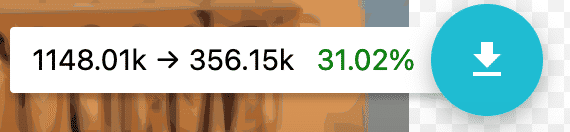
A common complaint after converting JPG to SVG is that the output file is too large. This happens because the tracer generates more path data than necessary. You can reduce the SVG file size by 50-80% using an SVG compressor online tool like SVG Mini. This removes redundant nodes, simplifies curves within a tolerance you specify, and strips unnecessary metadata and comments. For best results, compress the SVG immediately after conversion before importing it into your design tool of choice.
Frequently Asked Questions
Can I convert JPG to SVG for free?
Yes, there are free JPG to SVG converter options available. Our free online tools include a browser-based image-to-SVG converter that processes files locally without uploading them to a server. For occasional use, online tools like Vectorizer.io and Autotracer.org also work. However, free tools typically have limitations on file size, output quality, and the number of files you can process. For regular use or professional-quality output, a desktop application like Super Vectorizer Pro is more cost-effective in the long run because it handles unlimited conversions with full quality control.
What is the best JPG to SVG converter for Mac?
For macOS users, Super Vectorizer Pro is the best JPG to SVG converter available. It runs natively on both Intel and Apple Silicon (M1/M2/M3/M4) Macs, processes one JPEG file at a time with a fast preview, and offers six vectorization modes tailored to different image types. Unlike many alternatives, it preserves the original JPEG as a reference layer while you adjust settings, making it easy to compare the vector output against the source. The software also exports directly to SVG, PDF, EPS, DXF, and AI formats — useful if you need multiple vector formats from a single conversion.
Does converting JPG to SVG lose quality?
The vector tracing process is inherently lossy — it approximates the pixel data with mathematical curves. However, a good jpg to svg converter preserves the visual appearance of the original while making the image infinitely scalable. The "quality loss" is not like JPEG compression artifacts; rather, it is a simplification of complex pixel data into clean vector shapes. For logos, icons, and illustrations, the result often looks better than the original because the edges become perfectly sharp at any size. For photographs, some detail is necessarily simplified, but the trade-off is that the image can now be scaled to billboard size without pixelation.
Why is my converted SVG file so large?
A large SVG after JPG conversion is usually caused by one of three things: (1) the tracing detail level was set too high, generating thousands of tiny shapes to approximate subtle color gradients; (2) the source JPEG had a noisy or textured background that the tracer attempted to capture; or (3) the trace mode was inappropriate for the image type — for example, using full-color photo mode on a simple logo. To fix this, reduce the number of colors to 8-16 for logos, increase the smoothing level, remove the background before tracing, and run the output through an SVG compressor to strip redundant path data.
Convert Your Images to SVG Today
Download Super Vectorizer Pro — free trial to preview results. Mac & Windows.
Compatible with macOS 10.10+ (M1/M2/M3) & Windows 7/8/10/11
Finding the right JPG to SVG converter comes down to your specific needs: frequency of use, output quality requirements, and whether you work on Mac or Windows. For professional designers, crafters, and developers who need reliable, high-quality vector output, a dedicated desktop application like Super Vectorizer Pro delivers consistent results with full control over every aspect of the conversion. For occasional, non-sensitive conversions, our free online tools provide a fast, privacy-respecting alternative. Whichever route you choose, the key to great results is starting with a high-quality JPEG, selecting the right vectorization mode for your content type, and fine-tuning the output with compression and path cleanup. Try the PNG to SVG converter for Mac — it handles JPEG input just as well and comes with a free trial.
JPG → SVG: Format-Specific Conversion Notes
- JPEG's lossy compression leaves blocky artifacts; the tracer reads them as noise, so a light Filter speckles bump cleans edges.
- Flattened JPGs lose transparency — if your source had a white background, the SVG keeps it; re-shoot on transparent if you need cutouts.
- Photo preset for photographs, Poster for graphics; preview both to pick the cleaner path set.
- The resulting SVG scales to print resolution without the blur you'd get enlarging the original JPG.
Related SVG Workflows
- ›Online Image Vectorizer — Trace raster images in your browser.
- ›PNG to SVG AI — Auto-trace PNGs with smart presets.
- ›AI Image to SVG — Turn AI outputs into scalable SVG.
- ›Best PNG to SVG Converters — Compare the top PNG-to-SVG tools.
- ›Clipart to SVG — Vectorize illustrations cleanly.
- ›SVG Compressor — Shrink SVG files without quality loss.