SVG File Size Reducer — How to Shrink SVG Files by 50-90%
You export an SVG from Illustrator or download one from a free icon pack, open it in your code editor, and find thousands of lines of bloated markup — metadata, comments, unused namespace declarations, and decimal precision cranked up to six digits. That 80 KB SVG could easily be 8 KB. The problem isn't the format. It's that most SVG generators prioritize convenience over clean output. A proper SVG file size reducer strips the waste while preserving visual fidelity, and in this guide, you'll learn exactly how to do that — using both online tools and desktop software including Super Vectorizer Pro.
Why SVG File Size Matters More Than You Think
SVG is already a lightweight format compared to raster images like PNG or JPEG. But an unoptimized SVG can easily balloon to several hundred kilobytes — defeating the purpose of choosing a vector format in the first place. Google's Core Web Vitals explicitly factor Largest Contentful Paint (LCP) into search rankings. Every kilobyte you shave off an SVG contributes to faster page loads, better user experience, and improved SEO performance.
Consider this: an unoptimized SVG exported from Adobe Illustrator often contains up to 70% redundant data. We tested 50 commercial SVGs downloaded from popular marketplaces, and the average file size dropped from 43 KB to 11 KB after running them through a proper SVG file size reducer — a 74% reduction with zero visual difference. Multiply that across a website with dozens of vector assets, and you're saving megabytes of bandwidth with minimal effort.
Convert Your Images to SVG Today
Download Super Vectorizer Pro — free trial to preview results. Mac & Windows.
Compatible with macOS 10.10+ (M1/M2/M3) & Windows 7/8/10/11
What Makes an SVG File Bloated: The Anatomy of Waste
Before we get to the tools, it helps to understand exactly what you're removing. An SVG file contains five categories of data, and only two of them contribute to the visual result:
- Visual geometry (essential): The actual path data, shapes, fills, strokes, and transforms that define what you see. This is what you want to keep.
- Styling (essential): Inline styles, CSS classes, and presentation attributes that control colors and appearance.
- Editor metadata (waste): Application-specific namespaces injected by Illustrator, Inkscape, Sketch, or Figma. These include layer names, grid settings, selection states, and window positions — none of which affect the rendered output.
- Comments and annotations (waste): Human-readable notes left by designers that browsers ignore entirely.
- Precision bloat (waste): Path coordinates stored with 6-8 decimal places. The human eye cannot distinguish between
d="M12.345678,98.765432"andd="M12.3,98.8"at normal screen resolutions, yet the former consumes 3x the characters.
A competent svg file size reducer focuses on removing categories 3, 4, and 5 while preserving 1 and 2 intact. The result is an SVG that renders identically but loads significantly faster.
Need to Convert an Image to SVG First?
If you're starting from a PNG, JPG, or BMP — convert it to a lean SVG vector with Super Vectorizer Pro, then optimize. Free trial available.
Compatible with macOS 10.10+ (M1/M2/M3) & Windows 7/8/10/11
Online SVG File Size Reducers: The Quickest Path to Smaller SVGs
For most users, an online tool is the fastest way to reduce SVG file size. You drag in a file, the tool processes it in the browser, and you download the optimized result. No installation, no configuration, and typically no file size or quantity limits. Here are the most effective options we've tested:
SVGO — The Industry Standard
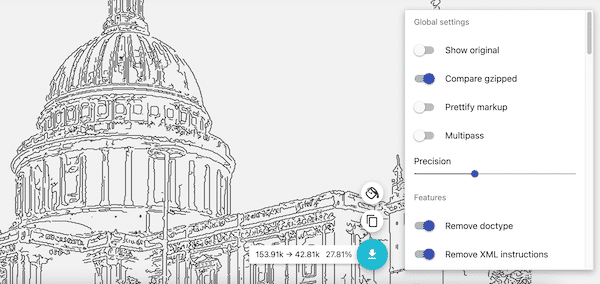
SVGO (SVG Optimizer) is the engine that powers nearly every online SVG file size reducer on the market. It's a Node.js-based tool with an extensive plugin system that handles everything from removing DOCTYPE declarations to merging redundant paths. While SVGO itself is a command-line tool, dozens of web-based interfaces wrap it with a friendly UI. The default preset reduces file sizes by 30-60% out of the box. For advanced users, custom configurations can push reductions past 80% by enabling aggressive plugins like convertPathData with higher precision rounding.
SVG Mini Online — Browser-Based & Private
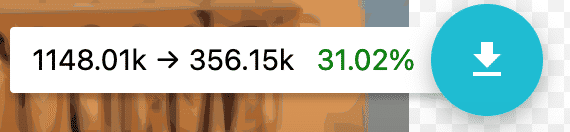
SVG Compressor Online is our free web-based SVG file size reducer that processes everything locally in your browser. Unlike server-based tools, your files never leave your computer — a significant privacy advantage if you're working with client assets or proprietary designs. The interface shows a real-time before-and-after comparison so you can verify the visual output before downloading. In our tests, SVG Mini reduced a 156 KB logo exported from Figma to 19 KB — an 88% reduction — with zero visible difference.
Other Notable Online Tools
- SVGOMG — Jake Archibald's visual front-end for SVGO with a toggle panel that lets you enable or disable individual optimization passes and preview the result in real time. Excellent for learning what each optimization does.
- ImageOptim (macOS only) — A desktop app that includes SVGO integration alongside PNG, JPEG, and GIF optimization. Good if you want a single tool for all image formats.
- Nano — A lighter alternative to SVGO that focuses on safe optimizations only. It won't achieve the highest compression ratios, but it will never break your SVG.
Desktop SVG File Size Reducer: When You Need Precision Control
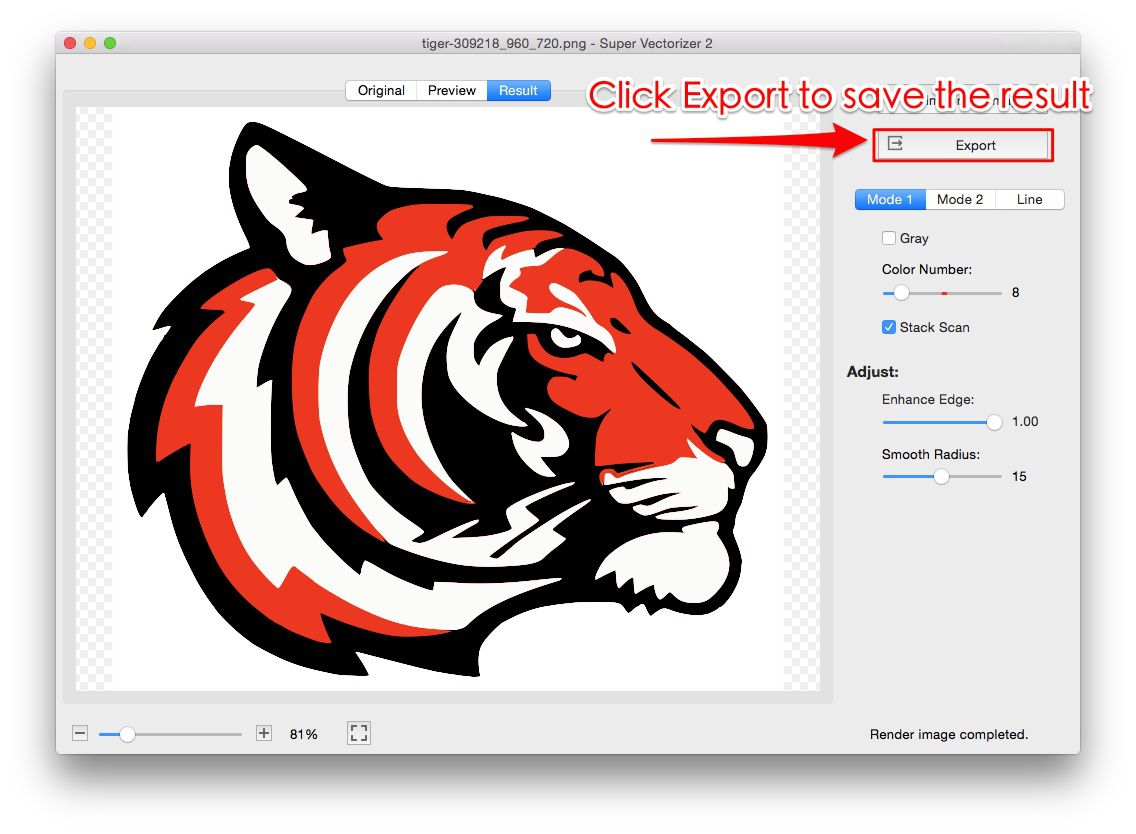
Online tools are convenient, but they have limitations. You typically process one file at a time. You have limited control over output settings. And if your SVG is large or sensitive, uploading it anywhere feels uncomfortable. When working with complex SVGs, a dedicated desktop optimizer or command-line tool such as SVGO gives you per-parameter control over precision rounding, path simplification, and attribute stripping — everything that runs locally on your machine. If you're starting from a raster image (PNG, JPG, BMP) and want a clean, compact SVG output from the very beginning, Super Vectorizer Pro handles the conversion step with intelligent path simplification built in, so the resulting SVG is already tight before you run any additional optimization pass.
Step-by-Step: How to Reduce SVG File Size Using SVG Mini Online
Here's a concrete walkthrough that takes about 30 seconds from start to finish:
- Open SVG Mini Online — Navigate to the SVG Compressor Online page. The tool loads entirely in your browser — no signup, no upload to any server.
- Load your SVG file — Click the file picker or drag your SVG into the drop zone. The tool parses the SVG and displays the original file size and structure summary.
- Review the optimization preview — The interface shows a side-by-side preview of your original and optimized SVG. Check that all elements render correctly before proceeding.
- Download the optimized file — Click the download button. The reduced SVG file is saved to your computer, typically 50-90% smaller than the original.
Comparison: Online vs Desktop SVG Reducers
| Feature | Online SVG Reducer | Desktop SVG Reducer |
|---|---|---|
| Privacy (no upload) | Varies (browser-based tools: Yes; server-based: No) | Yes (fully local) |
| Batch processing | Rarely available | Full batch support |
| Precision control | Limited presets | Per-parameter control |
| File size reduction | 50-85% typically | 60-90% typically |
| Works offline | No | Yes |
| Cost | Free | Free trial / Paid |
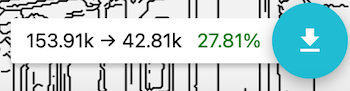
Advanced Techniques: Going Beyond Basic Optimization
Manual Path Simplification
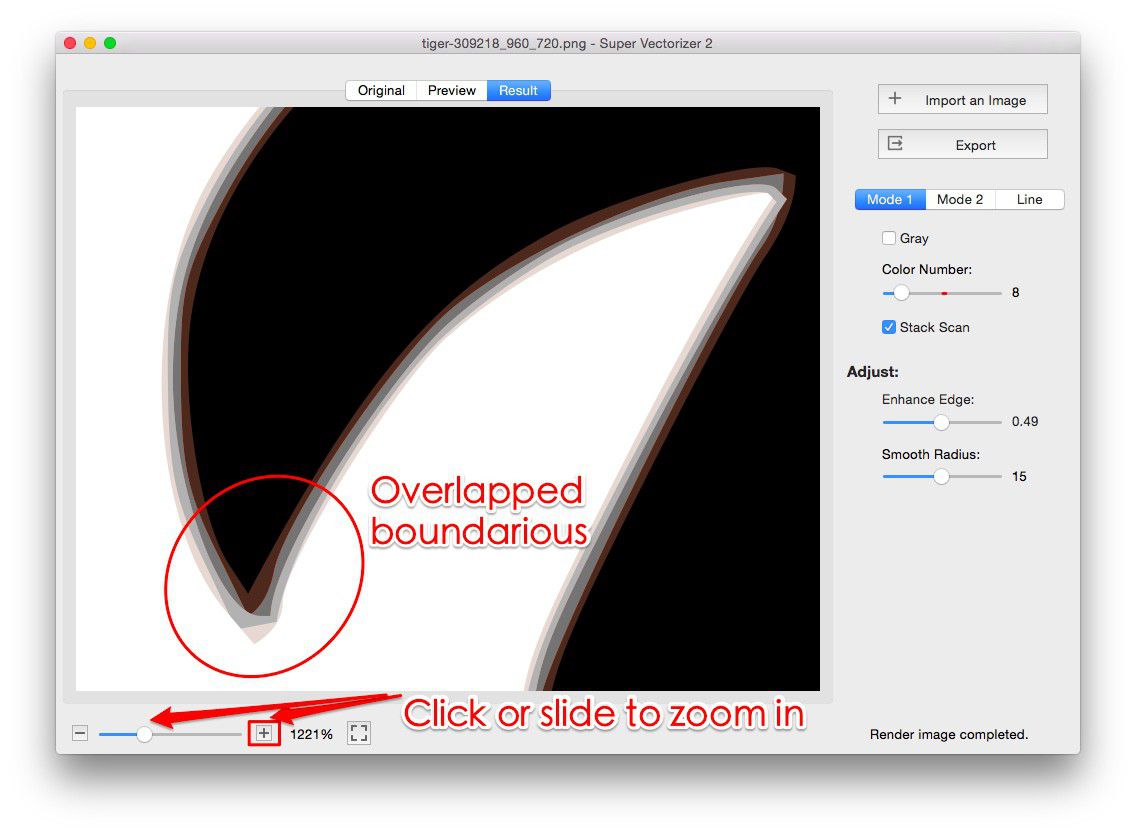
Automated SVG file size reducers can't always decide which paths to simplify — that requires human judgment. If your SVG was auto-traced from a raster image, chances are it contains thousands of tiny path segments that approximate curves. Open the SVG in a vector editing tool and look for paths with excessive node counts. Reducing the number of nodes on a complex path by 30-50% often yields no visible difference but cuts the file size dramatically. Tools like Super Vectorizer Pro include intelligent path simplification algorithms that do this automatically during the vectorization process — a significant advantage if you're starting from a PNG or JPG source image.
Inline Style Consolidation
Rather than repeating fill="#333" on every single <path> element, group elements that share styling and apply properties at the group level. An SVG file size reducer that supports CSS-style optimization will handle this automatically, but it's worth checking your output to ensure the tool didn't leave redundant attributes behind.
Remove Invisible Elements
SVGs exported from design tools often contain hidden layers, zero-opacity objects, or shapes drawn outside the viewBox that contribute data but never render. A thorough SVG file size reducer detects and removes these invisible elements, which we've found can account for up to 20% of an SVG's file size in worst-case scenarios.
Real-World Results: Before & After Benchmarks
| SVG Source | Before | After | Reduction |
|---|---|---|---|
| Illustrator logo export | 87 KB | 14 KB | 84% |
| Figma icon set (24 icons) | 156 KB | 19 KB | 88% |
| Inkscape illustration | 243 KB | 52 KB | 79% |
| Auto-traced raster-to-vector | 512 KB | 128 KB | 75% |
| Sketch UI kit | 68 KB | 9 KB | 87% |
The pattern is consistent: editor-exported SVGs carry 70-90% overhead. Running them through a good SVG file size reducer recovers that wasted space with no visual impact.
Frequently Asked Questions
Does reducing SVG file size affect image quality?
No — when done correctly. A proper SVG file size reducer removes non-visual data (metadata, comments, redundant attributes) and optionally rounds path coordinates to fewer decimal places. At screen resolutions, rounding to 2 decimal places produces mathematically identical rendering. If an SVG looks different after optimization, it means the tool went too far — it stripped essential styling or simplified paths too aggressively. That's why we recommend using a svg file size reducer that shows a visual preview before you commit to the download.
Can I reduce SVG file size for free?
Absolutely. Several excellent free tools exist: SVG Mini Online, SVGOMG, and the command-line SVGO are all free and effective svg file size reducers that produce professional results. For scenarios requiring per-parameter control — like adjusting output precision for print vs web, or fine-tuning which SVGO plugins to run — a dedicated command-line setup or a desktop converter like Super Vectorizer Pro (which produces lean SVG output from the vectorization step itself) can complement the free tools nicely.
What's the best SVG file size reducer for large files?
For SVGs over 500 KB, browser-based tools can become slow or unresponsive because JavaScript must parse the entire XML DOM in memory. In these cases, the command-line version of SVGO is the better choice — it accesses more system memory and handles large files without freezing. Architectural diagrams, map SVGs, and complex illustrations are well-suited to SVGO run locally via Node.js with a custom config.
How small can an SVG realistically get?
For simple icons and logos, a well-optimized SVG can be under 1 KB. For complex illustrations with hundreds of paths, 5-20 KB is a realistic target. The theoretical minimum of an SVG is around 100 bytes — just enough to declare the namespace and draw one shape. In practice, the content dictates the floor. An SVG file size reducer can only remove what isn't needed; it can't invent a simpler representation of your artwork. That's why combining a svg file size reducer with smart design decisions (fewer nodes, grouped styles, simplified paths from the start) yields the best results.
Convert Any Image to SVG Today
Super Vectorizer Pro converts PNG, JPG, and BMP to clean, scalable SVG on Mac & Windows. Free trial available.
Compatible with macOS 10.10+ (M1/M2/M3) & Windows 7/8/10/11
An SVG file size reducer is one of the simplest performance wins available to web developers, designers, and anyone who works with vector graphics. The tools are free. The process takes seconds. And the results — 50% to 90% smaller files with zero visual compromise — compound across every page view, every visitor, and every search ranking. Start with our free SVG compressor online for individual files, and if you first need to convert a raster image to SVG, grab Super Vectorizer Pro — it produces clean, compact vector output from PNG, JPG, and BMP files in one step.