Best PNG to SVG Converters in 2026 — Compared & Ranked
Searching for the best PNG to SVG converters can feel overwhelming when dozens of tools promise perfect vectorization but deliver jagged edges and misaligned colors. Whether you are a graphic designer who needs crisp logos, a Cricut enthusiast cutting SVG files, or a web developer optimizing images for retina displays, the right converter makes all the difference. In this guide we compare the top PNG to SVG converters available in 2026 — from professional desktop software to free online tools — so you can choose the one that fits your workflow and budget.
Why You Need a Dedicated PNG to SVG Converter
PNG files are raster images built from pixels. When you scale a PNG up, it gets blurry and pixelated. SVG files, on the other hand, are mathematical descriptions of shapes — they scale to any size without losing quality. Converting PNG to SVG (also called vectorization or raster-to-vector tracing) unlocks resolution-independent graphics suitable for logos, icons, prints, laser cutting, and responsive web design. A dedicated PNG to SVG converter like Super Vectorizer Pro does this automatically, using advanced algorithms to trace paths, detect colors, and output clean SVG code — far superior to manual tracing in a vector editor.
Convert Your Images to SVG Today
Download Super Vectorizer Pro — free trial to preview results. Mac & Windows.
Compatible with macOS 10.10+ (M1/M2/M3) & Windows 7/8/10/11
The Best PNG to SVG Converters — Our Top Picks
1. Super Vectorizer Pro (Mac & Windows) — Best Overall
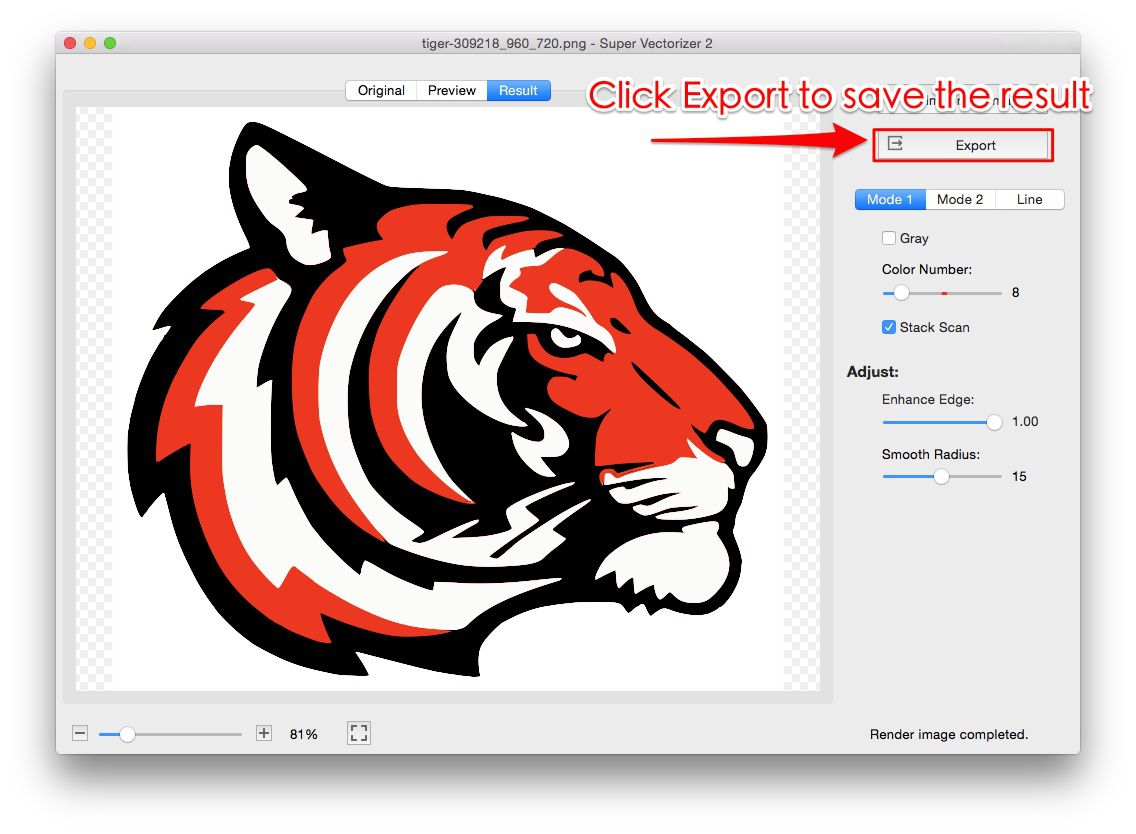
Super Vectorizer Pro consistently ranks as the best PNG to SVG converter for good reason. It supports over 70 input formats (PNG, JPG, BMP, TIFF, GIF, PSD, and more) and produces high-quality SVG output with automatic color detection, trace refinement, and multi-layer vectorization. It processes one image at a time with a fast real-time preview, giving you precise control over each conversion.
- Pros: Excellent trace quality, 70+ input formats, adjustable settings, Mac & Windows
- Cons: Paid software (free trial available)
- Best for: Designers, crafters, and professionals who convert images regularly
2. SVGVector Free Online Tools — Best Free Option
When you need a quick conversion without installing software, the free online tools from SVGVector deliver solid results. Upload a PNG, adjust the trace settings, and download your SVG — all in the browser. It is perfect for one-off conversions and occasional use.
- Pros: Free, no signup, works on any device, browser-based
- Cons: Limited to one file at a time, requires internet connection
- Best for: Casual users and quick one-time conversions
3. Inkscape (Free & Open Source) — Best for Manual Control
Inkscape is a free vector editor that includes a built-in Trace Bitmap feature. While it requires more manual tweaking than dedicated converters, it gives you full control over the vectorization process and is completely free. It works on Mac, Windows, and Linux.
- Pros: Free and open source, full editing control, cross-platform
- Cons: Steeper learning curve, no batch processing, slower for complex images
- Best for: Users comfortable with vector editing who want fine-grained control
4. Adobe Illustrator — Best for Creative Cloud Users
Illustrator's Image Trace feature produces professional-grade vectorization. If you already subscribe to Adobe Creative Cloud, it is a powerful option. However, the subscription cost is steep if vectorization is all you need.
- Pros: Professional results, deep editing integration
- Cons: Expensive subscription, Mac/Windows only, resource-heavy
- Best for: Existing Adobe users who need full design suite access
How to Choose the Right PNG to SVG Converter
Not every converter fits every situation. Here are the key factors to consider:
- Image complexity. Simple logos and icons convert well with any tool. Photographs and detailed illustrations need advanced trace algorithms — Super Vectorizer Pro excels here.
- Volume. If you convert dozens or hundreds of images, a true batch-processing tool is essential. Super Vectorizer Pro handles one image at a time with a fast preview, so for large folders consider Inkscape scripts or an API-based converter.
- Budget. Free tools work for occasional use. Regular users save time and get better results with paid software.
- Platform. Make sure the tool runs on your operating system. Super Vectorizer Pro supports both Mac (including M1/M2/M3) and Windows 7 through 11.
- Output quality. Always check the SVG output for smooth curves, accurate colors, and reasonable file size. Poor vectorization creates bloated SVGs with thousands of unnecessary nodes.
FAQ — Best PNG to SVG Converters
What is the most accurate PNG to SVG converter?
Super Vectorizer Pro delivers the most accurate results for most images thanks to its multi-color trace engine and adjustable settings. For simple black-and-white logos, Inkscape's Trace Bitmap also works well.
Can I convert PNG to SVG for free?
Yes. The SVGVector free online tools let you convert PNG to SVG directly in your browser at no cost. Inkscape is another free option with more control but a steeper learning curve.
Is online PNG to SVG conversion safe?
SVGVector's online tools process your images securely and do not store uploaded files after conversion. For sensitive or confidential images, a desktop application like Super Vectorizer Pro keeps everything local on your machine.
Convert Your Images to SVG Today
Download Super Vectorizer Pro — free trial to preview results. Mac & Windows.
Compatible with macOS 10.10+ (M1/M2/M3) & Windows 7/8/10/11
Finding the best PNG to SVG converters does not have to be a guessing game. For most users, Super Vectorizer Pro strikes the ideal balance of quality, speed, and ease of use. For quick one-off jobs, the free online tools from SVGVector get the job done without installing anything. Try them both and see which fits your vectorization workflow best.