How to Convert PNG to SVG Without Losing Quality — Complete Guide
Converting a PNG to SVG should mean sharper edges, infinite scalability, and smaller file sizes. But too often, the result looks worse than the original — blurry edges, lost colors, jagged curves. If you have ever tried to convert PNG to SVG without losing quality and been disappointed by the output, this guide is for you. We will walk through exactly why quality drops during conversion, which methods preserve the most detail, and how to get pixel-perfect vector results on Mac and Windows using Super Vectorizer Pro.
Why PNG to SVG Conversion Loses Quality
PNG is a raster format — every pixel is fixed. SVG is a vector format — shapes are described by mathematical paths. The conversion process (called vectorization or vector tracing) must interpret pixels and redraw them as curves. Quality loss happens when the tracing algorithm makes poor decisions about where edges fall, how many colors to keep, and how smooth curves should be.
Common causes of quality loss include:
- Too few colors — the tracer simplifies the palette, merging similar shades into one flat area
- Over-smoothing — curves get averaged out, losing fine detail in logos or line art
- Low-resolution source — starting with a tiny PNG gives the tracer fewer pixels to work with
- Poor edge detection — anti-aliased edges in the PNG get misinterpreted as gradient regions
The key to converting PNG to SVG without losing quality is choosing a tool with advanced tracing algorithms and the right settings for your image type.
Convert Your Images to SVG Today
Download Super Vectorizer Pro — free trial to preview results. Mac & Windows.
Compatible with macOS 10.10+ (M1/M2/M3) & Windows 7/8/10/11
Best Method: Desktop Vectorization Software
Desktop software consistently produces higher quality results than online converters because it gives you control over the vectorization parameters. Super Vectorizer Pro for Mac and Windows uses multi-color vectorization with adjustable color counts, smoothing levels, and edge precision — giving you the control needed to preserve quality.
Step-by-Step: Convert PNG to SVG Without Losing Quality
- Start with the highest resolution PNG available. A 2000×2000 source gives the tracer far more data than a 200×200 thumbnail. If possible, export the original at 2–4× the display size.
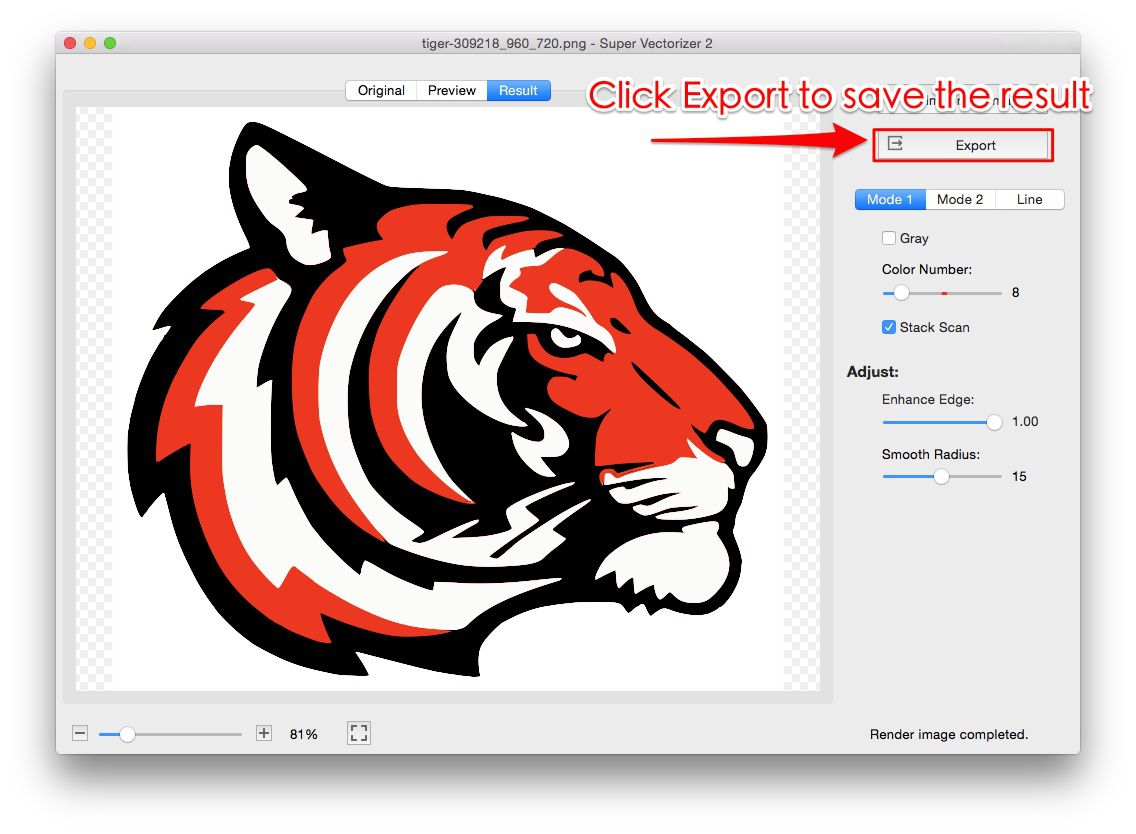
- Open the PNG in Super Vectorizer Pro. Drag and drop your file onto the app window. The software auto-detects the image type and suggests optimal settings.
- Set the color count to match your source. If your PNG has 12 distinct colors, set the palette to at least 12. For photographic images, use 32–64 colors. For logos and icons, 4–8 is usually sufficient.
- Adjust the smoothing slider carefully. Lower smoothing preserves sharp edges (ideal for text and geometric shapes). Higher smoothing creates cleaner curves (ideal for organic shapes). Preview the result before committing.
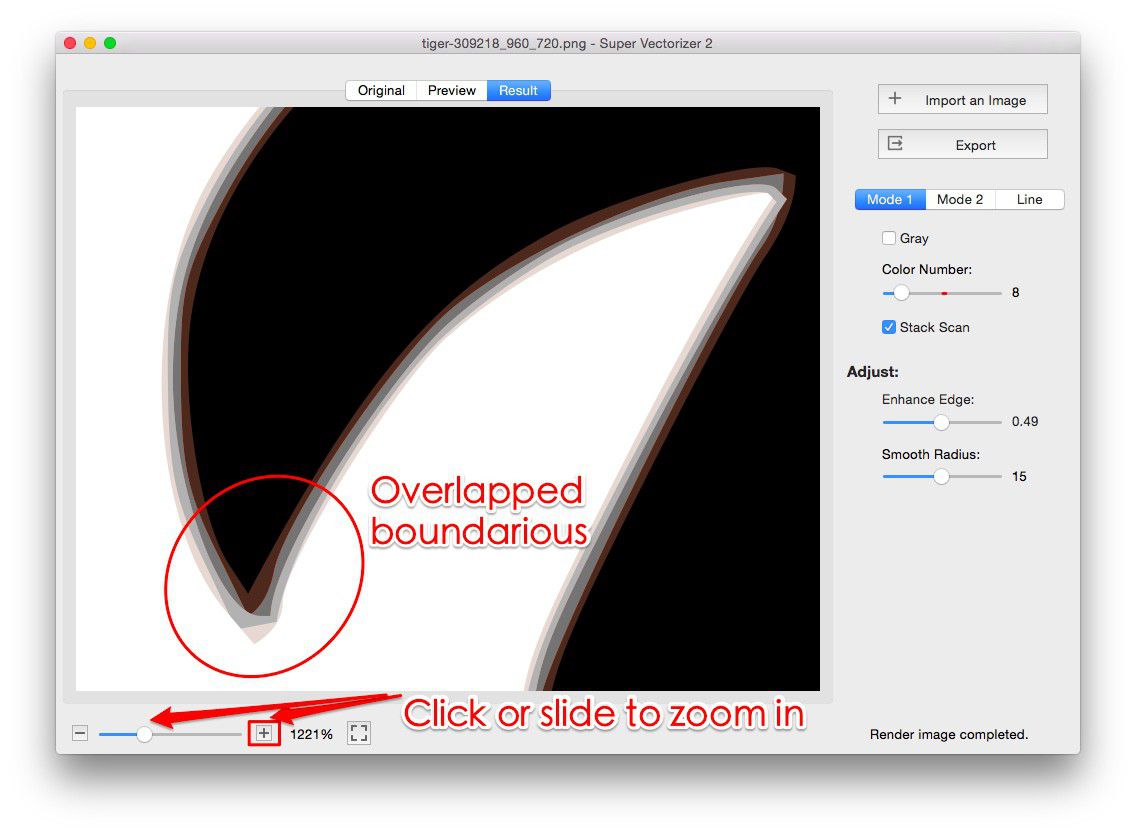
- Check the vector result at 400% zoom. Look for jagged edges, merged colors, or lost detail. If something looks wrong, tweak the settings and re-trace.
- Export as SVG. Choose SVG format and save. Your vector file is now infinitely scalable with no quality loss.
Online Converters vs Desktop Software: Quality Comparison
Free online PNG to SVG converters are convenient, but they come with quality trade-offs. Most use a one-size-fits-all algorithm with no adjustable parameters. You upload, wait, and get whatever the server produces — no preview, no tweaking, no second chance.
Desktop software like Super Vectorizer Pro offers real-time preview, adjustable color counts, multiple tracing modes, and the ability to zoom in and verify quality before exporting. The difference is especially visible with:
- Logos with thin lines — online tools often thicken or merge thin strokes
- Gradients and shadows — online tools flatten these into solid blocks
- Small text — online tools lose letterforms below a certain size threshold
- Images with many colors — online tools cap at 8–16 colors by default
That said, for simple icons and flat designs, free online tools can produce acceptable results. Just do not expect pixel-perfect output from a server processing thousands of images per hour.
How to Prepare Your PNG for Maximum Quality
Want the settings side of this explained in more depth? Our companion guide on PNG to SVG high quality conversion walks through threshold, colour-count and smoothing values tool by tool, and you can test the same ideas in the browser with the online image vectorizer.
The quality of your SVG depends heavily on the quality of your source PNG. Before converting, take these preparation steps:
- Increase resolution — upscale the PNG using a sharp interpolation method (nearest neighbor for pixel art, bicubic for photos) before tracing
- Remove backgrounds — transparent backgrounds produce cleaner vector boundaries than white or colored backgrounds
- Reduce noise — JPEG compression artifacts, scanner dust, and sensor noise all confuse the tracing algorithm. Clean the image first
- Simplify colors — if the PNG has 200 colors but only 10 are visually distinct, quantize the palette to 10 before converting
- Crop tightly — remove unnecessary whitespace around the subject so the tracer focuses on the content
FAQ: PNG to SVG Quality Questions
Can you really convert PNG to SVG without any quality loss?
Perfect zero-loss conversion is only possible for images that are already geometrically simple — flat icons, logos with solid colors, and line art. For photographs and complex illustrations, some approximation is inevitable because SVG uses mathematical paths, not pixels. The goal is to minimize visible quality loss, not eliminate it entirely. With the right settings in Super Vectorizer Pro, the difference between source and output is often imperceptible at normal viewing distances.
Why does my SVG look worse than the PNG at 100% zoom?
This usually means the color count was set too low during tracing. Increase the number of colors and re-trace. Also check that you are not using an aggressive smoothing setting that rounds off sharp corners.
Is SVG always better quality than PNG?
Not always. SVG is better for scalability — it looks crisp at any size. But a poorly traced SVG can look worse than the original PNG. Quality depends on the conversion process, not the format alone. A well-made SVG from a good vectorizer will outperform PNG at every scale.
Convert PNG to SVG Without Losing Quality
Download Super Vectorizer Pro — free trial to preview results. Mac & Windows.
Compatible with macOS 10.10+ (M1/M2/M3) & Windows 7/8/10/11
Converting PNG to SVG without losing quality is entirely achievable when you use the right tool and the right settings. Start with a high-resolution source, choose a vectorizer that gives you control over color counts and smoothing, and always verify the result at high zoom before exporting. Super Vectorizer Pro is purpose-built for this exact workflow — try it free and see the difference real tracing control makes. And if your SVG file ends up larger than expected, run it through our free online SVG compressor to reduce file size without touching the vectors.