Bitmap to Vector Converter 2026 — Turn Raster Into Scalable SVG
Every time you zoom into a bitmap image and it turns into a blocky mess of pixels, you are seeing the fundamental limitation of raster graphics. Bitmaps — whether PNG, JPG, BMP, or TIFF — are resolution-dependent. They look great at their original size but fall apart when scaled up. A Vector Magic alternative for Mac converter solves this by tracing the pixel patterns and recreating them as mathematical paths in an SVG file. The result is a graphic that stays razor-sharp at any resolution. This guide explains how bitmap-to-vector conversion works, which tools do it best, and how to get professional results from your raster images.
Bitmap vs. Vector — Why Conversion Matters
Bitmap (raster) images store color data for each individual pixel. A 1000×1000 PNG contains exactly one million pixels of data. When you enlarge it beyond its native resolution, the software guesses the missing information — and that guessing produces blurriness. Vector images, by contrast, store shapes as paths defined by coordinates and curves. A circle in SVG is a simple mathematical description, not a grid of pixels. That is why converting a bitmap to a vector with Super Vectorizer Pro produces files that scale perfectly from a stamp to a stadium banner.
Convert Your Images to SVG Today
Download Super Vectorizer Pro — free trial to preview results. Mac & Windows.
Compatible with macOS 10.10+ (M1/M2/M3) & Windows 7/8/10/11
How a Bitmap to Vector Converter Works
The core process behind every bitmap to vector converter is called vectorization or vector tracing. Here is what happens under the hood:
- Edge detection. The converter scans the bitmap to find boundaries between regions of different colors. These edges define where one shape ends and another begins.
- Path generation. The detected edges are fitted with smooth Bézier curves, creating vector paths that approximate the original bitmap shapes.
- Color assignment. Each enclosed region receives a fill color based on the dominant pixel color within that region.
- Optimization. Redundant nodes are removed, and paths are simplified to reduce SVG file size while preserving visual fidelity.
- Output. The final SVG is generated, ready for editing in any vector application or embedding on the web.
The quality of the output depends heavily on the sophistication of the trace algorithm. Super Vectorizer Pro uses a multi-layer color detection engine that handles complex gradients and fine details far better than basic auto-tracers.
Top Bitmap to Vector Converters Compared in 2026
1. Super Vectorizer Pro — Best Desktop Converter
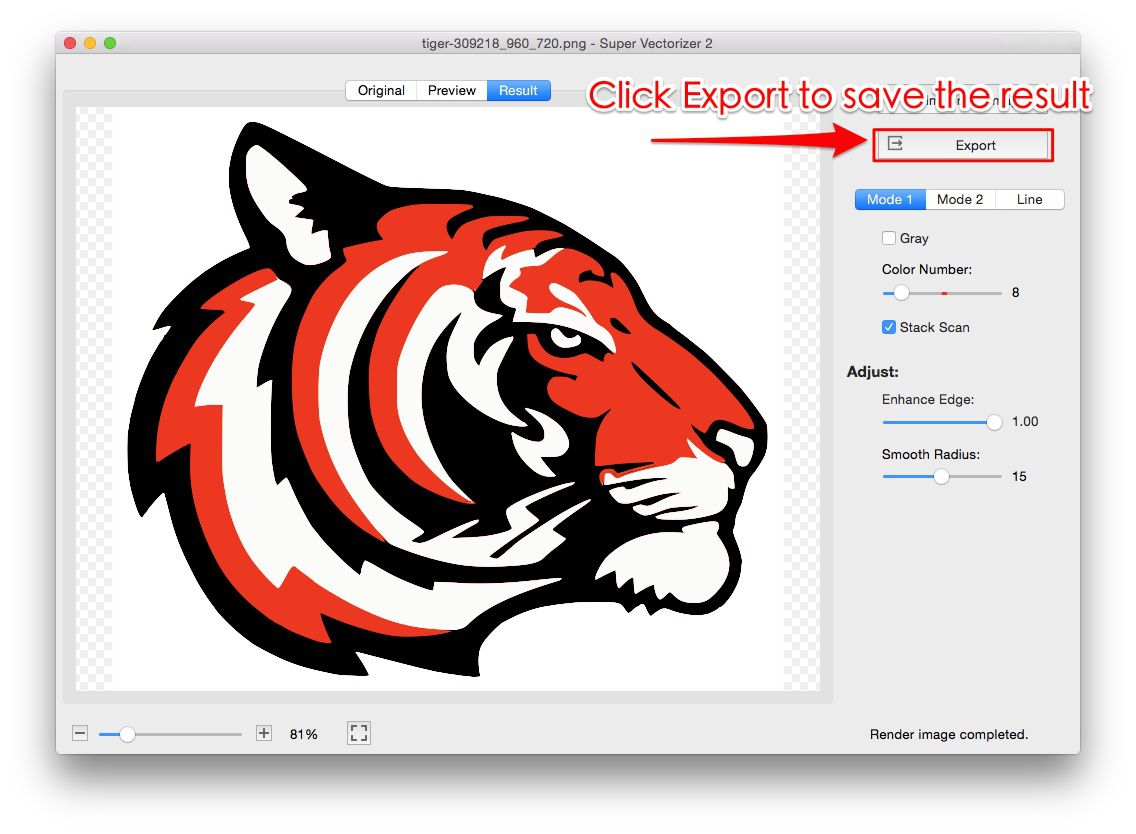
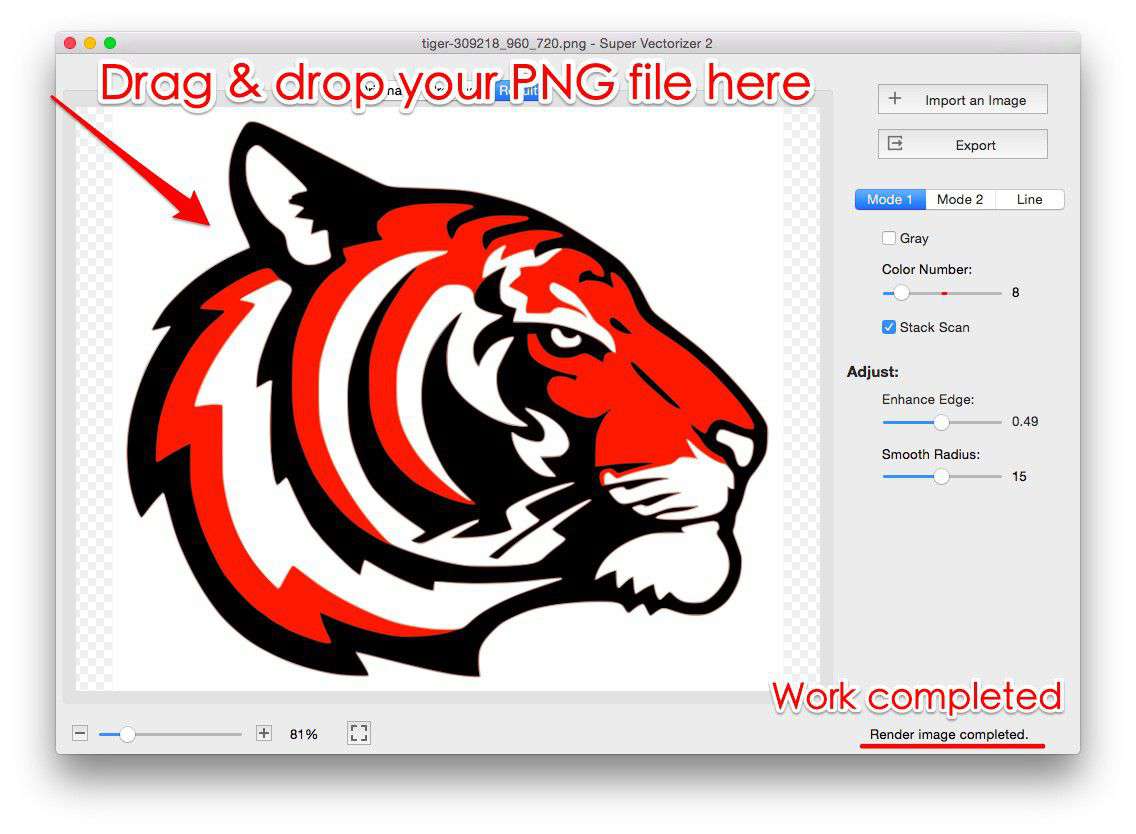
Super Vectorizer Pro is the most capable bitmap to vector converter for Mac and Windows. It processes over 70 raster formats, handles one image at a time, and produces SVG, PDF, EPS, and DXF output. The trace engine handles everything from simple two-color logos to multi-color illustrations with smooth gradients.
- Input formats: PNG, JPG, BMP, TIFF, GIF, PSD, ICO, TGA, and 60+ more
- Output formats: SVG, PDF, EPS, DXF
- Key features: Per-image parameter control, adjustable trace settings, multi-color detection, Mac M1/M2/M3 native
2. SVGVector Free Online Tools — Best Free Browser Option
For occasional conversions, the free online tools from SVGVector provide solid vectorization without installing anything. Upload, trace, and download — all in the browser.
3. Inkscape Trace Bitmap — Best Free Desktop Alternative
Inkscape's built-in Trace Bitmap feature offers multiple tracing methods (brightness cutoff, edge detection, color quantization). It is free and open source, though the interface is less streamlined than dedicated converters.
Tips for Getting the Best Vectorization Results
- Clean your bitmap first. Remove backgrounds, crop tightly, and increase contrast before converting. Garbage in, garbage out applies to vectorization.
- Match the color count to the image. Logos typically need 2-8 colors. Photographs may need 32 or more. Fewer colors produce cleaner, smaller SVGs.
- Use the right output format. SVG is best for web and cutting machines. EPS and PDF work better for print workflows. DXF is ideal for CNC and laser cutting.
- Optimize the SVG afterward. After conversion, run your SVG through SVG Compressor Online to strip unnecessary metadata and compress the file.
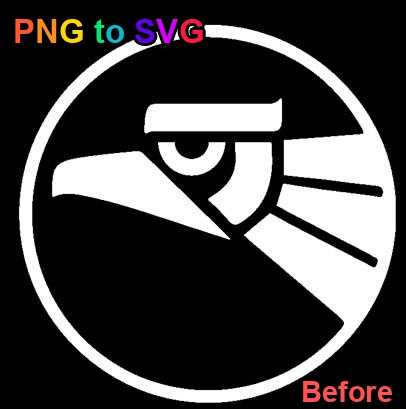
- Preview before committing. Always compare the vector output side-by-side with the original bitmap to ensure accuracy.
FAQ — Bitmap to Vector Converter
Can a bitmap to vector converter handle photographs?
Yes, but photographs are the hardest images to vectorize because they contain continuous tones and subtle gradients. Tools like Super Vectorizer Pro handle multi-color photographs well, but the resulting SVG will be more complex than a simple logo vectorization. For photos, consider reducing the color count to simplify the output.
What is the difference between bitmap and raster?
They are the same thing. "Bitmap" and "raster" both refer to images made of pixels. PNG, JPG, BMP, TIFF, and GIF are all bitmap/raster formats. The term "bitmap to vector converter" and "raster to vector converter" are interchangeable.
Is a bitmap to vector converter the same as image tracing?
Essentially, yes. Image tracing, vectorization, and raster-to-vector conversion all describe the same process: converting pixel-based images into vector paths. The terminology varies by industry — graphic designers say "image tracing," engineers say "raster-to-vector," and the general public often searches for "bitmap to vector converter."
Convert Your Images to SVG Today
Download Super Vectorizer Pro — free trial to preview results. Mac & Windows.
Compatible with macOS 10.10+ (M1/M2/M3) & Windows 7/8/10/11
A reliable bitmap to vector converter is an essential tool in any designer's or crafter's toolkit. Whether you choose the professional power of Super Vectorizer Pro for complex images and precise control, or the convenience of free online tools for quick one-off conversions, the key is using a tool that produces clean, optimized SVG output. Start with a free trial and see the difference quality vectorization makes.