PNG to SVG Converter for Mac: The Complete 2026 Guide
If you work with logos, icons, illustrations, or any graphics that need to be scaled — whether for print, laser cutting, Cricut, or web — you already know the pain of pixelated PNGs that blur when you zoom in. The solution is converting your PNG to SVG, a scalable vector format that looks crisp at any size. This guide covers everything you need to know about converting PNG to SVG on Mac in 2026: the best tools, a step-by-step walkthrough, and pro tips for getting the cleanest vector output possible.
Whether you're a designer, hobbyist, or developer, you'll find a method here that fits your workflow — from dedicated desktop software to free online tools that require no installation.
Why Convert PNG to SVG? (And When Should You Bother?)
PNG is a raster format — it stores your image as a grid of pixels. When you scale it up, those pixels become visible blocks. SVG (Scalable Vector Graphic) is a mathematical format that describes shapes, curves, and colors — it can scale to any resolution without quality loss.
Here's when converting PNG to SVG makes a real difference:
- Logos & icons — need to look sharp on everything from a business card to a billboard
- Cricut & laser cutting — cutting machines need clean vector paths, not pixel grids
- Web & UI design — SVG files are smaller and resolution-independent on retina displays
- Editing in Illustrator or Affinity Designer — you can edit shapes inside an SVG, but not a PNG
- Embroidery & signage — plotters and embroidery machines rely on vector paths
The catch: PNG to SVG conversion is only as good as the tool you use. A bad converter produces messy, oversized SVG files full of pixel-level noise. A good one — like Super Vectorizer Pro — traces the actual shapes in your image and produces a clean, editable vector.
Convert Your Images to SVG Today
Download Super Vectorizer Pro — free trial to preview results. Mac & Windows.
Compatible with macOS 10.10+ (M1/M2/M3) & Windows 7/8/10/11
The Best PNG to SVG Converters for Mac in 2026
Not all converters are equal. Here's a quick comparison of the leading options — see our in-depth best PNG to SVG converters roundup for full details.
| Tool | Platform | Quality | Speed | Price |
|---|---|---|---|---|
| Super Vectorizer Pro | Mac & Windows | ⭐⭐⭐⭐⭐ | ⭐⭐⭐⭐⭐ | Free trial / Paid |
| Adobe Illustrator (Image Trace) | Mac & Windows | ⭐⭐⭐⭐ | ⭐⭐⭐ | Subscription |
| Inkscape (Trace Bitmap) | Mac & Windows | ⭐⭐⭐ | ⭐⭐⭐ | Free (open source) |
| Online converters (generic) | Browser | ⭐⭐ | ⭐⭐ | Free / Freemium |
For most Mac users who need clean, professional SVG output without a steep learning curve, Super Vectorizer Pro is the standout choice. It converts PNG to SVG in one click, supports 70+ input formats, and handles complex color images, logos, line art, and grayscale equally well.
How to Convert PNG to SVG on Mac: Step-by-Step
Here's how to convert PNG to SVG on Mac using Super Vectorizer Pro — the fastest and most accurate method available in 2026.
-
Download and open Super Vectorizer Pro.
Install the app on your Mac (compatible with macOS 10.10 and later, including Apple Silicon M1, M2, M3 chips). Launch it — you'll see a clean two-pane interface. -
Import your PNG file.
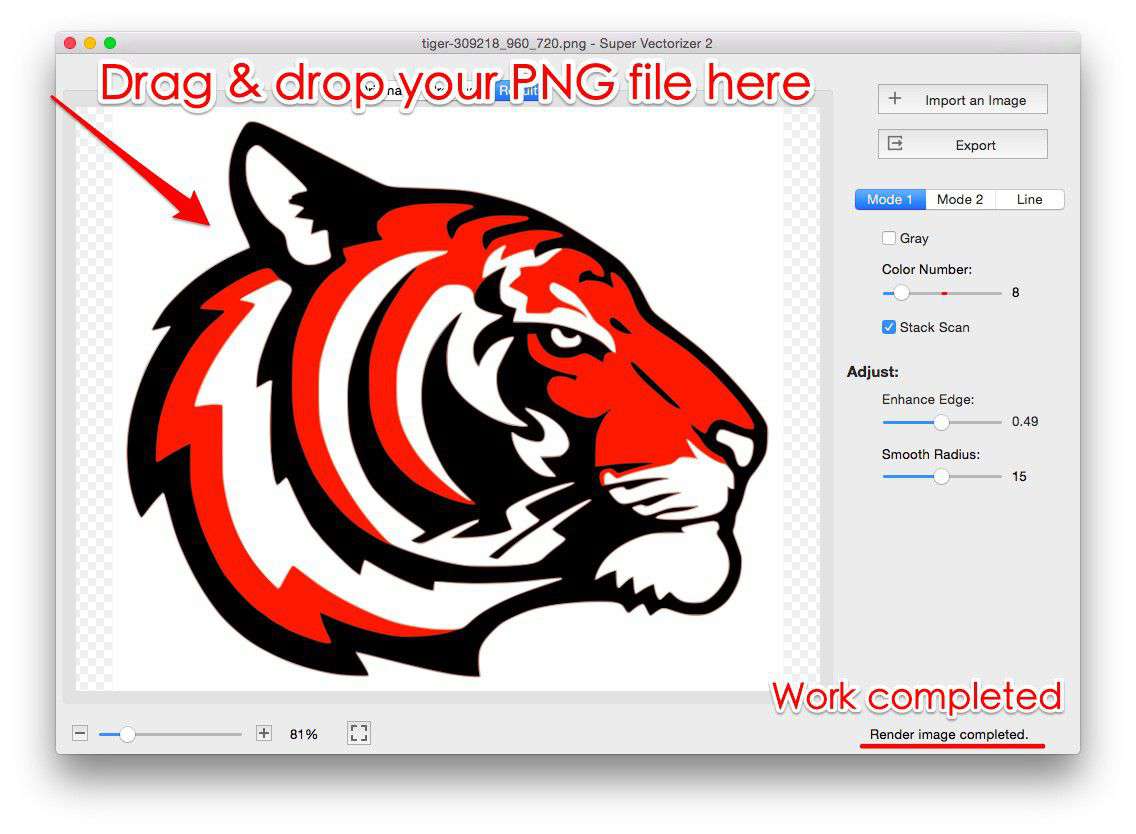
Drag your PNG image directly into the left preview pane, or use File → Open. Super Vectorizer accepts PNG, JPG, BMP, GIF, PSD, PDF, EPS, and 60+ other formats. -
Let the auto-conversion run.
The moment you drop in a PNG, Super Vectorizer automatically starts the PNG to SVG conversion. You'll see the progress in the info bar at the bottom. For most images this takes under 5 seconds. -
Review and adjust the SVG output.
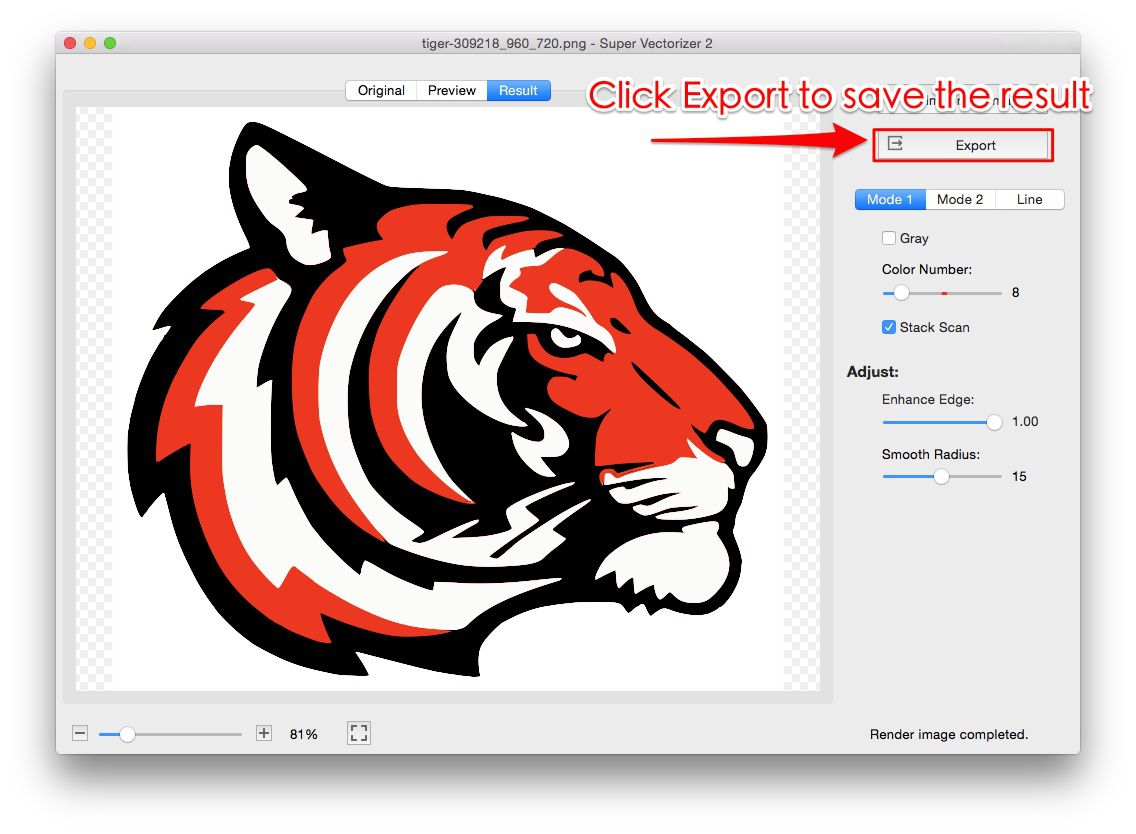
The right pane shows your SVG result. Fine-tune: Color Numbers (how many colors to trace), Edge Enhancement (sharpness of vector paths), and Smooth Radius (smoothness of curves). Small adjustments here make a big difference in output quality. -
Export your SVG file.
When the result looks good, go to File → Export, and save as SVG, PDF, AI (Adobe Illustrator), or DXF format. Your vector file is ready.
Ready to Convert? Download Super Vectorizer Pro Free
One-click PNG to SVG conversion on Mac & Windows. Free trial available.
Compatible with macOS 10.10+ (M1/M2/M3) & Windows 7/8/10/11
Tips for Getting the Best PNG to SVG Conversion Quality
- Start with a high-resolution PNG. Aim for at least 300 DPI or 1000px on the shortest side.
- Clean up the background first. A transparent or solid white background gives the tracer clean edges to work with.
- Logos and icons convert best. Flat-color, high-contrast images with clear edges are ideal candidates.
- Compare the before/after in real time. Super Vectorizer's side-by-side preview lets you tweak settings before exporting.
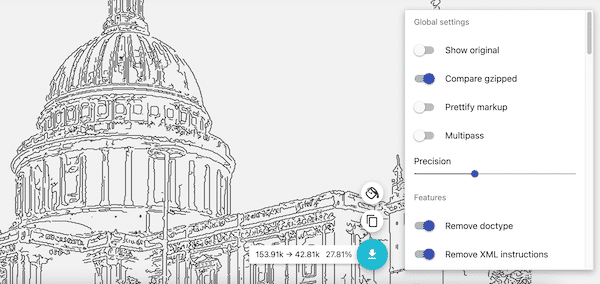
- Reduce SVG file size after converting. Paste your SVG into our SVG compressor online to strip unnecessary code — important for web performance.
Free Online PNG to SVG Conversion (No Software Needed)
If you only need to convert occasionally and don't want to install software, check out our free online vector conversion tools. These run entirely in your browser — no download required, works on Mac, Windows, iPad, and any device.
The trade-off: online converters handle simple logos and line art well, but produce lower-quality output for complex or multi-color images compared to Super Vectorizer Pro's desktop algorithm.
PNG to SVG on Windows Too
Super Vectorizer Pro is not Mac-only. The same one-click PNG to SVG conversion is available on Windows 7, 8, 10, and 11. See our complete guide to the best PNG to SVG converters which covers both Mac and Windows options in detail.
Frequently Asked Questions
Is PNG to SVG conversion lossless?
The conversion is not strictly "lossless" — the tracer must interpret pixel data and approximate it as vector paths. However, a good converter like Super Vectorizer produces results that look virtually identical to the original PNG while being fully scalable and editable.
Can I edit the SVG file after converting?
Yes. SVG files exported from Super Vectorizer can be opened and edited in Adobe Illustrator, Affinity Designer, Inkscape, CorelDRAW, or any SVG-capable editor. Each color region becomes a separate editable path.
What's the best format for Cricut — PNG or SVG?
SVG is strongly preferred for Cricut. Cricut Design Space reads SVG paths directly, enabling clean cuts along the actual vector outlines.
How do I reduce the SVG file size after converting?
Use our free online SVG compressor — upload the file and it will remove redundant path data, strip metadata, and optimize for web use.
Convert Your First PNG to SVG in Seconds
Download Super Vectorizer Pro — free trial to preview results. Available for both Mac and Windows.
Compatible with macOS 10.10+ (Apple Silicon M1/M2/M3) & Windows 7/8/10/11
Ready to get started? Try the PNG to SVG converter for Mac now — or explore all our free online tools if you prefer to work in the browser.