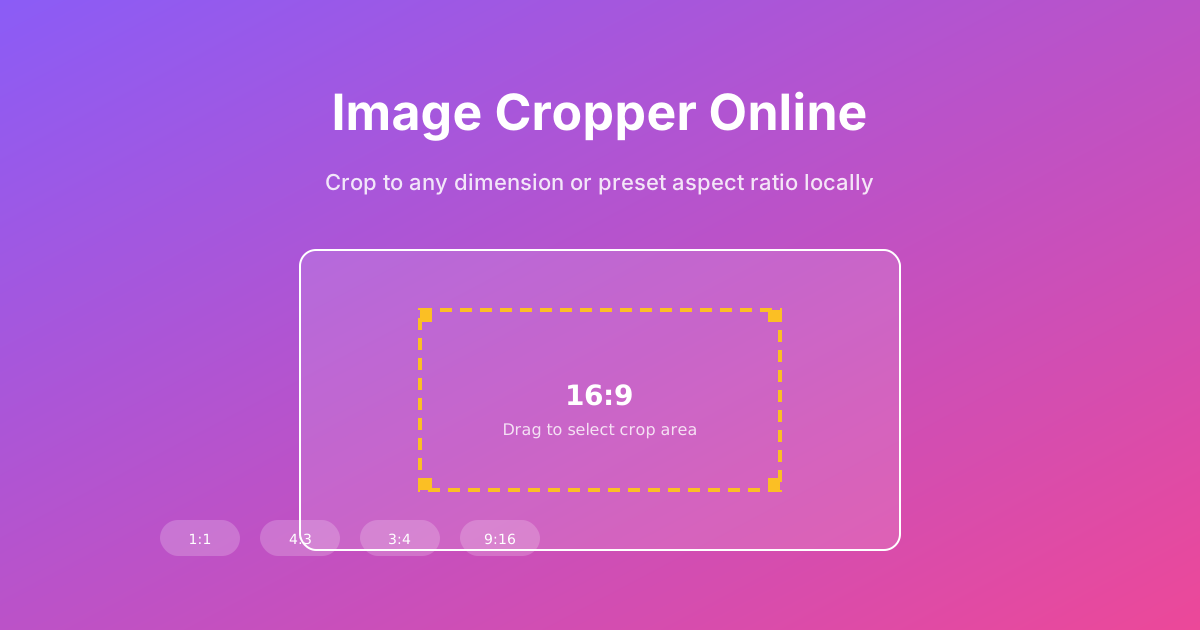
This image cropper online lets you select a region of an image and discard everything else. You can drag a freehand box or choose a preset aspect ratio such as 16:9, 4:3, 1:1, 3:4, or 9:16. The cropped result is rendered on an HTML5 canvas and downloaded as a PNG.
Cropping is one of the most common image edits, and doing it in the browser means you do not have to install software or wait for a server. Your original image stays on your device throughout the process.
The dimensions display shows the exact pixel size of your selection, which helps when you need a precise output such as 1200 by 630 pixels for an Open Graph image or 1080 by 1080 for an Instagram post.
Free lets you drag any rectangle. 1:1 is perfect for profile pictures and Instagram posts. 16:9 matches widescreen video thumbnails and website heroes. 4:3 is the classic slide and document ratio. 3:4 and 9:16 fit portrait photos and stories. Choosing a preset keeps your selection proportional even as you resize it.
Use the cropper to create profile pictures, banner images, product thumbnails, slide assets, and social-media posts. Web developers crop screenshots for documentation. Marketers crop photos to focus on a product. Designers crop stock imagery to fit layout grids. The direct PNG download means the result is ready for Figma, a CMS, or email.
The cropper reads your image with FileReader and draws it on a canvas element. No data is sent to a server. For the best quality, start with the highest-resolution original you have. Repeated cropping or saving JPEGs as PNG will not recover lost detail, but it will preserve whatever detail remains without adding compression artifacts.
After cropping, you can continue optimizing with the Image Compressor or convert the result with the JPG/PNG/WebP Converter.
The tool loads your image into the browser, lets you draw a crop area, and renders the selected pixels to a new PNG using the HTML5 Canvas API.
No. All processing happens locally. Your image never leaves your device.
You can crop freely or choose from 16:9, 4:3, 1:1, 3:4, and 9:16 presets.
The dimension display shows the current selection in pixels. Drag the box until it matches the size you need.
The cropper accepts PNG, JPEG, and WebP images. The output is always a PNG.
Cropping itself does not reduce quality. Saving a cropped JPEG as PNG preserves the remaining detail without adding new compression artifacts.
Yes. The tool supports touch events, so you can crop on phones and tablets.
Crop removes parts of the image. Resize changes the overall dimensions. Use crop first to frame the subject, then resize if you need a smaller file.
PNG is lossless and supports transparency, making it the safest format for a cropped image that may be edited again.
Yes, it is completely free with no signup, no watermarks, and no usage limits.
Click Reset to reload the original image and start over.
You can download the PNG directly, compress it, resize it, or convert it to another format with the other tools on this site.
