Best Image to Vector Software in 2026: Top 8 Raster to SVG Tools Compared
If you've ever tried to scale up a logo and watched it turn into a pixelated mess, you already know why image to vector software matters. Unlike raster images built from fixed grids of colored squares, vector graphics use mathematical paths that stay razor-sharp at any size. Whether you're a graphic designer preparing a billboard, a crafter feeding a Cricut machine, or a web developer optimizing icons for retina displays, the right image to vector software can save you hours of manual tracing and deliver professional results in seconds. In this guide, we compare 8 top tools — from free online converters to full-featured desktop apps — so you can pick the best fit for your workflow, budget, and platform.
Convert Your Images to Vector in One Click
Download Super Vectorizer Pro — professional image to vector software for Mac & Windows. Free trial included.
Compatible with macOS 10.10+ (M1/M2/M3) & Windows 7/8/10/11
What Is Image to Vector Software?
Image to vector software automates the process of converting raster images (PNG, JPG, BMP, TIFF, GIF) into scalable vector formats like SVG, EPS, PDF, and DXF. The core technology is called vector tracing or auto-tracing: the software analyzes color boundaries, edges, and gradients in your bitmap, then reconstructs the image as a set of geometric shapes — lines, curves, polygons — defined by mathematical coordinates.
This isn't just a simple file format switch. When you vectorize an image, the output becomes infinitely scalable: zoom to 1000% and every edge stays crisp. This makes image to vector software essential for logo design, CNC machining, laser engraving, screen printing, embroidery digitizing, and anywhere else resolution independence is non-negotiable.
Modern vectorization tools range from simple one-click online converters to sophisticated desktop applications with dozens of adjustable parameters. The key difference is control. Basic tools guess what your image should look like as a vector; advanced Super Vectorizer Pro gives you granular adjustment over color reduction, noise filtering, corner sharpness, and path simplification — letting you trade off between file size and fidelity.
Desktop vs. Online Image to Vector Software
Before diving into specific tools, it's worth understanding the fundamental trade-off between desktop and online vectorization:
| Feature | Desktop Software | Online Converters |
|---|---|---|
| Processing power | Uses your computer's CPU/GPU — fast even for large files | Dependent on server load; may time out on big images |
| Privacy | Files stay on your machine | Files uploaded to third-party servers |
| Fine-tuning controls | Extensive: color palettes, noise reduction, path smoothing | Minimal: usually 1-3 preset quality levels |
| Batch processing | Convert hundreds of images at once | Usually one file at a time |
| Output formats | SVG, EPS, PDF, DXF, AI + more | Typically only SVG |
| Cost | One-time or subscription fee | Free for basic use |
| Best for | Professional work, sensitive files, high volume | Quick one-off conversions, casual use |
For professional workflows — especially when handling client assets or large batch jobs — desktop image to vector software is almost always the better investment. For a one-time logo conversion or a quick social media graphic, free free online tools can get the job done.
Top 8 Image to Vector Software in 2026
1. Super Vectorizer Pro (Mac & Windows)
Best for: All-around professional vectorization with the best balance of power and ease of use.
Super Vectorizer.AI alternative Pro is a dedicated raster-to-vector tracer that supports 70+ input formats and exports to SVG, EPS, PDF, DXF, and AI. Its segmentation engine can separate an image into dozens of color layers automatically, and the manual adjustment panel lets you fine-tune every parameter from corner sharpness to curve fidelity. It's one of the few tools that handles both simple line art and complex photographic images equally well. Batch processing, PNG to SVG conversion on Mac, and drag-and-drop workflow make it the top pick for designers, crafters, and engineers alike.
2. Adobe Illustrator (Mac & Windows)
Best for: Professional designers already in the Adobe ecosystem.
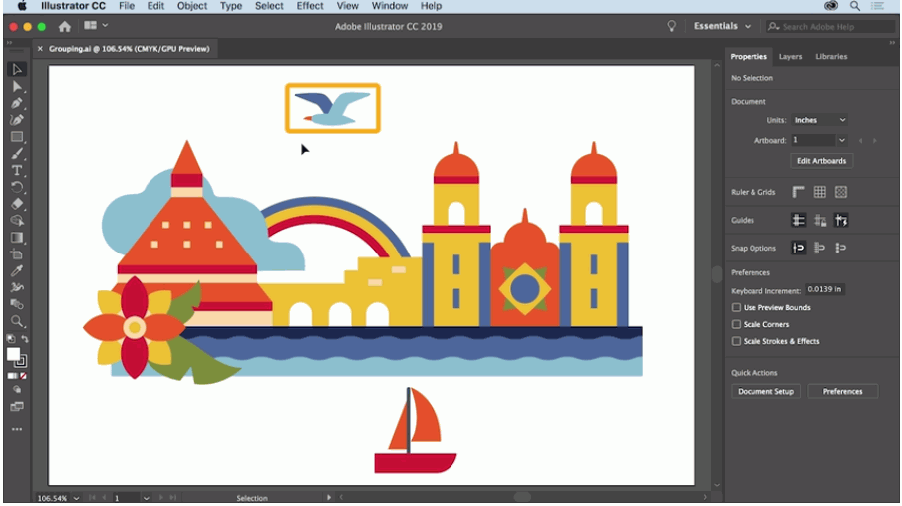
Illustrator's Image Trace panel offers 12 preset modes (High Fidelity Photo, Sketched Art, Line Art, etc.) plus advanced threshold, path, and corner controls. The results are excellent, but the subscription cost ($22.99/month) is steep if all you need is vectorization. Also, Image Trace works best on relatively clean source images — noisy photos can produce excessively complex vector paths.
3. Inkscape (Mac, Windows, Linux) — Free
Best for: Budget-conscious users who need a full vector editor plus tracing.
Inkscape's built-in Trace Bitmap tool uses Potrace for black-and-white tracing and its own algorithm for color. It supports brightness cutoff, edge detection, and color quantization modes. The main drawback: Inkscape can be slow on large images, and the interface has a steeper learning curve than dedicated vectorization tools. Still, as free open-source image to vector software, it's unbeatable value.
4. Vector Magic (Online + Desktop)
Best for: Fully automatic conversion with minimal user input.
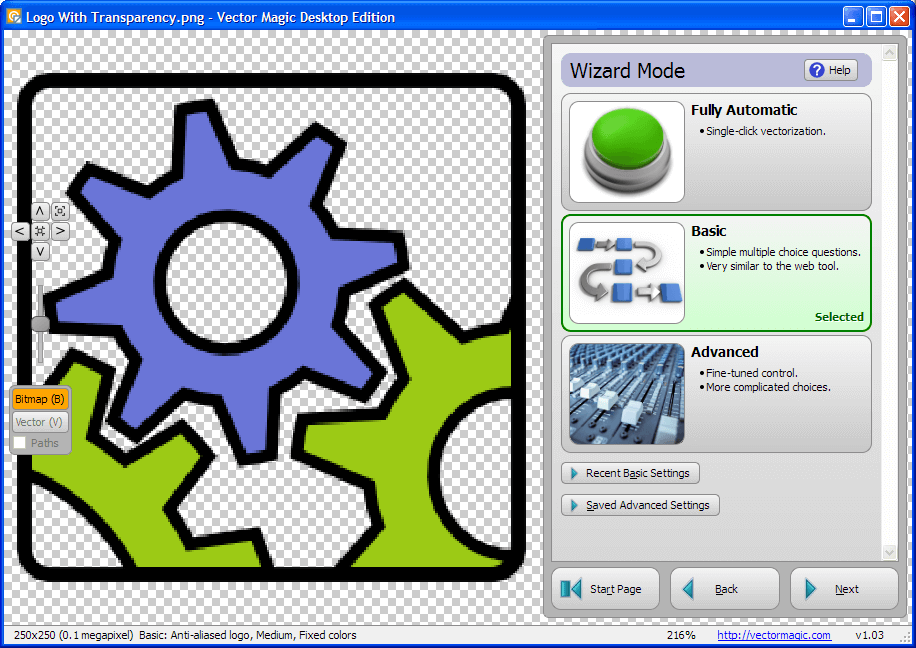
Vector Magic alternative for Mac uses a proprietary analysis engine that identifies the image type (photo, logo, sketch) and applies optimized tracing automatically. The desktop version supports batch processing and exports to SVG, EPS, PDF, and AI. The biggest downsides are price ($295 for the desktop license) and a limited number of free online conversions.
5. CorelDRAW (Windows)
Best for: Windows users in print and sign-making industries.
CorelDRAW's PowerTRACE engine is deeply integrated into the suite and produces clean vectors from logos, technical drawings, and photographs. It offers centerline tracing (ideal for technical blueprints) and outline tracing modes. The one-time purchase option ($549) is steep but avoids subscription fees. Limited to Windows, which excludes Mac users.
6. Autotracer.org (Online) — Free
Best for: Quick, no-signup raster to vector conversion.
Autotracer.org is a free online vectorization tool with no registration required. Upload an image, pick output format (SVG, EPS, PDF, AI), adjust a few basic parameters, and download the result. Limited to 6 MB uploads and one file at a time, but perfect for quick jobs when you don't want to install anything.
7. VTracer (Mac, Windows, Linux) — Free & Open Source
Best for: Developers and users who want a fast command-line or GUI vector tracer.
VTracer is a newer open-source image to vector software that excels at converting pixel art, logos, and flat illustrations. It produces clean, minimal SVG paths and is available as both a GUI app and a command-line tool for scripting. Its color clustering algorithm is particularly good at handling images with large flat color areas.
8. Rapid Resizer (Online)
Best for: Crafters who need stencil-ready vectors.
Rapid Resizer is a web app focused on converting images to cut-ready patterns for Cricut, Silhouette, and laser cutters. It includes specialized stencil and pattern tracing modes that aren't found in general-purpose vector software. Limited output formats but excels in its niche.
How to Choose the Right Image to Vector Software
Picking the right tool comes down to five key questions. Here's a practical decision framework:
- What kind of images are you converting? Logos and line art trace cleanly with almost any tool. Photographs and complex illustrations need advanced color segmentation — prioritize tools with multi-color tracing and noise reduction.
- What's your output format? If you only need SVG, most tools work fine. If you need DXF for CAD software, EPS for print shops, or PDF for clients, narrow your search to tools that export those specific formats. Best PNG to SVG converters often support multiple output formats.
- How many files do you need to convert? For one-off jobs, free online tools are fine. For batches of 50+ images, desktop software with batch processing will save you hours.
- What's your privacy requirement? If you're working with proprietary logos, client artwork, or sensitive materials, avoid uploading to online services. Use desktop image to vector software that processes everything locally.
- What's your budget? Free tools (Inkscape, VTracer, Autotracer) cover basic needs. Premium desktop apps ($29–$295) add speed, precision, and batch capabilities. Subscription tools (Illustrator) spread the cost but lock you in.
Pro Tips for Better Vectorization Results
Even the best image to vector software works best when you feed it clean source material. Here are five tips that dramatically improve output quality:
- Start with the highest resolution source possible. A 2000px-wide PNG will always trace better than a 400px-wide one. The algorithm has more pixels to analyze, which translates to more accurate edge detection.
- Clean up your image first. Remove JPEG artifacts, background noise, and dust spots before tracing. The less garbage in your source, the fewer garbage paths in your output.
- Use the right number of colors. Most vectorization tools let you cap the color palette. For logos, 2-16 colors usually yields clean, compact SVGs. For photographs, 32-64 colors preserves more detail at the cost of larger files.
- Simplify paths post-trace. Even good auto-traces can produce unnecessarily complex paths. Tools like SVG compressor online can reduce node counts by 50-80% without visible quality loss.
- Preview at actual size. A vector that looks perfect zoomed out at 25% may reveal jagged corners or color bleeding when viewed at 100%. Always inspect critical elements at full resolution before exporting.
Frequently Asked Questions
Can image to vector software convert any picture to a perfect vector?
Not perfectly — there's always some information loss when converting from a continuous-tone raster to discrete vector shapes. The software makes educated guesses about where color boundaries should be, but it can't recreate image detail that doesn't exist in a form amenable to geometric representation. Photographs with smooth gradients will always look somewhat posterized when vectorized. However, for logos, icons, illustrations, and line art, modern image to vector software can produce results that are essentially indistinguishable from hand-traced artwork.
What's the difference between centerline tracing and outline tracing?
Outline tracing (also called contour tracing or silhouette tracing) detects the outer boundary of a shape and draws a vector around it — like tracing around a stencil with a pencil. Centerline tracing finds the medial axis of a shape and draws a single line through its center. Centerline tracing is ideal for technical drawings, blueprints, and single-stroke fonts. Outline tracing works better for logos and filled shapes. Many high-end image to vector software packages support both modes.
Is free image to vector software good enough for professional use?
It depends on your use case. For screen printing, signage, and CNC routing where slight imperfections in the trace are acceptable, free tools like Inkscape produce perfectly usable results. For fine art reproduction, high-end print work, and situations where every node matters, paid desktop software with more sophisticated algorithms and manual adjustment capability is worth the investment. The gap between free and paid tools has narrowed significantly since 2023, but paid tools still lead in batch processing, format support, and noise handling.
What file formats can I convert to vector?
Most image to vector software accepts common bitmap formats: PNG, JPG/JPEG, BMP, GIF, TIFF, and WEBP. Some tools also support PSD (Photoshop), HEIC (Apple photos), and RAW camera formats. The output is typically SVG (most common for web), EPS (for print), PDF (for documents), DXF (for CAD/CAM), or AI (for Adobe workflows). PNG to SVG converters for Mac usually handle the widest range of input and output formats.
Ready to Try Professional Image to Vector Software?
Super Vectorizer Pro converts PNG, JPG, BMP, TIFF to SVG, EPS, PDF, DXF in seconds. Free trial available.
Compatible with macOS 10.10+ (M1/M2/M3) & Windows 7/8/10/11
Choosing the right image to vector software doesn't have to be overwhelming. Start by clarifying your primary use case — daily professional work, occasional logo conversions, or crafting projects — and let that guide your decision. For a reliable, one-click solution that handles everything from simple line art to complex photographs, download the Super Vectorizer Pro free trial and see the difference a dedicated vectorization engine makes. And if you need quick web-based conversions between other formats, check out our full collection of free online tools.