SVG vs PNG: When to Use Each Format (Practical Guide for 2026)
Pick the wrong image format and you get blurry logos at high resolution, a website that loads in 6 seconds instead of 2, or a print file your local shop rejects. The SVG vs PNG decision isn't academic — it has real consequences for your project's visual quality, performance, and workflow. In this guide, we break down svg vs png when to use each format with clear decision rules, side-by-side comparisons, and practical scenarios you'll actually encounter. By the end, you'll know exactly which format to reach for, every time.
What Are SVG and PNG? A Quick Refresher
Before diving into the comparison, let's clarify what each format actually is at a fundamental level:
SVG (Scalable Vector Graphics) is a vector format — images are described as mathematical equations: "draw a circle at coordinates (50,50) with radius 30," not "pixel (50,50) is red." Because SVG files store instructions rather than pixels, they can scale to billboard size or shrink to a favicon without losing an iota of sharpness. SVG files are also text-based (XML), meaning they're human-readable, searchable, and can be manipulated with CSS and JavaScript directly in the browser.
PNG (Portable Network Graphics) is a raster format — images are grids of colored pixels, like a mosaic. A 400×300 PNG contains exactly 120,000 pixels, each with an assigned color. It's lossless (unlike JPEG, PNG doesn't throw away data to compress), supports full alpha transparency, and is universally supported across every platform and browser. The trade-off: scale a 400×300 PNG to 1600×1200 and those 120,000 pixels get stretched and interpolated, producing visible blur.
Need to Convert PNG to SVG?
Super Vectorizer Pro turns your raster PNG images into clean, scalable SVG vectors. Free trial — convert your first image in seconds.
Compatible with macOS 10.10+ (M1/M2/M3) & Windows 7/8/10/11
SVG vs PNG: The Complete Comparison Table
Here's a side-by-side breakdown of svg vs png when to use each format across every dimension that matters:
| Comparison Factor | SVG | PNG | Winner |
|---|---|---|---|
| Scalability | Infinite — math-based paths | Fixed pixel grid — blurs when enlarged | SVG |
| File size (icons & simple graphics) | Typically 1-5 KB | Often 10-50 KB for same graphic | SVG |
| File size (photos) | Impractically large, poor quality | Optimized for photographic content | PNG |
| Transparency support | Full alpha channel | Full alpha channel | Tie |
| Browser support | 97%+ (all modern browsers) | 100% (universal) | PNG (slightly) |
| Animation support | Yes — CSS, SMIL, JS animations | APNG variant exists (limited use) | SVG |
| Editability | Fully editable as code or in vector editors | Pixel-level editing only | SVG |
| Print quality | Resolution-independent, perfect at any DPI | Requires high-DPI source for good output | SVG |
| Color depth | True color (16.7M+) with gradients | True color (16.7M+) | Tie |
| SEO & accessibility | Text is searchable, accessible via ARIA | Rely on alt text (not indexed by content) | SVG |
When to Use SVG — The Clear-Cut Cases
SVG is the superior choice in these scenarios. If your project matches any of these, use SVG without hesitation:
1. Logos and Brand Marks
Your logo appears everywhere — from a 32×32 website favicon to a 20-foot trade show banner. An SVG logo looks razor-sharp in every context, while a PNG logo that works on a business card will look embarrassingly blurry on a billboard. Every major brand (Google, Apple, Nike, Airbnb) uses vector logos for this exact reason. Plus, SVG logos are typically under 10 KB versus 50-200 KB for high-resolution PNGs — a meaningful difference for page speed.
2. Icons and UI Elements
Modern web and app interfaces are packed with icons. Using SVG for icons means one file serves crisp rendering at 1×, 2× (retina), and 3× display densities. No need to maintain separate @2x and @3x PNG sprites. SVG icons can also be styled dynamically via CSS — change colors on hover, animate on click, or switch between light and dark mode themes without loading separate image files.
3. Illustrations and Infographics
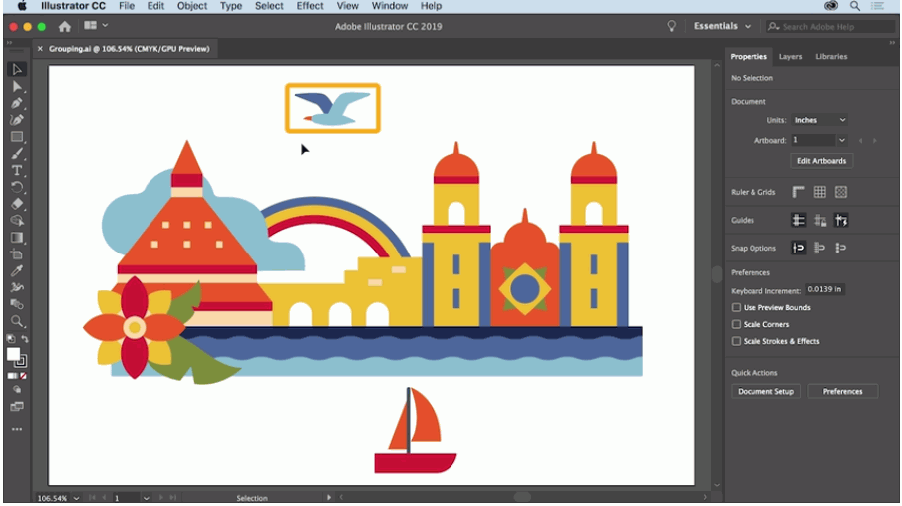
Flat illustrations, charts, diagrams, and data visualizations are ideal SVG candidates. They're composed of relatively simple geometric shapes with limited color palettes — precisely what SVG represents efficiently. Infographics in SVG format also have SEO advantages: text within the graphic is readable by search engines, and screen readers can parse the content for visually impaired users.
4. Print-Ready Artwork
If your image will ever be printed — business cards, posters, merchandise, packaging — use SVG. Print requires 300 DPI minimum, and raster images sized for 72 DPI screens will produce visibly pixelated prints. SVG vectors embedded in PDF or EPS workflows maintain perfect fidelity regardless of the print resolution.
5. Laser Cutting, CNC, and Cricut Projects
Laser cutters, CNC routers, and cutting machines like Cricut and Silhouette operate on vector paths. They trace cutting lines, not pixel boundaries. An SVG file communicates exact cut coordinates, while a PNG file would require tracing software to estimate where cuts should go — introducing errors. If you're making things with machines, svg vs png isn't a choice: it's SVG or nothing.
When to Use PNG — The Right Tool for the Right Job
Despite SVG's advantages, PNG remains the better choice in these scenarios:
1. Photographs and Realistic Images
Photographs contain millions of subtle color transitions, soft shadows, and organic textures that cannot be efficiently represented as vector paths. Attempting to vectorize a photograph produces either a posterized, cartoon-like result (with color quantization) or a path-bloated SVG file that's 10-50 times larger than the equivalent PNG — and still looks worse. For photos, PNG is the correct format.
2. Complex Screenshots and UI Previews
A screenshot of a web page, app, or software interface is fundamentally a raster image. Vectorizing it would inflate the file size without any quality benefit and would distort text rendering. Save screenshots as PNG — they'll be smaller, faster to load, and pixel-accurate representations of the original.
3. Images Requiring 100% Compatibility
While SVG support is excellent (97%+ of browsers), it's not quite 100%. Email clients are the biggest gap: most email platforms strip or rasterize SVG content. If you're embedding images in marketing emails, newsletters, or legacy systems, PNG is the safer bet. Similarly, some older content management systems and social media platforms handle PNG more reliably than SVG.
4. Small, Highly Detailed Images at Native Size
If you're displaying an image at exactly its native dimensions and never need to scale it up, and it has high pixel detail (like a tiny product photo thumbnail), a well-optimized PNG can be smaller than the equivalent SVG. But this is a narrow edge case — as soon as responsive design enters the picture (different screen sizes, zoom levels, retina displays), SVG regains the advantage.
5. Images with Millions of Unique Colors
Vector formats struggle with gradations. A sunset photograph, for example, might contain hundreds of thousands of distinct colors blending seamlessly. Representing that as vector paths would require an astronomical number of shapes. PNG or JPEG are the appropriate formats for photorealistic color content.
Practical Use Cases: Which Format Wins?
Here's how the svg vs png decision plays out in specific real-world scenarios:
| Scenario | Recommended Format | Why |
|---|---|---|
| Website logo in header | SVG | Scales perfectly on mobile, tablet, desktop, and retina screens |
| Product photo in e-commerce | PNG (or JPEG) | Photographic detail can't be efficiently vectorized |
| Social media icon set | SVG | Tiny file size, color-changeable via CSS, always sharp |
| Email newsletter header | PNG | Email clients don't reliably render SVG |
| T-shirt design for screen printing | SVG | Print shops require vector originals for color separations |
| App store screenshot | PNG | Pixel-accurate representation; no benefit from vectorization |
| Data chart on a blog post | SVG | Text is searchable; chart stays crisp when shared/zoomed |
| Cricut vinyl decal file | SVG | Cutting machines require vector paths, not pixel maps |
How to Convert Between SVG and PNG
In many real-world workflows, you'll need both formats. Here's how to convert in each direction:
Converting PNG to SVG (Raster to Vector)
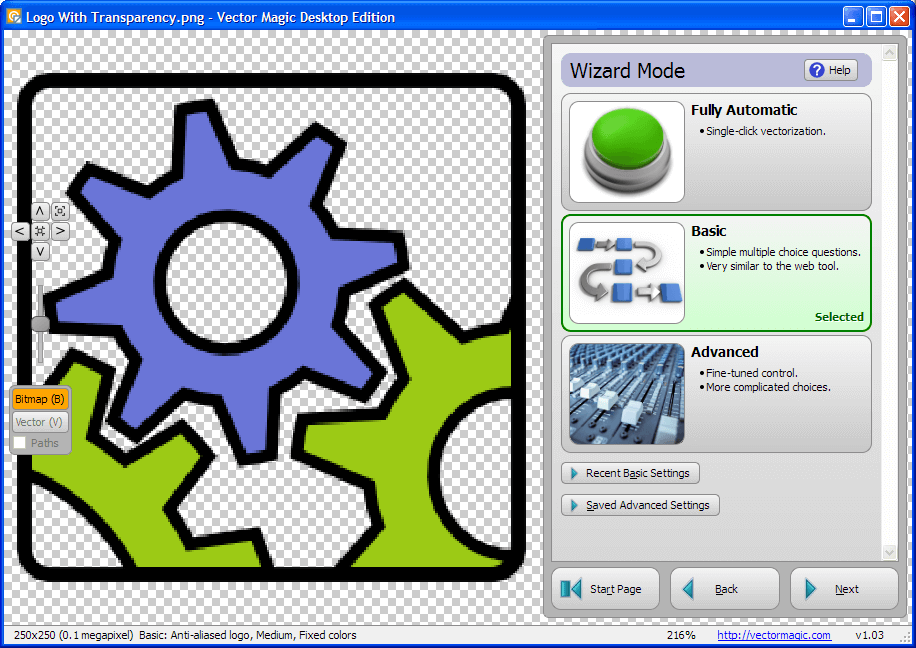
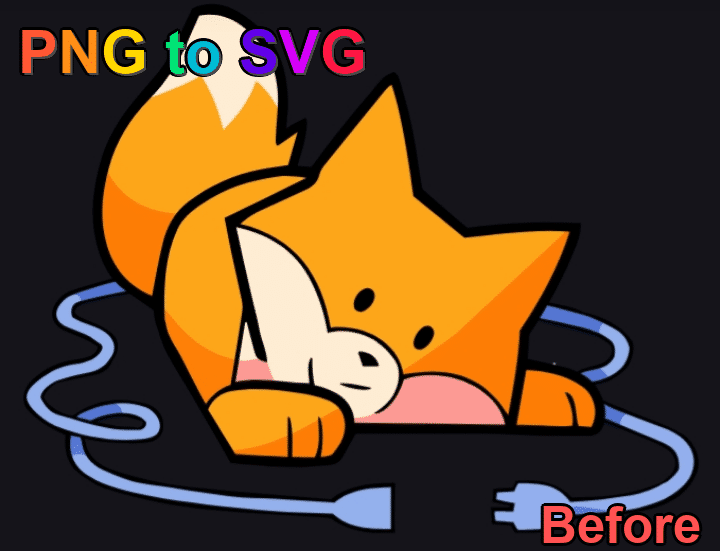
This is the harder direction because you're creating geometric information from pixel data. Use dedicated PNG to SVG converter software like Super Vectorizer Pro, which uses tracing algorithms to detect edges, color boundaries, and shapes in your PNG and reconstruct them as vector paths. The quality of the output depends heavily on the source image — clean logos and illustrations trace beautifully; photographs produce posterized results.
For quick one-off conversions, free online SVG converters can handle simple images. But for professional results with multi-color segmentation, noise filtering, and path simplification controls, a desktop vectorizer is the better tool.
Converting SVG to PNG (Vector to Raster)
This is straightforward: any SVG can be rendered to PNG at any resolution by "rasterizing" the vector paths into a pixel grid. Tools like our SVG to PNG converter online let you specify the output dimensions and export a PNG at any size. This is useful when you need a PNG version of your SVG for email templates, social media posts, or any context where SVG isn't supported.
Convert PNG to SVG in Seconds
Get crisp, scalable SVG vectors from any PNG image. Super Vectorizer Pro — professional vectorization, free trial available.
Compatible with macOS 10.10+ (M1/M2/M3) & Windows 7/8/10/11
File Size: SVG vs PNG in Practice
One of the most common questions about svg vs png when to use is about file size. The answer is highly dependent on image complexity:
- Simple icon (100×100): SVG ~1-2 KB vs PNG ~3-8 KB. SVG wins.
- Complex logo with gradients (500×500): SVG ~8-20 KB vs high-res PNG ~40-120 KB. SVG wins significantly.
- Flat illustration (800×600): SVG ~15-40 KB vs PNG ~60-180 KB. SVG wins.
- Screenshot (1200×800): SVG ~400-800 KB (poor quality) vs PNG ~150-300 KB. PNG wins.
- Photograph (2000×1500): SVG impractical vs PNG ~1-3 MB. PNG wins (or better, use JPEG/WebP).
The pattern is clear: svg vs png file size favors SVG for graphics with relatively few colors and geometric shapes, and PNG for continuous-tone images with millions of colors. If your SVG is unexpectedly large, consider running it through an SVG compressor to strip unnecessary metadata and simplify over-complex paths.
Frequently Asked Questions
Can I use SVG and PNG together on the same page?
Absolutely, and this is standard practice. Most modern websites use SVGs for logos, icons, and illustrations while serving photographs and screenshots as PNGs (or WebPs for better compression). The formats coexist seamlessly — browsers handle both natively, and there's no technical conflict. The best web performance strategy uses SVG for vector-suitable content and optimized raster formats for photographic content.
Is SVG always smaller than PNG?
No. SVG is typically smaller for simple graphics (icons, logos, flat illustrations) but can become much larger than PNG when representing complex, high-detail images like photographs. A vectorized photo can easily be 10× larger than the equivalent PNG while looking significantly worse. The key is matching the format to the content type, not blindly choosing one over the other.
Does SVG load faster than PNG on websites?
For the same visual content that's vector-suitable (icons, logos, UI elements), yes — SVGs are almost always smaller files that transfer faster. Additionally, SVG can be inlined directly into HTML, eliminating an HTTP request entirely. But for photos and screenshots, PNG will load faster because it's the appropriate format for that content type. The svg vs png loading speed comparison only makes sense when comparing formats representing the same visual content.
Can I convert a PNG photo to SVG for my website?
You can, but you probably shouldn't. Converting a photograph to SVG via best PNG to SVG converters produces a posterized, illustration-like result — not a photorealistic vector. For website photographs, use WebP (best compression), JPEG (universal support), or PNG (lossless, transparency). Reserve SVG conversion for logos, icons, line art, and flat illustrations where the result will actually look good and be useful.
Understanding svg vs png when to use each format is one of the most practical skills in digital design. SVG gives you infinite scalability, tiny file sizes for graphics, and code-level editability. PNG gives you pixel-perfect photographs, universal compatibility, and simplicity. Use SVG for shapes; use PNG for pixels. And when you need to bridge the two — converting a logo or illustration from PNG to SVG — try Super Vectorizer Pro free or explore our collection of free online vector tools.