Clean Outlines, Fewer Nodes
Adjustable smoothing and path simplification collapse noisy bitmaps into smooth curves, so your digitizer spends less time on stray anchor points.
Embroidery machines stitch PES, DST and JEF files, not SVG. Get the artwork right first: trace any image into clean, low-node vector paths, then hand that file to your digitizing software.
Most embroidery problems trace back to the artwork, not the machine
Adjustable smoothing and path simplification collapse noisy bitmaps into smooth curves, so your digitizer spends less time on stray anchor points.
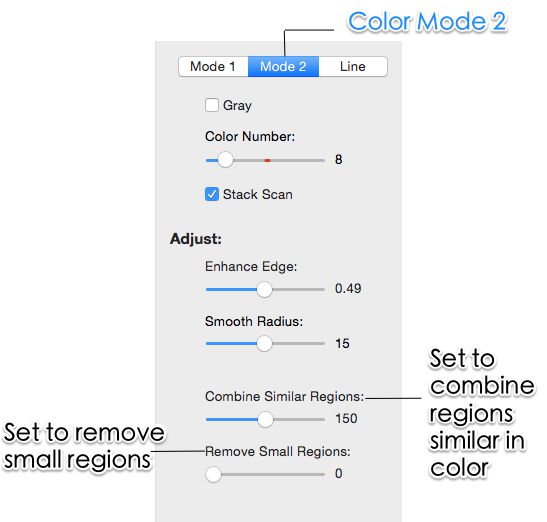
Drop gradients down to a manageable palette before stitching. Fewer flat color regions mean fewer thread changes and fewer jump stitches.
All tracing happens locally on your computer. Client logos and unreleased designs never leave the device — no uploads, no cloud dependency.
SVG, EPS, PDF and Adobe Illustrator AI output, ready to import into PE-Design, Hatch, SewArt or Ink/Stitch for conversion to PES or DST.
No manual tracing, no cloud uploads — just clean paths your digitizer can use
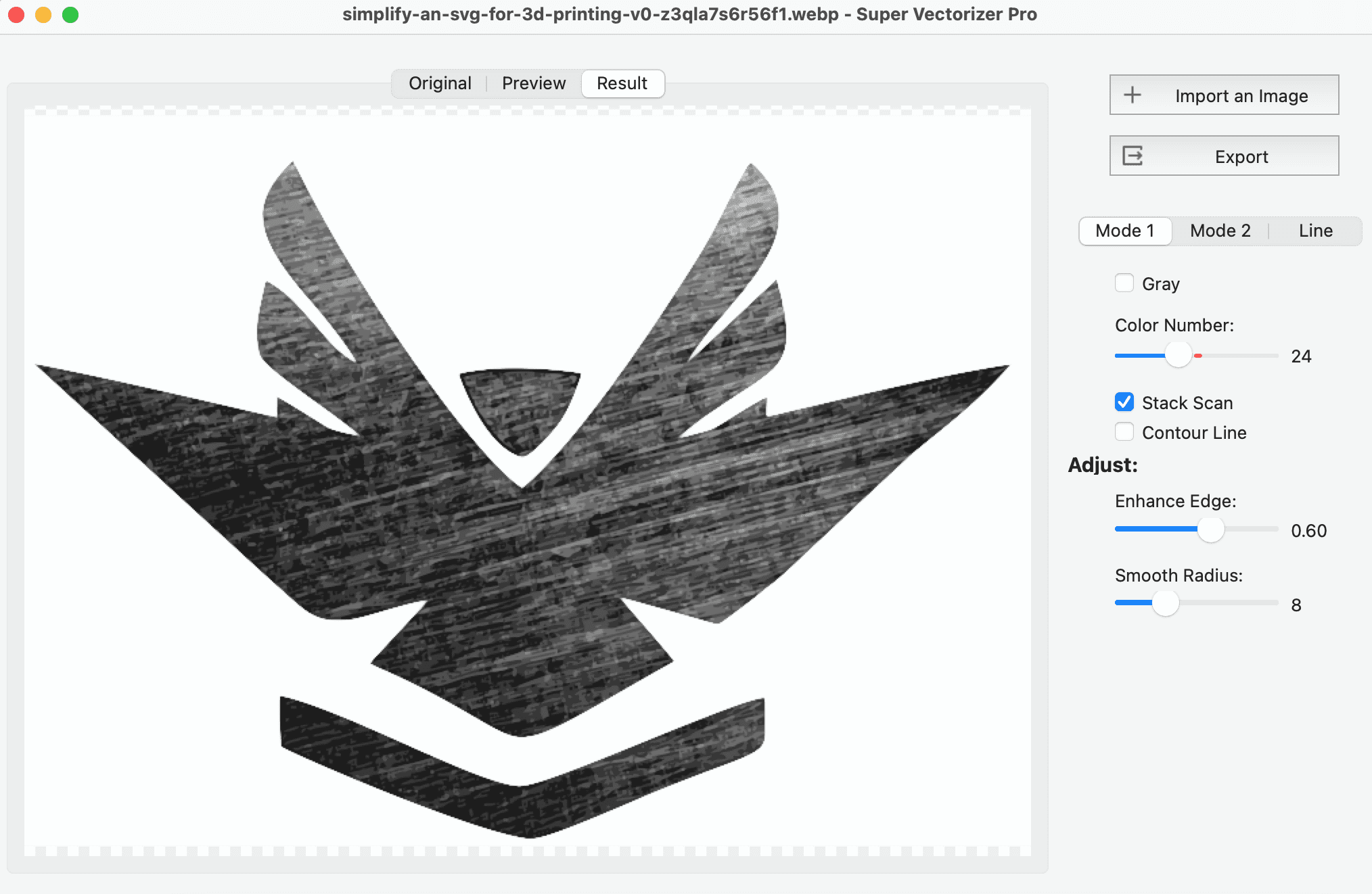
Export or scan your design as PNG, JPG or BMP at roughly 1000 to 2000 pixels on the long edge, with clean well-lit edges.
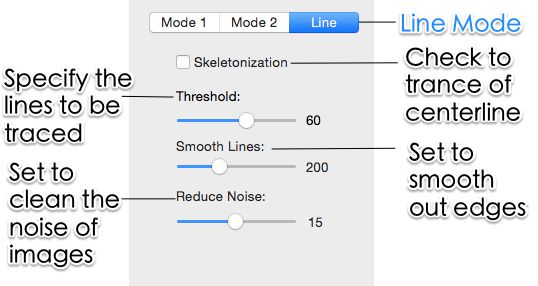
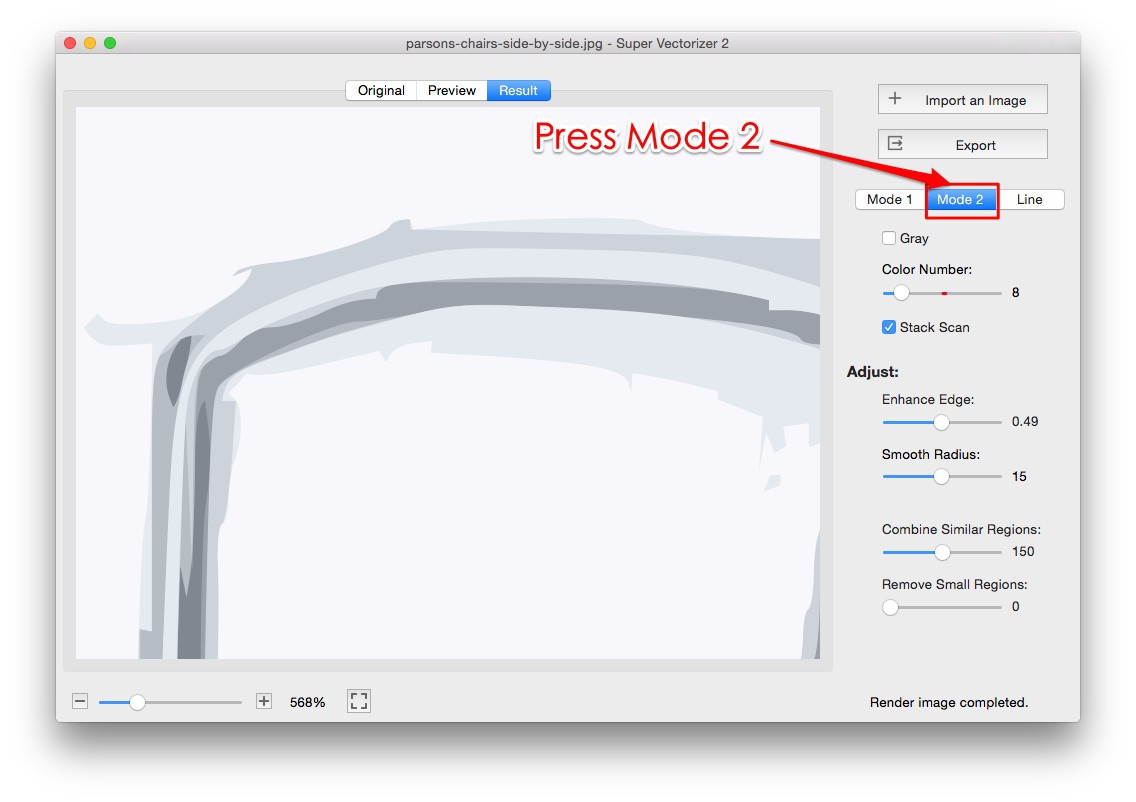
Open it in Super Vectorizer Pro and tune color count, edge smoothing and noise filtering until the outlines match the design.
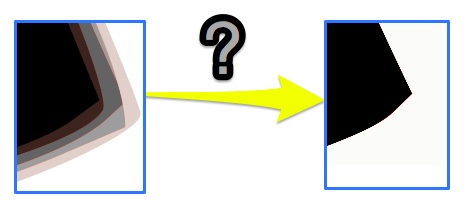
Fewer nodes mean cleaner stitch runs. Simplify curves and merge shapes that will share a single thread color.
Import the SVG into your embroidery software, set fill and satin stitches, then export PES, DST, JEF or EXP for your machine.
Ready to prepare your artwork? Try Super Vectorizer Pro free trial to preview vectorization results on your own designs.
Compatible with macOS 10.10+ (M1/M2/M3) & Windows 7/8/10/11
Export the right stitch format, and catch artwork problems before they reach the hoop
| Format | Primary machines | Notes |
|---|---|---|
| PES | Brother, Baby Lock | Most common home-machine format; stores thread color information |
| DST | Tajima, most commercial machines, many Singer models | Near-universal, but does not store thread colors |
| JEF | Janome, Elna | Some Janome models also read JEF+ |
| EXP | Bernina, Melco | Common on Bernina mid-range and older machines |
| XXX / VP3 | Husqvarna Viking, Pfaff | VP3 retains more design detail than XXX |
| Pre-flight check | Do this | Avoid this |
|---|---|---|
| Paths | Closed, continuous outlines | Open paths and overlapping fragments |
| Node count | As few as the shape allows | Hundreds of tiny segments per curve |
| Colors | Flat, separated by thread color | Gradients, shadows, photographic blends |
| Detail size | Strokes at least 1 mm wide | Hairlines under 0.5 mm that vanish in thread |
| Text | Converted to outlines | Live text that depends on installed fonts |
The SVG you prepare is brand-neutral — export a separate stitch file for each machine you use.
One prepared SVG covers every machine — only the exported stitch format changes
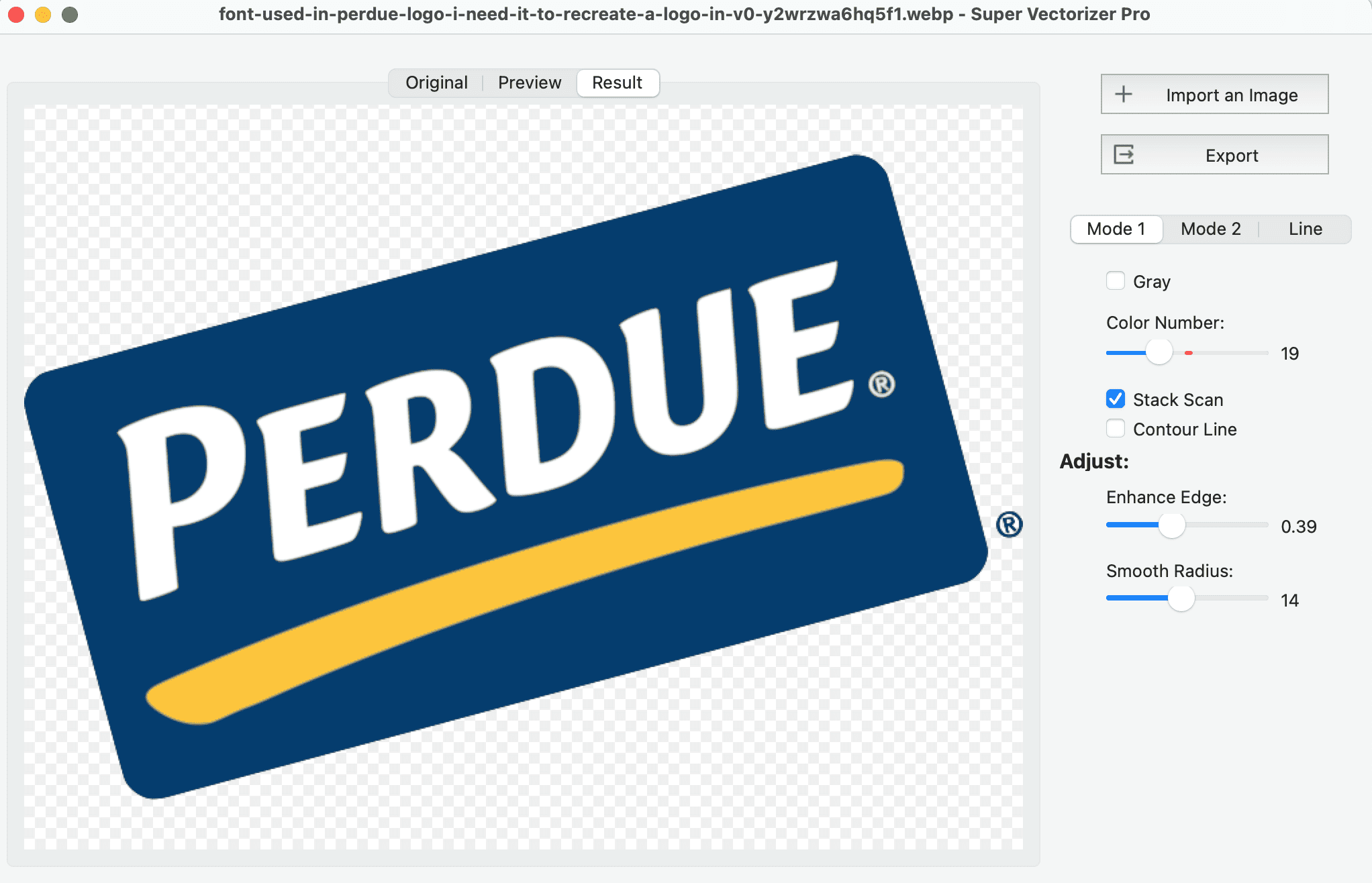
Vectorize a customer's bitmap logo into clean paths so satin columns get crisp edges at jacket and cap scale.
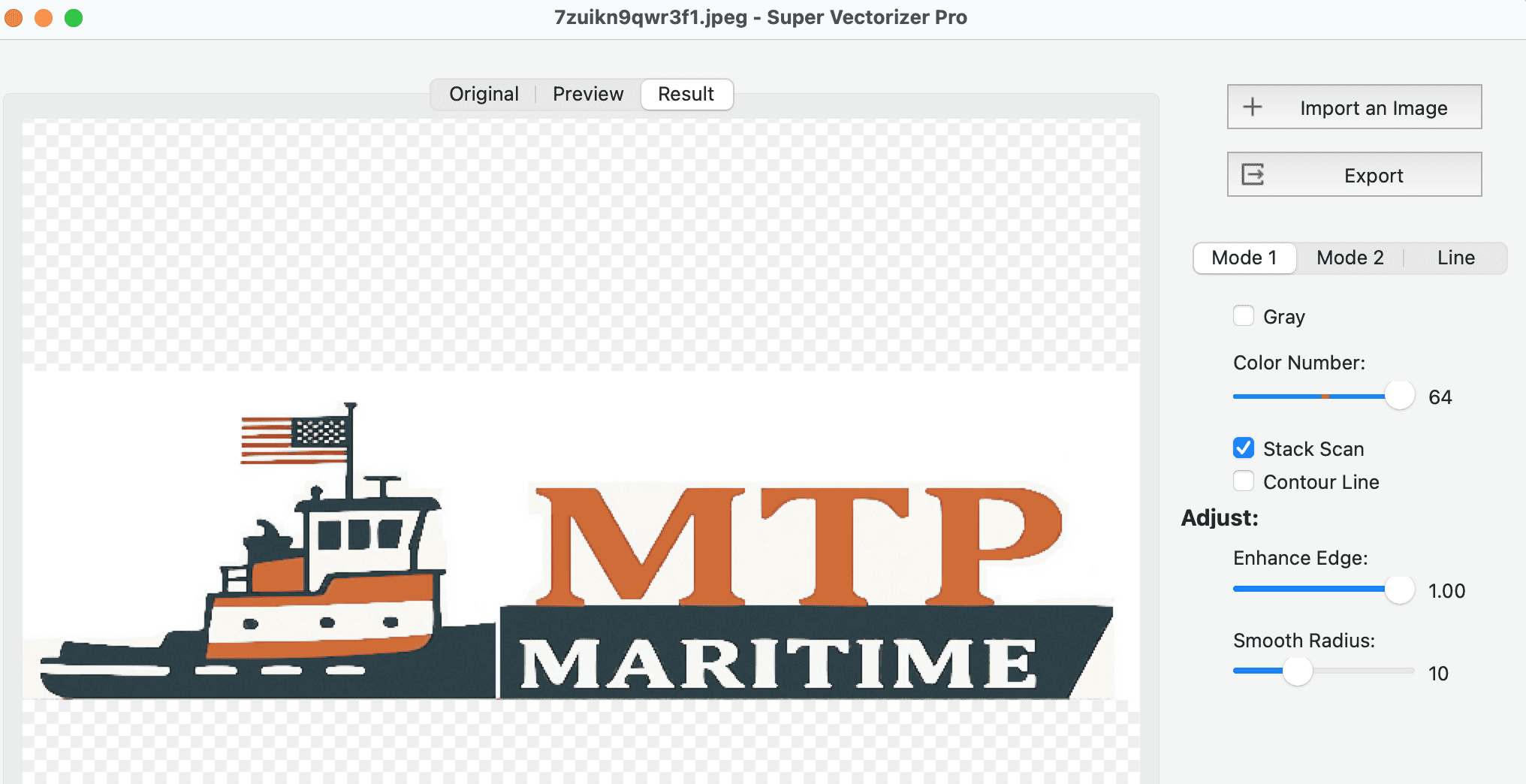
Trace lettering at high contrast, keep strokes at least 1 mm wide, and stitch names onto towels, bags and blankets.
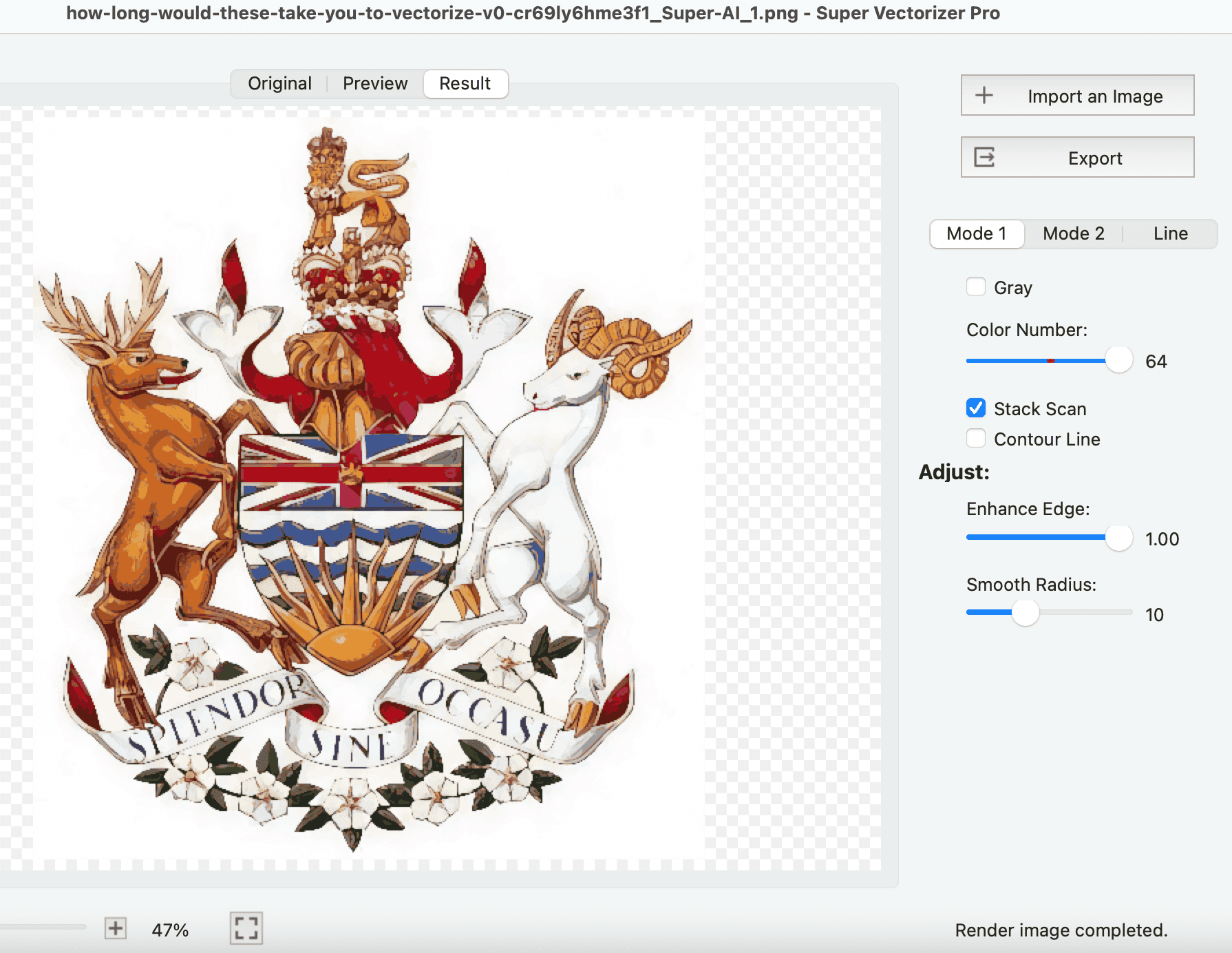
Trace the outline as a single closed path so it becomes a clean placement and cut line for applique shapes.
Everything you need to know about preparing SVG files for embroidery
Not directly. Embroidery machines read stitch files such as PES, DST, JEF or EXP, not vector paths. An SVG is a set of outlines, while an embroidery file is a sequence of needle commands. You import the SVG into digitizing software, which calculates the stitch angles, fill patterns and jump trims, then exports the file your machine reads. The SVG is the input drawing; the PES or DST is the output program.
Dedicated digitizing programs do this job. Brother PE-Design and Wilcom Hatch are the common paid options, SewArt is a low-cost auto-digitizer, and Ink/Stitch is a free Inkscape extension. Whichever you pick, all of them produce noticeably cleaner stitch data when the SVG they import has smooth curves, few nodes and separately colored shapes.
Clean the artwork before digitizing: simplify paths so curves stay smooth, delete stray anchor points, merge shapes that will share one thread color, and avoid gradients, drop shadows and hairline details. If you start from a PNG or JPG, Super Vectorizer Pro traces it into a clean SVG whose node count and curve quality you can tune before handing it to your digitizer.
It depends on the brand. PES is the standard for Brother and Baby Lock, DST is the near-universal Tajima format most commercial machines accept, JEF belongs to Janome, EXP to Bernina and Melco, and XXX or VP3 to Husqvarna Viking and Pfaff. Check your machine manual first, because the same design may need exporting twice for two machines.
Yes, in two passes. First vectorize the photo into a clean SVG with Super Vectorizer Pro, reducing it to the shapes and colors you actually want stitched. Second, import that SVG into digitizing software and convert it to PES or DST. Skipping the vectorization step is the main reason auto-digitized photos come out muddy, because the software has to guess edges from every pixel of noise in the bitmap.
Ink/Stitch is a free, open-source Inkscape extension that turns SVG paths into PES, DST, EXP and several other stitch formats. It has a learning curve but handles real production work. Free online converters exist too, though they usually cap file size and give you little control over stitch direction or density.
No. Super Vectorizer Pro is a raster-to-vector tracing tool, not a digitizer. It exports SVG, EPS, PDF and Adobe Illustrator AI, and it supports 70+ formats in total. Those clean vector files are the ideal input for whatever digitizing program produces your PES or DST file.
No. It processes one image at a time. That suits embroidery work well, because each design normally needs its own tracing settings, node cleanup and color reduction before it is worth digitizing.
Most jump stitches come from messy source art rather than from the digitizer. Vectorize with fewer, larger color regions, close any open paths, and keep elements of one thread color as a single merged shape. Fewer separate objects means the stitch engine spends less time traveling between disconnected areas.
Bigger is better, but sharpness matters more than pixel count. Aim for roughly 1000 to 2000 pixels on the longest side with clean, well-lit edges. A small or blurry bitmap forces the tracer to invent detail, and that invented detail turns into ragged satin columns and puckered fills once it is stitched.
The SVG itself is universal, since it is just source artwork. What changes is the stitch file you export afterward: PES for Brother, JEF for Janome, EXP for Bernina, and DST for most Singer and multi-brand machines. Prepare one good SVG, then export a machine-specific file for each brand you stitch on.
Both work well. For monograms, vectorize the lettering at high contrast so the satin columns get crisp edges, and keep strokes at least 1 mm wide. For applique, the SVG outline becomes the placement and cut line, so trace it as a single closed path rather than as several overlapping shapes.
Join 50,000+ designers who trust Super Vectorizer Pro for clean vector output.
30-day money-back guarantee.
Explore other ways to prepare vector files for craft and cutting machines