
Converting PNG to SVG for Cricut is essential if you want clean, professional cuts from your designs. While Cricut Design Space accepts PNG files, SVG format gives you much better results because vectors stay crisp at any size. In this guide you will learn the fastest 3-step workflow, the best settings for vinyl and iron-on, and how to get layered, cut-ready files without buying Adobe Illustrator.
Ready to convert your images? Try Super Vectorizer Pro free trial to preview vectorization results.
Compatible with macOS 10.10+ (M1/M2/M3) & Windows 7/8/10/11
Why SVG Beats PNG for Cricut
A proper SVG contains mathematical paths that tell your Cricut blade exactly where to cut. Compared with a raster PNG, that means:
- Infinite Scaling: SVG files scale to any size without pixelation or quality loss.
- Clean Cuts: Vector paths give Cricut precise cutting lines.
- Easy Editing: Resize, reshape, and modify SVG elements without losing quality.
- Better Contour Detection: Cricut Design Space identifies SVG paths automatically.
- Real Layers: A color-separated SVG becomes one layer per color in Design Space — PNGs stay flat.
How to Convert PNG to SVG for Cricut in 3 Steps
1Choose the Right PNG Image
Select a high-quality PNG with these characteristics for best results:
- Transparent background - Essential for clean cuts.
- High resolution - At least 300 DPI recommended.
- Clear edges - Simple designs with defined outlines work best.
- Good contrast - Clear distinction between foreground and background.
2Convert PNG to SVG Online
Follow these steps to convert your image:
- Go to the PNG to SVG Converter.
- Upload your PNG image by dragging and dropping or clicking Select File.
- Choose conversion mode:
- Vectorize - For color images and photographs.
- B&W - For black and white designs.
- Outline - For simple graphics with clear edges.
- Click "Convert" and wait for processing.
- Download your SVG file.
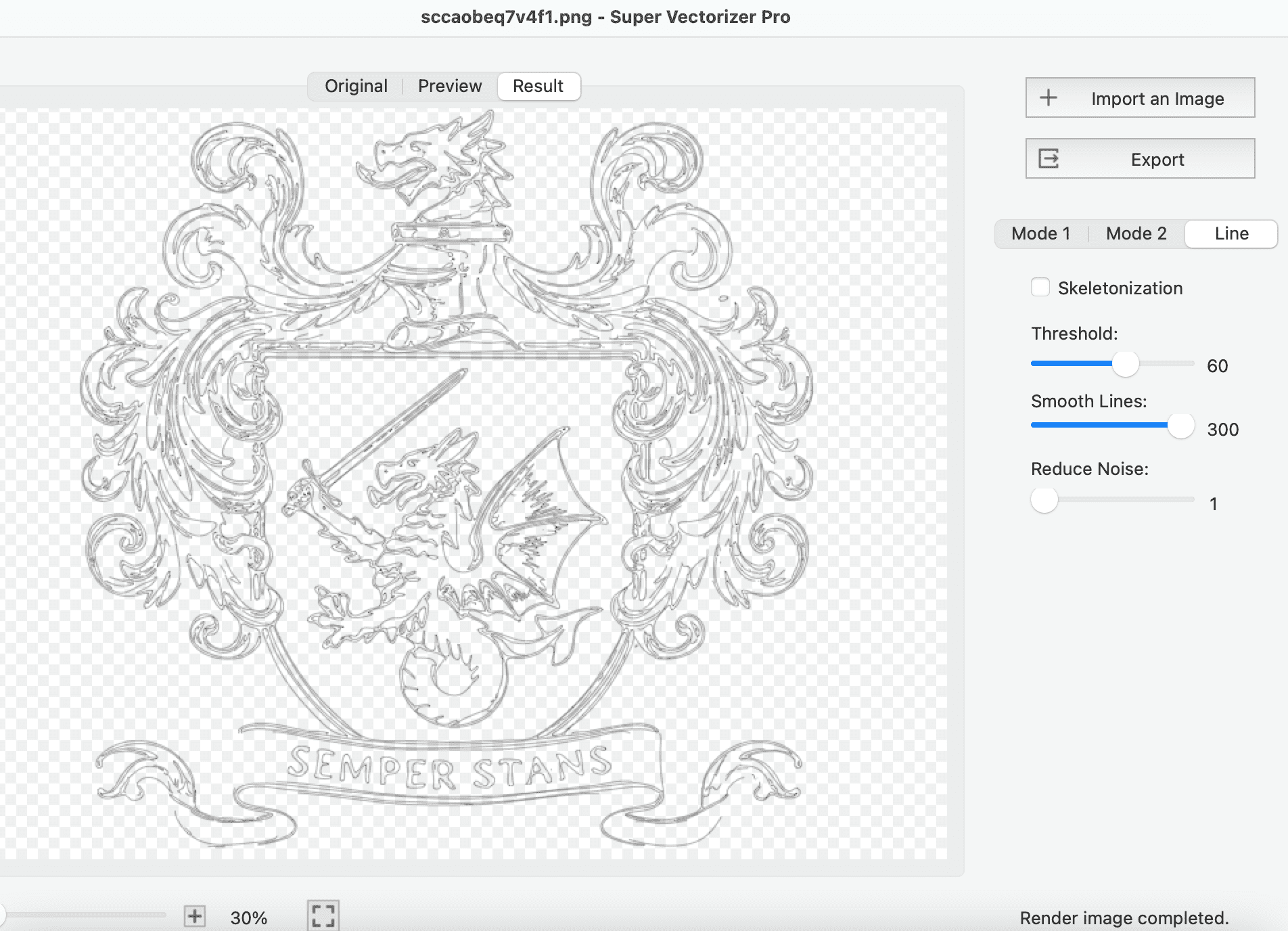
3Import SVG to Cricut Design Space
Add your SVG to your Cricut project:
- Open Cricut Design Space.
- Click "New Project" or open an existing project.
- Click "Insert Images" in the left sidebar.
- Select your downloaded SVG file.
- The image will appear on your canvas - resize as needed.
- Click "Make It" to start cutting.
Pro Tips for Cricut Projects
Image Preparation Tips
- Remove Background First: Use a background remover before converting for cleanest results.
- Increase Contrast: Edit your PNG in an image editor to enhance edges if needed.
- Save as PNG-24: For complex images, ensure your PNG uses full color depth.
- Test Scale: Always test cut at actual size before cutting your final material.
Best Cricut Settings for SVG Files
- For Vinyl: Use "Premium Vinyl - Permanent" and a standard blade.
- For Iron-On: Mirror your design before cutting and flip iron-on before applying.
- For Paper: Use Cardstock setting with multiple passes for thick materials.
- For Fabric: Use Fabric Blade and apply correct pressure settings.
Frequently Asked Questions
Does Cricut accept PNG files?
Cricut Design Space can work with PNG files, but SVG is preferred because SVG files are vector-based and scale perfectly at any size without losing quality. PNG files are raster-based and may appear pixelated when enlarged. Converting PNG to SVG before importing gives you cleaner cuts.
What PNG format works best for Cricut?
For Cricut cutting, use PNG files with transparent backgrounds. High-contrast images with clear edges (like text, logos, or simple graphics) convert best. Complex photographs with many colors may not cut as cleanly.
How do I make Cricut cut around my image?
To make Cricut cut around your image, convert it to SVG first. The vector paths in SVG format allow Cricut Design Space to trace the exact edges of your design. Upload the SVG, use the contour function if needed, and then click "Attach" before cutting.
Can I convert multiple PNG files for Cricut at once?
Our online converter processes one image at a time. For converting multiple files, you may need to process each one individually in Super Vectorizer Pro, or use a true batch tool such as an Inkscape script. Design your project in Cricut Design Space by importing multiple SVG files and arranging them as needed.
What file formats does Cricut Design Space support?
Cricut Design Space supports SVG, PNG, JPG, GIF, BMP, and PDF formats. SVG is recommended because it maintains quality at any size. For cutting projects, SVG provides the cleanest results.
How to convert PNG to SVG for Cricut without Illustrator?
You do not need Adobe Illustrator. Use the free SVGVector online PNG to SVG converter for quick one-off conversions, or Super Vectorizer Pro (Mac/Windows) for offline, high-control tracing with adjustable node count and color separation. Both output true vector paths that Cricut Design Space can cut.
What is the best free PNG to SVG converter for Cricut?
For occasional, simple designs the free SVGVector online converter is the fastest option. For regular Cricut users who need clean layers, limited node counts, and offline privacy, Super Vectorizer Pro's free trial lets you preview results before exporting. Inkscape (free, desktop) is a third alternative if you want to fine-tune traces manually.
How do I convert PNG to SVG with color for Cricut?
Use a tracer that supports color quantization and set the palette to 3-6 flat colors so each color becomes its own cut layer in Cricut Design Space. Super Vectorizer Pro and Inkscape both support full-color tracing; cloud converters often flatten everything into a single layer. See our dedicated guide on PNG to SVG with Color for Cricut for the full workflow.
How do I get high-quality Cricut SVG cuts?
Start with a transparent-background PNG at 300 DPI or higher, keep the design to a few solid colors, and reduce the node count so the blade does not vibrate. After conversion, delete stray paths and weld nearby cut lines. Always test cut at actual size on scrap material before using your final vinyl or paper.
Inkscape vs Cricut Design Space - which is better for SVG?
Cricut Design Space only produces a single cut outline around a flattened image and cannot save a true multi-layer SVG. Inkscape's Trace Bitmap creates real vector paths you can separate by color and edit later. For cut-ready, layered Cricut files, Inkscape or a desktop vectorizer like Super Vectorizer Pro beats Design Space's built-in trace.
Ready to Convert PNG to SVG for Cricut?
Use our free online converter for quick one-off designs, or try Super Vectorizer Pro free trial to preview high-quality, layered vectorization results.
Compatible with macOS 10.10+ (M1/M2/M3) & Windows 7/8/10/11
Related Articles
Try These Free Online Tools
No download required — convert, compress & optimize SVGs right in your browser
PNG to SVG Converter
Convert PNG, JPG, BMP images to scalable vector graphics instantly
PNG to SVG ConverterSVG Compressor (Mini)
Reduce SVG file size by up to 80% without losing quality
SVG Compressor OnlineSVG Optimizer
Clean up SVG code, remove redundant data and optimize for web
SVG Optimizer OnlineJPG to SVG Converter
Turn JPEG photos into crisp vector artwork in seconds
JPG to SVG ConverterEPS to SVG Converter
Convert EPS vector files to web-friendly SVG format
EPS to SVG ConverterAll Free Tools
Browse our complete collection of free online conversion tools
Browse All Free Tools