From Concept to Vector
AI drafts dozens of logo ideas in seconds; Super Vectorizer Pro turns the best one into clean SVG paths you can actually ship.
AI tools like Midjourney, DALL·E, and Ideogram draft the idea; Super Vectorizer Pro turns that PNG or JPG into a clean, editable SVG logo on Mac and Windows. One-time $29.99, works offline, free trial previews the full trace.
Want a quick browser trace first? Try the free online PNG to SVG converter, then export in the desktop app.
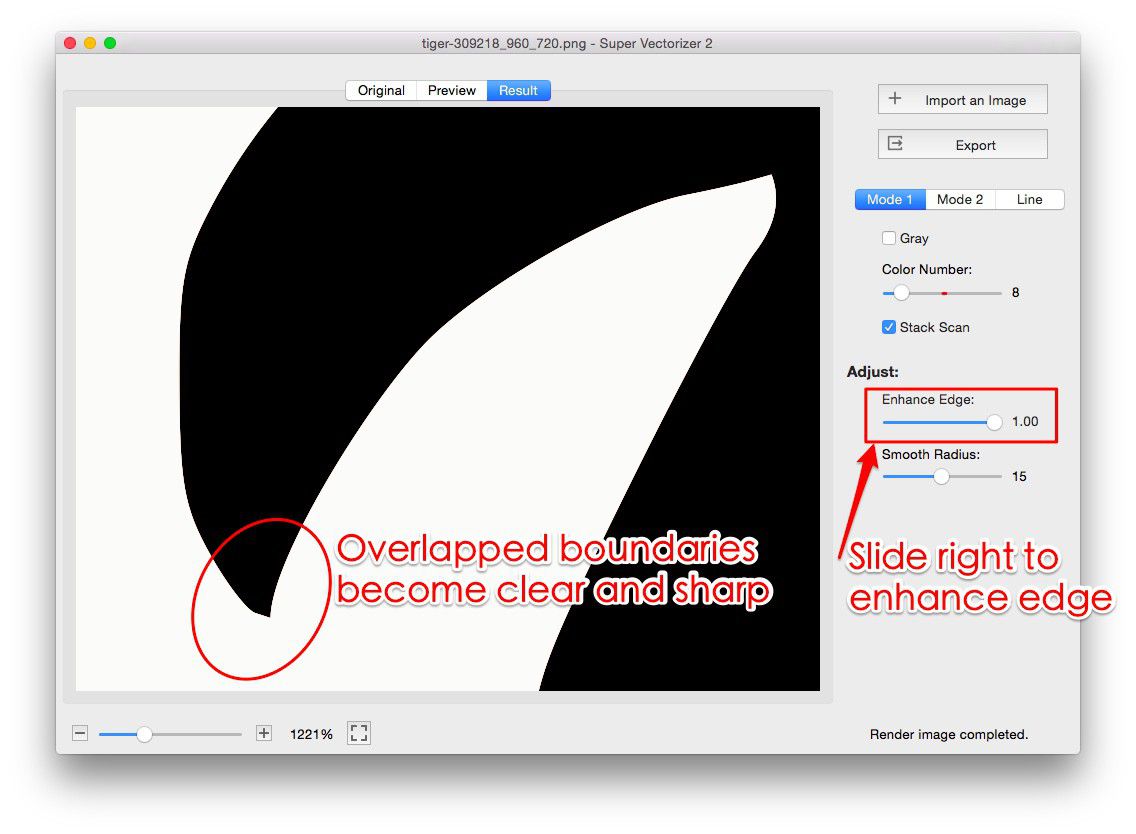
AI is great at ideas; vector software is great at production-ready files.
AI drafts dozens of logo ideas in seconds; Super Vectorizer Pro turns the best one into clean SVG paths you can actually ship.
Vectorized AI logos open in Illustrator, Figma, or CorelDRAW so you can recolor a wordmark or fix a shape after export.
An AI PNG blurs when enlarged; the SVG version stays razor-sharp from a 16×16 favicon to a 100-foot billboard.
Super Vectorizer Pro traces the logo locally. Nothing is uploaded to a server, so client and brand logos stay confidential.

Four steps from a Midjourney or DALL·E render to an editable SVG logo

Prompt Midjourney, DALL·E, or Ideogram for a flat, high-contrast mark with strong outlines and few colors.
Save the best result at the highest resolution available so the trace has more detail to work with.
Open the image, pick color or line-art mode, and let the app trace edges into SVG paths on Mac or Windows.
Save SVG for web, AI for Illustrator, PDF for print, or DXF for cutting, then open it to adjust colors.
Ready to turn an AI-generated image into a clean, editable SVG logo? Download Super Vectorizer Pro and preview the full trace in the free trial.
Compatible with macOS 10.10+ (M1/M2/M3/M4) & Windows 7/8/10/11
Where each tool fits in a logo production pipeline
Great for exploring brand directions and illustration-heavy marks. Export a clean PNG, then vectorize for production.
Strong at text-in-logo and fast brand kits. Vectorize the export so the final SVG is editable and scalable.
Good for quick starters with templates. Run the PNG through Super Vectorizer Pro to get true vector paths.
The final step: converts any AI raster into SVG, AI, DXF, and PDF with full color control, offline on your machine.
Everything you need to know about AI-generated SVG logos
Most AI image generators (Midjourney, DALL·E, Ideogram, Canva, Looka) output raster PNG or JPG, not true SVG. A few offer an SVG export, but the result is often a flattened or low-control file. For a logo you can recolor, scale, and edit, the reliable path is to generate the concept with AI, then vectorize that raster image with Super Vectorizer Pro into a clean SVG on Mac or Windows.
Save the AI output as PNG or JPG, open it in Super Vectorizer Pro, choose color or line-art mode, and let the app trace the edges into vector paths. Then export SVG (or AI/DXF/PDF). The whole conversion runs locally on your Mac or Windows, and the free trial previews the complete traced logo before you buy the one-time $29.99 license.
Use AI for ideation and Super Vectorizer Pro for the final vector. Prompt the AI for a simple, high-contrast mark with strong outlines and few colors, export a large PNG, then vectorize it so the logo is built from editable paths. This hybrid gives you both creative speed and production-ready SVG files.
Yes, once vectorized. The raw Midjourney or DALL·E file is a raster image, so it blurs when enlarged. Run it through Super Vectorizer Pro to convert it into SVG paths, and the logo stays sharp from a favicon to a billboard and opens cleanly in Illustrator, Figma, or CorelDRAW.
Absolutely. The same workflow works for icons: generate a clean, flat icon with AI, vectorize it in Super Vectorizer Pro, and export SVG. Because icons are usually simple shapes, a flat-design prompt with two or three colors traces into crisp, scalable SVG icons with very little cleanup.
Super Vectorizer Pro includes a free trial that loads your AI-generated image and previews the full vectorization on your own computer, so you can judge the trace before buying. The licensed version is a one-time $29.99 with no subscription. For a quick browser-only check, our free online PNG to SVG converter also traces without an install.
When the source has flat color, yes. Super Vectorizer Pro separates color regions into their own vector objects, so you can recolor the wordmark or icon in any design tool after export. Very gradual AI gradients may simplify into a few flat color layers, which is normal and usually looks cleaner as a logo.
For most marks, vectorizing a well-prompted AI image gets you 90% of the way fast. A human designer still helps with trademark-unique details, perfect kerning, and brand consistency. The combo of AI ideation plus precise vectorization is far faster than hand-tracing from scratch and cheaper than commissioning every variant.
Yes. Super Vectorizer Pro runs natively on macOS (including Apple Silicon M1/M2/M3/M4) and Windows 7 through 11. The conversion happens entirely on your machine, so there is no upload and no internet connection required to turn an AI PNG or JPG into SVG.
Keep it simple: 'minimalist lion head icon, flat design, two colors, strong outlines' beats 'detailed lion logo'. Avoid busy textures, subtle gradients, and tiny text, because those do not trace cleanly. A high-contrast, flat concept produces the sharpest SVG paths with the least cleanup.
After vectorizing, export SVG for Cricut Design Space, PDF or SVG for print, and DXF if a laser or CNC machine will cut it. A vector logo scaled to sign dimensions stays sharp, while the original AI PNG would break into visible pixels. Super Vectorizer Pro writes all of these from one source image.
With Super Vectorizer Pro, yes. The trace runs locally on your Mac or Windows, and nothing is uploaded to a server. That matters for client and brand logos you do not want sitting on a third-party cloud. Our free online converter also processes the file in your browser without storing it.
Super Vectorizer Pro converts AI-generated PNG, JPG, and PDF into clean SVG, AI, DXF, and PDF on Mac and Windows
One-time purchase $29.99 - Works offline - macOS & Windows