
SVG MCP Server — Using SVG Vector Tools From AI Agents
If you are looking for an SVG MCP server, you have probably hit the same wall as everyone else: an AI assistant can write SVG code, but it cannot reliably convert an image into one. Text models produce markup; they do not trace pixels. The Model Context Protocol (MCP) is how an assistant reaches a real tool — and vector conversion is exactly the kind of job that needs one.
This page explains where SVG Vector stands today, what an agent can already do with our tools, and what the protocol-level integration will look like when it ships.
Current status (October 2026): SVG Vector does not yet expose a hosted MCP endpoint. There is no API key to request and no npx package to install. What exists today is a set of browser-based tools that a browser-driving agent can operate without any integration at all — described below. A hosted MCP server is in development.
What an MCP server would actually do here
MCP is a standard way for an AI application to discover and call external tools. Instead of asking a model to guess at image structure, an MCP client hands the conversion job to a deterministic tool and gets back a file. For vector work that means four operations, and nothing more:
- raster → vector: take a PNG or JPG and return an SVG with real paths
- vector → raster: take an SVG and return a PNG at a chosen scale
- inspect: report a file's viewBox, path count, colors, and whether it contains embedded raster data
- optimize: strip metadata, merge paths, and reduce precision without changing appearance
The reason this matters is failure mode. Asked to "convert this logo to SVG," a text model will usually write a plausible-looking <svg> wrapper with a base64 PNG inside it. The file opens, looks fine in a preview, and is not a vector at all — it cannot be cut, scaled, or recolored. A tool call removes that failure entirely.
What an agent can do with SVG Vector today
Every converter on this site runs in the browser. Nothing is uploaded, no account is required, and no API key exists to configure. That has an unintended benefit for agents: a computer-use agent — one that drives a real browser — can operate these tools with no integration work at all.
A browser-driving agent can complete a full conversion in four steps:
- Open the right tool page. For transparent logos and clipart use PNG to SVG. For photos and gradient-heavy artwork use Image to SVG. For line drawings and sketches use Line Art to SVG.
- Drop the source file into the page. The converter reads it locally with JavaScript and WebAssembly. No network request carries the image.
- Adjust the trace preset. Fewer colors and higher path simplification for a clean cut file; more colors and finer detail for an illustration that has to keep its shading.
- Download the SVG and verify it. Open it in a text editor and confirm you see
<path d="...">elements rather than an<image>tag with base64 data. That single check catches most bad conversions.
For the reverse direction, SVG to PNG exports at 1x to 4x. To clean up an AI-generated file before handing it to a design tool, use the SVG editor or SVG compressor.
Operations reference
| Task | Tool page | Input | Output | Runs offline |
|---|---|---|---|---|
| Trace a logo or clipart | /free-online-tools/png-to-svg-converter-online.html | PNG, transparent preferred | SVG paths | Yes |
| Trace a photo or illustration | /free-online-tools/image-to-svg-converter-online.html | JPG, PNG, WebP, GIF, BMP | Multi-color SVG | Yes |
| Trace a sketch or line drawing | /free-online-tools/line-art-to-svg.html | PNG, JPG | Single-color SVG | Yes |
| Trace with full parameter control | /free-online-tools/vtracer-online.html | PNG, JPG, WebP | SVG with adjustable color precision | Yes |
| Rasterize an SVG | /free-online-tools/svg-to-png-converter-online.html | SVG code or file | PNG at 1x–4x | Yes |
| Edit paths and colors | /free-online-tools/svg-editor.html | SVG | Edited SVG | Yes |
| Reduce file size | /compress-svg-for-web.html | SVG | Optimized SVG | Yes |
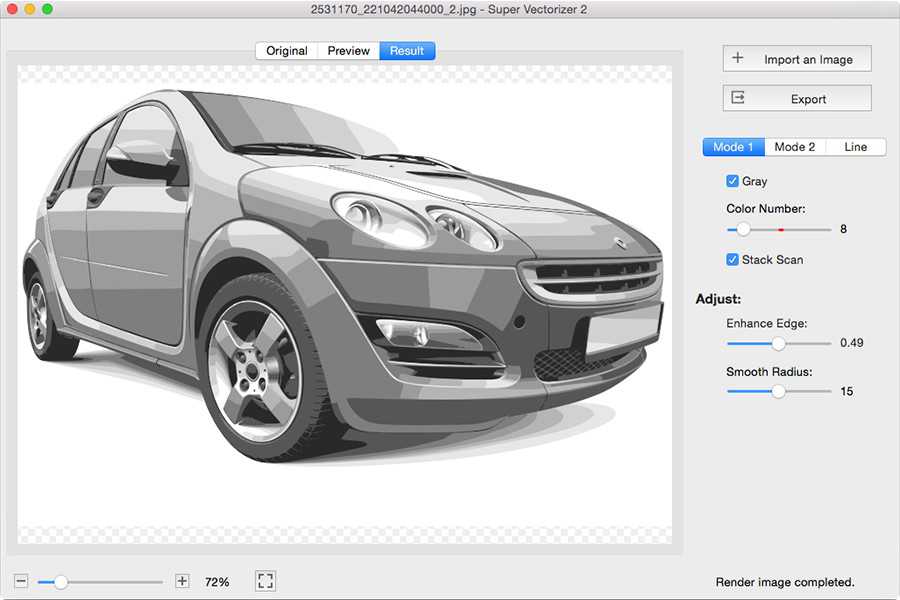
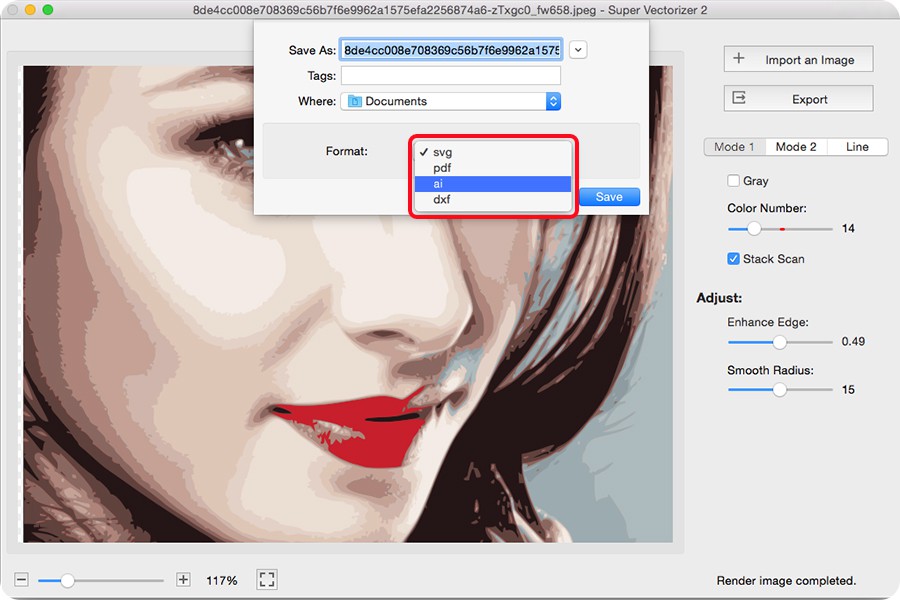
| Batch convert a folder | /super-vectorizer-pro.html (desktop) | Folder of images | SVG, DXF, PDF, EPS | Yes, native app |
What the hosted MCP endpoint will expose
The planned tool surface is deliberately small. These are the tool definitions the server is being built against — published here so integrators can plan, not as a claim that they are live:
{
  "name": "vectorize_image",
  "description": "Convert a raster image to SVG using contour tracing. Returns SVG markup with real path elements, not an embedded bitmap.",
  "inputSchema": {
    "type": "object",
    "properties": {
      "image_url":   { "type": "string", "description": "Public URL of a PNG, JPG, WebP, GIF or BMP file" },
      "preset":      { "type": "string", "enum": ["logo", "icon", "photo", "detailed", "line-art"] },
      "color_count": { "type": "integer", "minimum": 1, "maximum": 64, "default": 8 },
      "simplify":    { "type": "number",  "minimum": 0, "maximum": 10, "default": 4 }
    },
    "required": ["image_url"]
  }
}
Companion tools follow the same shape: rasterize_svg, inspect_svg, and optimize_svg. Each returns a file plus a short report — path count, viewBox, color list, and whether any raster data survived.
Data handling
This is the part most vectorization tools get vague about, so to be explicit:
- Browser tools: the image is read with the File API and processed in the page using WebAssembly. It is not uploaded to a server, and there is no per-file limit or watermark on the converter output.
- Super Vectorizer Pro (desktop): conversion happens entirely on your machine. The app works with the network disconnected, which is the simplest possible proof that nothing is being sent anywhere.
- No account required for the browser converters. Analytics record page views, not file contents.
Frequently asked questions
Is there an official SVG MCP server from SVG Vector?
Not yet. A hosted MCP endpoint is in development. Until it ships, the browser tools are the supported way to convert, and they work with browser-driving agents as described above.
Can ChatGPT or Claude convert an image to SVG by itself?
Not reliably. Text models generate markup but do not trace pixels, so they tend to embed a base64 bitmap inside an <svg> tag. The result previews correctly and fails in any tool that needs real paths. See using ChatGPT for SVG for the prompt patterns that avoid this.
Which tool should an agent pick for a logo?
PNG to SVG, with a transparent source. Logos have few colors and hard edges, which is the case contour tracing handles best. Photos should go to Image to SVG instead — a different algorithm, different settings.
Do the browser tools work offline?
Once the page has loaded, yes. The tracing engine is WebAssembly served from the page, so the conversion itself needs no network. The desktop app is fully offline from launch.
How do I know the SVG is a real vector and not a wrapped bitmap?
Open it in a text editor. A real trace contains <path d="M..."/> elements. A fake one contains <image href="data:image/png;base64,...">. If you see base64, the conversion failed regardless of how it looks on screen.
Related SVG Workflows
What you do next depends on why you needed the file. These pages cover the cases that come up most often after a generated or traced SVG lands on your desk.
- Create SVG with ChatGPT — prompt patterns that return real geometry instead of a bitmap.
- Create SVG with Claude — long-file consistency, and the constraints worth setting.
- Create SVG with Google Gemini — why its generated images are raster, not vector.
- AI Image to SVG Converter Guide — what an AI conversion pipeline actually produces.
- VTracer Online — the tracing engine behind the browser converters.
- Free SVG Editor — verify the output is paths before handing it on.
- AI to SVG Converter — turn generated artwork into editable paths.
- SVG to PNG Online — the reverse operation, also fully local.
Convert an image right now — no upload, no account
Everything runs in your browser. For batch work and offline conversion, use the desktop app.

Try These Free Online Tools
No download required — convert, compress & optimize SVGs right in your browser
PNG to SVG Converter
The browser converter an agent drives today — no upload, no account.
PNG to SVG OnlineSVG Editor
Verify the output holds path geometry before the agent hands it on.
Open SVG EditorSuper Vectorizer Pro
Offline batch conversion to SVG, DXF, PDF and EPS on Mac and Windows.
See the Desktop App