
Create SVG with Claude — Getting Clean, Long Files That Hold Up
Claude is unusually good at one specific thing in vector work: writing a long, well-structured SVG without losing the thread. Ask for a 60-path illustration and it tends to finish it — same coordinate system, same stroke width, no drift at path 40. That is exactly where most models fall apart.
The trade-off is different from other assistants. Claude rarely produces the wrapped-bitmap failure. What it does instead is over-explain, over-decorate, and quietly add attributes you did not ask for. This guide is about steering those tendencies.
What Claude is actually good at here
| Task | Fit | Note |
|---|---|---|
| Long illustrations, 40+ paths | Strong | Maintains a consistent coordinate space across a long output, which is the hard part |
| Structured icon sets | Strong | Holds a shared convention across a whole set when you define it once |
| Refactoring existing SVG code | Strong | Merging paths, removing unused <defs>, normalizing precision |
| Data-driven charts and diagrams | Strong | Can hold values and geometry consistent in one pass |
| Pixel-accurate tracing of an image | Not possible | No model reconstructs contours from pixels; use a tracer |
| Advice on file structure | Useful | Good at explaining why a file breaks in a specific program |
The three habits worth breaking
1. It decorates
Ask for a flat icon and you often get a subtle gradient, a soft shadow, or a <filter> you never requested. These look good on screen and are poison for cutting machines — a Cricut cannot cut a gradient. Ban filters, <mask>, and gradients explicitly in the prompt rather than cleaning them out afterward.
2. It explains
Claude tends to wrap code in prose and markdown fences. That is fine when you are reading, annoying when you are pasting into a file. "Output only the SVG element, starting with <svg and ending with </svg>, no fences, no commentary" fixes it in one line.
3. It adds ids and classes
Generated files often arrive with id="clip0", id="path-1", and inline classes. Ids are harmless alone and destructive in combination: apply two generated SVGs to the same page and duplicate ids can make one inherit the other's clip path or fill. Either ask for no ids, or run the file through the SVG compressor before embedding.
A prompt that produces a clean file
Draw a flat illustration of a coffee cup on a saucer, viewBox 0 0 64 64.

Hard constraints:
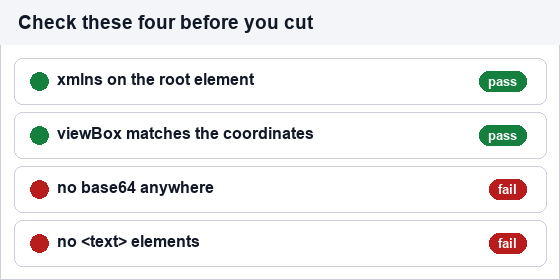
- Root: xmlns="http://www.w3.org/2000/svg", viewBox="0 0 64 64", no width/height attributes
- Palette: #2B2B2B, #E8E3DC, #B07D4E. Flat fills only
- FORBIDDEN: gradients, filters, masks, clipPath, ids, classes, opacity
- No <text> elements. No <image>, no base64
- All coordinates integers between 0 and 64
- Paths must be closed where they represent solid shapes

Output only the SVG element. No explanation, no code fence.
After the SVG, on a separate line, state the total path count.
That last instruction is a cheap self-check. If it reports 8 paths but you count 40, the output drifted and you know before opening it.
Iterating without wrecking the file
The productive pattern is small, single-purpose edits rather than "make it better". Each of these is one turn and one measurable change:
- "Merge all paths that share a fill into one path element. Keep the geometry identical."
- "Reduce every coordinate to two decimal places. Do not change any position."
- "Remove all
<defs>and anything referencing them that is unused." - "The left edge extends past x=0. Move the entire drawing right by 6 units."
- "Convert every stroked path into a filled outline of the same visual weight."
Vague instructions like "clean this up" tend to produce a redraw, not an edit — and a redraw loses whatever you had already fixed.
The one thing to check before using it
Stroke width and viewBox. Two files can look identical at 100% and behave completely differently when scaled. If a generated SVG uses stroke-width="2" on a 24-unit viewBox and you scale it to 240px, the stroke scales with it — thick and wrong. If it uses a 240-unit viewBox with the same stroke, it stays thin. Decide which model you want before you start, and state it in the prompt.
This is the most common reason a generated icon looks right in isolation and wrong in a set. Fixing it afterward means rewriting every path; fixing it in the prompt costs one sentence.
ChatGPT, Claude, or Gemini for SVG?
| Claude | ChatGPT | Gemini | |
|---|---|---|---|
| Long files, 40+ paths | Best — holds structure | Truncates or drifts | Improves with explicit structure |
| Risks wrapped bitmap | Rarely | Often | Occasionally |
| Adds unrequested effects | Often | Sometimes | Sometimes |
| Reads an image you upload | Can describe it | Can describe it | Can describe it, and generate raster |
| Traces an image to paths | No | No | No |
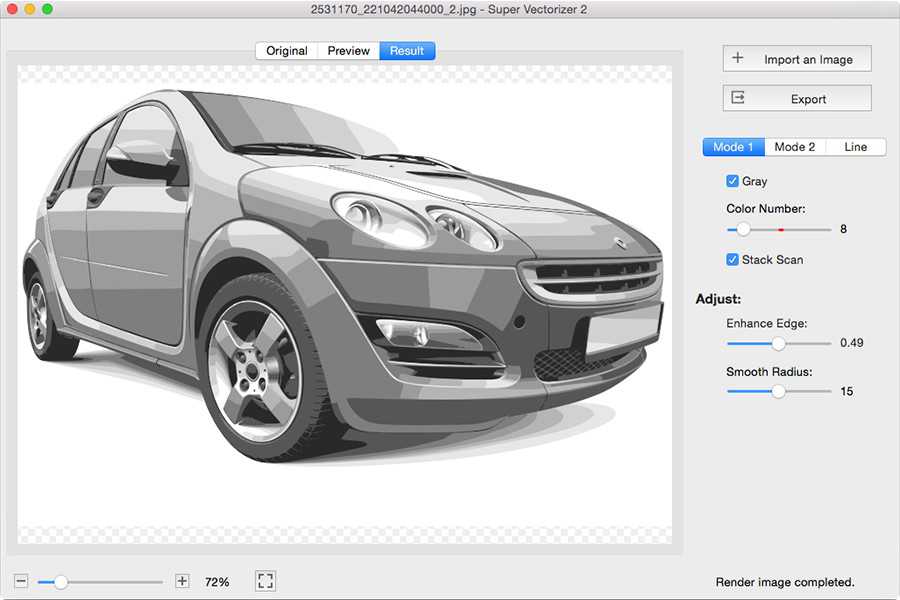
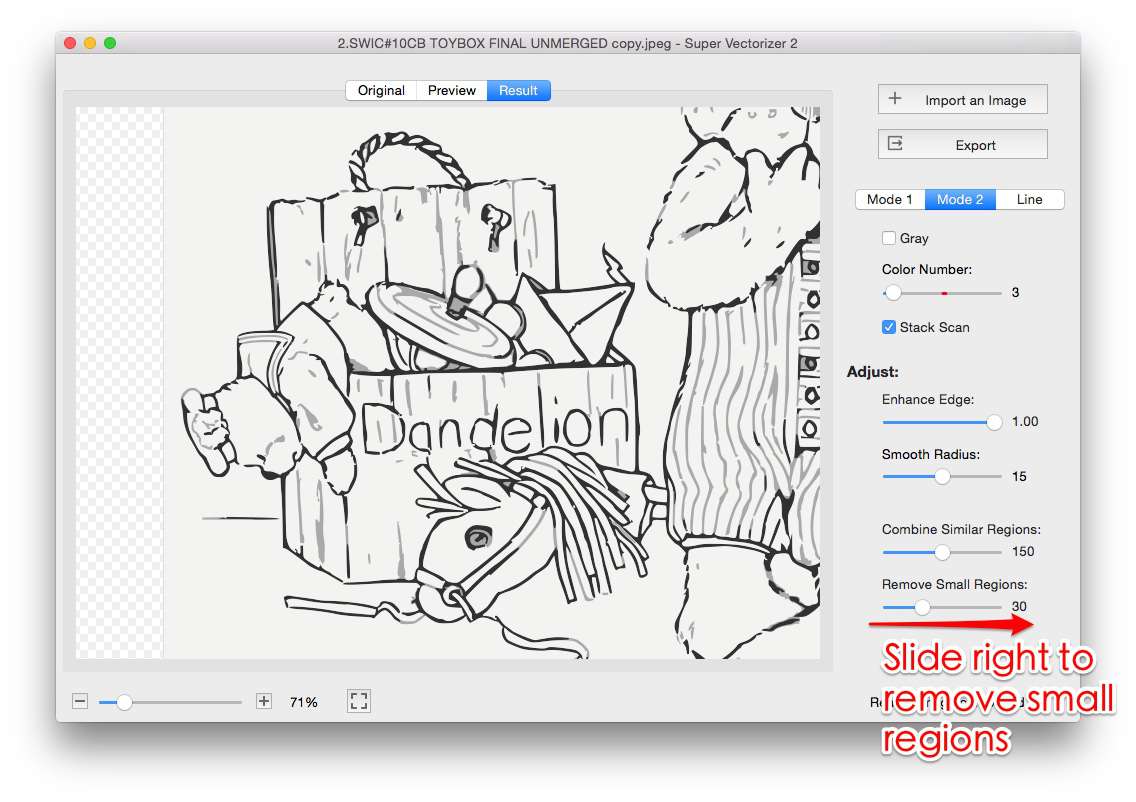
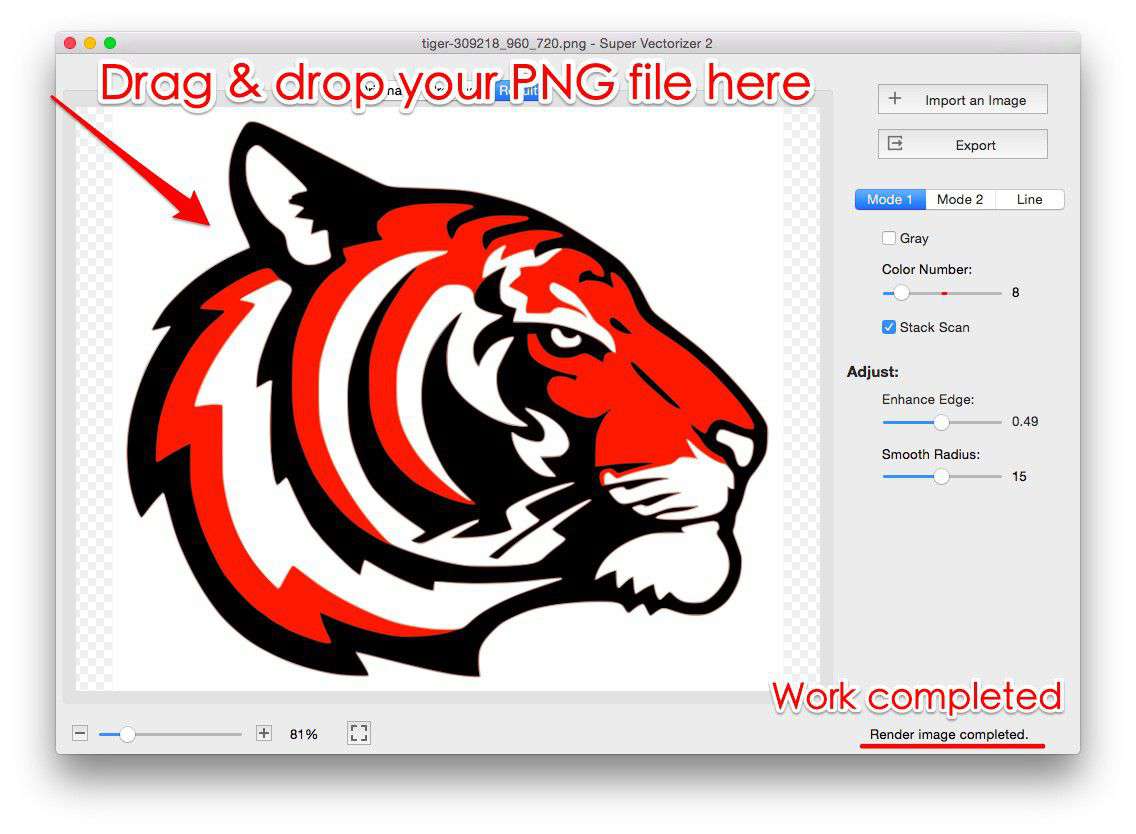
None of the three converts pixels into contours. That is not a gap in the models — it is a different class of operation. When the shape already exists as an image, trace it: Image to SVG for photos, PNG to SVG for logos and clipart.
Frequently asked questions
Can Claude generate SVG files directly?
Yes. Ask for the SVG element with an explicit viewBox and namespace, and save the output as a .svg file. Claude is comparatively reliable at long files, but adds gradients, filters, and ids unless you forbid them.
Why do two Claude SVGs conflict on the same page?
Duplicate id attributes. If both files define clip0, the second one can resolve to the first one's definition. Strip ids before embedding, or inline them as separate <img> sources instead of inline markup.
Can Claude trace a PNG into an SVG?
No. It can describe the image and then draw an approximation from that description, which is a redraw — not a conversion, and not accurate. Use a tracer for the real geometry.
How do I stop Claude from adding code fences?
State the boundary explicitly: "output only the SVG element, starting with <svg, no fences, no commentary." Fences are a habit, and an explicit boundary overrides it.
Related SVG Workflows
What you do next depends on why you needed the file. These pages cover the cases that come up most often after a generated or traced SVG lands on your desk.
- Create SVG with ChatGPT — the failure modes to watch for, and a 60-second validation check.
- Create SVG with Google Gemini — using vision to describe an image before choosing trace settings.
- SVG Editor Online Free — inspect layers and strip ids before embedding the file.
- PNG to SVG High Quality in 2026 — when tracing beats generating, and how to set it up.
- Image Trace for PNG and PDF — the tracing route for artwork that already exists.
- Free SVG Editor — open the generated file and see whether it holds paths or a bitmap.
- SVG MCP Server for AI Agents — what a protocol-level integration would expose.
- Compress SVG for Web — use this before embedding generated SVG inline.
Need real geometry, not a redraw?
Trace the original image in your browser — nothing is uploaded. Batch and offline work with the desktop app.
Related Articles

Try These Free Online Tools
No download required — convert, compress & optimize SVGs right in your browser
SVG Editor
Inspect layers, remove duplicate ids, and edit paths without installing anything.
Open SVG EditorPNG to SVG Converter
Trace the original artwork when a redraw would lose the shape.
PNG to SVG OnlineSVG Compressor
Merge paths and cut precision for files that will be embedded inline.
Compress SVG for Web