
Generative AI has put a firehose of artwork at everyone’s fingertips. You can ask Midjourney or DALL-E for a logo, an illustration, or a pattern and get a polished result in seconds. The catch is that these tools export bitmaps — PNG, JPG, or WebP files made of pixels. Blow them up on a banner, a T-shirt, or a retina screen and the edges go soft and jagged. That is exactly the problem an AI image to SVG converter solves: it vectorizes your raster AI output into the SVG format, so the artwork stays crisp at any size and becomes easy to recolor, edit, and cut.
In this guide we explain how AI art differs from ordinary photos when it comes to vectorization, walk through a reliable raster to vector workflow, and compare the best desktop and online options — including Super Vectorizer Pro, a desktop app for Mac and Windows that lets you preview vector tracing results in seconds. By the end you will know exactly which tool fits your project.
Ready to vectorize your AI artwork? Try Super Vectorizer Pro free trial to preview vectorization results.
Compatible with macOS 10.10+ (M1/M2/M3) & Windows 7/8/10/11
What Is an AI Image to SVG Converter?
An AI image to SVG converter is a tool that takes a raster image — whether it was painted by a human or generated by an AI model — and traces its shapes into vector paths. The output is an SVG format file built from mathematical curves rather than pixels. Because vectors are resolution-independent, the same file looks identical at 16 pixels and 16,000 pixels.
Traditional vector tracing software has existed for decades, but the rise of generative AI created a new use case: artists now need to convert AI to SVG converter constantly, because AI tools rarely export vectors natively. The converter becomes the bridge between “I made something cool with a prompt” and “I can actually print, cut, or ship this artwork.”
Why Vectorize AI-Generated Art (and Not Just Keep the PNG)
There are concrete reasons to run your AI output through an AI image to SVG converter rather than shipping the raw bitmap:
- Infinite scaling. SVG vectors stay sharp on business cards, billboards, and 4K displays with zero quality loss.
- Editable colors. Once traced, you can recolor a single element without touching the rest of the artwork — invaluable for rebranding AI logos.
- Smaller files for simple art. A flat vector icon can be a few kilobytes where the source PNG is megabytes.
- Cutting and engraving. Cricut, laser cutters, and vinyl plotters read SVG paths. A bitmap simply will not cut.
- Crisp UI and web graphics. Vector backgrounds and icons render perfectly on every device pixel ratio.
How AI Art Differs From Photos When Tracing
Not all source images trace equally. Understanding the texture of AI art helps you pick the right settings:
- Flat, poster-style AI art (logos, icons, simple illustrations) traces beautifully — few colors, clean edges, and predictable shapes.
- Highly detailed AI renders (photorealistic portraits, complex scenes) produce thousands of tiny paths. They still scale, but the file gets heavy and harder to edit manually.
- AI images with noise or “AI weirdness” (extra fingers, melted text, stray artifacts) trace those flaws into permanent vector shapes — clean up the source first in an image editor.
As a rule: the simpler and flatter your AI output, the cleaner your vectorization will be.
Desktop vs Online: Our Verdict
Both approaches produce valid SVG files. Your choice comes down to privacy, batch size, and how much editing you plan to do after tracing. Most serious creators keep a desktop app for private, high-volume work and an online tool for quick one-off conversions.
Desktop App (Super Vectorizer Pro)
- Works fully offline — your AI art never leaves your machine
- Batch vectorize dozens of images at once
- Fine-grained controls for color count and path smoothing
- Native Mac (incl. M1/M2/M3) and Windows builds
Online Converter
- No install — runs in any browser
- Great for a single quick file
- Uploads your source to a remote server
- Fewer tuning controls than desktop apps
Step-by-Step: How to Convert an AI Image to SVG
Here is the workflow we recommend, whether you use a desktop app or an online tool:
Step 1 — Prepare the source
Open your AI-exported PNG or JPG in an image editor and fix obvious flaws: remove background noise, repair melted text, and Boost contrast if edges look muddy. Cleaner input means cleaner output.
Step 2 — Choose your converter
If the art is private or you have many files, use Super Vectorizer Pro. For a one-off public graphic, an online AI image to SVG converter is fine. Launch the app or open the web tool.
Step 3 — Import and auto-trace
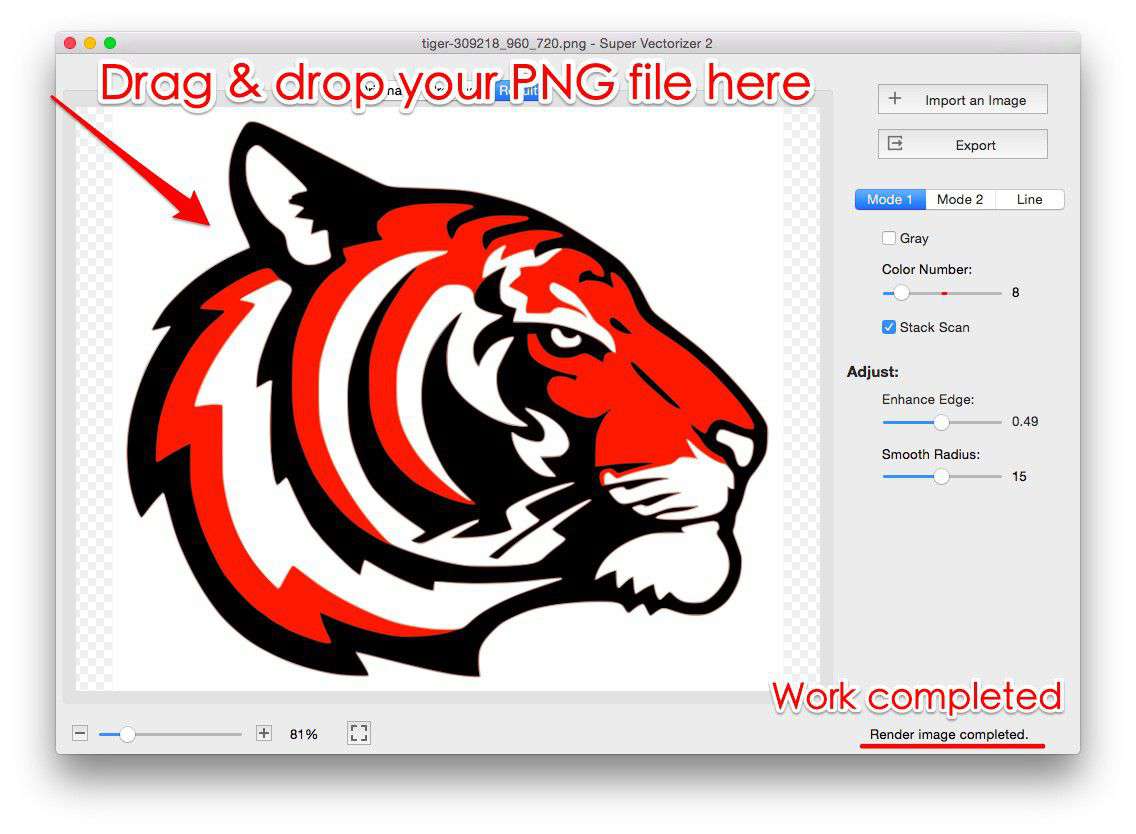
Drag the image in. The tool runs automatic vector tracing, detecting edges and grouping colors into vector paths. In Super Vectorizer Pro you can preview the result instantly with the free trial.
Step 4 — Tune the result
Adjust the number of colors, path smoothing, and detail level. Flat AI logos usually want 2–8 colors; detailed renders can use more. Watch the preview to keep edges clean without losing important detail.
Step 5 — Export the SVG
Save as an SVG file. The free trial of Super Vectorizer Pro is for previewing results, so you can evaluate quality before purchasing — once licensed, you export the final vector for use in design, print, or cutting software.
| Factor | Desktop (Super Vectorizer Pro) | Online Converter | Winner |
|---|---|---|---|
| Privacy | 100% offline | Source uploaded to server | Desktop |
| Batch processing | Dozens of files at once | Usually one at a time | Desktop |
| Setup speed | Requires install | Instant, no install | Online |
| Control over paths | Granular color & smoothing | Limited presets | Desktop |
Tips for the Cleanest AI-to-SVG Results
- Start flat. Generate AI art with “flat design,” “vector style,” or “minimal” prompts — the vectorization is dramatically cleaner.
- Limit colors deliberately. Fewer colors means simpler paths and smaller files.
- Use transparent backgrounds. Export the AI image with no background so the traced SVG is easy to place anywhere.
- Preview before committing. With Super Vectorizer Pro’s free trial you can inspect the traced result and tune settings without buying first.
- Simplify in post. After tracing, open the SVG in an editor to delete stray nodes and merge overlapping shapes.
Common Challenges (and Fixes)
“My traced SVG has thousands of messy paths.” Your source was too detailed. Lower the color count and increase smoothing, or simplify the AI art before tracing.
“Thin lines disappeared.” Raise the detail/minimum-size threshold so fine strokes survive the trace.
“Colors look wrong.” AI gradients become banded in vector form. Reduce gradient complexity in the source or accept a flat-color palette.
Frequently Asked Questions
Can an AI image to SVG converter fully automate vectorizing AI art?
Yes for simple, flat artwork. Automatic vector tracing handles logos, icons, and illustrations very well with minimal input. Highly detailed or photorealistic AI renders still benefit from manual cleanup afterward, because the tool will faithfully trace noise and artifacts if they exist in the source.
Is the Super Vectorizer Pro trial enough to export my SVG?
The free trial is designed to preview vectorization results, not to export final files. It lets you load your AI image, run the trace, and inspect quality before deciding to purchase. For ongoing work where you need to save and use the SVG, the licensed version unlocks export.
Which AI art styles trace best into SVG?
Flat posters, minimal logos, line art, stickers, and simple icons trace cleanly. Watercolor, photorealistic portraits, and busy scenes produce heavier, harder-to-edit vectors. Prompting for “flat vector” or “minimalist” output is the single biggest improvement you can make.
Should I use an online or desktop converter for AI images?
Use a desktop app like Super Vectorizer Pro when your art is private or when you need precise control over paths and colors. Use an online AI image to SVG converter for quick, non-sensitive, one-off conversions where convenience matters most.
Turn Your AI Art Into Crisp, Scalable SVG
Download Super Vectorizer Pro and use the free trial to preview how your AI-generated images vectorize into clean, editable SVG files on Mac or Windows.
Compatible with macOS 10.10+ (M1/M2/M3) & Windows 7/8/10/11
Related Articles
Try These Free Online Tools
No download required — convert, compress & optimize SVGs right in your browser
PNG to SVG Converter
Convert PNG, JPG, BMP images to scalable vector graphics instantly
PNG to SVG ConverterSVG Compressor (Mini)
Reduce SVG file size by up to 80% without losing quality
SVG Compressor OnlineSVG Optimizer
Clean up SVG code, remove redundant data and optimize for web
SVG Optimizer OnlineJPG to SVG Converter
Turn JPEG photos into crisp vector artwork in seconds
JPG to SVG ConverterEPS to SVG Converter
Convert EPS vector files to web-friendly SVG format
EPS to SVG ConverterAll Free Tools
Browse our complete collection of free online conversion tools
Browse All Free Tools