Convert Photos & Logos
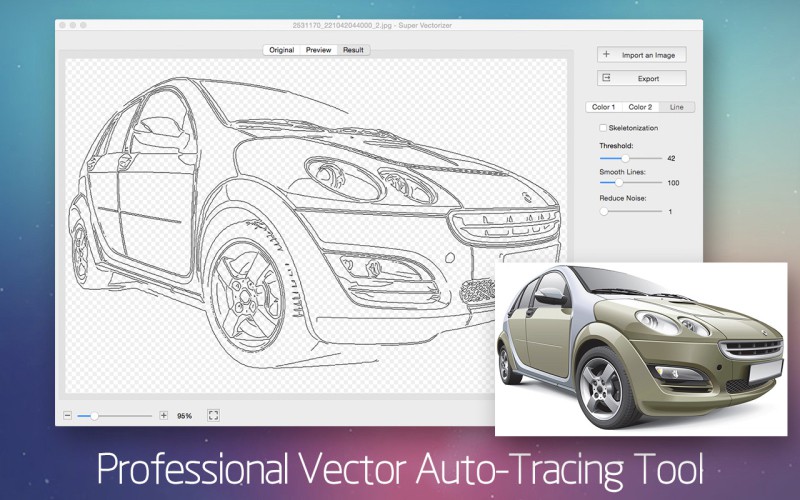
Turn any PNG, JPG, or BMP into an editable SVG with Super Vectorizer Pro. Best when you already have an image and want clean cut paths without manual tracing.
Whether you draw from scratch in vector software or turn a photo into a cut-ready design, here is how to make clean, layered SVG files that import perfectly into Design Space — offline on your Mac or Windows machine.
Pick the method that fits your starting point — an existing image, a blank canvas, or a free download
Turn any PNG, JPG, or BMP into an editable SVG with Super Vectorizer Pro. Best when you already have an image and want clean cut paths without manual tracing.
Use Adobe Illustrator, Affinity Designer, or the free Inkscape to build original artwork, then save as SVG. Ideal for custom lettering and precise shapes.
Combine shapes, add text, slice, and weld directly in Cricut Design Space for simple projects. No extra software required for basic cut files.
Download a free SVG, open it in vector software, and tweak colors or text before cutting. A fast head start when you only need small changes.
No manual node editing — just clean, layered SVG

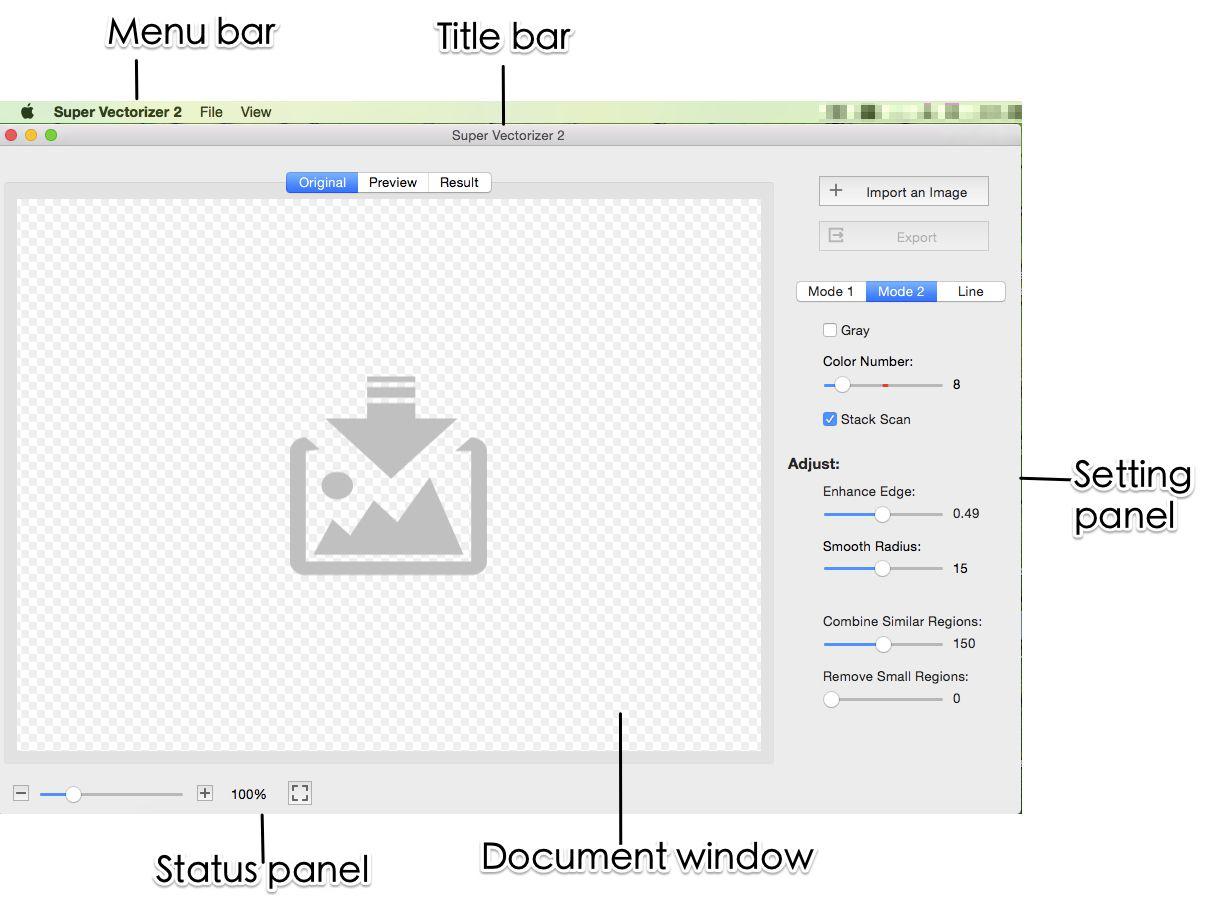
Load a PNG, JPG, BMP, or other raster file exported from your design app, phone, or clip-art library.
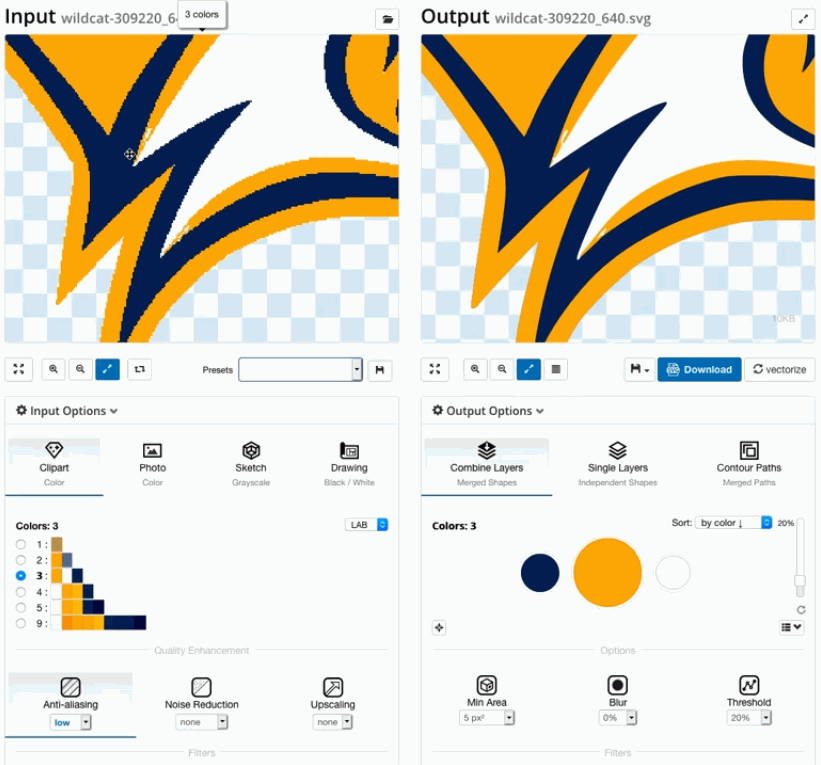
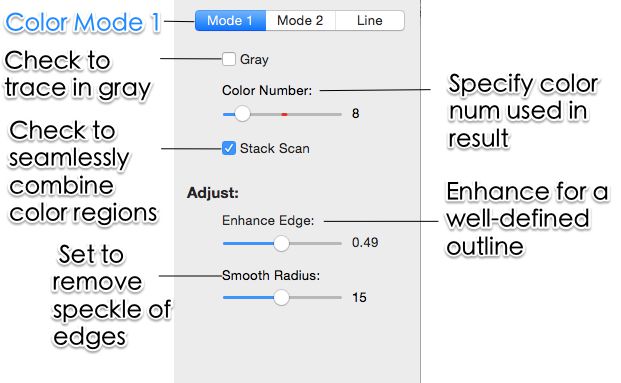
Pick SVG output and set the color count to match your project. Preview the vector and simplify paths before export.
Open the SVG in Cricut Design Space, attach or weld layers as needed, and cut. Do a small test cut first on scrap material.
Ready to make your own Cricut SVGs? Try Super Vectorizer Pro free trial to preview traced results on your own images.
Compatible with macOS 10.10+ (M1/M2/M3) & Windows 7/8/10/11
Match the file format to the material and the cut type

Clean vector paths are essential for vinyl. Use the Mirror setting for iron-on, and keep paths closed so every detail cuts.

For intricate cut files SVG gives cleaner results than PNG. Use SVG for detailed shapes and PNG only for simple outlines.

Cut fabric shapes with SVG; for Infusible Ink use Print Then Cut with PNG. The Engraving Tip relies on precise SVG paths.
Everything you need to know about creating SVG files for Cricut
The easiest path is to convert an image you already have. Open a PNG, JPG, or BMP in Super Vectorizer Pro, choose SVG as the output, set the color count, and export. The result is a clean, layered SVG that imports directly into Cricut Design Space with no manual node editing required.
Yes. Vector software such as Adobe Illustrator, Affinity Designer, or the free Inkscape lets you draw original artwork and save it as SVG. Keep every path closed, use solid colors, and avoid raster effects so the file cuts cleanly on your machine.
Load the photo or logo into Super Vectorizer Pro, pick SVG output, and adjust the color count to match your design. Preview the traced vector, simplify stray nodes, then export. High-contrast source images with clear shapes trace the best.
For converting images, Super Vectorizer Pro (Mac and Windows) handles the tracing. For drawing from scratch, any vector editor works such as Illustrator, Affinity Designer, or free Inkscape. Cricut Design Space itself can also combine basic shapes and text.
You can build simple designs with Design Space's built-in shapes and text tools, then save the project. For detailed artwork or converting a photo, you will get cleaner results by preparing the SVG in dedicated vector software first and uploading it.
A good Cricut SVG has closed paths, no embedded raster images, and standard SVG attributes. Group each color into its own layer, keep stroke widths at 0 for cut lines, and stay within the 12 inch by 24 inch cutting area.
Import the PNG or JPG into Super Vectorizer Pro and trace it to vector. Choose Line Mode for single-color outlines or Color Mode to keep brand colors as separate layers. Export as SVG and upload to Design Space.
Free online tools can convert simple images, but they usually require uploading your file to a server and may add watermarks or limit exports. Super Vectorizer Pro runs entirely on your Mac or Windows computer, keeps your artwork private, and gives you full control over the traced output.
The usual causes are open paths, embedded photos, off-canvas elements, or wrong stroke settings. Super Vectorizer Pro produces closed, simplified vector paths with no hidden rasters. After import, attach or weld overlapping pieces and run a small test cut first.
Cricut Design Space is free to use for basic shape and text projects. For converting photos or drawing detailed artwork, Super Vectorizer Pro is a one-time $29.99 purchase with a free trial that previews results (saving requires a license). No subscription is needed.
In Illustrator choose File then Save As and pick SVG; in Inkscape use File then Save As and select Plain SVG or Inkscape SVG. Then open the file in Cricut Design Space. If you started from a raster image, tracing it first in Super Vectorizer Pro gives you editable paths instead of a flat picture.
Join 50,000+ designers who trust Super Vectorizer Pro.
30-day money-back guarantee.
More Cricut and image-to-vector pipelines built into Super Vectorizer Pro