
The best way to get a PNG to SVG high quality conversion is to start from the largest, sharpest source PNG you have and let a dedicated tracing engine rebuild it as clean vector paths. If you also need the original colors preserved exactly, Super Vectorizer Pro's free trial previews results so you can judge quality before buying, while free online converters are perfect for a quick browser preview. This guide explains what "high quality" really means for vectorization, the five factors that decide output fidelity, the settings that matter most, and how the leading tools compare for turning a bitmap into a crisp SVG format file.
Want to preview a high-quality raster-to-vector trace offline? Try Super Vectorizer Pro free trial to preview results.
Compatible with macOS 10.10+ (M1/M2/M3) & Windows 7/8/10/11
Our Verdict
We traced the same high-detail logos, line art and photos through every tool below. Here is the fastest way to choose for quality.
Best for Privacy + Control: Super Vectorizer Pro
- Free trial to preview results offline
- Automatic color, grayscale and line modes
- Keeps every file on your Mac or Windows machine
- Processes one image at a time
- PNG to SVG with Color Free 2026: 6 Free Tools That Keep Color — free tools that convert PNG to SVG while keeping color intact.
- Image Trace Online Free PDF PNG: Convert to SVG in 2026 — how to trace images from PDF and PNG sources into clean SVG.
Best Free Quick Preview: SVGvector.com Online
- Runs in any browser, no install
- Previews the vector result at no cost
- Great for a fast quality check
- No desktop software to maintain
What Does "High Quality" Mean for PNG to SVG?
When people search for PNG to SVG high quality, they usually mean one of three things: the edges stay smooth at any zoom, the original colors survive the conversion, and small details such as thin strokes or tiny text do not disappear. A high-quality result is a true raster to vector conversion — the output is built from mathematical paths, not a re-colored pixel grid. That is what lets an SVG scale to a billboard or a favicon without blur. Quality is not about file size; it is about how faithfully the vector reproduces the source artwork while staying editable.
Two technical ideas matter here. First, vector tracing should follow the real edges of the artwork, not approximate them with a coarse grid. Second, the path count should be high enough to capture curves but low enough to keep the file clean. Good tools let you steer that balance instead of forcing a one-size-fits-all result.
5 Factors That Decide PNG to SVG High Quality
Quality is mostly decided before you press convert. These five factors have the biggest impact on the final SVG.
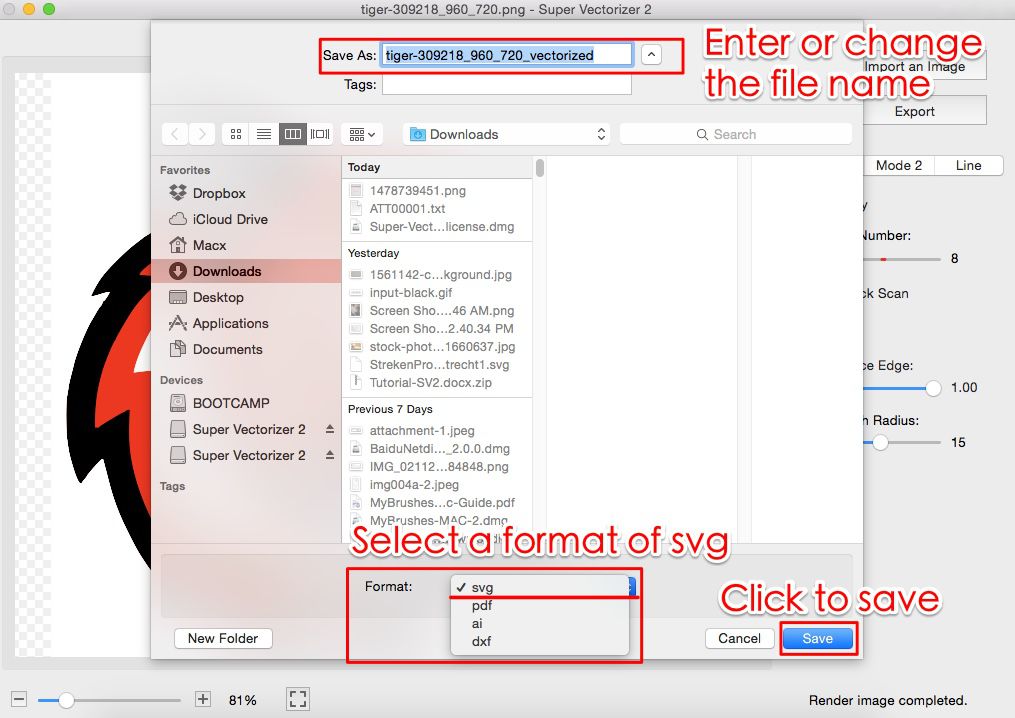
- Source resolution. A tracing engine can only rebuild detail that exists in the pixels. A 2000px PNG yields a far cleaner vector than a 300px thumbnail pulled from a website.
- Edge contrast. Artwork with clear contrast between subject and background traces crisply. Faded or low-contrast images need more cleanup and lose fine detail.
- Background. A solid or transparent background is easy to isolate. A busy photo background adds noise that the tracer must filter out.
- Color count. Matching the trace color count to the artwork's real hues keeps brand colors accurate without exploding the node count.
- Trace mode. Color, grayscale and black-and-white modes each suit different artwork. Picking the right mode is the single fastest quality win.
PNG to SVG High Quality: Tool Comparison
We compared the most relevant tools for a high quality PNG to SVG workflow. Note that Super Vectorizer Pro processes one image at a time — there is no batch mode — but its automatic modes make single-image quality tuning fast.
| Tool | Price | Platform | Offline / Online | Batch Support | Output Quality | Best For |
|---|---|---|---|---|---|---|
| Super Vectorizer Pro Best Control | Paid license | Mac, Windows | Offline | No (one at a time) | High | Private, tunable raster-to-vector |
| Vectorizer.AI | From ~$9.99/mo | Web browser | Online | Limited | Excellent | AI photo & logo traces |
| Adobe Illustrator | Subscription | Mac, Windows | Offline | Possible, but awkward | High | Designers who already subscribe |
| Inkscape | Free | Mac, Windows, Linux | Offline | No (one at a time) | Good | Free desktop editing |
| Canva | Free / Pro ~$12.99/mo | Web, iOS, Android | Online | No | Fair | Canva projects |
| SVGvector.com Online | Free preview | Web browser | Online | Limited | Good | Quick browser previews |
The takeaway: online AI tools win on convenience and photo quality, while desktop tools win on privacy and fine control. Super Vectorizer Pro sits in the desktop camp — its trial is free, the tracing is automated, and a one-time license unlocks full export after you preview results.
How to Convert PNG to SVG at High Quality
Follow these five steps to turn a PNG into a crisp, high-quality SVG:
- Start from the highest-resolution PNG. Use the original, largest export of your image. A tracing engine can only rebuild the detail that already exists in the pixels, so avoid thumbnails or re-saved copies.
- Pick the right tracing mode. Choose color mode for photos and brand art, grayscale for monotone work, or black-and-white for line art and logos. Matching the mode to the source is the fastest quality win.
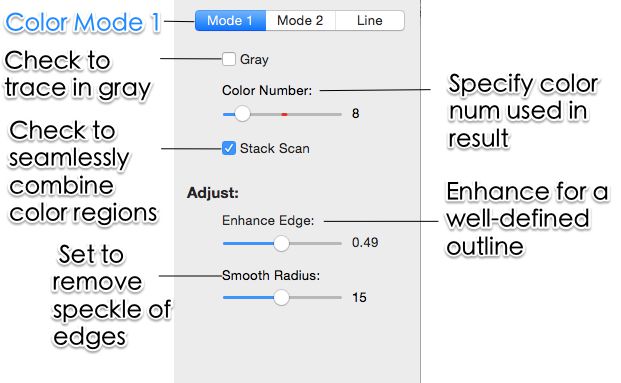
- Tune color and path settings. Set the color count near the real number of hues in the artwork and adjust the path or smoothing slider so curves stay natural without adding noise.
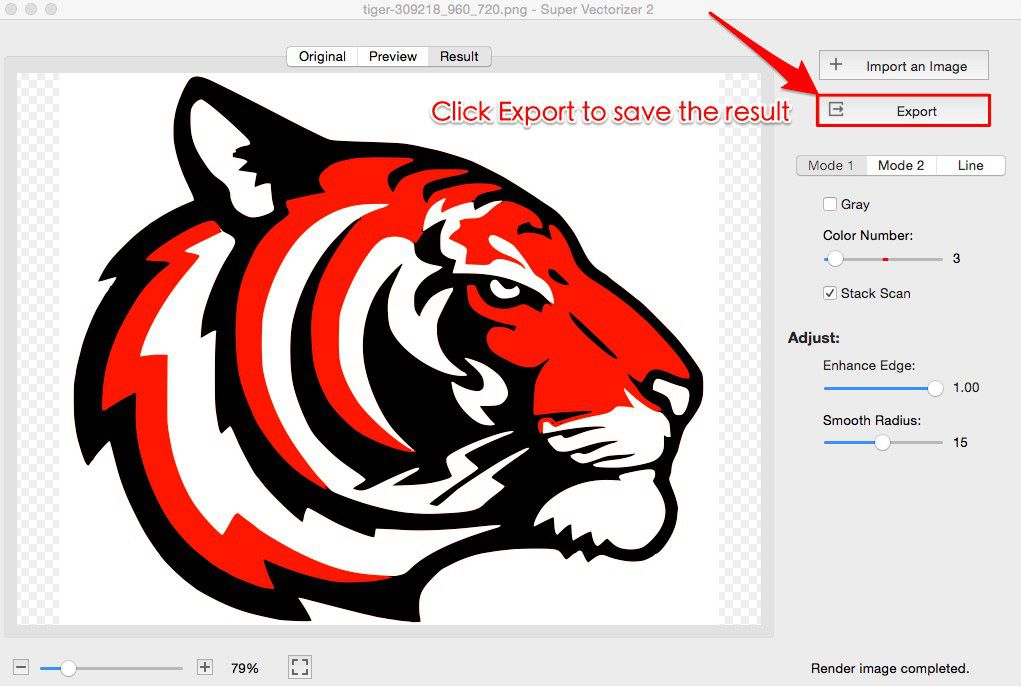
- Run the trace and review the preview. Inspect the result at full size. Check edges, small text and gradients before committing to an export.
- Export or refine the SVG. If the preview is clean, export the SVG. If not, lower the node cleanup or raise the path detail and re-trace.
PNG to SVG with Color High Quality
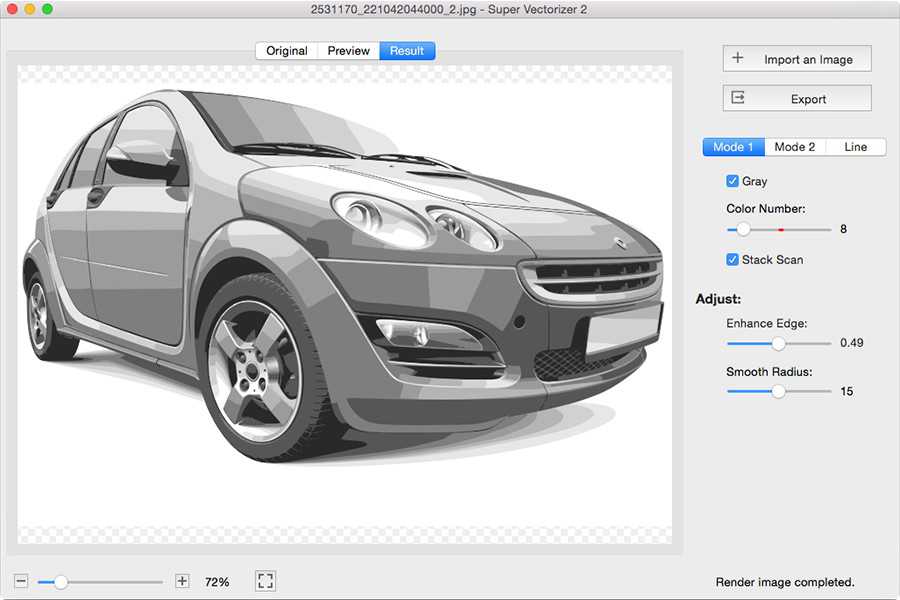
The sub-intent PNG to SVG with color high quality is where most people lose fidelity. The mistake is picking "color" and accepting the default color count, which either flattens gradients (too few colors) or adds speckled noise (too many). The fix is to set the color count close to the hues your artwork actually uses, then nudge the path detail until curves look natural. A good color trace preserves brand hues while keeping the node count manageable — which is exactly what Super Vectorizer Pro's color mode and most AI tracers aim for. If your goal is Cricut or print, a slightly simplified color trace is also easier for cutting software to handle.
Best Settings for Crisp Results
Once you have a good source image, these settings protect quality:
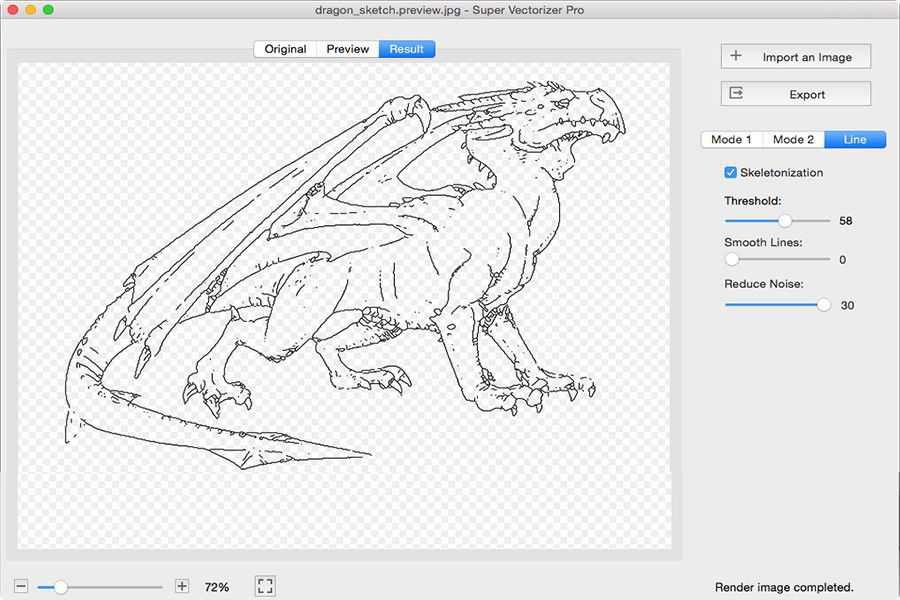
- Color count: match the real hues. Logos often need 2-8; photos may need 16-32.
- Path / smoothing: keep curves smooth but not so soft that corners round off. Small text needs less smoothing.
- Node cleanup: a light cleanup removes stray points without flattening detail. Aggressive cleanup creates jaggies.
- Background handling: remove or isolate the background before tracing so the tracer follows the subject, not the scenery.
- Min area: raise the minimum area slightly to drop sensor noise and dust specks from scans.
Common Mistakes That Ruin Quality
These are the issues we see most often in weak PNG to SVG output:
- Tracing a screenshot or thumbnail. There is no detail to recover; the vector just inherits the blur.
- Wrong mode. Running a color trace on line art adds color noise; running black-and-white on a photo loses everything.
- Over-cleaning nodes. Maximum simplification turns curves into polygons and text into blobs.
- Ignoring the background. A busy background becomes part of the artwork and pollutes the paths.
- Assuming AI is always better. For logos and line art, a traditional tracer often matches or beats AI once settings are tuned.
Free vs Paid: Which Gives Higher Quality?
Free tools are genuinely good for previews and simple art. The free tier of a browser converter such as SVGvector.com's online vectorizer lets you study the result at no cost, and Inkscape's Trace Bitmap is a capable free desktop option. Paid desktop tools such as Super Vectorizer Pro and Adobe Illustrator add finer control, batch-free one-at-a-time workflows, and offline privacy. AI services such as Vectorizer.AI tend to lead on photographs because they infer shapes rather than just following edges.
PNG → SVG: Format-Specific Conversion Notes
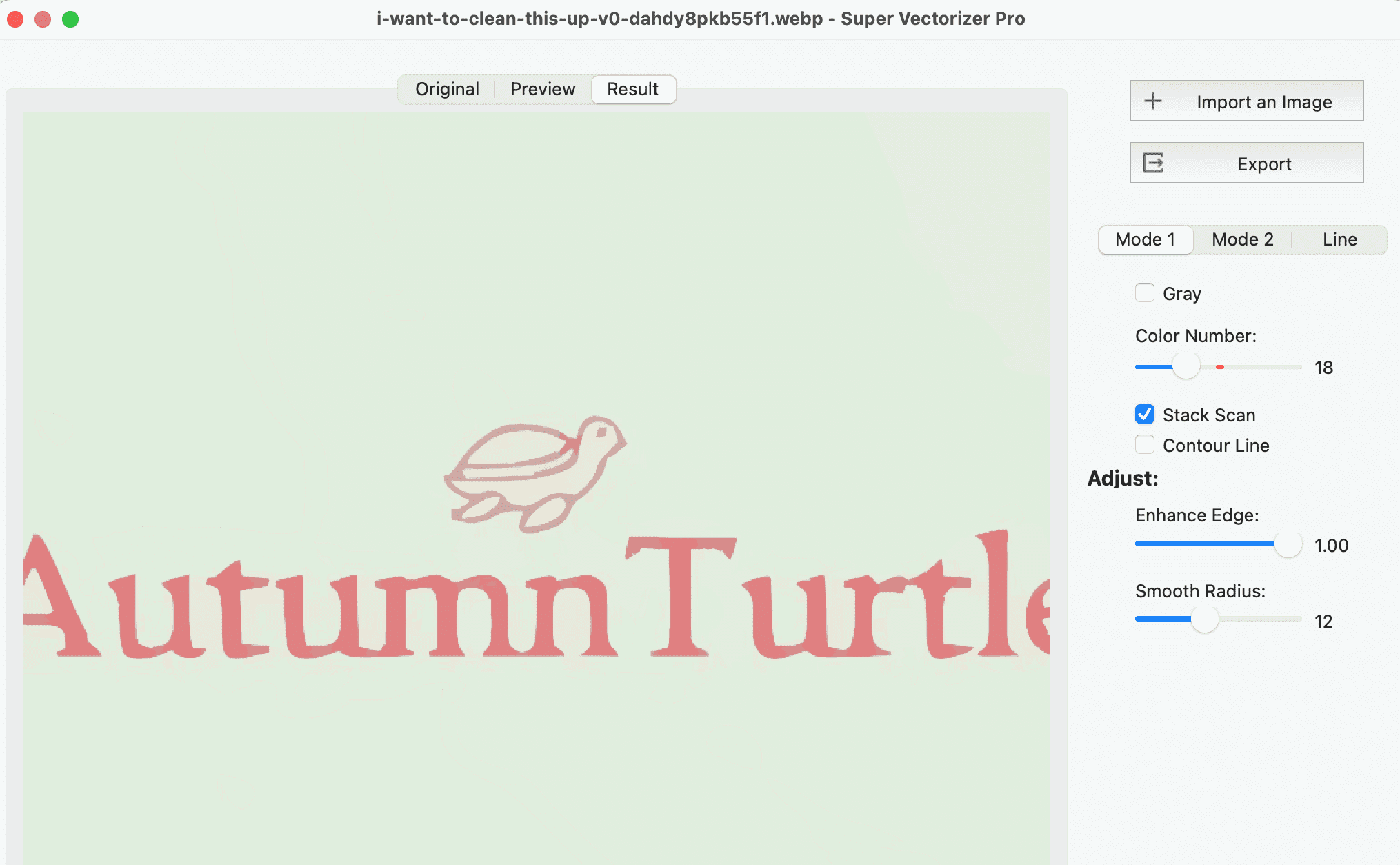
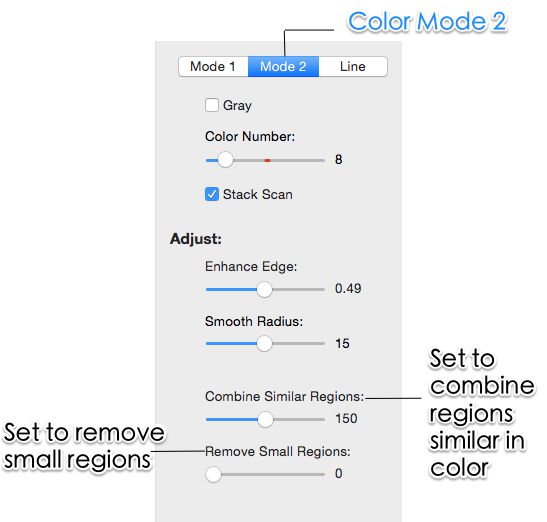
- Path precision controls how closely the Bézier curves follow the source — higher values keep fine detail but grow the file.
- Filter speckles at 2 keeps subtle texture while dropping sensor noise; raise it only if you see speckling in flat areas.
- Color precision (8) preserves tonal richness; for ultra-detailed sources, nudge it up and watch the path count in the preview.
- Trade-off rule of thumb: bump one lever at a time and re-trace — changing all three at once makes it hard to tell which setting helped.
Frequently Asked Questions
What is the best way to get a PNG to SVG high quality conversion?
Start from the largest, sharpest source PNG you can find, because a tracing engine can only rebuild detail that actually exists in the pixels. Use a tool with adjustable color and path settings so you can balance smoothness against fidelity, then preview the result before exporting. Super Vectorizer Pro's free trial previews raster-to-vector results offline, while free online converters are ideal for a quick browser check.
How do I keep color when converting PNG to SVG at high quality?
Choose a color tracing mode rather than black-and-white, and set the color count close to what your artwork actually uses. Too few colors flattens gradients; too many adds noisy nodes. A good PNG to SVG with color high quality result preserves brand hues while keeping the path count manageable, which is exactly what Super Vectorizer Pro's color mode and most AI tracers aim for.
Does a higher resolution PNG always produce a higher quality SVG?
Usually yes, up to a point. More pixels give the tracer finer edges to follow, so a 2000px PNG typically yields a cleaner vector than a 300px thumbnail. Beyond the detail that the artwork contains, extra resolution just adds processing time. Always use the original export rather than a re-saved or screenshotted copy.
Is an AI PNG to SVG converter better for quality than a traditional tracer?
AI tracers such as Vectorizer.AI are excellent at photos and complex color art because they infer shapes, while traditional tracers such as Inkscape's Trace Bitmap give precise, predictable control over paths. For logos and line art, a traditional engine often matches or beats AI; for photographs, AI usually wins on perceived quality. Super Vectorizer Pro bridges both with automatic modes you can preview.
Why does my high quality PNG to SVG still look blurry or jagged?
Blur usually means the source PNG was low resolution or compressed; a vector cannot invent detail that was never there. Jagged edges come from too few path samples or an aggressive simplification setting. Re-trace from a larger source, raise the path or smoothing setting slightly, and reduce node cleanup until the curves look natural.
Conclusion
A PNG to SVG high quality conversion is mostly won before you convert: use a large, high-contrast source, pick the right trace mode, and tune color and path settings to the artwork. Free online tools are perfect for a quick preview, Inkscape is the strongest free desktop option, and AI services lead on photographs. When you want privacy and fine control, Super Vectorizer Pro's free trial lets you preview offline raster-to-vector results on Mac and Windows before you commit. Match the tool to your source files, then upgrade only when your accuracy or volume demands it.
Ready for High-Quality Vector Tracing?
Download Super Vectorizer Pro and preview your PNG to SVG results with the free trial.
Compatible with macOS 10.10+ (M1/M2/M3) & Windows 7/8/10/11
Related Articles
Try These Free Online Tools
No download required — convert, compress & optimize SVGs right in your browser
PNG to SVG Converter
Turn PNG images into crisp vector artwork in seconds
Free OnlineSVG Compressor (Mini)
Reduce SVG file size by up to 80% without losing quality
Free OnlineJPG to SVG Converter
Convert JPEG photos to scalable vector format
Free OnlineEPS to SVG Converter
Convert EPS illustrations to scalable vector graphics
Free OnlineAll Free Tools
Browse our complete collection of free online conversion tools
Related SVG Workflows
- ›PNG to SVG AI — Auto-trace PNGs with smart presets.
- ›AI Image to SVG — Turn AI outputs into scalable SVG.
- ›Best PNG to SVG Converters — Compare the top PNG-to-SVG tools.
- ›Online Image Vectorizer — Trace raster images in your browser.
- ›SVG Compressor — Shrink SVG files without quality loss.
- ›Clipart to SVG — Vectorize illustrations cleanly.