Editable Vector Logo
Every traced shape becomes a real path you can recolor, reshape, and reuse in Illustrator, Inkscape, or our free online SVG editor.
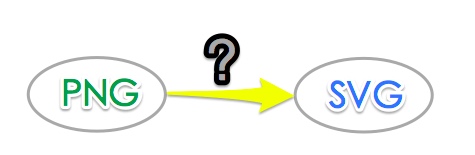
Turn a PNG, JPG, or screenshot into an editable, scalable SVG logo. Super Vectorizer Pro traces your image offline on Mac and Windows with a one-time $29.99 license.

A traced SVG gives you editable, scalable artwork instead of a locked picture — the foundation of modern brand identity
Every traced shape becomes a real path you can recolor, reshape, and reuse in Illustrator, Inkscape, or our free online SVG editor.
A traced PNG with a transparent source keeps that transparency in SVG and PDF, so your logo sits cleanly over any color or photo.
SVG is resolution-independent: one file looks sharp from a 16px favicon to a trade-show banner with zero quality loss.
Tracing happens on your Mac or Windows device. Your logo never leaves the computer — no uploads, no cloud, safe for client brand assets.
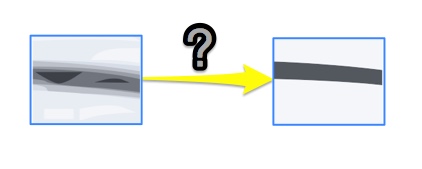
No manual node editing — just clean, scalable vectors
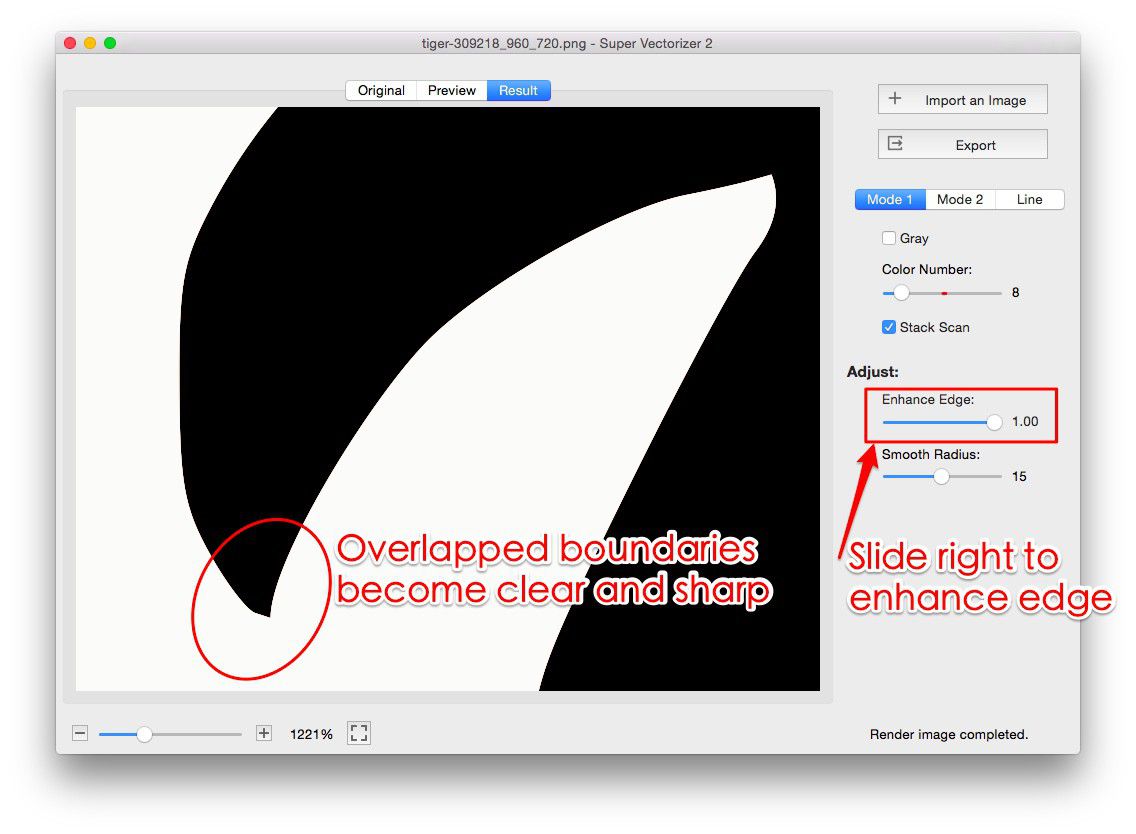
Use the largest PNG or JPG you have. A transparent PNG works best; for a JPG, remove the background first so the artwork stands alone.
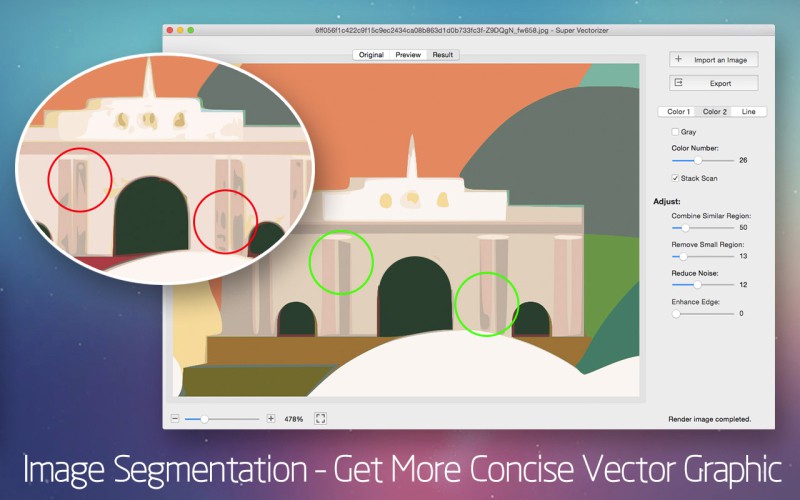
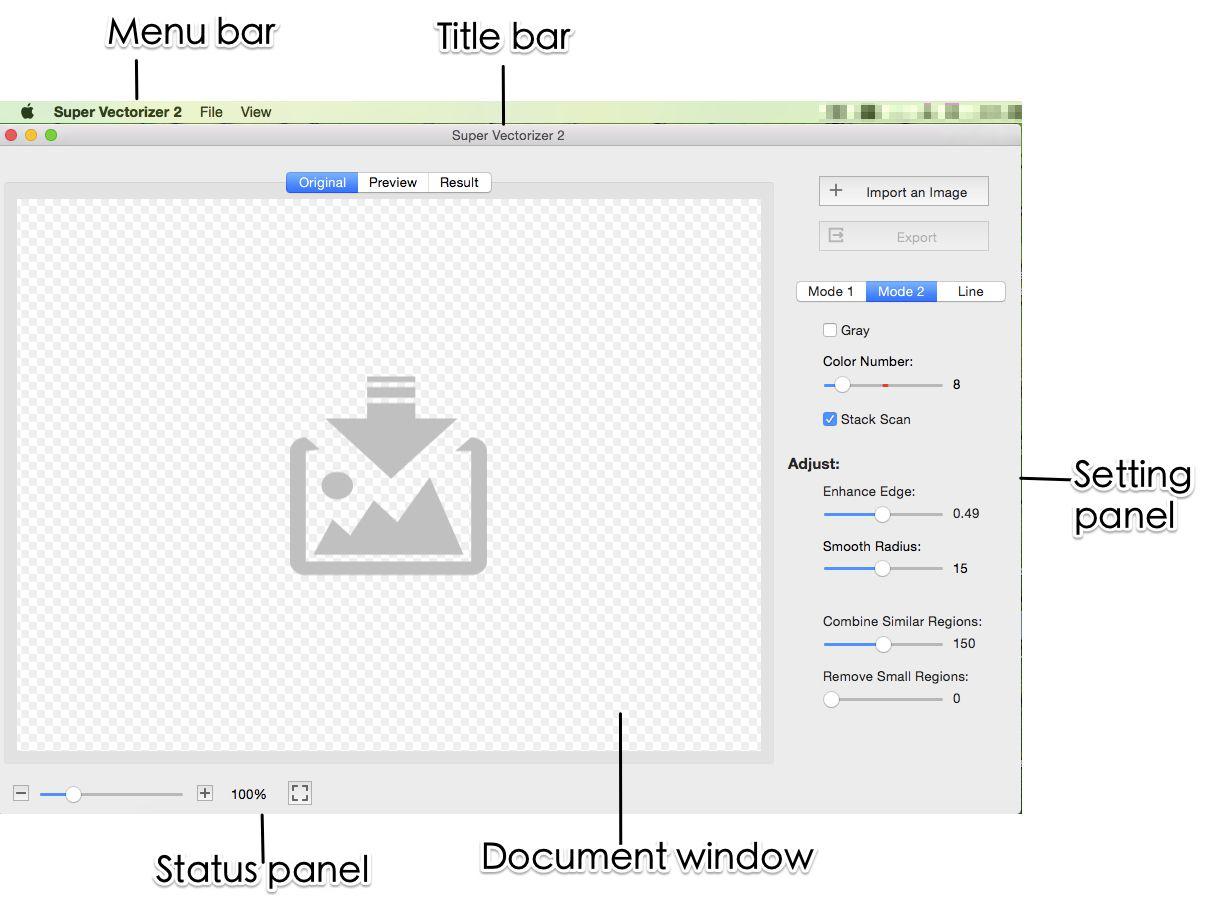
Open the image in Super Vectorizer Pro or our free online converter, pick SVG as the output, adjust color count, and preview the traced result.
Open the SVG in Illustrator, Inkscape, or our online SVG editor to recolor paths and simplify details, then use it on web, print, or cutting machines.
Prefer a quick browser tool? Try our free online PNG to SVG converter, or install Super Vectorizer Pro for offline, batch-friendly tracing.
Compatible with macOS 10.10+ (M1/M2/M3) & Windows 7/8/10/11
Match the export format to where the logo lives
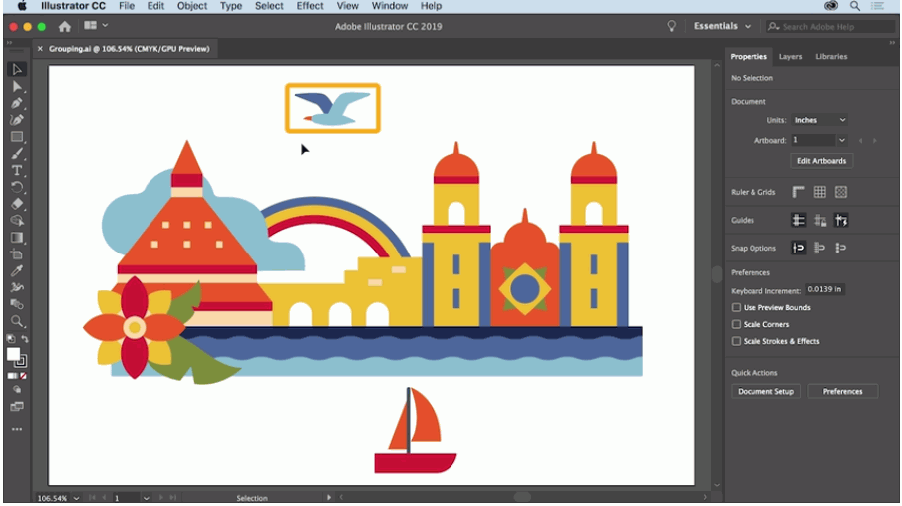
Use SVG for crisp logos in headers, favicons, and dark-mode theming. Recolor the mark in CSS without exporting a new file.
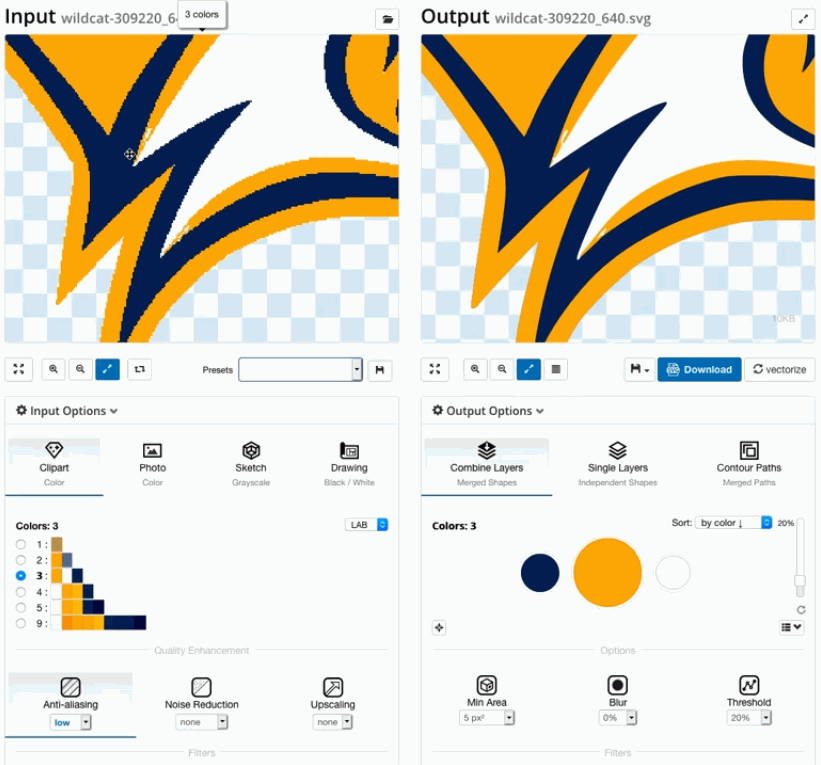
Export PDF or AI for business cards, banners, and T-shirts. The artwork scales to any print size with no pixelation.
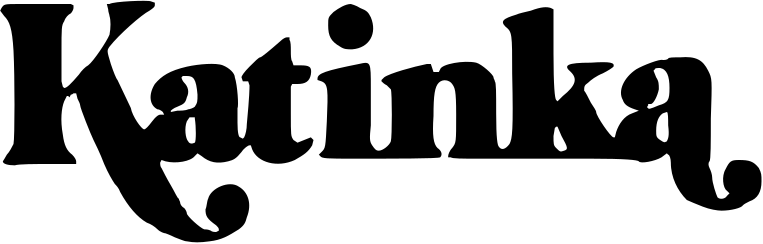
SVG is the native format for Cricut and cutting plotters. Closed paths cut cleanly on vinyl, paper, and heat transfer.
Everything you need to know about creating an SVG logo from an image
SVG (Scalable Vector Graphics) offers several advantages over PNG/JPG for logos: infinite scalability without quality loss, smaller file sizes, editable paths, and crisp display on every device including retina screens. An SVG logo looks sharp from a favicon to a billboard and can be recolored in code.
Yes. You can convert a PNG logo to SVG with Super Vectorizer Pro on Mac or Windows, or with our free online PNG to SVG converter. Upload the PNG, choose the tracing settings, and download the SVG. High-resolution PNGs with clear edges produce the cleanest SVG output.
PNG with a transparent background is ideal because it is lossless and already separates the artwork from the background. JPG works too but may need background removal first. Higher-resolution sources (300 DPI or more) produce cleaner vector paths. Simple logos with clear edges convert better than busy photographs.
You can embed an SVG logo directly in HTML with the svg tag, reference it with an img tag, or use it as a CSS background. Because SVG is text-based, you can also change its color or size in code, which makes it easy to theme a site in light and dark modes.
Yes. Unlike PNG or JPG, SVG is an editable vector format. Open the file in Super Vectorizer Pro, Adobe Illustrator, Inkscape, or our free online SVG editor to change colors, simplify paths, and resize without any quality loss.
PNG and JPG are raster formats (pixels) that blur when enlarged. SVG is a vector format (mathematical paths) that scales infinitely. PNG supports transparency; JPG does not. For a logo that must work across sizes and media, SVG is the best choice.
Yes. A JPG logo converts to SVG just like a PNG. Upload it to the converter, trace it, and download the SVG. Because JPG does not support transparency, remove the background first if you want a clean transparent logo for web or print.
Yes. When you trace a logo that already has a transparent PNG source, the resulting SVG preserves that transparency. This lets you place the logo over any colored background, photo, or site header without an ugly white box.
Use the largest, highest-resolution version you have — 300 DPI or higher is ideal. Vectorization can only reproduce detail that already exists in the original, so a small or blurry image will produce a rough SVG no matter which tool you use.
Absolutely. Because SVG is resolution-independent, the same file works from a business card to a billboard, T-shirt, or embroidery. Export PDF or AI for print shops and SVG for web and cutting machines; the artwork scales perfectly with no quality loss.
Join 50,000+ designers and engineers who trust Super Vectorizer Pro.
30-day money-back guarantee.
More raster-to-vector pipelines built into Super Vectorizer Pro