
WebP is Google's modern image format—it offers superior compression compared to PNG and JPG, making websites load faster. But WebP is still a raster format, meaning it's made of pixels and will blur when scaled up. If you need your WebP images to be scalable—for logos, icons, illustrations, or print materials—you need to convert WebP to SVG. In this guide, we'll cover everything you need to know about transforming WebP images into crisp, scalable vector graphics.
Whether you're a web developer optimizing site assets, a designer preparing graphics for responsive layouts, or a business owner who received WebP files from a designer, this guide will walk you through professional-grade conversion techniques. We'll explore when to use online converters, when to use desktop software like Super Vectorizer Pro, and how to achieve the best possible results from your WebP source files.
Ready to convert your WebP images to SVG? Try Super Vectorizer Pro free trial to preview vectorization results.
Compatible with macOS 10.10+ (M1/M2/M3) & Windows 7/8/10/11
Why Convert WebP to SVG?
Before diving into the "how," let's clarify why you'd want to convert a WebP image to SVG format. Understanding the use case will help you choose the right tool and settings.
The WebP Format: Great for Photos, Limited for Graphics
WebP was created by Google in 2010 as a replacement for JPEG and PNG. It offers:
- Smaller file sizes (25-35% smaller than comparable JPEG/PNG)
- Transparency support (like PNG)
- Animation support (like GIF)
- Wide browser support (all modern browsers since 2021)
But WebP is still a raster format—it's composed of a grid of pixels. When you scale a WebP image up, it pixelates. When you scale it down, it can look soft or blurry. For photographs, this is acceptable. For logos, icons, illustrations, and graphics with text, it's a problem.
SVG: The Ideal Format for Scalable Graphics
SVG (Scalable Vector Graphics) uses mathematical paths to define shapes, lines, and colors. This makes SVG:
- Infinitely scalable—crisp at any size, from 16×16 favicons to 3000×3000 print graphics
- Smaller for graphics—a simple logo in SVG can be under 2KB
- Editable—each element can be selected and modified in design software
- Animatable—SVG elements can be animated with CSS or JavaScript
- Accessible—SVG text remains selectable and screen-reader friendly
| Use Case | Keep as WebP | Convert to SVG |
|---|---|---|
| Photographs | ✓ Better | Not recommended |
| Logos | Poor quality at scale | ✓ Essential |
| Icons | Pixels visible at small sizes | ✓ Essential |
| Illustrations (flat) | Large file size | ✓ Much smaller |
| Screenshots with text | Text becomes unreadable when scaled | ✓ Text stays sharp |
Method 1: Desktop Software (Best Quality & Control)
For professional results, desktop software is the recommended approach. These applications process the conversion locally on your computer, providing faster results, better privacy, and—most importantly—full control over the vectorization parameters.
Super Vectorizer Pro (Mac & Windows)
Super Vectorizer Pro excels at converting WebP images to SVG because it handles the WebP-to-intermediate-to-vector pipeline seamlessly. You don't need to manually convert WebP to PNG first—the software handles it.
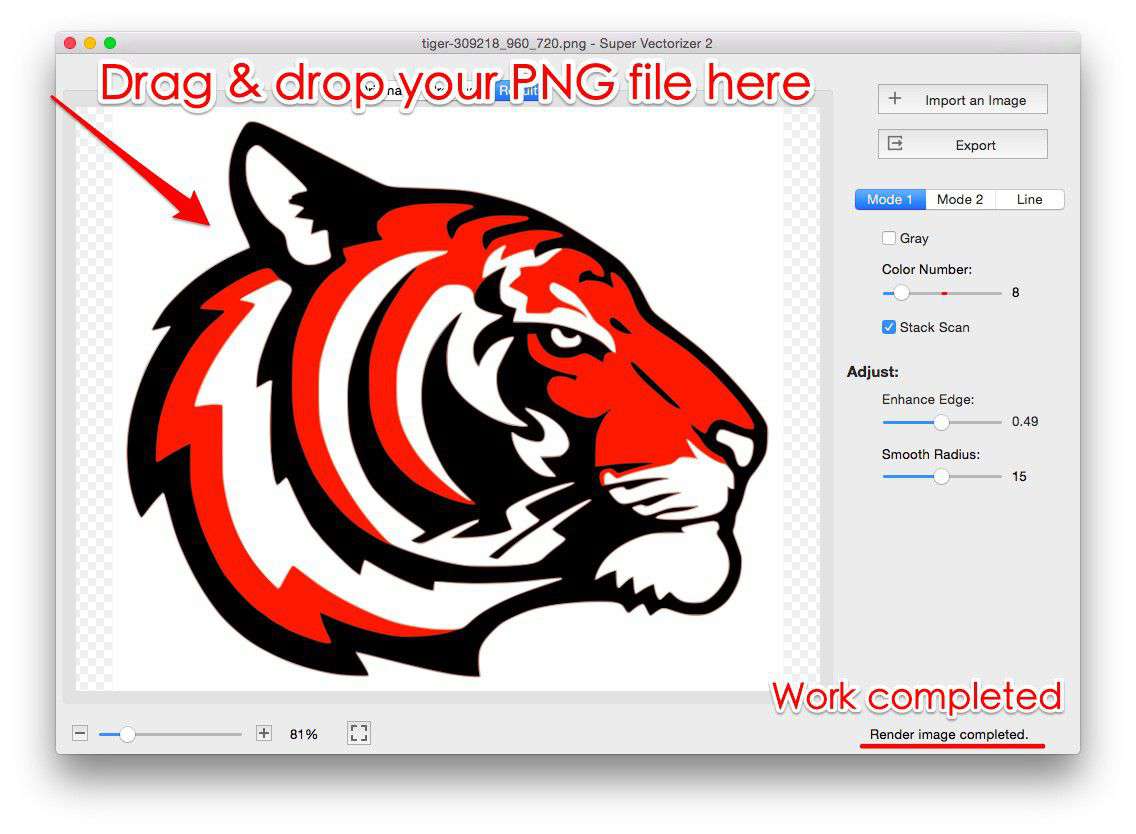
Step-by-step: Convert WebP to SVG with Super Vectorizer Pro
- Open Super Vectorizer Pro on your Mac or Windows computer.
- Drag your WebP file into the application window. The software will automatically decode the WebP and display it.
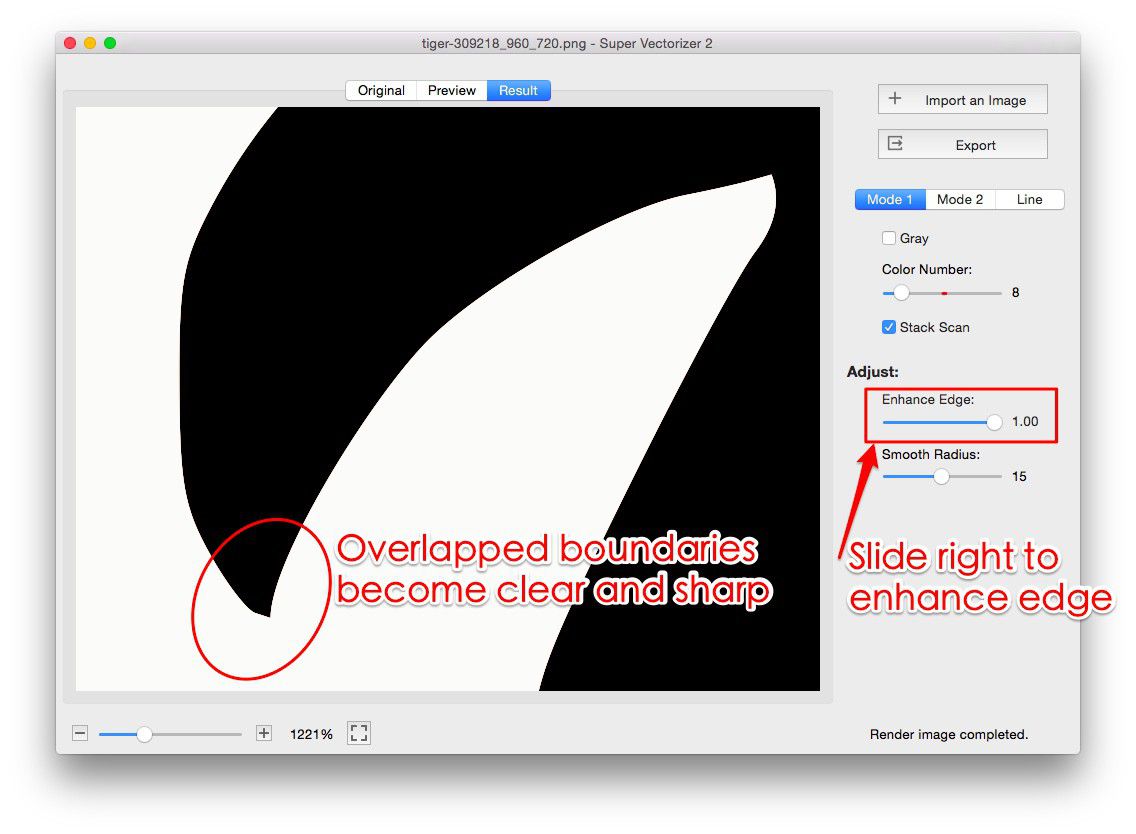
- Adjust vectorization settings. For WebP images that are logos or icons, use the "Logo" or "Sharp Edge" preset. For illustrations with smooth curves, use "Photo" or "Smooth."
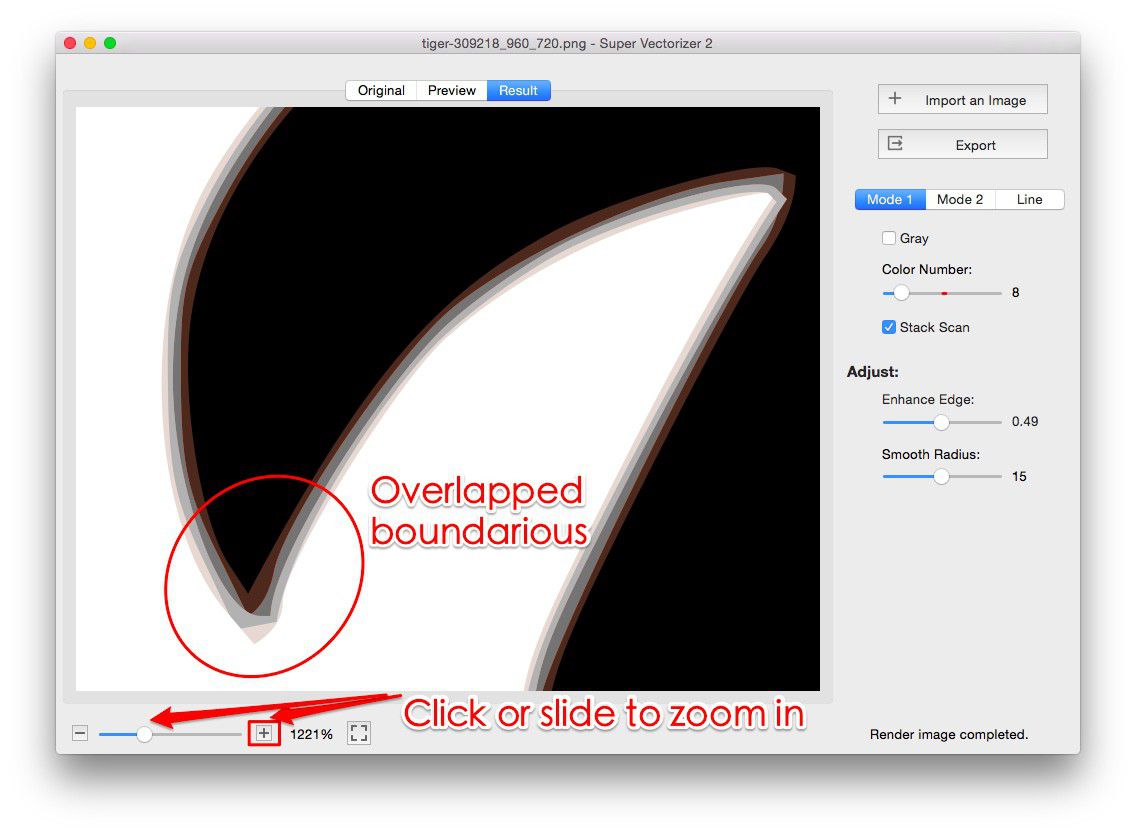
- Preview the result. Zoom in to 400%+ to inspect fine details. The preview updates in real-time as you adjust settings.
- Refine if needed. If the result has too many nodes (making the SVG file large), increase the "Simplify" slider. If details are lost, decrease "Simplify" and increase "Detail."
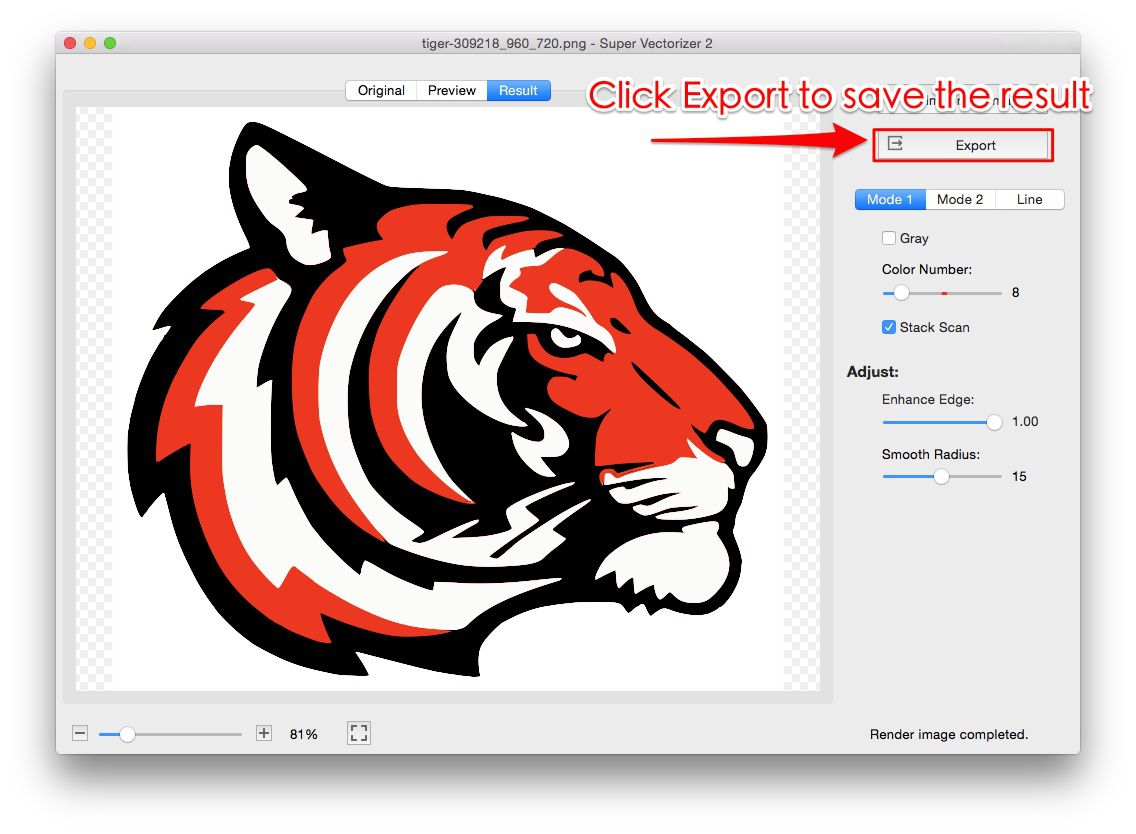
- Export as SVG. Choose "SVG" from the format dropdown and click Export. The free trial allows full preview—export requires the full version.
Adobe Illustrator (For Existing Subscribers)
If you already have an Adobe Creative Cloud subscription, Illustrator's "Image Trace" feature can handle WebP files (drag the WebP into Illustrator, then go to Window → Image Trace). However, Illustrator requires more manual adjustment than dedicated tools, and the subscription cost is hard to justify if you only need occasional WebP-to-SVG conversion.
Method 2: Online Converters (Quick & Free)
Not everyone wants to install desktop software. Online converters are convenient, work in any browser, and are typically free for basic use. Here are the best options for converting WebP to SVG:
| Tool | WebP Support | Max File Size | Output Quality | Cost |
|---|---|---|---|---|
| SVGVector Online | Yes | 10 MB | Good | Free |
| CloudConvert | Yes | 100 MB (free tier) | Moderate | Free (limited) |
| Vectorizer.ai | Yes | 15 MB | Excellent | Free (with watermark) |
| Convertio | Yes | 100 MB | Basic | Free (limited daily) |
When to use online converters:
- You have a one-time conversion need
- The WebP image is simple (logo, icon, basic illustration)
- You don't need fine control over the output
- You're comfortable uploading the image to a third-party server
Limitations to keep in mind:
- Privacy: Your image is uploaded to a remote server. For unreleased or confidential graphics, use desktop software.
- Quality: Online tools use generic algorithms. They can't match the fine-tuned results of desktop software with manual parameter adjustment.
- File size limits: Free tiers typically cap uploads at 10-15 MB.
- Internet required: No connection means no conversion.
Desktop vs. Online: Which Should You Choose?
The right choice depends on your volume, quality needs, and privacy requirements.
Desktop Software (Recommended for Regular Use)
- Full control over vectorization quality
- Process multiple files in batch
- Files never leave your computer
- Works offline—no internet needed
- One-time purchase, no subscription
- Higher output quality for detailed images
Online Converters (Good for Occasional Use)
- No installation required
- Free for basic conversions
- Works on any operating system
- Good enough for simple graphics
- No learning curve
Best Practices for WebP to SVG Conversion
- Start with the highest-quality WebP available. WebP supports both lossy and lossless compression. If you have the choice, use the lossless WebP version for vectorization—it will have sharper edges and more accurate colors.
- Simplify complex images before vectorizing. If your WebP is a photograph or has complex gradients, vectorization will produce a very large SVG with thousands of nodes. For such images, consider whether SVG is the right format—sometimes a high-quality WebP at the target display size is the better choice.
- Use the right vectorization mode. Most vectorization software offers different modes: "Logo" (sharp edges, flat colors), "Photo" (smooth curves, gradients), and "Sketch" (pencil/ink drawings). Choosing the right mode dramatically improves results.
- Clean up the SVG afterward. After conversion, open the SVG in a code editor or SVG optimizer (like SVG Mini Online) to remove unnecessary metadata, reduce file size, and ensure clean code.
- Test at multiple sizes. View your converted SVG at 16×16 (favicon size), 64×64 (icon size), 256×256 (standard UI size), and 1024×1024 (large display size). It should look good at all of them.
Troubleshooting Common WebP to SVG Problems
Problem 1: The converted SVG looks "messy" with too many paths
Cause: The vectorization software traced every compression artifact from the WebP file.
Solution: Increase the "Simplify" or "Noise Removal" setting. Alternatively, preprocess the WebP in an image editor (apply a slight blur to remove compression artifacts, then sharpen edges).
Problem 2: Fine details are missing in the SVG
Cause: The "Detail" setting was too low, or the WebP image was too small.
Solution: Increase the "Detail" slider in your vectorization software. If the source WebP is under 500×500 pixels, try to obtain a higher-resolution version before vectorizing.
Problem 3: The SVG file size is huge (multiple megabytes)
Cause: The vectorization created too many nodes, or you vectorized a photograph (which should usually stay as a raster image).
Solution: Increase "Simplify" to reduce node count. For photographs, consider whether SVG is the appropriate format—WebP or AVIF may be better choices for photo content.
Problem 4: Colors look wrong or "muddy"
Cause: The vectorization algorithm created gradients instead of flat color fills.
Solution: Reduce the "Color Count" or "Palette Size" setting. For logos and icons, you typically want 2-8 flat colors, not continuous gradients.
WebP → SVG: Format-Specific Conversion Notes
WebP is not a single format — it ships in two compression modes, and the converter must handle both before tracing:
- Lossy vs. Lossless WebP. Lossy WebP can introduce slight smoothing the tracer reads as blended edges; for logos and line art, prefer a lossless WebP source so boundaries stay sharp. If only a lossy file exists, raise Filter speckles slightly to drop compression noise first.
- Animation is dropped. Animated WebP stores many frames, but the browser hands the tracer a single decoded bitmap. The SVG you get is a static vector of that one frame — not the animation. Export each frame separately to keep motion.
- Alpha channel. WebP transparency maps cleanly to SVG's native transparency. Keep the source alpha instead of flattening to white, so the traced SVG preserves see-through areas for logos on colored backgrounds.
- Color depth. WebP can be 8-bit or 10-bit; the tracer downsamples to 8-bit RGBA, so very subtle gradients may band — fine for flat graphics, worth noting for photo-real content.
Frequently Asked Questions
Can I convert WebP to SVG for free?
Yes, several free online tools can convert WebP to SVG. However, free tools often provide limited control over the output quality. For professional use—such as converting a company logo or client graphics—a dedicated desktop tool like Super Vectorizer Pro typically produces much cleaner results. The free trial of Super Vectorizer Pro lets you preview the vectorization quality before purchasing.
Does converting WebP to SVG improve image quality?
Vectorization can make an image appear sharper at scaled sizes, but it doesn't "recover" lost detail from a low-resolution source. If your WebP is 200×200 pixels, the vectorized SVG will scale without pixelation, but it won't contain more detail than was in the original. For best results, start with the highest-resolution WebP available.
Should I always convert WebP to SVG?
No. WebP is actually the better format for photographs and complex images with continuous tones. SVG is ideal for logos, icons, text-based graphics, and simple illustrations. A good rule of thumb: if the image has more than 8-12 distinct colors or contains photo-realistic content, keep it as WebP. If it's a logo, icon, or flat illustration, convert to SVG.
Can Super Vectorizer Pro open WebP files directly?
Yes, Super Vectorizer Pro can open WebP files directly on both Mac and Windows. You don't need to convert WebP to PNG first—the software handles the decoding and presents the image for vectorization immediately. This streamlined workflow saves time and avoids unnecessary intermediate files.
What's the best SVG optimizer after conversion?
After converting WebP to SVG, use SVG Mini Online (free, at svgvector.com) to optimize the SVG code. It removes unnecessary metadata, collapses redundant paths, and can reduce file size by 30-70% without any visible quality loss. This is especially important for web use, where SVG file size affects page load speed.
Convert Your WebP Images to SVG Today
Download Super Vectorizer Pro free trial to preview your vectorized WebP images. See the quality for yourself—export requires the full version.
Compatible with macOS 10.10+ (M1/M2/M3) & Windows 7/8/10/11
Related Articles
Try These Free Online Tools
No download required — convert, compress & optimize SVGs right in your browser
PNG to SVG Converter
Turn PNG images into crisp vector artwork in seconds
Free OnlineSVG Compressor (Mini)
Reduce SVG file size by up to 80% without losing quality
Free OnlineJPG to SVG Converter
Convert JPEG photos to scalable vector format
Free OnlineEPS to SVG Converter
Convert EPS illustrations to scalable vector graphics
Free OnlineAll Free Tools
Browse our complete collection of free online conversion tools