
Every brand needs a create an SVG logo from an image. Whether you're printing business cards, embroidering uniforms, or uploading to a Cricut project, a raster PNG or JPG just won't cut it — literally and figuratively. The pixels get blurry at larger sizes, the background shows through, and cutting machines can't read the edges. The solution is to vectorize your logo, converting it to SVG format where every curve is a clean mathematical path that scales infinitely. But professional vectorization services charge $20–$100 per logo. If you need to vectorize a logo for free, this guide compares six tools — including Super Vectorizer Pro's free trial, open-source software, and browser-based auto-tracers — so you can pick the right one for your logo type and skill level.
Need to vectorize a logo right now? Try Super Vectorizer Pro free trial to preview your vectorization result.
Compatible with macOS 10.10+ (M1/M2/M3) & Windows 7/8/10/11
Why You Need to Vectorize Your Logo
A logo is the single most important visual asset for any brand — and it's also the one that gets stretched, shrunk, and reproduced across the widest range of sizes. Here's why vector format matters for logos specifically:
- Infinite scalability — From a 16 px favicon to a 10-foot billboard, an SVG logo stays razor-sharp. A PNG logo at 10 feet looks like a pixelated mess.
- Print readiness — Commercial printers require vector files (SVG, EPS, AI). Hand them a PNG and they'll either reject it or charge you to redraw it.
- Small file size — A clean SVG logo is typically 2–10 KB. The equivalent PNG at print resolution might be 500 KB–5 MB. That matters for website load speed.
- Editable colors & shapes — Need to swap your brand colors? In SVG, it's a quick find-and-replace. In PNG, you're re-exporting from scratch.
- Cutting machine compatibility — Cricut, Silhouette, and laser cutters read SVG paths. A raster logo requires conversion first.
If your logo currently exists only as a PNG, JPG, or screenshot, you need to vectorize it — and doing it for free is entirely possible with the right tool.
6 Tools to Vectorize a Logo for Free in 2026
We tested each tool with a real-world scenario: a 300 × 200 px PNG logo with 4 colors, slight anti-aliasing, and a transparent background. Here's how they stack up:
| Tool | Platform | Logo Quality | Free Output? | Best Logo Type |
|---|---|---|---|---|
| Super Vectorizer Pro Best | Mac / Windows | ★★★★★ | Yes (trial) | All logo types |
| Inkscape | Mac / Win / Linux | ★★★★☆ | Yes (forever) | Flat-color logos |
| Vectorizer.ai | Online | ★★★★☆ | 2 free (then paid) | Complex logos |
| Adobe Express | Online | ★★★☆☆ | Yes (account) | Simple logos |
| Autotracer.org | Online | ★★★☆☆ | Yes | Line-art logos |
| Online-Convert.com | Online | ★★☆☆☆ | Yes | Basic conversion |
Detailed Reviews: Which Tool Vectorizes Logos Best?
1. Super Vectorizer Pro — Best for All Logo Types
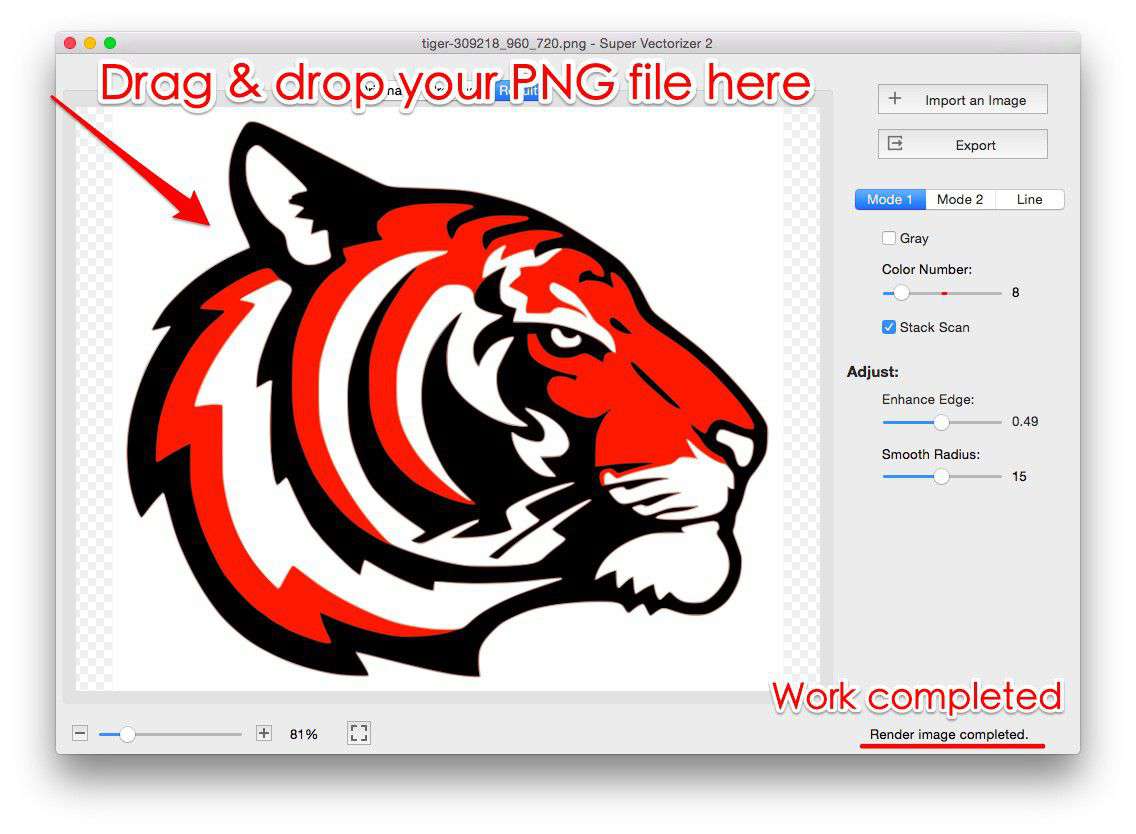
Super Vectorizer Pro handles every logo type we threw at it — flat 2-color marks, multi-color illustrated logos, and even photo-realistic badge designs. The reason it tops our list for logo vectorization is simple: it offers multiple tracing algorithms in one app. "Color" mode traces multi-color logos with accurate region detection. "Line" mode is perfect for outline-style logos. "Skeletonization" mode turns thin-line logos into clean centerline paths — ideal for laser cutting and engraving.
The free trial lets you test all tracing modes and preview the vectorization result before purchasing. You can drag in a PNG, adjust the color count slider, and preview the result instantly. For Mac users needing to convert PNG logos to SVG, it's the most efficient path from raster to production-ready vector.
2. Inkscape — Best Free Open-Source Option
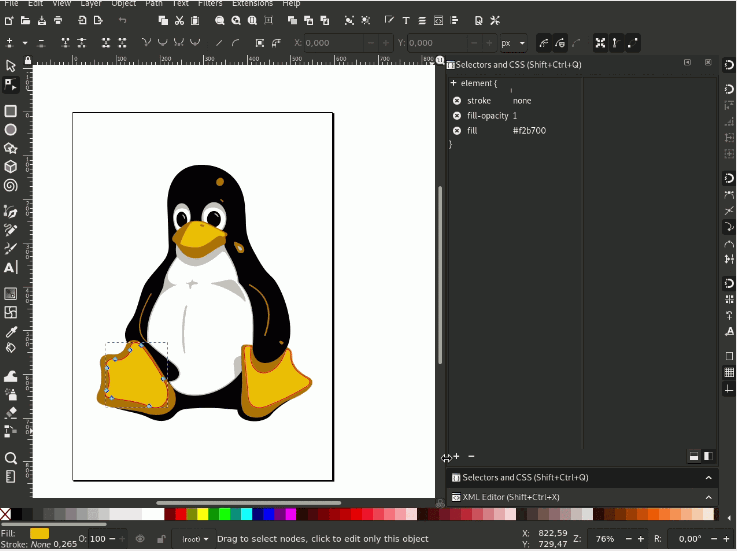
Inkscape's Trace Bitmap dialog (Path → Trace Bitmap) is the classic free method to vectorize a logo. For flat-color logos with 3–6 colors, the "Multiscan" mode with color quantization produces decent results. The downside: you'll almost always need manual cleanup — removing stray nodes, smoothing jagged curves, and adjusting color fills. Inkscape's editing tools are excellent for this, but the initial trace quality is a step below Super Vectorizer Pro for complex logos.
Pros: completely free, runs on every OS, you can edit the SVG directly after tracing. Cons: steeper learning curve, no batch mode, and the Trace Bitmap dialog has limited options compared to dedicated vectorization software.
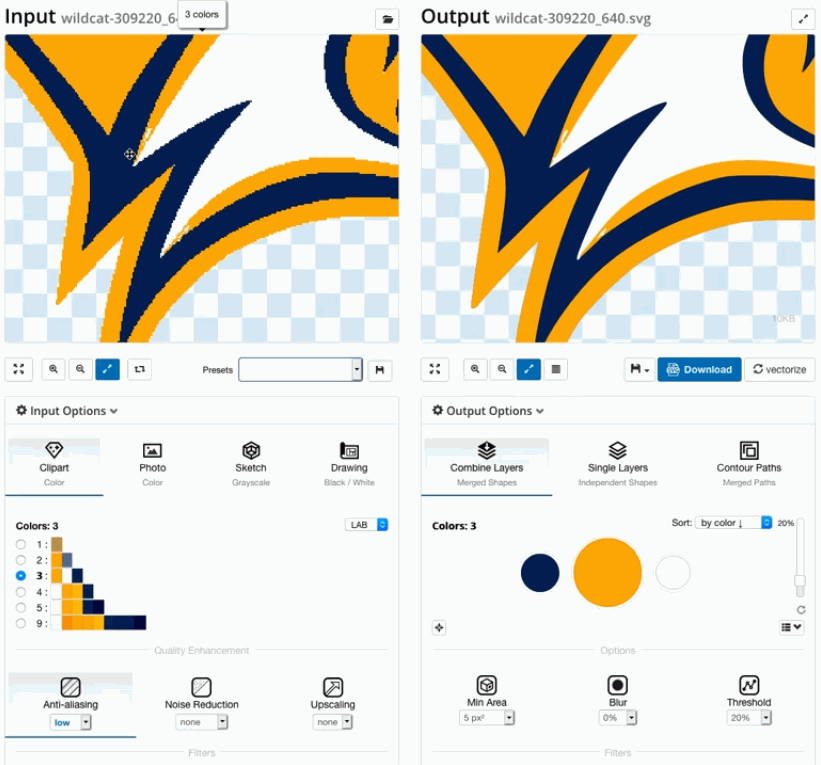
3. Vectorizer.ai — Best Quick Online Trace
If you need to vectorize a logo for free and you're in a browser tab right now, Vectorizer.ai delivers impressive AI-powered results. It handles gradients and complex shapes better than most free tools. The catch: you only get two free downloads. After that, it's a paid service. For a one-time emergency logo vectorization, it's a solid choice — just don't expect it to be your daily driver without opening your wallet.
How to Vectorize a Logo for Free: Step-by-Step
Here's the complete workflow using Super Vectorizer Pro. The same principles apply to any tool — the settings just live in different menus.
- Start with the cleanest source you have. If you have a high-resolution PNG, use that — not a screenshot. Remove any background clutter. The cleaner the input, the cleaner the SVG output.
- Import the logo. Drag your PNG, JPG, or BMP file into Super Vectorizer Pro's window.
- Select "Color" tracing mode. For most logos, Color mode gives the most accurate result. If your logo is a single-color outline, switch to "Line" mode instead.
- Adjust the color count. Set the number of colors to match your logo. A 3-color logo with the count set to 3 will trace perfectly. Setting it too high creates unnecessary paths; too low and colors merge.
- Fine-tune with the smoothing slider. Increase smoothing to reduce jagged edges on curves. Don't overdo it — too much smoothing can round off sharp corners in your logo.
- Preview and export. Check the result at 200–400% zoom. If it looks good, export as SVG. You can also export to EPS, PDF, or DXF if your workflow needs a different format.
Post-Vectorization: Cleaning Up Your Logo SVG
Even the best free vectorization tool produces output that benefits from a quick cleanup pass. Here's what to check after you vectorize your logo:
- Remove redundant paths. Auto-tracers sometimes create overlapping shapes. Merge or delete duplicates to reduce file size and editing confusion.
- Optimize for web. Run your logo SVG through SVG Compressor Online to strip editor metadata, reduce decimal precision, and remove unnecessary attributes. A typical logo SVG shrinks by 40–70% with no visible change.
- Verify color accuracy. Compare the traced colors against your brand palette. Auto-tracers approximate colors — you may need to adjust fills to match exact hex values.
- Check at multiple sizes. Open your SVG at 32 px, 128 px, and 1024 px. If details disappear at small sizes, simplify the design or create a separate small-size variant.
- Set a viewBox. Ensure your SVG has a proper
viewBoxattribute for responsive scaling. Most converters handle this, but it's worth verifying.
Desktop vs. Online: Which Is Better for Logo Vectorization?
For logos specifically, the choice between desktop and online tools comes down to precision, privacy, and volume.
Desktop Apps (Super Vectorizer Pro, Inkscape)
- Highest output quality — multi-algorithm tracing
- Client logos stay private (no cloud upload)
- Tune each logo individually for a cleaner trace
- Built-in path editing for quick cleanup
- Works offline — no internet needed
Online Tools (Vectorizer.ai, Autotracer)
- Zero installation — works on any device
- Fast for single one-off conversions
- No software to update or maintain
- Good enough for simple flat-color logos
Frequently Asked Questions
Can I vectorize a logo for free without losing quality?
Yes — if you use the right tool with the right settings. The key is to start with the highest-resolution source image you have and match the color count to your actual logo. Super Vectorizer Pro lets you preview the vectorization result before purchasing. For best results, avoid over-smoothing (which rounds corners) and set the color count to match your logo exactly.
What format should my source logo be for vectorization?
PNG with a transparent background is ideal — the converter can focus on the logo shapes without tracing the background. JPG works too, but you'll need to remove the background first. BMP, TIFF, and WebP are also supported by most free vectorization tools. Always use the highest-resolution version you have; more pixels means more accurate tracing.
Can I use a vectorized logo for Cricut cutting?
Absolutely. After you vectorize your logo, open the SVG in Cricut Design Space. If you used a free online tool or Super Vectorizer Pro in "Line" or "Skeletonization" mode, the paths will be cut-ready. For multi-color logos, you may need to separate color layers into individual cut files — one per color.
Is it legal to vectorize someone else's logo?
You should only vectorize logos you own or have explicit permission to reproduce. If a client provides their logo as a PNG and asks you to vectorize it for their project, that's standard practice. However, reproducing a third party's trademarked logo without permission may infringe on their intellectual property rights. Always check before you vectorize and redistribute.
How much does professional logo vectorization cost?
Professional vectorization services charge $20–$100 per logo, depending on complexity. Designers doing it manually in Illustrator typically bill 30–60 minutes. With a free tool like Super Vectorizer Pro's trial or Inkscape, you can achieve the same result in under 5 minutes for most logos — making the DIY approach dramatically more cost-effective.
My logo has gradients — can I still vectorize it?
Yes, but gradients require a higher color count in the tracing settings. Super Vectorizer Pro handles gradient-heavy logos well in Color mode. Inkscape's Multiscan mode can approximate gradients but may need manual adjustment afterward. For the cleanest result with gradient logos, consider simplifying to flat colors before vectorizing — flat SVG logos are more versatile across print, web, and cutting applications.
Vectorize Your Logo for Free Today
Download Super Vectorizer Pro — free trial to preview results, then unlock full export. Turn any PNG logo into a production-ready SVG.
Compatible with macOS 10.10+ (M1/M2/M3) & Windows 7/8/10/11
Vectorizing a logo for free is not only possible — it's straightforward when you pick the right tool. For a flat-color brand mark, Inkscape's Trace Bitmap gets the job done. For complex logos with gradients, fine detail, or text, Super Vectorizer Pro delivers professional results from a generous free trial. And once your SVG is ready, run it through SVG Compressor Online to optimize it for the web. Start with a PNG to SVG conversion on Mac or Windows — your logo deserves to look sharp at every size.
Related Articles
Try These Free Online Tools
No download required — convert, compress & optimize SVGs right in your browser
PNG to SVG Converter
Convert PNG, JPG, BMP images to scalable vector graphics instantly
PNG to SVG ConverterSVG Compressor (Mini)
Reduce SVG file size by up to 80% without losing quality
SVG Compressor OnlineSVG Optimizer
Clean up SVG code, remove redundant data and optimize for web
SVG Optimizer OnlineJPG to SVG Converter
Turn JPEG photos into crisp vector artwork in seconds
JPG to SVG ConverterEPS to SVG Converter
Convert EPS vector files to web-friendly SVG format
EPS to SVG ConverterAll Free Tools
Browse our complete collection of free online conversion tools
Browse All Free Tools