
Using SVG for 3D printing workflows? You're part of a growing trend. While STL and OBJ are the standard 3D printing formats, SVG plays a crucial role in CNC routing, laser cutting, and 2.5D carving — all of which are essential steps in many 3D printing workflows.
In this guide, we'll explain how to prepare SVG files for 3D printing applications, convert raster images to print-ready SVG, and avoid common mistakes that cause failed prints or wasted material.
Converting images for CNC or laser? Try Super Vectorizer Pro free trial to preview clean, print-ready vector paths.
Compatible with macOS 10.10+ (M1/M2/M3) & Windows 7/8/10/11
Why Use SVG for 3D Printing?
SVG isn't a 3D format — so why use SVG for 3D printing? Here's why:
- Laser cutting: Most laser cutters (Glowforge, Epilog, Omtech) accept SVG as their primary input format.
- CNC routing: CNC machines use SVG to define 2D toolpaths for carving.
- 2.5D carving: Software like Aspire or VCarve imports SVG to create relief carvings for 3D printers.
- Voronoi patterns: Complex infill patterns for 3D printing are often designed as SVG and converted to G-code.
- SVG to STL conversion: Tools like SVG2STL let you extrude SVG paths into 3D models.
Preparing SVG for 3D Printing: Best Practices
1. Ensure Closed Paths
3D printing software needs closed vectors to calculate toolpaths or extrusion. Open paths (lines that don't connect end-to-end) will cause errors.
How to fix: In Illustrator or Inkscape, select your paths and use Object → Path → Join to close gaps.
2. Remove Duplicate Lines
Duplicate lines in SVG files cause CNC machines to cut the same line twice, wasting time and potentially burning through material.
How to fix: Use the Pathfinder → Unite tool in Illustrator, or Path → Union in Inkscape to merge overlapping paths.
3. Set Correct Units and Scale
SVG files don't always preserve real-world units. Always set your SVG to use millimeters or inches (matching your CNC/printer settings) and verify dimensions before exporting.
4. Simplify Complex Paths
Overly complex SVGs with thousands of nodes can crash slicing software. Simplify paths using Object → Path → Simplify in Illustrator, or the Simplify extension in Inkscape.
How to Convert Raster Images to SVG for 3D Printing
Have a raster image (PNG, JPG) that you want to use for CNC or laser? You need to convert image to SVG first. Here's how:
Method 1: Super Vectorizer Pro (Recommended for Mac/Windows)
Super Vectorizer Pro is purpose-built for converting raster images to clean SVG files. It's especially good at creating closed paths — essential for 3D printing workflows.
Steps:
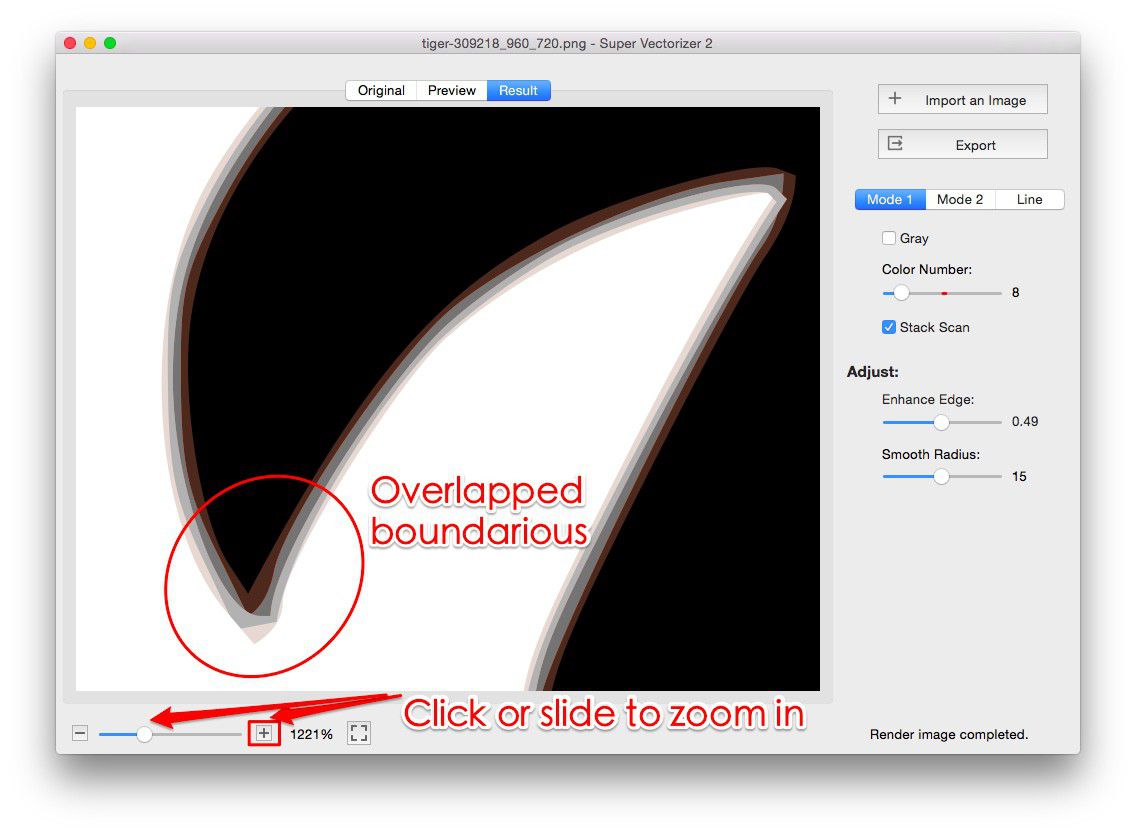
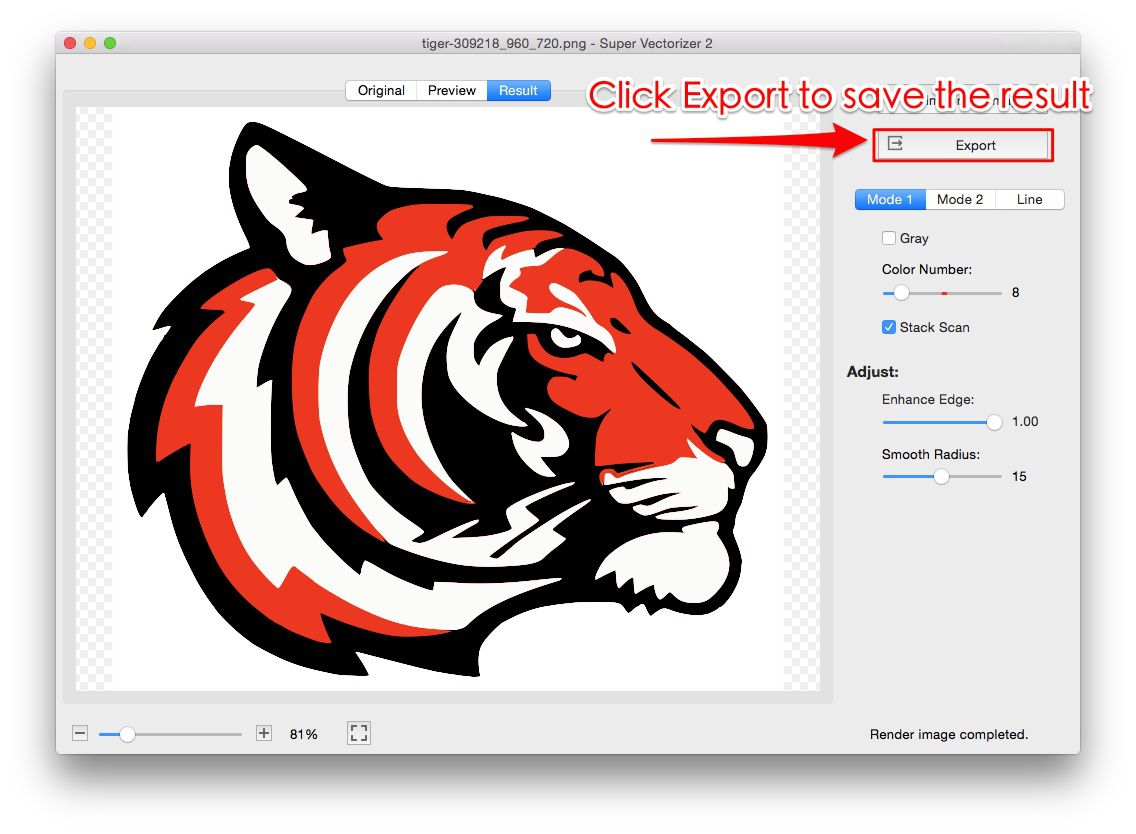
- Open Super Vectorizer Pro and import your raster image.
- Select "Line Art" or "Logo" mode (depending on your image).
- Adjust the detail slider to balance accuracy vs. path simplicity.
- Click "Check Result" to preview the vector paths.
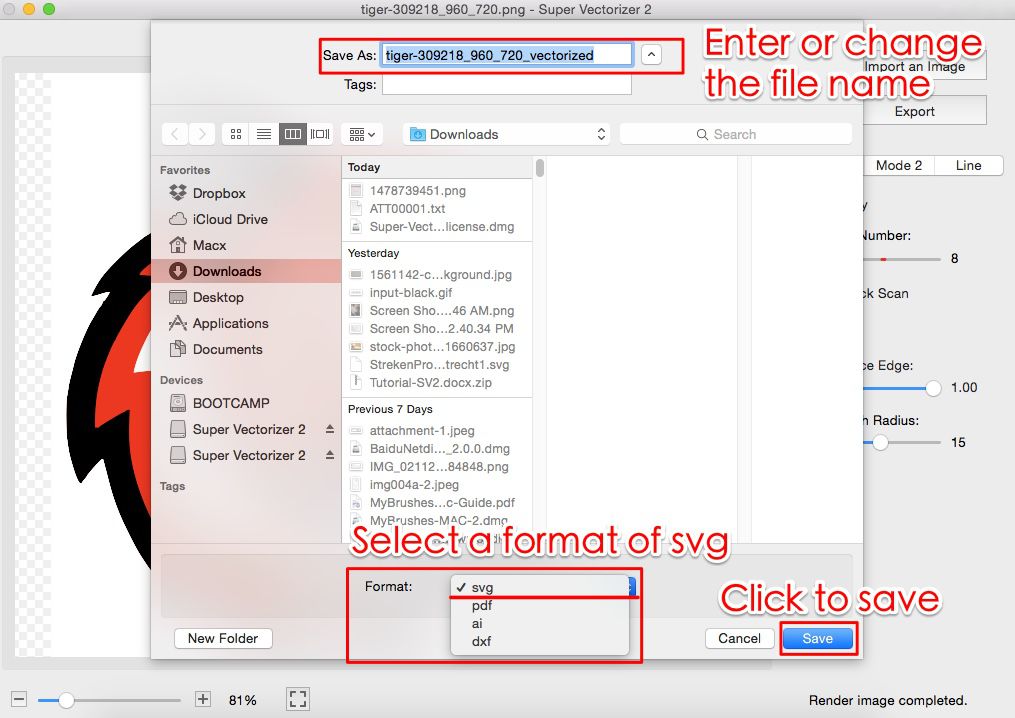
- Export as SVG with closed paths enabled.
Note: The free trial lets you preview results. Purchase is required to export.
Method 2: Inkscape (Free, Open Source)
Inkscape's Trace Bitmap feature can convert raster to SVG for free.
- Open Inkscape and import your image.
- Select the image, then Path → Trace Bitmap.
- Choose "Brightness Cutoff" for black-and-white images, or "Multiple Scans" for color.
- Check "Remove Background" if needed.
- Click "OK" and save as SVG.
Our Verdict: Best Way to Prepare SVG for 3D Printing
For occasional use, Inkscape (free) is sufficient. For regular CNC/laser work, Super Vectorizer Pro produces cleaner paths with fewer node errors — saving time on machine setup and reducing material waste.
Super Vectorizer Pro
- Automatic closed-path detection
- Clean nodes optimized for CNC
- Per-file tuning of trace settings
- Free trial to preview results
Inkscape (Free)
- Completely free, open-source
- Full vector editing capabilities
- Active community support
- Requires manual path cleanup
SVG for 3D Printing: Software Comparison
| Software | Cost | Closed Paths | Batch Processing | Best For |
|---|---|---|---|---|
| Super Vectorizer Pro | Paid (free trial) | Automatic | No (one at a time) | Regular CNC/laser work |
| Inkscape | Free | Manual | No | Occasional use |
| Illustrator | Subscription | Manual | With scripts | Existing CC users |
| Free Online Converters | Free (limited) | Varies | No | Simple shapes only |
Common SVG for 3D Printing Mistakes to Avoid
- Open paths: CNC software will ignore open paths or treat them as cut lines (not fill).
- Wrong units: An SVG designed in pixels will import at the wrong size in CNC software.
- Too many nodes: Complex SVGs slow down CAM software and can cause machine stuttering.
- Hidden layers: Some SVG exporters include hidden layers that confuse CNC software.
- Stroke vs. fill: CNC software treats strokes as cut lines and fills as engraving areas. Make sure your SVG uses the right mode.
Frequently Asked Questions
Can I use SVG directly in 3D printing software?
Most 3D printing slicers (Cura, PrusaSlicer) don't import SVG directly. You'll need to convert SVG to STL first using tools like SVG2STL, Tinkercad, or Fusion 360. However, SVG is widely used in CNC and laser cutting workflows that complement 3D printing.
What's the best SVG settings for Glowforge laser cutter?
Glowforge accepts SVG files with the following best practices: use points or pixels as units (Glowforge interprets 72px = 1 inch), ensure all paths are closed, remove any strokes (use fills only for cut lines), and simplify paths to reduce file size.
How do I convert a PNG design to SVG for CNC routing?
Use vectorization software like Super Vectorizer Pro or Inkscape to convert your PNG to SVG. Make sure the resulting SVG has closed paths, no duplicate lines, and correct real-world units (mm or inches). Always preview the toolpath in your CAM software before cutting.
Why does my SVG look different in CNC software?
CNC software may interpret SVG differently than design software. Common issues: missing fonts (convert text to outlines), hidden layers, or unsupported SVG features. Save your SVG as "SVG Tiny" or "SVG 1.1" for maximum compatibility.
Convert Your Designs to Print-Ready SVG
Try Super Vectorizer Pro free trial — preview clean, closed-path SVG files optimized for CNC and laser cutting.
Compatible with macOS 10.10+ (M1/M2/M3) & Windows 7/8/10/11
Related Articles
Try These Free Online Tools
No download required — convert images to SVG for CNC, laser, and 3D printing
Image to SVG Converter
Convert PNG, JPG to SVG for CNC and laser cutting
PNG to SVG Converter