
You have a PNG with a transparent background — maybe it's a logo, an icon, or a product image. You need it in SVG format for your website, but every time you try to convert it, the transparent areas turn into a solid white (or black) background. The result looks unprofessional and doesn't work on colored webpage backgrounds.
This is one of the most common complaints about PNG-to-SVG conversion. The good news: it's fixable. The key is using a converter that properly handles the alpha channel (transparency) in your PNG, and understanding how SVG represents transparency.
In this guide, you'll learn exactly how to convert a transparent-background PNG to SVG without losing transparency, using both desktop software and free online tools. We'll also cover why this happens and how to fix it when it goes wrong.
Need to convert transparent PNGs to SVG? Try Super Vectorizer Pro free trial to preview results with transparency preserved.
Compatible with macOS 10.10+ (M1/M2/M3) & Windows 7/8/10/11
Why Transparent Backgrounds Get Lost in Conversion
To understand the fix, you need to understand what's happening under the hood:
- PNG transparency is stored as an alpha channel — each pixel has a transparency value from 0 (fully transparent) to 255 (fully opaque). Areas with alpha = 0 are completely invisible.
- SVG transparency works differently. In SVG, each path has an optional
fill-opacityorstroke-opacityattribute. But more commonly, transparent areas in the original PNG simply become "no path" in the SVG — meaning nothing is drawn there, so whatever is behind the SVG shows through. - The problem: Many basic converters don't check the alpha channel. They treat transparent pixels as if they were white (or black), and create paths filling those areas with a solid color.
Method 1: Super Vectorizer Pro (Best for Transparency)
Super Vectorizer Pro properly handles PNG transparency on both Mac and Windows. Here's the exact process:
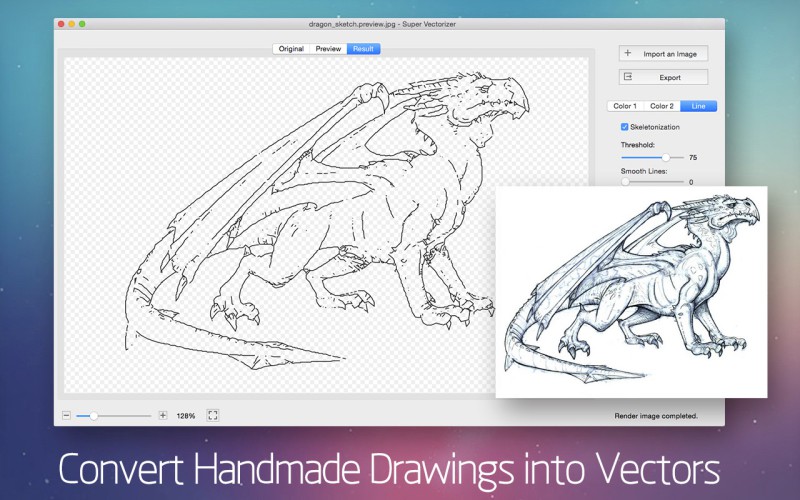
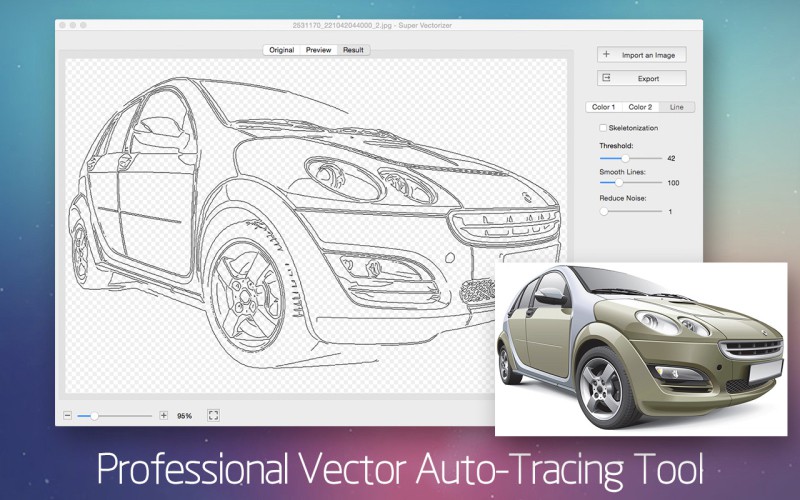
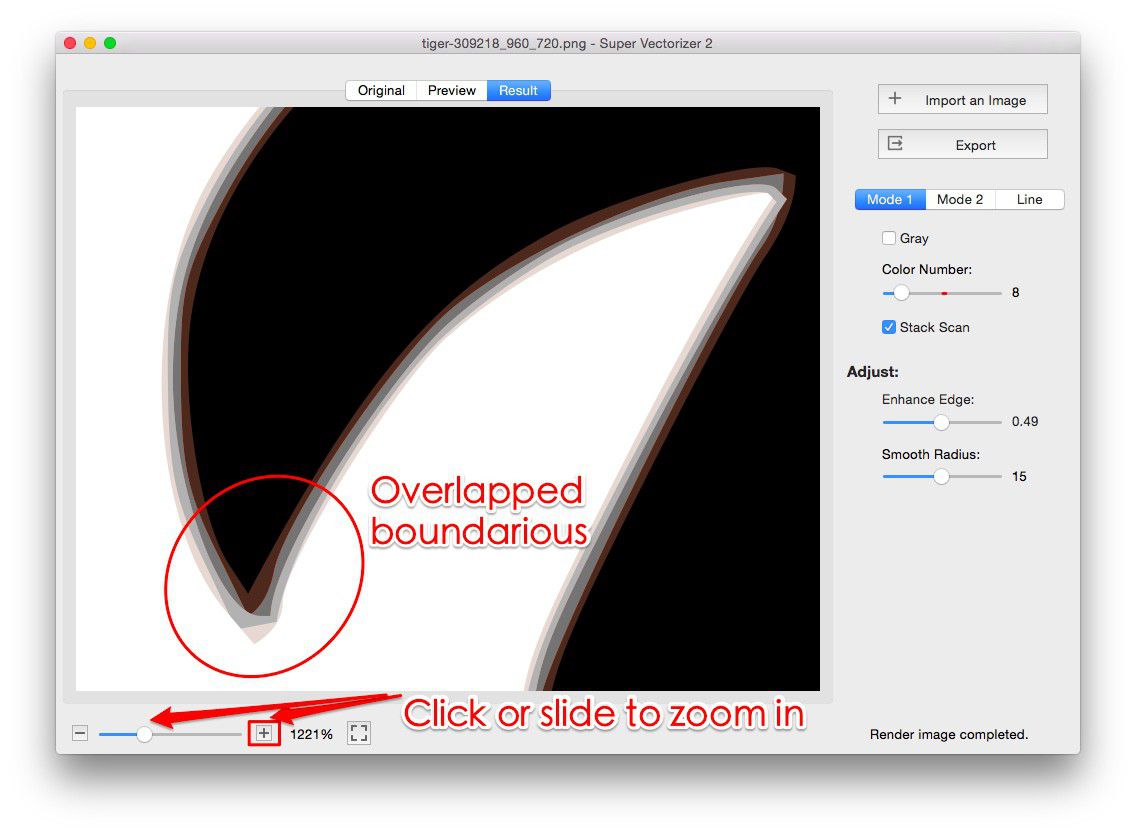
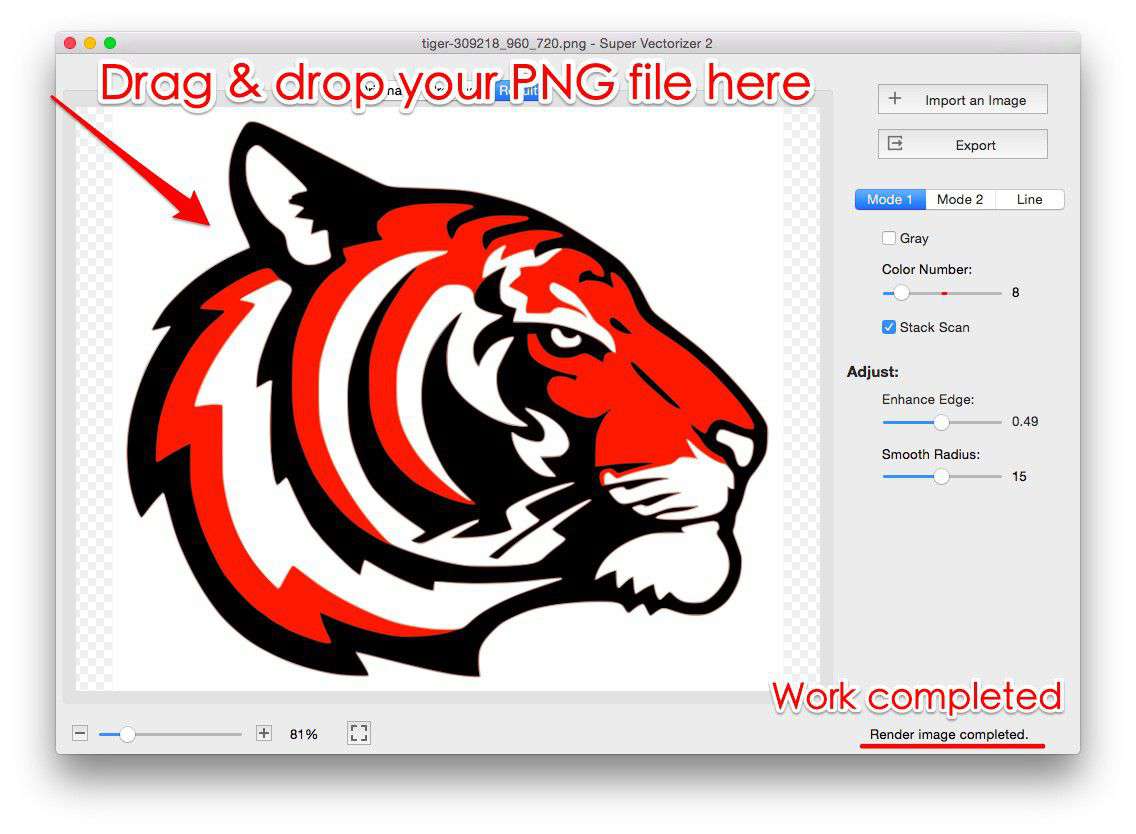
- Open Super Vectorizer Pro and drag in your transparent-background PNG. You should see the checkerboard pattern (indicating transparency) in the preview on the left.
- Select the right tracing mode. For transparent PNGs, use "Color" or "Full Color" mode. Avoid modes that fill the background.
- Enable "Preserve Transparency" (if available in your version). This tells the app to ignore transparent pixels when creating paths.
- Preview the result. On the right side, you should see the vector result with no background filled in. If you see a white or black box around your graphic, adjust the settings (see "Common Problems" below).
- Export as SVG. Open the exported SVG in a browser with a colored background to verify transparency is preserved. (Note: the trial version previews the result; purchase unlocks export.)
Method 2: Free Online Converter (Quick Option)
Our free online PNG to SVG converter supports transparency. Here's how to use it:
- Go to the converter page.
- Upload your transparent PNG. The tool will detect the transparency automatically.
- Make sure "Preserve transparency" or "Keep transparent background" is checked in the options.
- Click "Convert" and wait for processing.
- Download the SVG and test it on a colored background in your browser.
Method 3: Inkscape (Free, Advanced)
- Open Inkscape and import your PNG (File → Import). Make sure "Embed" is selected.
- Select the image, then Path → Trace Bitmap.
- Select "Brightness Cutoff" or "Multiple Scans: Colors". For transparent PNGs, "Multiple Scans" works better.
- Important: Check "Ignore Colors" if your PNG has a specific background color you want to remove, or use the "Remove Background" option if available.
- After tracing, delete the original PNG. The vector paths should have no background fill.
- File → Save As → SVG. Open in a browser to verify transparency.
How to Verify Transparency is Working
After converting, don't just look at the SVG in your vector editor (some editors show a white artboard by default, which can hide transparency issues). Instead:
- Open the SVG in a web browser (Chrome, Safari, Firefox).
- Place it on a colored background using CSS:
background: #ff0000(red) or any bright color. - If the areas that should be transparent show the red background through, your transparency is working correctly.
- If those areas appear white or black, the transparency was not preserved.
Common Problems & Fixes
Problem: Background Turns White After Conversion
The converter created a path that fills the entire bounding box with white. Fix: In Super Vectorizer Pro, increase the "Detail" setting and make sure "Background Removal" is enabled. For online tools, try a different converter that explicitly supports transparency.
Problem: Background Turns Black After Conversion
This usually happens when the converter misinterprets the alpha channel as a black fill. Fix: Make sure your original PNG actually has transparency (open it in Preview or Photoshop and check if the background shows the checkerboard pattern). If it does, try a different export setting when saving the PNG — some PNG export options flatten the image.
Problem: Semi-Transparent Edges Become Hard Edges
SVG doesn't handle semi-transparency in vector paths as smoothly as PNG does. Fix: Increase the color count in your tracing settings (try 64 colors instead of 16). This creates more gradual transitions between transparent and opaque areas.
Best Practices for Transparent PNG to SVG
Transparency is only half the battle — path fidelity matters just as much. See our PNG to SVG high quality guide for the tracing settings that keep edges sharp.
| Do | Don't |
|---|---|
| Verify transparency in the original PNG before converting | Assume the converter will "figure out" transparency automatically |
| Test the SVG on a colored background after conversion | Only check the SVG in a vector editor with a white artboard |
| Use "Color" or "Full Color" tracing mode for detailed transparent images | Use "Black & White" mode for color transparent PNGs |
| Keep the original PNG as a backup | Delete the original before verifying the SVG looks correct |
PNG → SVG: Format-Specific Conversion Notes
- PNG transparency maps directly to SVG's native transparency — keep the alpha channel instead of compositing onto white so the traced SVG stays see-through.
- Semi-transparent edges (anti-aliased hairline pixels) can leave faint halos; raise Filter speckles slightly to drop the partial-alpha fringe before tracing.
- For logos on transparent backgrounds, the Poster preset keeps flat color regions and clean edges; verify small text remains legible after tracing.
- Avoid flattening a transparent PNG to a colored background just to convert — the vectorizer preserves alpha, so your SVG can sit on any page color.
Frequently Asked Questions
Can SVG files have transparent backgrounds?
Yes. In fact, SVG files are transparent by default — unless a path explicitly fills the background area with a color. When you convert a transparent PNG to SVG correctly, the SVG will have no fill on the background areas, allowing whatever is behind it to show through. This is one of the advantages of SVG over formats like JPG, which always have an opaque background.
Why does my SVG show a white background in some programs but not others?
Some vector editors (like older versions of Adobe Illustrator) display a white artboard by default, which can make it look like the SVG has a white background. In reality, the SVG code has no background fill — it's just the editor's display. Always test by opening the SVG in a web browser and placing it on a colored background using CSS.
Can I remove the background after converting (if it went wrong)?
Yes. Open the SVG in a vector editor, select the background path (it's usually the largest path in the file), and delete it. Alternatively, change its fill to none in the SVG code: fill="none" or fill-opacity="0". For a more thorough cleanup, use an SVG optimizer tool to remove unnecessary paths and clean up the code.
Convert Transparent PNGs to SVG Correctly
Don't let your transparent backgrounds turn white. Super Vectorizer Pro handles alpha channels properly — download the free trial to preview your results with transparency intact.
Compatible with macOS 10.10+ (M1/M2/M3) & Windows 7/8/10/11
Related Articles
Try These Free Online Tools
No download required — convert, compress & optimize SVGs right in your browser
PNG to SVG Converter
Turn PNG images into crisp vector artwork in seconds
Free OnlineSVG Compressor (Mini)
Reduce SVG file size by up to 80% without losing quality
Free OnlineJPG to SVG Converter
Convert JPEG photos to scalable vector format
Free OnlineEPS to SVG Converter
Convert EPS illustrations to scalable vector graphics
Free OnlineAll Free Tools
Browse our complete collection of free online conversion tools
Related SVG Workflows
- ›PNG to SVG AI — Auto-trace PNGs with smart presets.
- ›AI Image to SVG — Turn AI outputs into scalable SVG.
- ›Online Image Vectorizer — Trace raster images in your browser.
- ›Best PNG to SVG Converters — Compare the top PNG-to-SVG tools.
- ›Clipart to SVG — Vectorize illustrations cleanly.
- ›SVG Compressor — Shrink SVG files without quality loss.