
You exported an SVG from Adobe Illustrator, Figma, or Sketch — and the file is 10x larger than it should be. You open it in a text editor and see hundreds of lines of redundant XML: editor metadata, empty groups, unused defs, hardcoded font declarations, and precision values like 12.3456789 where 12.3 would suffice.
This is why SVG "cleaning" matters. A clean SVG file is smaller, faster to load, easier to edit, and more accessible. Whether you're a web developer optimizing page speed, a designer preparing assets for production, or just someone who wants tidy code, an SVG cleaner is an essential tool.
In this guide, you'll learn exactly what makes an SVG file "dirty," how to clean SVG code online for free, and the specific optimizations that deliver the biggest file-size savings.
Want to clean your SVG code right now? Try SVG Mini — our free online SVG cleaner, no signup required.
Free online tool + Mac & Windows desktop app available
What Makes an SVG File "Dirty"?
When design tools export SVG, they prioritize editability over file size. The result is XML code that's full of unnecessary data. Here are the most common issues:
That's a lot of code for a simple red shape. Here's what a cleaned version looks like:
Result: 85% smaller file. Same visual output, dramatically less code.
What an SVG Cleaner Actually Does
A good SVG cleaner performs these optimizations (automatically):
| Optimization | What It Removes | Typical Savings |
|---|---|---|
| Remove editor metadata | <metadata>, <title>, <desc>, editor namespaces |
5-15% |
| Remove empty groups | <g> tags with no attributes or children |
5-20% |
| Collapse useless groups | <g> with only one child or redundant attributes |
5-10% |
| Simplify paths | Reduce decimal precision (12.34567 → 12.3), remove tiny segments | 10-40% |
| Remove unused defs | <defs> blocks not referenced anywhere |
5-15% |
| Shorten color values | #FF0000 → #F00, rgb(255,0,0) → red |
2-5% |
| Remove default values | stroke="none" on elements that don't have strokes anyway |
3-8% |
Method 1: SVG Mini (Free Online — Recommended)
SVG Compressor Online is our free online SVG cleaner. It runs entirely in your browser (no files uploaded to a server), and typically reduces SVG sizes by 30-80%.
How to Use SVG Mini
- Go to svgvector.com/svg-mini-online.html.
- Upload your SVG by dragging it into the upload area, or paste your SVG code directly into the input box.
- Click "Clean SVG". The tool will process your file and show the optimized result.
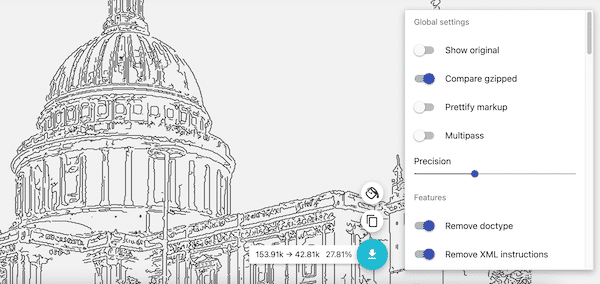
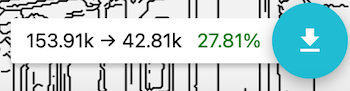
- Review the savings. SVG Mini shows you exactly how much file size was reduced.
- Download the cleaned SVG or copy the cleaned code to your clipboard.
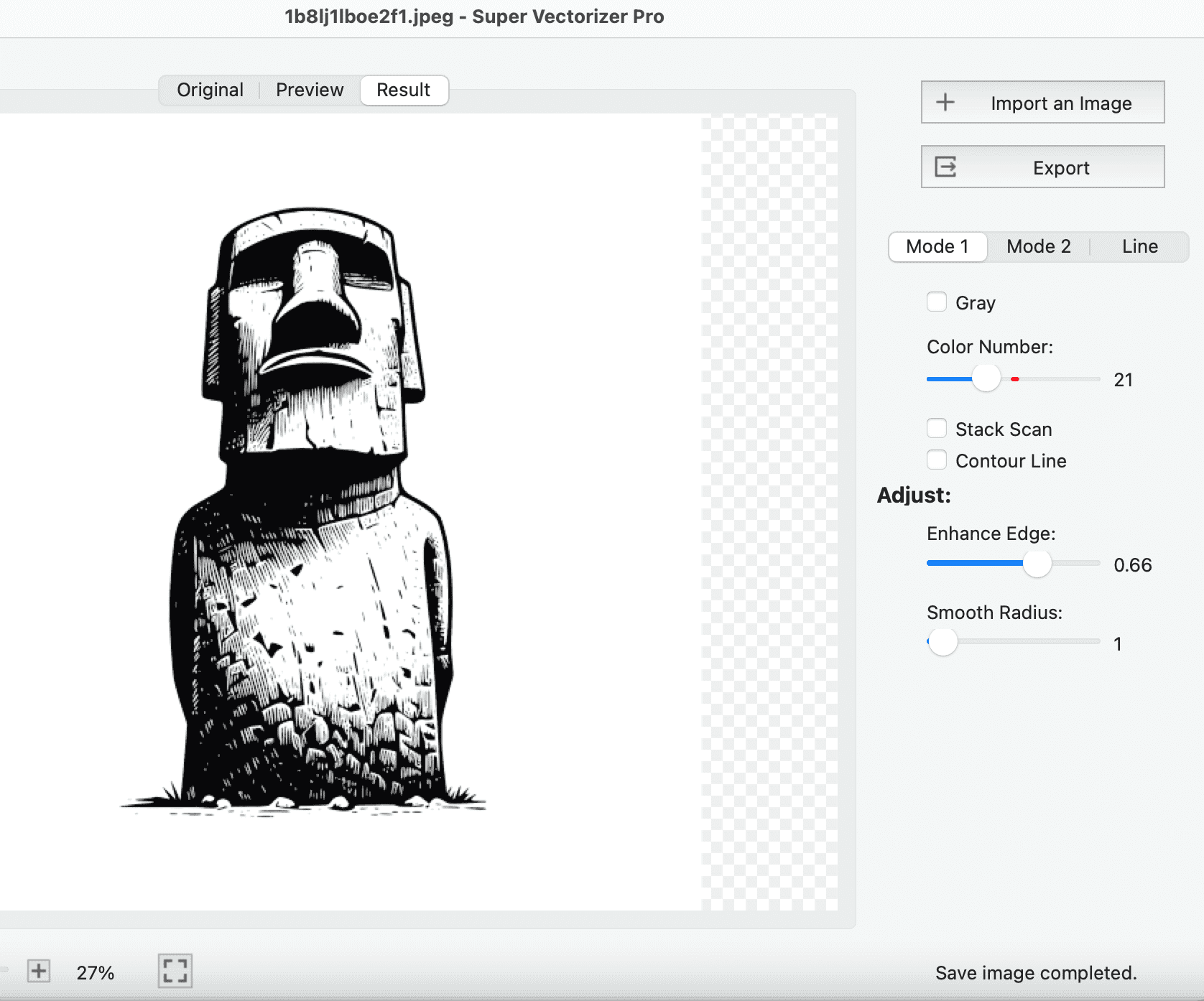
Method 2: Super Vectorizer Pro (Desktop App — More Control)
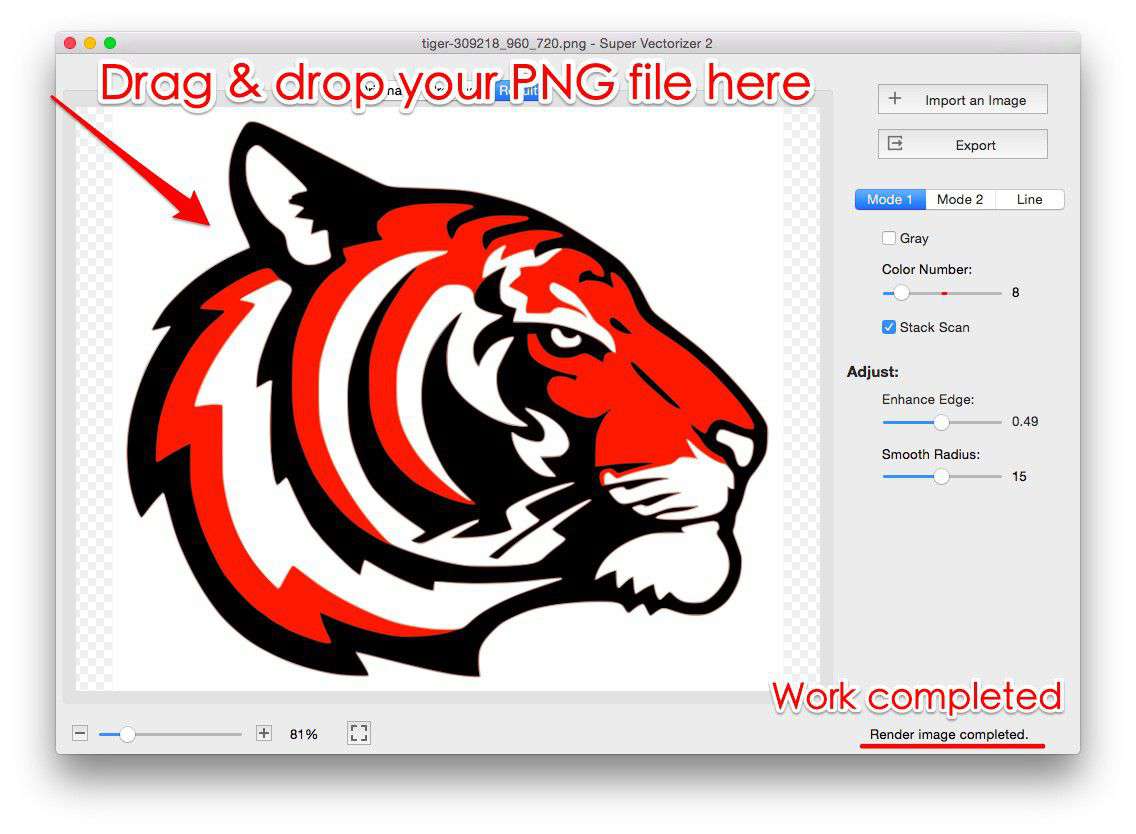
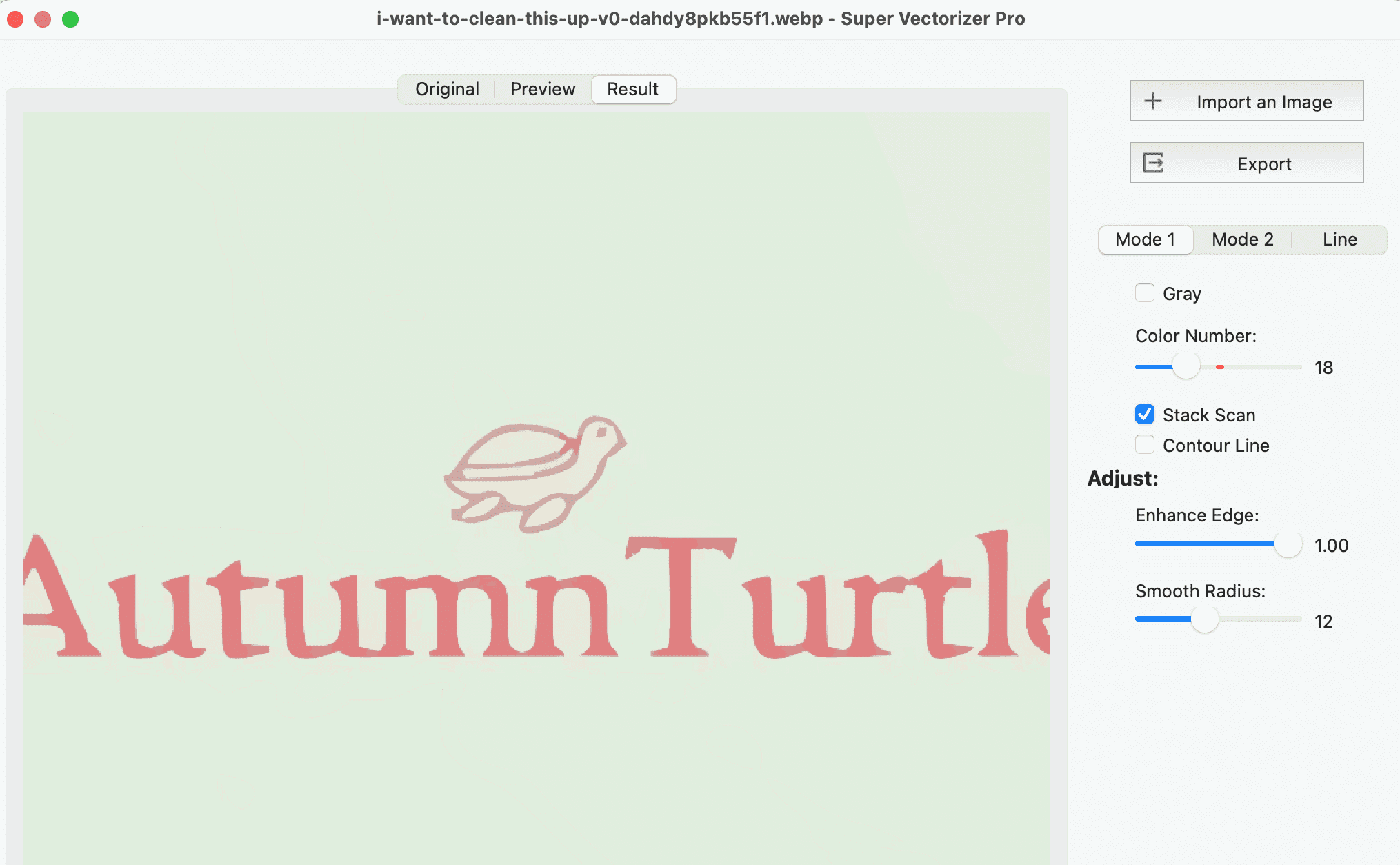
If you're already using Super Vectorizer Pro to convert images to SVG, you can also use it to clean up existing SVG files. The desktop app gives you more control over which optimizations to apply.
- Open Super Vectorizer Pro and go to the SVG Optimizer module.
- Import your existing SVG file.
- Select optimization options: remove metadata, simplify paths, collapse groups, etc.
- Preview the cleaned SVG and compare file sizes.
- Export the optimized SVG. (Note: the purchased version unlocks the export feature; the trial lets you preview the cleaned result.)
Method 3: Manual SVG Cleaning (For Developers Who Want Full Control)
If you want to clean SVG code by hand (or understand what the automated tools are doing), here's your checklist:
- Remove
<?xml?>declaration (not needed in HTML5) - Remove
xmlns:xlinkif not using xlink - Remove
<title>and<desc>if not needed for accessibility - Remove editor-specific attributes (
sketch:type,inkscape:version, etc.) - Collapse redundant
<g>wrappers - Round path decimals to 1-2 digits (12.35 instead of 12.3456789)
- Replace
#RRGGBBwith shorthand#RGBwhere possible - Remove
stroke="none"and other default-value attributes - Use
viewBoxinstead of separatewidth/heightwhen possible (makes SVG responsive)
When to Clean Your SVG (And When Not To)
Clean your SVG when:
- You're using it on a website (every KB counts for page speed)
- You're sending it to a client or colleague (smaller files are easier to share)
- You're animating it with CSS/JS (cleaner paths = smoother animations)
- You're printing it with a Cricut, laser cutter, or 3D printer (cleaner paths = fewer errors)
Don't clean your SVG when:
- You still need to edit it in the original design tool (cleaned SVGs can be harder to re-import)
- The SVG contains complex gradients or filters that might get simplified incorrectly (always verify the visual output after cleaning)
- You're using an online cleaner that uploads your file to a server (use browser-based tools like SVG Mini instead, or clean locally)
SVG Mini vs. SVGO vs. Manual Cleaning
Which SVG cleaning method should you use? Here's our comparison.
SVG Mini (Our Tool) Advantages
- Free and runs entirely in your browser (private — no server uploads)
- No installation or command line needed
- Shows before/after file size comparison
- Works on any device with a web browser
- No learning curve — upload and click "Clean"
SVGO (Advanced/CLI) Advantages
- More granular control with 30+ optimization plugins
- Can be automated in build pipelines (npm, webpack, etc.)
- Open source and highly configurable
- Best for developers comfortable with CLI tools
Frequently Asked Questions
Will cleaning my SVG change how it looks?
A properly configured SVG cleaner should not change the visual appearance of your SVG. However, reducing path precision (decimal places) can cause very slight visual differences in some cases. Always compare the before and after in a browser. If you notice any visual changes, increase the precision setting in your cleaner tool.
Is it safe to use an online SVG cleaner? Will my files be uploaded to a server?
It depends on the tool. Many online SVG cleaners actually process files in your browser using JavaScript — meaning your file never leaves your computer. SVG Mini is one of these: it runs entirely client-side. Always check the tool's privacy policy, or use a desktop app if you're working with sensitive designs.
How much file size reduction should I expect from SVG cleaning?
It varies widely depending on how the SVG was created. SVGs exported from Adobe Illustrator or Figma often see 30-70% reduction. SVGs created by hand or by vectorization tools can sometimes see 80%+ reduction. The more "editor bloat" in the original file, the bigger the savings.
Can I automate SVG cleaning as part of my build process?
Yes. If you're a developer, you can use SVGO (SVG Optimizer) as an npm package and integrate it into your build pipeline. For example, add it as a post-build step in webpack, or use it as a pre-commit hook in Git. For non-developers, using an online tool like SVG Mini manually is the simplest approach.
Clean Your SVG Code in Seconds
SVG Mini is free, runs in your browser, and typically reduces SVG file sizes by 30-80%. No signup, no server uploads — just clean SVG code.
Compatible with macOS 10.10+ (M1/M2/M3) & Windows 7/8/10/11
Related Articles
Try These Free Online Tools
No download required — convert, compress & optimize SVGs right in your browser
SVG Cleaner (Mini)
Clean up SVG code, remove redundant data and optimize for web
SVG Compressor OnlineSVG Compressor
Reduce SVG file size by up to 80% without losing quality
SVG Compressor OnlinePNG to SVG Converter
Convert PNG, JPG, BMP images to scalable vector graphics instantly
PNG to SVG ConverterAll Free Tools
Browse our complete collection of free online conversion tools
Browse All Free Tools