
Quick answer: To convert PNG to SVG with color, use a tracer that supports color quantization — switch the tracing mode from "Black & White" to "Color", then set the palette to 4–8 colors for flat logos, 8–16 for icons, and 32–64 for illustrations. Super Vectorizer Pro (Mac/Windows, one-time purchase, processes one image at a time) gives the most palette control offline; Inkscape's Trace Bitmap → Multiple Scans is the best free option; browser tracers are fine for simple 8-color artwork. For Cricut, keep the palette to 3–6 flat colors so each color becomes its own cut layer.
Converting a PNG (bitmap) image to SVG (vector) is one of the most common design tasks today. But there's a problem almost everyone runs into: the colors in the original PNG don't come through correctly in the SVG output. Instead of a vibrant, multi-color vector, you get a dull black-and-white trace, or worse, a colorful mess with the wrong palette.
This happens because most "auto-trace" tools are designed for line art and logos — not full-color photographs or detailed illustrations. They simplify the image into paths, and in the process, they discard or misinterpret the color data.
In this guide, you'll learn exactly how to convert PNG to SVG with color preserved, whether you're working with a detailed illustration, a logo with gradients, or a multi-color icon. We'll cover desktop software (Mac & Windows), free online tools, and the specific settings you need to adjust to keep colors looking right.
Ready to convert your PNG with colors intact? Use the Super Vectorizer Pro free trial to preview color vectorization results on your own image before you decide.
Compatible with macOS 10.10+ (M1/M2/M3) & Windows 7/8/10/11
Why Colors Get Lost When Converting PNG to SVG
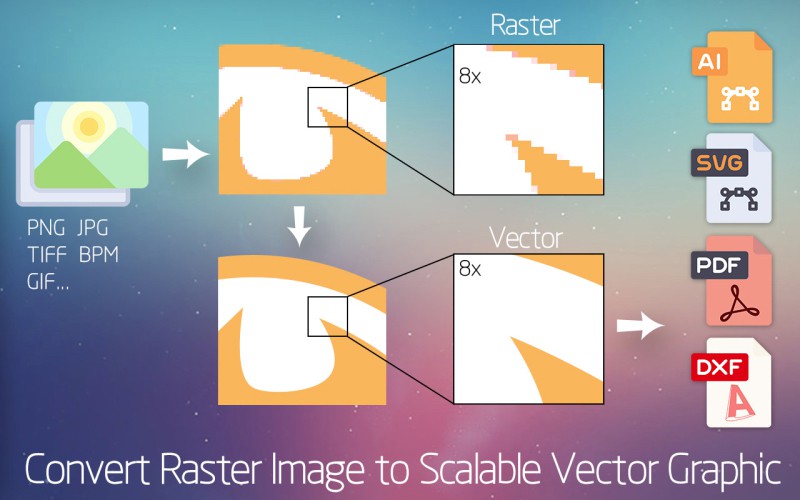
Before diving into the solutions, it's important to understand why this problem happens in the first place. A PNG and an SVG are fundamentally different types of files:
- PNG (Portable Network Graphics) is a raster format. It stores images as a grid of pixels, where each pixel has a specific color value (R, G, B, A). A full-color PNG can contain millions of unique colors.
- SVG (Scalable Vector Graphics) is a vector format. It stores images as mathematical paths (lines, curves, shapes) described in XML. Each path has a fill color and a stroke color.
The core challenge: an SVG path can only have ONE fill color. If your PNG has a gradient or a photo-realistic area with thousands of color variations, a standard vector tracer would need to create thousands of tiny paths to represent each color — resulting in an SVG that is massive, slow to render, and impractical to edit.
Good vectorization software solves this by color quantization: it reduces the millions of colors in the PNG to a manageable palette (e.g., 16, 32, or 64 colors), then creates one path per color region. The key is choosing the right number of colors and the right tracing algorithm.
Method 1: Super Vectorizer Pro (Mac & Windows — Best for Quality)
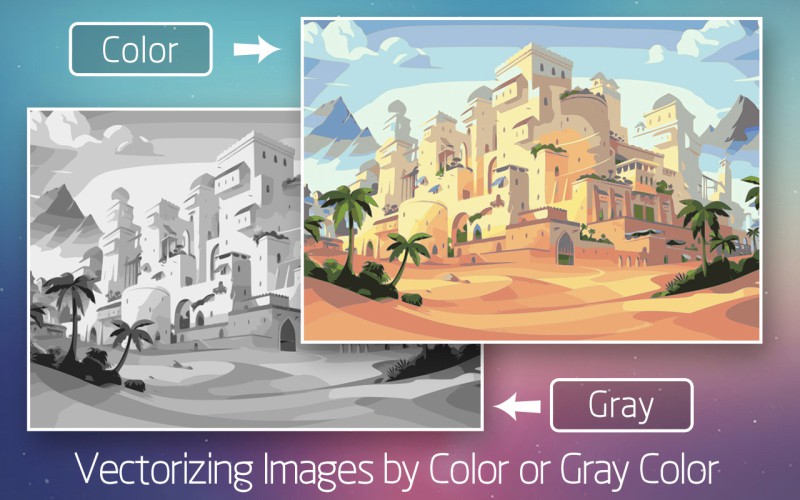
Super Vectorizer Pro is a desktop application for macOS and Windows that specializes in high-quality vectorization with excellent color handling. Unlike basic online converters that only do black-and-white tracing, Super Vectorizer Pro supports full-color vectorization with customizable color palettes.
Step-by-Step: Converting PNG to SVG with Color on Mac
- Download and install Super Vectorizer Pro. Open the application.
- Drag your PNG file into the app window. The image will appear on the left (original) and the vector preview on the right.
- Choose the right tracing mode. In the right-hand settings panel, look for the "Color" or "Full Color" option. Avoid "Black & White" or "Grayscale" modes — these will discard color information.
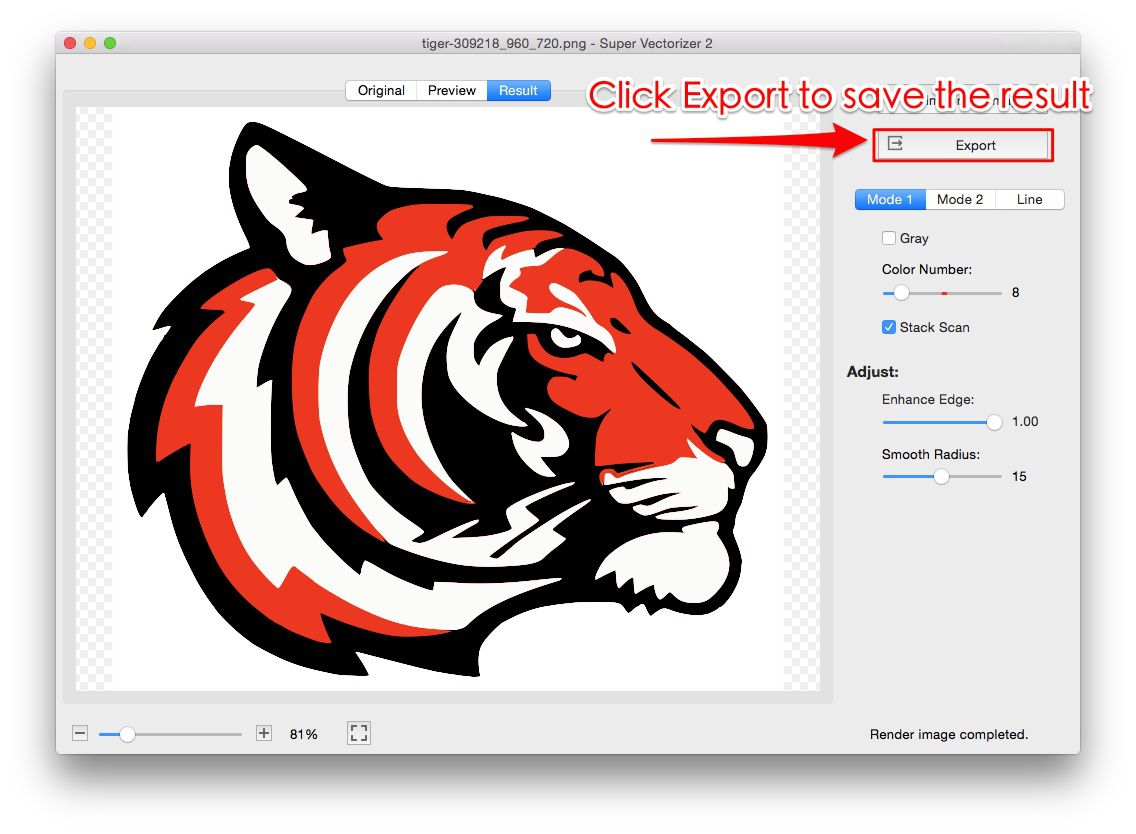
- Adjust the color count. This is the most important setting. Start with 32-64 colors for detailed illustrations. For simpler graphics (logos, icons), 8-16 colors may be enough. More colors = more detail but larger file size.
- Adjust the "Detail" or "Accuracy" slider. Higher accuracy preserves more of the original color transitions but creates more paths. For PNG-to-SVG with color, a medium-high accuracy setting (70-80%) usually works best.
- Preview the result. Zoom in to check that color areas are smooth and that edges are clean. If colors look "blocky," increase the color count. If the file is too large, decrease it.
- Export as SVG. Once you're happy with the preview, click the export button. Note: the trial version allows you to preview the vectorization result in full color — purchase is required to unlock the export feature.
Method 2: Free Online PNG to SVG Converter (Quick & Easy)
If you don't want to install desktop software, our free online PNG to SVG converter can handle color images right in your browser. Here's how:
- Go to the PNG to SVG converter page.
- Upload your PNG by clicking the upload button or dragging the file in.
- Select "Color" mode in the conversion options. If the tool offers a "number of colors" setting, choose 32 or 64 for detailed images.
- Click "Convert" and wait for the processing to complete (usually 5-30 seconds depending on image size).
- Download the SVG and open it in a browser or vector editor to verify colors look correct.
Limitations of free online tools: Most free converters limit the number of colors (often to 8-16), which can cause color banding on detailed images. They also can't handle very large PNGs (e.g., 4000×4000px) as well as desktop apps can. For professional work, a desktop app like Super Vectorizer Pro gives you much more control.
Method 3: Inkscape (Free Open Source — Advanced Users)
Inkscape is a free, open-source vector graphics editor that includes a "Trace Bitmap" feature. It's more complex to use but gives you full control over the color quantization process.
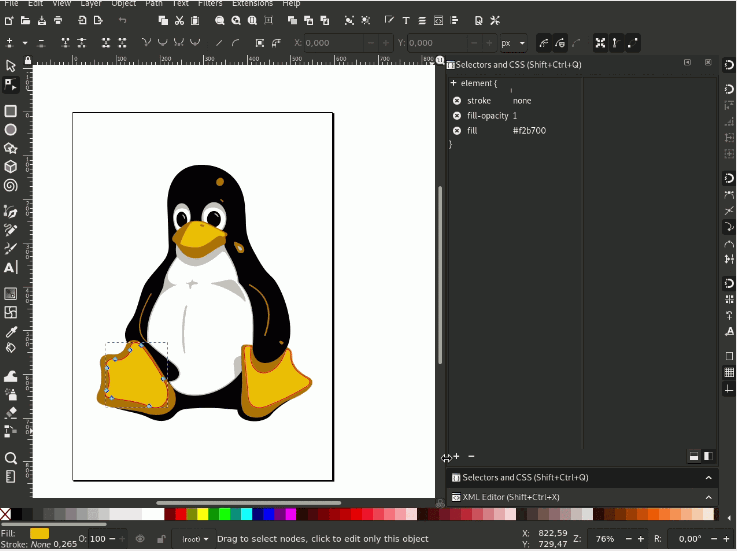
- Open Inkscape and import your PNG (File → Import).
- Select the imported image, then go to Path → Trace Bitmap.
- In the dialog, select "Multiple Scans: Create Paths" and choose "Colors".
- Set the "Scans" value to the number of colors you want (start with 32).
- Check "Smooth" and "Stack Scans" for better results.
- Click "OK" to start tracing. The vector result will appear on top of the original.
- Delete the original PNG underneath, then File → Save As → SVG.
Best PNG to SVG with Color Converters Compared (2026)
Not every vectorizer treats color the same way. Some only expose a single "colors" slider, others let you tune quantization, smoothing and path merging separately. Here's how the main options compare for PNG to SVG with color work in 2026:
| Tool | Price | Platform | Offline? | Max Colors | Batch Support | Best For |
|---|---|---|---|---|---|---|
| Super Vectorizer Pro | One-time purchase | macOS + Windows | Yes — fully local | 64 | No (one at a time) | Detailed color illustrations, private files, offline work |
| Inkscape (Trace Bitmap) | Free / open source | macOS, Windows, Linux | Yes | Configurable scans | No (via GUI) | Free color tracing when you don't mind a manual workflow |
| Adobe Illustrator (Image Trace) | Subscription | macOS + Windows | Yes (after sign-in) | Up to 100+ via presets | Yes (Actions) | Studios already inside the Adobe ecosystem |
| Vectorizer.AI | Credit / subscription | Browser | No — upload required | Automatic | Yes (paid tiers) | Hands-off AI tracing when uploads are acceptable |
| Canva | Free tier + Pro | Browser | No | Limited | No | Simple graphics already designed inside Canva |
| SVGVector Online Converter | Free | Browser | No | ~16 | No | Quick one-off logo and icon conversions |

A practical read of that table: Inkscape is the honest free answer, Illustrator makes sense only if you already pay for it, and the browser-based AI services trade privacy for convenience because your PNG has to be uploaded. If you want offline color tracing with a palette you control, a one-time-purchase desktop app is the middle ground — just remember it converts one image at a time. For the wider tool landscape, see our best PNG to SVG converters roundup and the image to vector AI free without login guide.
Color Settings Reference Table
| Image Type | Recommended Colors | Best Tool | Notes |
|---|---|---|---|
| Simple logo (1-3 colors) | 4-8 colors | Any tool | Keep it simple — fewer colors = cleaner SVG |
| Multi-color icon | 8-16 colors | Any tool | Adjust color count to avoid banding |
| Illustration / digital art | 32-64 colors | Super Vectorizer Pro | Higher color count preserves gradients better |
| Photograph | Up to 64 colors | Inkscape / Super Vectorizer Pro | Photos don't vectorize well — consider keeping as PNG |
| Screenshot / UI element | 8-16 colors | Online converter | Flat colors work best for screenshots |
PNG to SVG with Color High Quality: 6 Settings That Actually Matter
"High quality" in color vectorization is not one slider — it's the result of six decisions made before you click convert. Get these right and a PNG to SVG with color high quality conversion looks almost indistinguishable from the source at any zoom level.
- Start from a large source PNG. Aim for at least 1000px on the longest side, ideally 2000px. Vector tracing reads pixel edges, so a 300px thumbnail gives the tracer nothing clean to follow and every color boundary comes out ragged.
- Remove the background before tracing. Anti-aliased halo pixels around the subject get quantized into the palette as muddy in-between colors. Strip the background first and those wasted palette slots go to the artwork instead.
- Use a color mode, never grayscale. This sounds obvious, but many tools default to black-and-white tracing. Switching to a color or multi-scan mode is the single biggest quality jump.
- Match the color count to the artwork. Too few colors causes posterized banding; too many produces thousands of near-identical paths that bloat the file without visible benefit. 32 colors is the sweet spot for most illustrations; go to 64 only when gradients are central to the design.
- Raise detail to about 70–80%, not 100%. Maximum detail chases sensor noise and JPEG-style artefacts. A slightly lower setting produces smoother curves and far fewer stray micro-paths.
- Enable curve smoothing and path merging. Smoothing converts stair-stepped pixel edges into bezier curves; merging combines adjacent same-color regions so the SVG stays editable.
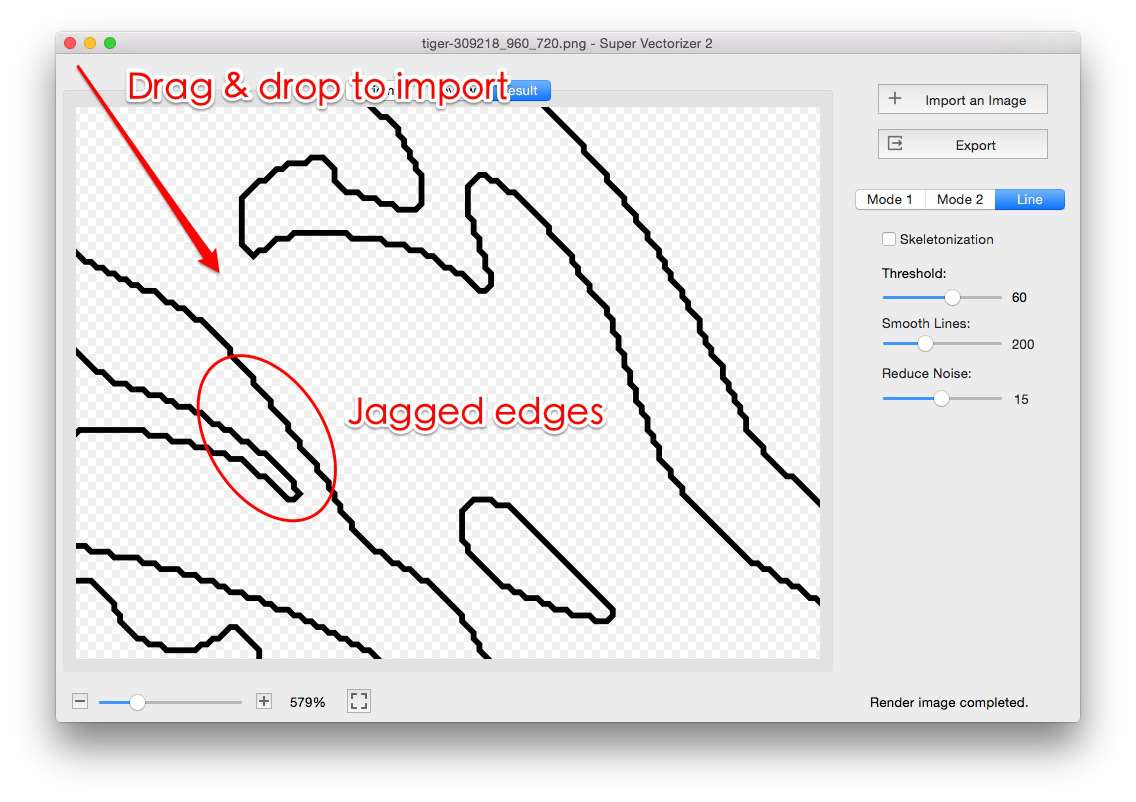
Quality check: open the finished SVG in a browser and zoom to 400%. Color boundaries should be smooth curves, not staircases, and you shouldn't see thin slivers of a wrong color sandwiched between two regions. If you do, lower the color count slightly and re-trace — those slivers are quantization artefacts, not detail.
Quality also depends on what you're converting in the first place. Our companion guide on high quality PNG to SVG conversion covers resolution, contrast and tracing-mode choices in more depth, and the convert PNG to SVG without losing quality guide walks through the same checks for line art.

PNG to SVG with Color for Cricut: Making Cut-Ready Color Files
Cricut users have a different definition of "correct color". Design Space doesn't print your SVG — it separates each fill color into its own cut layer, one per material sheet. So a technically beautiful 64-color trace becomes 64 layers and is completely unusable on a cutting mat.
For PNG to SVG with color for Cricut, invert the usual advice and aim for the fewest colors you can live with:
- Target 3–6 flat colors. One color per vinyl sheet. If your design needs seven, ask whether two of them can be merged.
- No gradients. A gradient traced with color mode becomes dozens of banded slices. Flatten it to a single solid color before tracing.
- Closed paths only. Cricut cuts along path outlines. Open paths and stroke-only shapes either get ignored or produce a double cut line. Convert strokes to filled outlines in your editor.
- Delete tiny fragments. Anything under roughly 3mm won't survive weeding. Zoom in after tracing and remove specks and hairline slivers.
- Keep layers on top of each other, not merged. Design Space aligns colors by position, so leave overlapping shapes where the tracer put them — don't flatten the artwork.
- Save as plain SVG. Inkscape's "Inkscape SVG" adds editor metadata; "Plain SVG" imports more reliably.

Once your color SVG imports cleanly, ungroup it in Design Space and check the Layers panel: you should see one layer per color, each with a solid swatch and no "Print then Cut" flag. If a layer shows a gradient thumbnail, go back and flatten that color before re-tracing. For the full cutting workflow, see our Cricut SVG converter guide, the PNG to SVG for Cricut walkthrough, and how to make SVG files for Cricut.
Common Problems & How to Fix Them
Problem 1: Colors Look "Blocky" or Posterized
This means the color count is too low. Increase the number of colors in your tracing settings. For detailed illustrations, try 64 colors instead of 16.
Problem 2: SVG File is Too Large (MBs instead of KBs)
High color counts create more paths, which increases file size. Try reducing colors to 32 or 16. You can also run the SVG through an SVG optimizer after conversion to remove redundant paths.
Problem 3: Colors are Wrong (e.g., Blue becomes Purple)
This usually happens when the tracing algorithm misinterprets similar colors. Try increasing the "color sensitivity" or "accuracy" setting. In Super Vectorizer Pro, increasing the detail/accuracy slider helps preserve the correct color regions.
Problem 4: Transparent Areas Become Black or White
Make sure the tool you're using supports transparency. In Super Vectorizer Pro, there's an option to "Ignore transparent background" or treat a specific color as transparent. For online tools, check if there's a "remove background" option before converting.
When NOT to Convert PNG to SVG with Color
Vectorization isn't always the right choice. Here are situations where you should keep the PNG instead of converting to SVG:
- Photographs: A photo converted to SVG will either look terrible (low color count) or have an enormous file size (high color count). Use JPEG or WebP for photos.
- Complex gradients: SVG doesn't handle smooth gradients as well as raster formats. If your PNG has subtle gradients, the SVG version may show visible banding.
- Very detailed textures: Fur, water, clouds — these don't vectorize well. The result will be a messy collection of paths that's hard to edit and slow to render.
The best PNGs to convert to SVG with color are: logos, icons, flat illustrations, digital art with distinct color regions, and screenshots of UI elements.
The Bottom Line for 2026
Converting PNG to SVG with color comes down to one trade-off: how many colors you let the tracer keep. Raster-to-vector conversion always quantizes a bitmap's millions of pixel values into a finite palette, and the SVG format stores one fill per path — so the palette size decides both fidelity and file size. Use 4–8 colors for flat logos, 8–16 for icons and screenshots, 32–64 for illustrations, and 3–6 for anything a cutting machine has to handle.
For the highest-fidelity color vectorization in 2026, a desktop tracer still wins: it works offline, nothing is uploaded, and you get direct control over quantization and smoothing. Super Vectorizer Pro fits that role on Mac and Windows — it processes one image at a time, and the free trial lets you preview the color result on your own artwork before you commit. If you'd rather not install anything, Inkscape's multi-scan bitmap tracing is the strongest free alternative, and our browser converter handles quick single-file jobs.
Our Verdict: Super Vectorizer Pro vs. Free Online Tools
Which should you choose for PNG-to-SVG conversion with color? Our verdict: if your artwork has more than about 16 colors, or the file has to stay on your own machine, a desktop tracer wins. For a two-color logo you will never notice the difference — take the free browser route.
Super Vectorizer Pro Advantages
- Color vectorization with an adjustable palette (up to 64 colors)
- Handles large PNGs (4000×4000px+) without quality loss
- Multiple tracing algorithms for different image types
- Runs offline — nothing is uploaded to a server
- Supports SVG, PDF, EPS, DXF, AI output formats
Free Online Tools Advantages
- No installation required — works in any browser
- Free for basic conversions
- Good enough for simple logos and icons (1-16 colors)
- No system requirements — works on Chromebooks and mobile
Worth knowing: Super Vectorizer Pro processes one image at a time — there is no batch mode — and the free trial is preview-only, so you can judge the color output before buying but a licence is needed to save the SVG.
PNG → SVG: Format-Specific Conversion Notes
- Color precision controls how many distinct color layers the tracer keeps — higher values preserve gradients but increase path count and file size.
- Layer difference sets how different two regions must be to become separate fills; a larger value merges near-identical shades into fewer, cleaner layers.
- For multi-color posters, balance colorPrecision against layerDifference to keep the SVG readable without ballooning node count.
- Preview at a few settings and compare file size — a smaller SVG with invisible quality loss usually beats a pixel-perfect but heavy one.
Frequently Asked Questions
Can I convert a PNG with transparent background to SVG and keep the transparency?
Yes, but you need to use a tool that supports alpha channel handling. Super Vectorizer Pro can preserve transparency by treating the transparent areas as "empty" in the SVG output. For online tools, check if there's a "preserve transparency" checkbox. If the transparent areas turn black, the tool isn't handling alpha correctly — try a different converter or use desktop software.
How many colors should I use when converting PNG to SVG?
It depends on your image. For simple logos with flat colors, 4-8 colors is usually enough. For digital illustrations with gradients, try 32-64 colors. Super Vectorizer Pro supports up to 64 colors — the maximum for high-quality color vectorization. Start with 32 colors and adjust up to 64 based on the preview quality.
How do I get high quality PNG to SVG with color?
Six things decide the result: start from a PNG at least 1000px on its longest side, use a color tracing mode rather than grayscale, set 32-64 colors for illustrations (4-8 for flat logos), raise detail to roughly 70-80% rather than 100%, enable curve smoothing, and remove the background before tracing so anti-aliased halo pixels don't eat palette slots. Skipping the background step is the most common reason a "high quality" trace still looks muddy.
Can Cricut Design Space cut a color SVG?
Yes. Design Space reads the fill color of each path and turns every distinct color into its own cut layer, one per material sheet. That means fewer colors is better: aim for 3-6 flat colors, remove gradients, make sure every shape is a closed path (convert strokes to outlines), and delete fragments smaller than about 3mm so they survive weeding. Save as "Plain SVG" rather than editor-specific SVG for the most reliable import.
Is there a free way to convert PNG to SVG with color?
Yes. Inkscape's Path → Trace Bitmap → Multiple Scans → Colors is free, open source and runs offline, and browser-based tracers handle simple color artwork instantly. The trade-off is that free tools usually cap the palette around 8-16 colors and struggle with very large PNGs, so detailed illustrations may show visible banding. For flat logos and icons, free is genuinely good enough.
Why does my SVG look different from the original PNG?
Vectorization is an approximation, not an exact copy. The tracer is creating paths to represent color regions, and some detail is always lost in the process. To minimize differences: use a higher color count, increase the accuracy/detail setting, and make sure you're using the "full color" (not "black and white" or "grayscale") tracing mode. Also note that SVG display can vary slightly between browsers due to rendering differences.
Can I edit the colors after converting PNG to SVG?
Yes! That's one of the main advantages of SVG. Once converted, open the SVG in any vector editor (Adobe Illustrator, Inkscape, Figma, Sketch) and you can select individual color regions and change their fill color. This is much easier than trying to recolor a PNG, where you'd need to use complex selection tools in Photoshop.
Convert Your PNG to SVG with Color Today
Super Vectorizer Pro gives you full control over color vectorization. Download the free trial to preview your results with customizable color palettes, then unlock export to get your SVG files.
Compatible with macOS 10.10+ (M1/M2/M3) & Windows 7/8/10/11
More Guides You Might Like


Try These Free Online Tools
No download required — convert, compress & optimize SVGs right in your browser
PNG to SVG Converter
Turn PNG images into crisp vector artwork in seconds
Free OnlineSVG Compressor (Mini)
Reduce SVG file size by up to 80% without losing quality
Free OnlineJPG to SVG Converter
Convert JPEG photos to scalable vector format
Free OnlineEPS to SVG Converter
Convert EPS illustrations to scalable vector graphics
Free OnlineAll Free Tools
Browse our complete collection of free online conversion tools
Related SVG Workflows
- ›PNG to SVG AI — Auto-trace PNGs with smart presets.
- ›Spot Color SVG — Lock your palette to fixed colors.
- ›AI Image to SVG — Turn AI outputs into scalable SVG.
- ›Best PNG to SVG Converters — Compare the top PNG-to-SVG tools.
- ›Online Image Vectorizer — Trace raster images in your browser.
- ›SVG Compressor — Shrink SVG files without quality loss.