
If you have a logo, icon, or illustration saved as a PNG and need a scalable vector, the Adobe Express PNG to SVG converter is one of the fastest browser-only options you'll find. You drag in a file, wait a second, and download an SVG — no install, no account friction beyond a free Adobe ID. For quick social graphics and simple artwork, that convenience is hard to beat. But "converts to SVG" and "produces a clean, editable vector" are two different promises, and the gap matters the moment you scale an image to billboard size or try to recolor a single path.
This guide breaks down exactly how the Adobe Express PNG to SVG workflow behaves, what its vectorization engine does well, where it falls short for detailed raster to vector work, and how it stacks up against a dedicated Super Vectorizer Pro desktop app. We'll finish with a side-by-side table so you can pick the right tool for the job.
Want more control over paths and colors? Try Super Vectorizer Pro free trial to preview vectorization results.
Compatible with macOS 10.10+ (M1/M2/M3) & Windows 7/8/10/11
Our Verdict
Use the Adobe Express PNG to SVG converter when you need a vector right now for a web or social graphic and the source art is simple. Reach for a dedicated desktop vector tracing tool when you need precise paths, editable layers, transparent backgrounds done right, or print-ready output at large sizes.
Adobe Express Advantages
- Zero install — works in any browser
- Free to start with an Adobe ID
- Drag-and-drop, finished in seconds
- Lives inside the Canva-like design editor
Dedicated Vectorizer Advantages
- Finer control over node count and smoothing
- Real editable layers and color groups
- Better handling of photographs and gradients
- Per-file tuning — separate settings for each image
How the Adobe Express PNG to SVG Converter Works
The workflow is intentionally minimal. Adobe positions it as a "quick action," which means it is designed to remove every decision except the upload. Here's the actual sequence:
- Open the tool. Navigate to the Adobe Express PNG to SVG quick action. You'll see a large drag-and-drop zone.
- Upload. Drop a PNG (or JPG) onto the page, or browse your device. Files must be JPEG, JPG, or PNG and under roughly 40 MB.
- Auto-convert. Adobe's engine traces the bitmap into vector paths automatically. There is no threshold, color-count, or path-smoothing slider exposed in the quick action.
- Download. The result lands as an SVG you can save, share, or pull back into an Express design.
Because the converter is automatic, it leans on Adobe's interpretation of what a "good" vector looks like. For flat logos and bold icons that interpretation is usually fine. For anything with soft edges, fine line work, or subtle gradients, the automatic tracing can either over-simplify the artwork or create jagged anchors you cannot easily fix inside Express.
Adobe Express PNG to SVG vs. a Dedicated Converter in 2026
The real question isn't "does it convert" — both approaches do. It's "does the output survive contact with your actual use case?" The table below compares the Adobe Express PNG to SVG quick action with a desktop vectorizer on the things that tend to break a project.
| Factor | Adobe Express PNG to SVG | Dedicated Vectorizer | Winner |
|---|---|---|---|
| Setup time | None — browser only | One-time app install | Adobe Express |
| Path editing control | Minimal, auto only | Node count, smoothing, layers | SVGvector Vectorizer |
| Photo / gradient tracing | Limited, flattens detail | Multi-color, soft-edge handling | SVGvector Vectorizer |
| Batch conversion | Not supported | Process folders at once | SVGvector Vectorizer |
| Cost to start | Free with Adobe ID | Free trial available | Tie |
When Adobe Express Is the Right Call
There are plenty of situations where the Adobe Express PNG to SVG converter is genuinely the smart choice:
- Quick web graphics. A simple logo mark for a blog header or a social post rarely needs surgical path control.
- No software policy. On a locked-down work machine or a borrowed laptop, a browser tool is the only option.
- One-off conversion. You need a single SVG today and will never touch the source again.
- Design-then-export. If you're already building the layout in Express, converting in place keeps the workflow in one tab.
In these cases the convenience wins outright, and obsessing over node counts is wasted effort.
When You Need More Control Over the Vector
The cracks show up as soon as the artwork gets serious. You'll want a dedicated vector tracing app when:
- Large-format print. Billboard, signage, or trade-show graphics expose every rough edge the auto-tracer left behind.
- Recoloring specific parts. Express hands you one flattened SVG; a desktop tool gives you separate, named color groups you can retheme in seconds.
- Photographs or gradients. A detailed raster image becomes a posterized mess under pure auto-tracing. A real vectorization engine lets you choose color depth and smooth transitions.
- Repetitive work. Converting 200 product icons one tab at a time isn't a job for a quick action — batch mode is.
A Step-by-Step Alternative With Super Vectorizer Pro
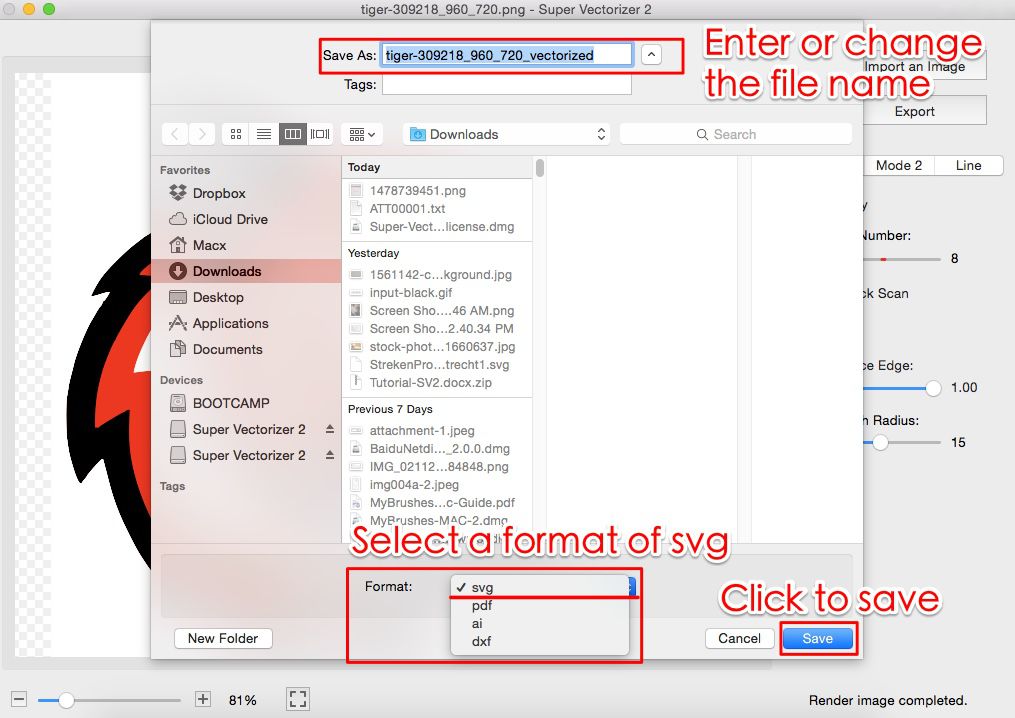
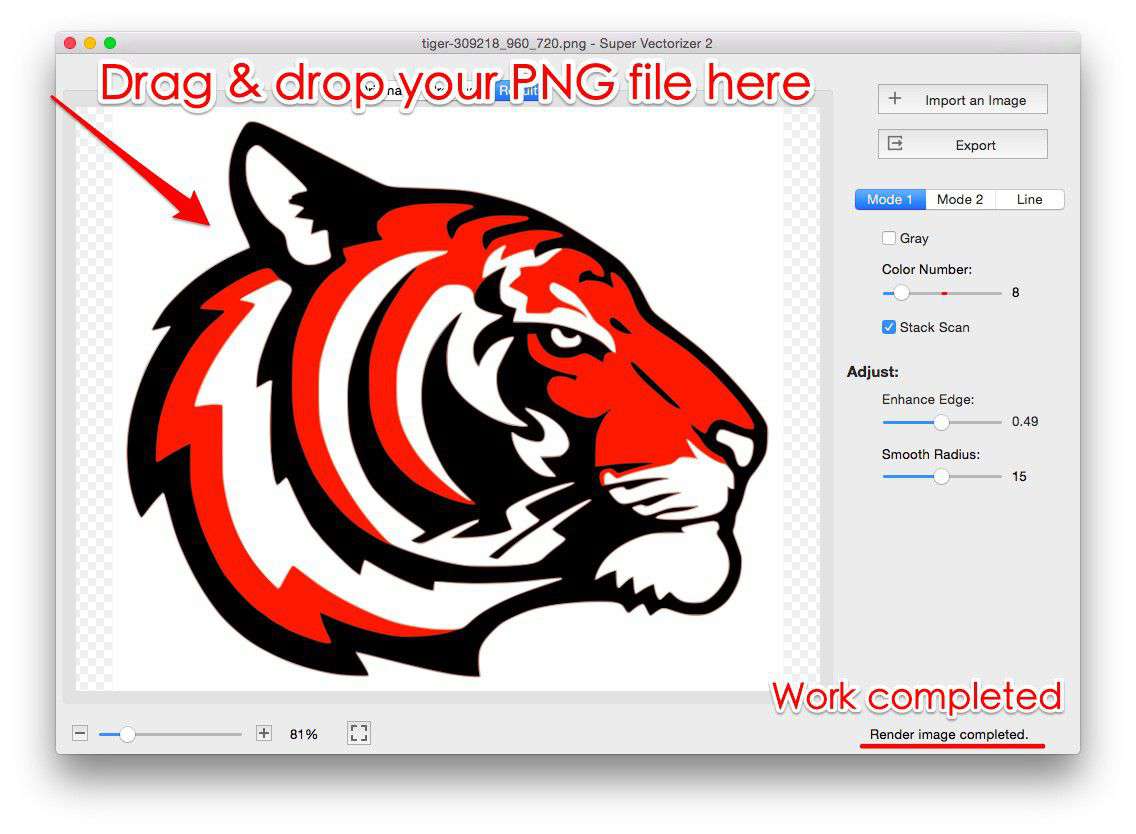
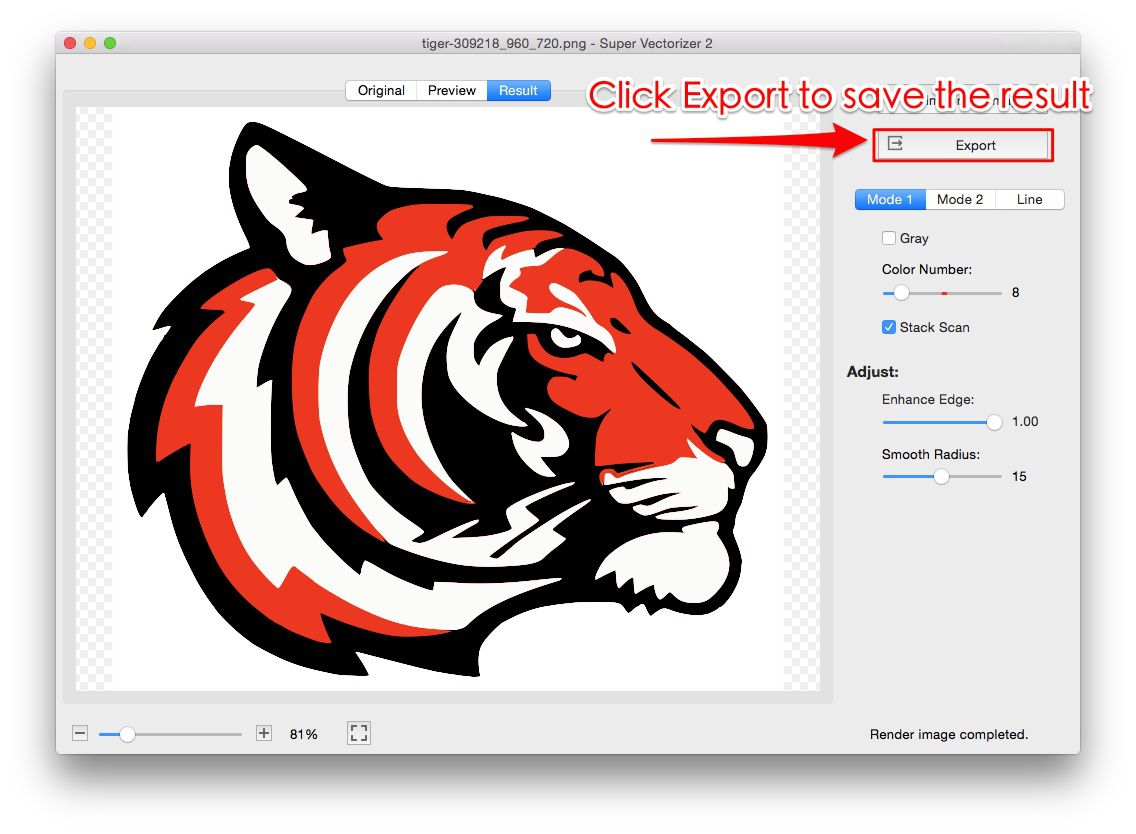
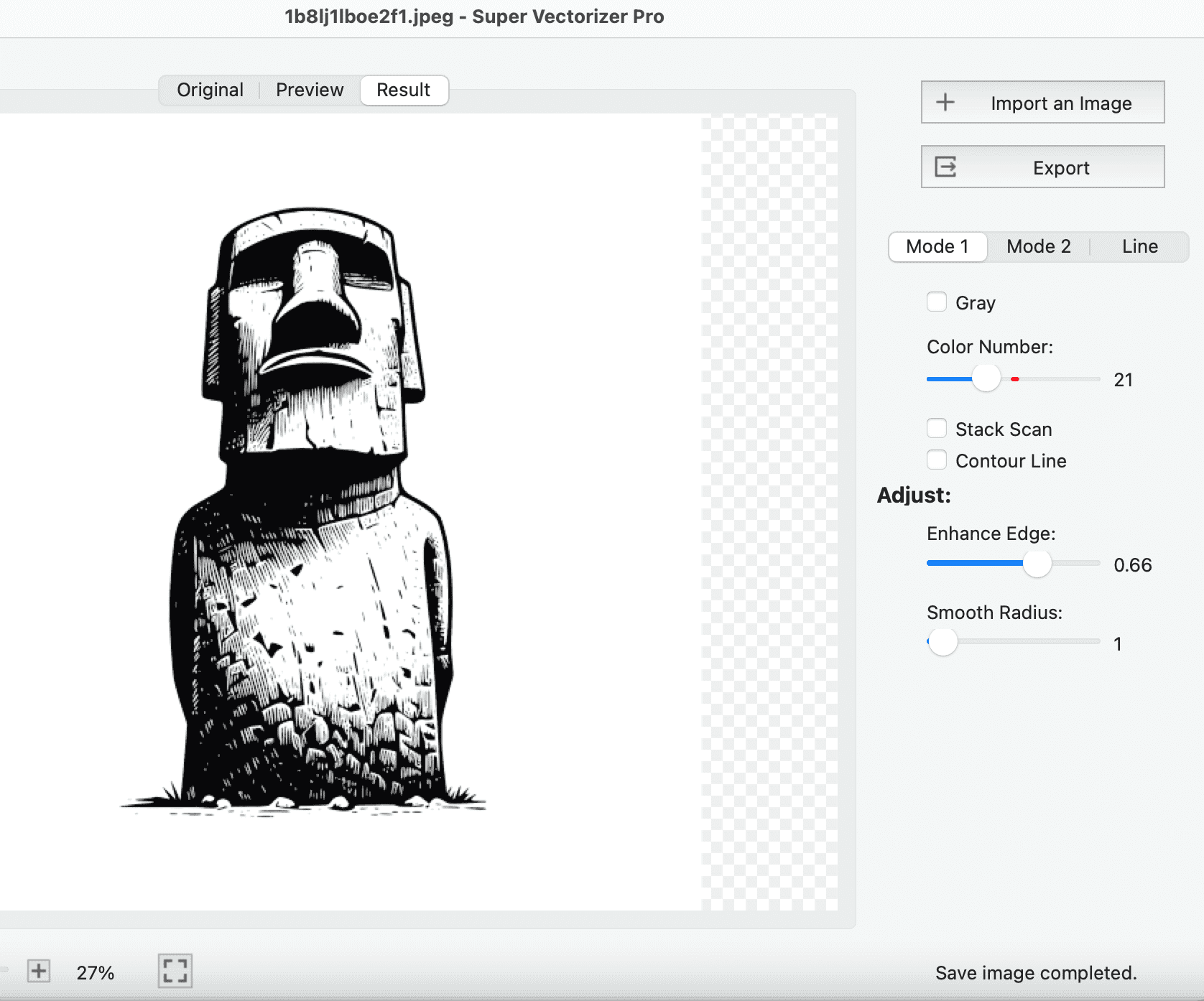
If the Adobe Express PNG to SVG result isn't clean enough, the desktop route gives you visibility into every stage. The process mirrors what the drag-and-drop screenshot below shows for a PNG workflow:
- Drop the PNG in. Open the app and drag your source file onto the canvas.
- Preview the conversion. The engine traces the bitmap to vector and shows the result immediately.
- Adjust the vector. Tune color count, edge smoothness, and path detail until the artwork looks right.
- Check the result. Zoom to 400% to confirm strokes are clean and fills are correct.
- Export (paid license). Choose SVG plus any other formats you need. Note: the free trial previews results but does not export.
Quality Caveats to Know Before You Publish
Whichever tool you use, keep three things in mind so your SVG actually behaves like an SVG:
- Embedded rasters aren't vectors. Some "SVG" exports wrap the original PNG in an SVG wrapper instead of true paths. Zoom in — if it pixelates, it was never traced.
- Transparency can break. Auto-converters sometimes fill the background or drop alpha. Verify the file on both light and dark surfaces.
- File size isn't automatic. A traced logo can balloon to hundreds of kilobytes of needless nodes. A follow-up optimization pass keeps it web-friendly.
After any conversion, run the file through an optimizer so the SVG format stays lightweight. That step matters more for web performance than most people realize.
Frequently Asked Questions
Is the Adobe Express PNG to SVG converter really free?
Yes — the quick action is free to use with a free Adobe ID. Some advanced Express features sit behind a paid plan, but the basic PNG to SVG conversion itself does not require payment. You will, however, be working inside Adobe's ecosystem and its automatic tracing, with no fine control over the resulting paths.
Does Adobe Express produce a true vector or just an embedded image?
Adobe Express does generate vector paths rather than simply wrapping your PNG in an SVG file. That said, the tracing is fully automatic. For simple, high-contrast artwork the result is a genuine, scalable vector. For detailed or gradient-heavy images the auto-trace can flatten detail in ways you cannot adjust from within Express.
Can I edit the SVG after Adobe Express converts it?
You can edit it in any vector editor such as Illustrator or Inkscape, because the output is a standard SVG. The catch is that Express gives you one flattened result with no exposed layers or color groups, so cleanup work happens after the fact in a separate tool rather than during conversion.
When should I use a desktop vectorizer instead?
Choose a dedicated app when you need precise control over paths, editable color layers, better handling of photos and gradients, or converting many files one by one. The free trial of a desktop tool like Super Vectorizer Pro lets you preview the vectorization quality on your own machine before deciding — just remember the trial previews results and does not export the final file.
Preview Cleaner Vectors on Your Own Files
See how a dedicated vector tracing engine handles your artwork with the free trial — load a PNG, run the conversion, and inspect every path before you publish.
Compatible with macOS 10.10+ (M1/M2/M3) & Windows 7/8/10/11
What You Get with Super Vectorizer Pro
Same image, processed with the desktop version. Pro uses a professional algorithm that handles complex images, gradients, fine details, and produces clean Bézier paths that work in any design tool.


Why Upgrade to Pro?
✓ Handles complex images — The browser tool gives up on photos, gradients, and multi-color graphics. Pro handles them all.
✓ Professional algorithm — Smarter path detection, smoother Bézier curves, accurate color reproduction.
✓ Multiple output formats — Export to SVG, AI, PDF, DXF. The browser tool only does SVG.
✓ Batch processing — Convert hundreds of files at once. No upload, no waiting.
Related Articles
Try These Free Online Tools
No download required — convert, compress & optimize SVGs right in your browser
PNG to SVG Converter
Convert PNG, JPG, BMP images to scalable vector graphics instantly
PNG to SVG ConverterSVG Compressor (Mini)
Reduce SVG file size by up to 80% without losing quality
SVG Compressor OnlineSVG Optimizer
Clean up SVG code, remove redundant data and optimize for web
SVG Optimizer OnlineJPG to SVG Converter
Turn JPEG photos into crisp vector artwork in seconds
JPG to SVG ConverterEPS to SVG Converter
Convert EPS vector files to web-friendly SVG format
EPS to SVG ConverterAll Free Tools
Browse our complete collection of free online conversion tools
Browse All Free Tools