
Need to convert an image to SVG but don't want to install desktop software? An online SVG converter lets you upload a raster image (PNG, JPG, GIF, BMP, WebP) and get back a scalable vector graphic — all in your web browser, no download required. In this guide, we tested 8 popular online SVG converters in 2026, comparing output quality, supported formats, privacy, and ease of use, so you can choose the best tool for your needs.
Whether you're a designer preparing web assets, a hobbyist creating Cricut cut files, or a developer optimizing graphics for a website, this guide covers everything you need to know about converting images to SVG online.
Want higher quality and more control? Try Super Vectorizer Pro free trial to preview vectorization results.
Compatible with macOS 10.10+ (M1/M2/M3) & Windows 7/8/10/11
What Is an Online SVG Converter?
An online SVG converter is a web-based tool that converts raster images (bitmap formats like PNG, JPG, GIF, BMP) into SVG (Scalable Vector Graphics) format. Unlike desktop software, online converters run entirely in your web browser — you upload an image, the server processes it using vectorization algorithms (similar to auto-tracing), and you download the resulting SVG file.
The main advantage of an online SVG converter is convenience: no installation, no system requirements, and often no cost. You can convert images on any device with a web browser — Windows PC, Mac, Chromebook, iPad, or even a smartphone.
However, online converters also have limitations. Most impose file size limits (typically 2-10 MB), restrict the number of colors in the output, and may raise privacy concerns since you're uploading images to a third-party server. For sensitive or high-resolution images, a desktop application like Super Vectorizer Pro offers better privacy and more advanced vectorization controls.
Top 8 Online SVG Converters in 2026
1. SVGVector Free Online PNG to SVG Converter
Best for: Quick, free conversions with no signup required.
SVGVector's free online converter supports PNG, JPG, BMP, and GIF input formats. It uses a clean auto-tracing algorithm that handles both simple logos and detailed photographs. The interface is minimal — upload your image, adjust color settings if needed, and download the SVG. No account required, and files are processed securely.
Pros: Free, no signup, supports multiple input formats, clean output.
Cons: Limited advanced settings compared to desktop apps.
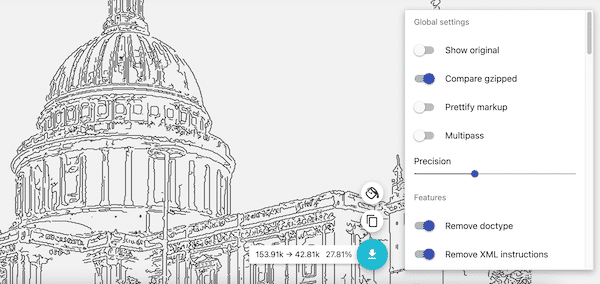
2. SVG Mini Online (SVG Compressor & Optimizer)
Best for: Reducing SVG file size after conversion.
SVG Mini Online is a specialized tool for compressing and optimizing existing SVG files. If you've already converted an image to SVG but the file size is too large, SVG Mini can reduce it by up to 80% without noticeable quality loss. It also cleans up SVG code, removing redundant metadata and optimizing paths.
Pros: Excellent compression ratios, code cleaning features, free to use.
Cons: Works on existing SVGs (doesn't convert raster to SVG directly).
3. Convertio SVG Converter
Best for: Converting between many different file formats.
Convertio supports 300+ file formats, including image-to-SVG conversion. It allows batch uploads (up to 100 MB total), and files are deleted from their servers after 24 hours. The free tier limits file size to 100 MB per file.
Pros: Supports many formats, batch conversion, cloud storage integration.
Cons: File size limits on free tier, slower processing for large files.
4. Vector Magic Online
Best for: High-quality vectorization with intelligent path detection.
Vector Magic is widely considered the gold standard for auto-tracing. Its online version offers the same advanced algorithms as the desktop app: it automatically detects the best settings for your image, handles complex shapes well, and produces clean vector paths. However, the free trial only allows you to download low-resolution results — full-resolution export requires a paid subscription.
Pros: Excellent output quality, intelligent settings detection.
Cons: Free trial limited, subscription required for full output.
5. Adobe Express SVG Converter
Best for: Users already in the Adobe ecosystem.
Adobe Express offers a free image-to-SVG converter as part of its online design suite. It's simple to use: upload an image, let Express trace it, then download the SVG. The tool is free but requires an Adobe account.
Pros: Free with Adobe account, integrated with Adobe Express design tools.
Cons: Requires account signup, limited customization options.
6. Inkscape Online (via RollApp)
Best for: Users who want Inkscape's power in a browser.
RollApp provides a cloud version of Inkscape, the popular open-source vector graphics editor. You can use Inkscape's "Trace Bitmap" feature to convert raster images to SVG online. This gives you full control over threshold, brightness, and path simplification — but the interface is complex for beginners, and the free tier has session time limits.
Pros: Full Inkscape feature set, powerful tracing options.
Cons: Steep learning curve, free tier limitations.
7. Photopea SVG Export
Best for: Designers comfortable with Photoshop-like interfaces.
Photopea is a free online photo editor that resembles Photoshop. You can open a raster image, use the "Image Trace" equivalent features, and export as SVG. While not a dedicated SVG converter, Photopea is powerful for users who want to edit the image before vectorizing.
Pros: Advanced image editing + SVG export, free, no installation.
Cons: Not a one-click converter, requires manual steps.
8. CloudConvert SVG Converter
Best for: API access and developer integration.
CloudConvert is a professional-grade file conversion platform with an excellent SVG converter. It supports advanced options like color quantization, path precision, and background removal. The free tier allows 25 conversions per day. CloudConvert also offers a well-documented API for developers who want to integrate SVG conversion into their applications.
Pros: Advanced options, API access, reliable output.
Cons: Daily conversion limits on free tier.
Comparison Table: Online SVG Converters
| Tool | Free Tier | Max File Size | Batch Convert | Privacy |
|---|---|---|---|---|
| SVGVector Online | Yes, preview mode | 10 MB | No | Secure processing |
| SVG Mini Online | Yes | 5 MB | No | Local processing available |
| Convertio | Yes | 100 MB | Yes | Files deleted after 24h |
| Vector Magic | Trial only | No limit | No | Files deleted after 24h |
| Adobe Express | Yes (with account) | 2 GB | No | Adobe privacy policy |
| CloudConvert | 25 conversions/day | 1 GB | Yes (paid) | Files deleted after conversion |
How to Choose the Right Online SVG Converter
With so many options, how do you pick the best online SVG converter for your needs? Consider these factors:
1. Output Quality
If you're converting detailed logos or line art, choose a tool with advanced tracing algorithms (like Vector Magic or SVGVector). For simple icons, most basic converters will suffice.
2. Privacy & Security
Are you converting confidential images? Avoid uploading sensitive files to online servers. Instead, use a desktop application like Super Vectorizer Pro that processes files locally on your computer. Some online image vectorizer tools (like SVG Mini) offer local processing options that don't upload files to the cloud.
3. File Size Limits
Check the maximum file size allowed. If you're converting high-resolution images, you may need a tool with higher limits or a desktop application.
4. Batch Conversion
Need to convert multiple images? Look for tools that support batch uploads (Convertio, CloudConvert) or use desktop software that handles folders of images.
5. Cost
Most online converters offer free tiers with limitations. If you convert images frequently, a one-time purchase of desktop software may be more cost-effective than a monthly subscription to an online service.
Step-by-Step: How to Convert to SVG Online
Here's the general process for converting an image to SVG using an online converter:
Step 1: Choose Your Tool
Select an online SVG converter based on the factors above. For this example, we'll use SVGVector's free online converter.
Step 2: Upload Your Image
Click the upload button and select your image file (PNG, JPG, GIF, BMP, or WebP). Most tools support drag-and-drop as well.
Step 3: Adjust Settings (If Available)
Some converters let you adjust the number of colors, smoothing level, or background removal. For simple logos, 2-4 colors often produce the cleanest results. For photographs, 16-32 colors may be needed.
Step 4: Preview the Result
Most online converters show a preview of the vectorized image. Check that the details are preserved and the paths look clean. If not, adjust the settings and re-process.
Step 5: Download the SVG
Once satisfied, click the download button to save the SVG file to your computer. Some tools also offer additional formats (like PDF or EPS) for the same conversion.
Desktop App vs Online Converter: Which Is Better?
Desktop App vs Online Converter: Our Verdict
Both options have their place. Online converters offer convenience; desktop apps offer quality and privacy. Here's our detailed comparison.
Desktop App (Super Vectorizer Pro) Advantages
- Processes files locally — no privacy concerns
- Handles high-resolution images without file size limits
- Advanced vectorization controls (color tolerance, path simplification)
- Per-image control over trace settings
- Better output quality for complex images
- Works offline — no internet required
- Free trial available to preview results before purchasing
Online Converter Advantages
- No installation required — works in any browser
- Free for basic use
- Accessible from any device (including Chromebooks and iPads)
- No system requirements or compatibility issues
- Quick for one-off conversions
For occasional, non-sensitive conversions, an online SVG converter is a great choice. For professional work or sensitive images, we recommend using desktop software like Super Vectorizer Pro. You can download the free trial to preview vectorization results before deciding.
Frequently Asked Questions
Are online SVG converters free to use?
Most online SVG converters offer a free tier with some limitations (file size, daily conversion count, or watermarked output). Fully free converters without limitations are rare — many restrict high-resolution exports to paid subscribers. SVGVector's free online converter provides genuine free conversions without requiring signup or imposing strict output limits for standard use cases.
Is it safe to upload images to online SVG converters?
Privacy policies vary by service. Reputable converters (like Convertio and CloudConvert) delete uploaded files after a short period (typically 24 hours). However, if you're converting confidential or copyrighted images, the safest option is to use desktop software that processes files locally. Super Vectorizer Pro, for example, performs all vectorization on your computer — no files are uploaded to external servers.
What image formats can I convert to SVG online?
Most online SVG converters support common raster formats: PNG, JPG/JPEG, GIF, BMP, and WebP. Some also support TIFF and HEIC. The output is always SVG (Scalable Vector Graphics), which can then be opened in vector graphics software like Adobe Illustrator, Inkscape, or CorelDRAW for further editing.
Why does my converted SVG look different from the original?
Vectorization is an approximation process. Raster images are made of pixels; vectors are made of mathematical paths. During conversion, the software must "trace" the edges and shapes in the original image. For photographs with gradual color transitions, the result may have visible banding or simplified colors. For logos and line art with sharp edges, the conversion is typically very accurate. Adjusting the color count and smoothing settings can improve results.
Can I convert SVG back to PNG or JPG?
Yes — since SVG is a vector format, you can convert it to any raster format at any resolution without quality loss. Many online converters also support SVG-to-PNG or SVG-to-JPG conversion. In Inkscape or Adobe Illustrator, you can simply export the SVG as a PNG at your desired resolution.
What's the best online SVG converter for Cricut?
For Cricut users, clean SVG paths are essential — messy vectors with too many nodes can cause cutting problems. SVGVector's online converter and SVG Mini (for post-conversion cleanup) produce clean paths suitable for Cricut Design Space. Alternatively, Super Vectorizer Pro's desktop app offers more precise control over path simplification, making it ideal for preparing Cricut-ready SVGs.
Get Professional-Quality SVG Conversions
Super Vectorizer Pro offers advanced vectorization with local processing for privacy. Download the free trial to preview your results.
Compatible with macOS 10.10+ (M1/M2/M3) & Windows 7/8/10/11
Related Articles
Try These Free Online Tools
No download required — convert, compress & optimize SVGs right in your browser
PNG to SVG Converter
Convert PNG, JPG, BMP images to scalable vector graphics instantly
PNG to SVG ConverterSVG Compressor (Mini)
Reduce SVG file size by up to 80% without losing quality
SVG Compressor OnlineSVG Optimizer
Clean up SVG code, remove redundant data and optimize for web
SVG Optimizer OnlineJPG to SVG Converter
Turn JPEG photos into crisp vector artwork in seconds
JPG to SVG ConverterEPS to SVG Converter
Convert EPS vector files to web-friendly SVG format
EPS to SVG ConverterAll Free Tools
Browse our complete collection of free online conversion tools
Browse All Free Tools