
If you have ever dragged a PNG logo into Canva and tried to scale it up for a poster or T-shirt, you know the problem: the edges blur, the text becomes fuzzy, and the whole design looks unprofessional. That is because PNG is a raster format — it stores pixels, not paths. The fix is to convert that PNG to SVG Canva can import as a crisp, infinitely scalable vector. In this guide, we walk through every method to do exactly that: Canva's own built-in SVG converter, free online alternatives, and desktop tools like Super Vectorizer Pro that give you far more control over the tracing result. Whether you are making social media graphics, logos, or print-ready designs, getting clean SVG files into Canva is the single biggest quality upgrade you can make.
Ready to convert your images? Try Super Vectorizer Pro free trial to preview vectorization results.
Compatible with macOS 10.10+ (M1/M2/M3) & Windows 7/8/10/11
Our Verdict: Canva vs. Dedicated Vectorizer
Canva does have a built-in SVG converter, but it requires a Canva Pro subscription and offers minimal control over the trace. A dedicated desktop vectorizer like Super Vectorizer Pro produces cleaner SVGs with adjustable color count, edge detection, and noise removal — then you simply import the SVG into Canva.
Super Vectorizer Pro + Canva Import
- Full control over color count, threshold, and smoothing
- Works offline — no upload limits or file size caps
- Tune each PNG individually for a cleaner trace
- Free trial to preview every vectorization result
- Output SVG imports cleanly into Canva as an editable vector
Canva Built-in SVG Converter
- One-click convenience — no app to install
- Requires Canva Pro subscription ($14.99/month)
- Limited trace settings — no threshold or color control
- 25 MB upload limit, max 100 megapixels
- Best for simple logos, struggles with detailed artwork
Why Convert PNG to SVG for Canva?
Canva is one of the most popular design platforms in the world, with over 170 million monthly users. It supports SVG files natively — when you upload an SVG, Canva treats it as a vector object that can be resized, recolored, and stretched without any quality loss. PNG files, by contrast, are raster images: they pixelate the moment you scale them beyond their original resolution.
The PNG to SVG Canva workflow solves three common design problems:
- Scalability — an SVG logo stays sharp whether it is 50 pixels on a business card or 5,000 pixels on a roll-up banner. A PNG does not.
- File size — a well-optimized SVG is often smaller than a high-resolution PNG, which means faster Canva loading times and smoother editing.
- Editability — Canva lets you change the color of an SVG element directly. With a PNG, you are stuck with the original colors unless you apply a filter.
Method 1: Canva's Built-in SVG Converter (Pro Required)
Canva introduced its own SVG converter feature for Pro subscribers. The process is straightforward: upload a JPG or PNG, make any quick edits, then download as SVG. However, there are important limitations you should know about before relying on it.
How to use Canva's SVG converter
- Open Canva and start a new project or open an existing one.
- Upload your PNG image (drag and drop, or use the Uploads panel).
- Make any quick touch-ups — crop, adjust brightness, remove background.
- Click Share → Download.
- Choose SVG as the file type and click Download.
Method 2: Convert PNG to SVG Externally, Then Import to Canva
The most reliable approach — and the one that gives you full creative control — is to convert your PNG to SVG using a dedicated vectorization tool, then import the resulting SVG file into Canva. This way you can fine-tune the trace before it ever touches your Canva canvas.
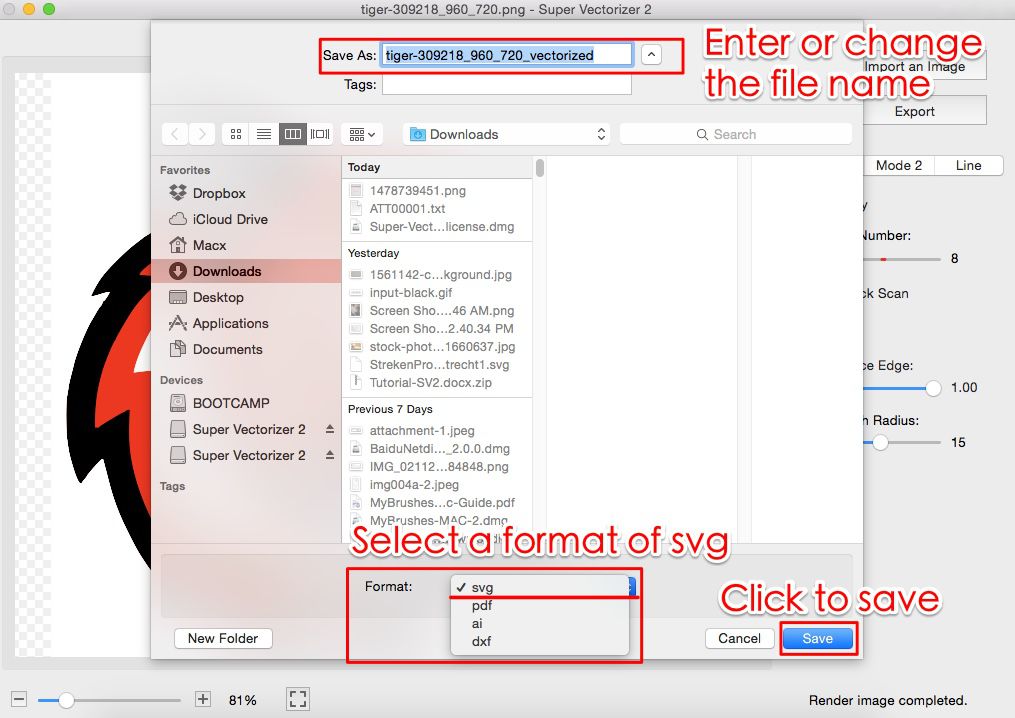
Step-by-step: PNG to SVG Canva workflow
- Download and install Super Vectorizer Pro (available for Mac and Windows). The free trial lets you preview vectorization results before purchasing.
- Drag your PNG file into the app window. The vectorization engine runs automatically and displays a live preview of the traced result.
- Adjust the settings — use the color slider to control how many colors the SVG preserves. For a logo, 2 to 5 colors is usually ideal. For illustrations, you may want 16 or more. Fine-tune the threshold and smoothing to clean up jagged edges.
- Preview the result — zoom in to 200% to check edge quality. If paths look noisy, increase the smoothing value or reduce the color count.
- Export as SVG — once you are satisfied with the preview, export the file as an SVG. (Note: the free trial allows you to preview results; exporting requires a license.)
- Import into Canva — open your Canva project, go to Uploads → Upload files, and select the SVG. Canva will add it to your design as a scalable vector element.
- Resize and recolor — drag the SVG to any size. Use Canva's color picker to change individual element colors. The vector stays crisp at every scale.
Comparison: PNG to SVG Canva Methods
| Feature | Canva Built-in | Super Vectorizer Pro + Import | Winner |
|---|---|---|---|
| Cost | $14.99/month (Pro) | One-time license | Vectorizer |
| Color control | Automatic, no settings | Adjustable color count (1-256) | Vectorizer |
| Edge smoothing | No control | Threshold + smoothing sliders | Vectorizer |
| File size limit | 25 MB, 100 megapixels | No limit (desktop) | Vectorizer |
| Convenience | One-click inside Canva | Requires external app + import | Canva |
| Batch conversion | One image at a time | Batch process multiple PNGs | Vectorizer |
| Output quality (detailed art) | Jagged edges, merged colors | Smooth Bezier curves, clean layers | Vectorizer |
Tips for Clean PNG to SVG Canva Results
The quality of your final SVG depends heavily on the source PNG and the settings you choose during vectorization. Here are the practical tips that make the biggest difference:
- Start with a high-resolution PNG. A 2000px-wide source produces dramatically cleaner vectors than a 200px screenshot. If you only have a small image, upscale it with an AI image enhancer before vectorizing.
- Remove the background first. If your PNG has a colored background, the vectorizer will trace it as a shape. Use a background removal tool (Canva's Background Remover, or a free online tool) to get a transparent PNG before converting.
- Choose the right color count. For logos and icons, 2 to 5 colors keeps the SVG clean and easy to edit in Canva. For photographs or illustrations, 16 to 64 colors preserves detail without bloating the file.
- Test different threshold values. The threshold determines what counts as "ink" versus "background." If thin lines disappear, lower the threshold. If holes fill in, raise it.
- Optimize the SVG before importing. If the file is large, run it through an SVG compressor to strip redundant metadata. Smaller SVGs load faster in Canva and are easier to work with.
Common Canva SVG Import Issues (and Fixes)
Once you have your SVG file, importing it into Canva is usually smooth. But a few common issues can trip you up:
The SVG appears as a flat image, not a vector
This happens when the SVG contains embedded raster data (a PNG or JPG baked inside the SVG file). Some online converters do this as a shortcut. Super Vectorizer Pro outputs pure vector paths, so this issue does not occur. If you see it, re-convert the image with a proper vectorization tool.
Colors look different in Canva
Canva may render SVG colors slightly differently from your original PNG due to color profile conversion. To minimize this, convert your PNG to sRGB color profile before vectorizing, and avoid CMYK or unusual color spaces.
The SVG is too large to upload
Canva has a 25 MB upload limit. If your SVG exceeds this, compress it with an SVG optimizer to remove unused defs, comments, and redundant path data. A typical SVG logo should be under 100 KB.
Frequently Asked Questions
Can Canva convert PNG to SVG for free?
No. Canva's SVG download feature requires a Canva Pro subscription. Free Canva users can only download as JPG, PNG, or PDF. However, you can convert PNG to SVG using a free tool like Super Vectorizer Pro's trial (which lets you preview results) or a free online converter, then import the SVG into Canva's free tier as a vector element.
Does Canva support SVG files?
Yes. Canva natively supports SVG files for upload. When you upload an SVG, Canva treats it as a vector graphic — it stays crisp at any size and you can recolor elements using Canva's built-in color tools. This makes SVG the ideal format for logos, icons, and any design element that needs to scale.
What is the best PNG to SVG converter for Canva?
For Canva users, the best converter is one that produces clean, standard-compliant SVGs with separated color layers. Super Vectorizer Pro is a strong choice because it offers adjustable color count, threshold, and smoothing — and its SVG output imports cleanly into Canva. For simple one-color logos, free online converters may suffice, but for detailed artwork a desktop tool gives noticeably better results.
Can I edit SVG files inside Canva?
Canva allows basic SVG editing — you can resize, rotate, flip, and apply color changes to SVG elements. However, you cannot edit individual vector paths or nodes inside Canva (that requires a dedicated vector editor like Illustrator or Inkscape). For most design workflows, Canva's level of SVG editing is sufficient.
Why does my SVG look pixelated in Canva?
If your SVG looks pixelated, it likely contains embedded raster data instead of true vector paths. This happens when a converter "wraps" the PNG inside an SVG container rather than actually tracing it. Re-convert the image with a proper vectorization tool like Super Vectorizer Pro, which generates real vector paths from your PNG.
Convert PNG to SVG for Canva Today
Get crisp, scalable vectors into your Canva designs. Try Super Vectorizer Pro free trial to preview your vectorization results.
Compatible with macOS 10.10+ (M1/M2/M3) & Windows 7/8/10/11
Related Articles
Try These Free Online Tools
No download required — convert, compress & optimize SVGs right in your browser
PNG to SVG Converter
Convert PNG, JPG, BMP images to scalable vector graphics instantly
PNG to SVG ConverterSVG Compressor (Mini)
Reduce SVG file size by up to 80% without losing quality
SVG Compressor OnlineSVG Optimizer
Clean up SVG code, remove redundant data and optimize for web
SVG Optimizer OnlineJPG to SVG Converter
Turn JPEG photos into crisp vector artwork in seconds
JPG to SVG ConverterEPS to SVG Converter
Convert EPS vector files to web-friendly SVG format
EPS to SVG ConverterAll Free Tools
Browse our complete collection of free online conversion tools
Browse All Free Tools