
HEIC (High Efficiency Image Format) is Apple's default photo format on iOS 11+ and macOS High Sierra+. It produces smaller files than JPG with better quality — but it's also a headache when you need to convert that photo to SVG. Most vectorization tools don't read HEIC files directly, and online converters often reject them.
The solution is a two-step workflow: first convert HEIC to a widely-supported raster format (PNG or JPG), then vectorize that image to SVG. This guide covers every practical method for Mac and Windows users, including free online tools and desktop software that gives you precise control over the result.
Whether you're preparing an iPhone photo for Cricut cutting, converting hand-drawn sketches from your iPad, or turning iOS screenshots into scalable web graphics, the methods below will get you from HEIC to SVG reliably.
Preview your HEIC-to-SVG conversion result before exporting. Try Super Vectorizer Pro free trial to see the vectorization quality.
Compatible with macOS 10.10+ (M1/M2/M3) & Windows 7/8/10/11
Why HEIC to SVG Is a Two-Step Process
HEIC uses HEVC (H.265) compression and stores image data differently from traditional formats like PNG or JPG. SVG vectorization tools work by analyzing pixel data and tracing edges — and most of them expect PNG, JPG, BMP, GIF, or WebP as input. They simply can't read HEIC containers.
That means every HEIC-to-SVG workflow follows the same pattern:
- Step 1: Convert the HEIC file to PNG or JPG (lossless PNG is preferred for best vectorization quality)
- Step 2: Vectorize the PNG/JPG to SVG using a tracing tool (online or desktop)
The good news: both steps are fast, and you can preview the result before committing. Let's go through each method.
Method 1: Mac — Preview.app (Free, Built-in)
If you're on a Mac, you already have a free HEIC-to-PNG converter: Preview.app. This is the simplest way to prepare your HEIC file for vectorization.
- Open the HEIC file in Preview (right-click → Open With → Preview)
- Go to File → Export
- Choose PNG as the format (PNG is lossless, which gives better vectorization results than JPG)
- Save the PNG file
- Now use a PNG-to-SVG converter (see Method 3 and 4 below) to complete the conversion
This method is free, requires no additional software, and produces high-quality PNG files for vectorization. The only downside: Preview won't batch-convert multiple HEIC files — if you have dozens of photos, use Method 2 instead.
Method 2: Mac — Photos App (Batch Export)
Have multiple HEIC photos to convert? The Photos app on Mac handles batch export easily:
- Open Photos.app and select the HEIC photos you want to convert
- Go to File → Export → Export [X] Photos
- Choose PNG as the Photo Kind
- Set Quality to High (don't use JPG with low quality — it hurts vectorization)
- Export to a folder
- Now batch-convert the PNG files to SVG using desktop software (Method 4)
Method 3: Windows — Convert HEIC to PNG First
Windows doesn't natively support HEIC without installing the HEIF Image Extensions from the Microsoft Store. If you have an iPhone photo on your Windows PC:
- Install CopyTrans HEIC for Windows (free) — it adds HEIC thumbnail and right-click conversion to PNG
- Right-click the HEIC file → Convert to JPEG/PNG
- Or use iTunes/ iCloud for Windows to sync photos and convert on the fly
- Once you have a PNG, use an online PNG-to-SVG converter (Method 4) or desktop software (Method 5)
Method 4: Free Online — HEIC to PNG, then PNG to SVG
For a quick one-off conversion without installing software:
- Go to a free HEIC-to-PNG converter (search "HEIC to PNG online free" — there are many)
- Upload your HEIC file, download the PNG
- Go to SVGVector's free PNG to SVG converter
- Upload the PNG, adjust settings, and download the SVG
This method is free and works on any platform with a browser. The tradeoff: you're uploading your images to external servers (consider privacy if the photos are sensitive). For sensitive images, use Method 5 (desktop software, all processing stays local).

Method 5: Desktop Software — Super Vectorizer Pro (Mac & Windows)
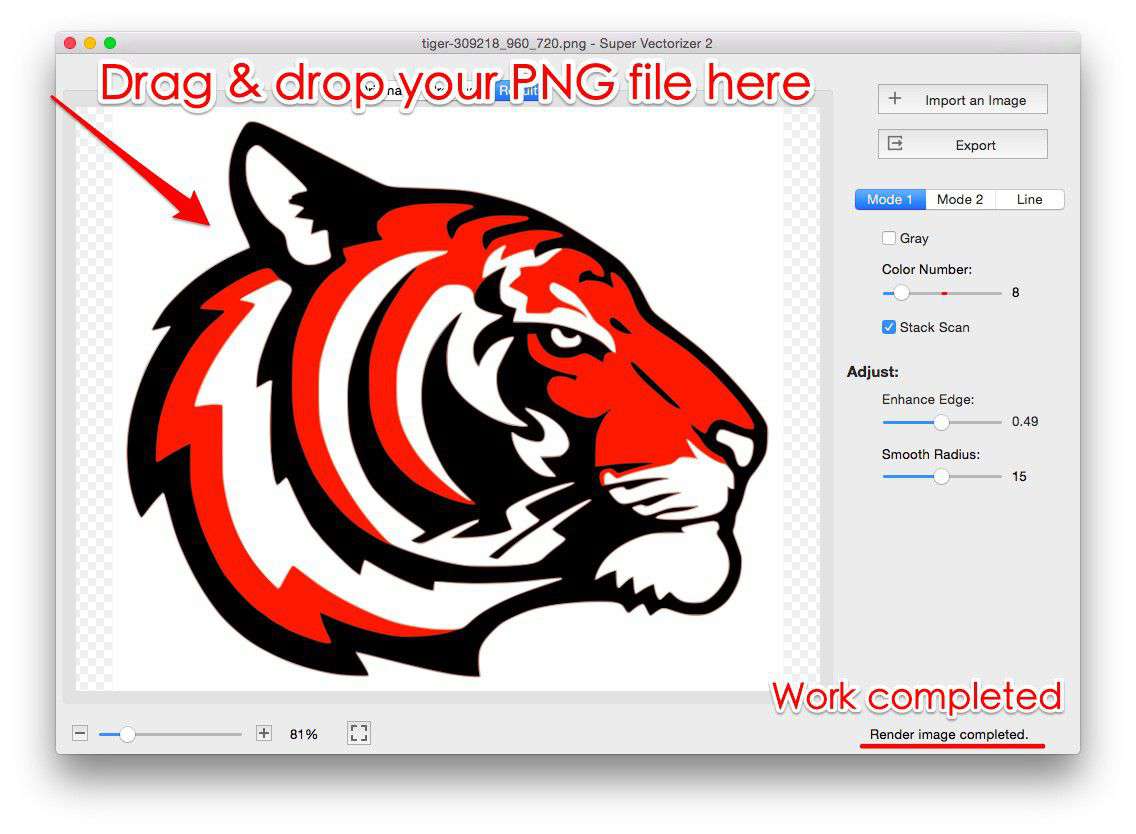
For regular HEIC-to-SVG conversions, or when you need precise control over the vectorization result, desktop software is the best choice. Super Vectorizer Pro runs on both Mac and Windows, processes files locally (privacy-safe), and lets you preview the vectorization result before exporting.
Here's the complete workflow for HEIC-to-SVG with Super Vectorizer Pro:
- Convert your HEIC to PNG first (using Preview on Mac, or CopyTrans HEIC on Windows)
- Open Super Vectorizer Pro (download the free trial to preview results)
- Drag the PNG file into the app
- Adjust the detail/smoothing slider to control how many vector points are generated
- Preview the result — zoom in to check edge quality
- When satisfied, export to SVG (the trial previews the result; full export requires purchase)
The key advantage of desktop software: you can fine-tune the tracing detail. iPhone photos with lots of detail will generate thousands of vector points if you max out the detail slider — which produces an oversized SVG. By adjusting the detail level in the preview, you find the sweet spot between visual fidelity and file size.
Comparison: Online vs. Desktop for HEIC to SVG
| Feature | Online Converter | Desktop Software | Winner |
|---|---|---|---|
| Privacy (HEIC photos stay local) | No (upload to server) | Yes (local processing) | Desktop |
| Batch conversion (multiple HEICs) | Limited | Yes (batch mode) | Desktop |
| Adjust tracing detail | No (fixed settings) | Yes (preview before export) | Desktop |
| Cost | Free | Free trial (preview), paid export | Online |
| Best for | One-off conversions | Regular use, sensitive photos | Depends on use case |
Tips for Best Results When Vectorizing iPhone Photos
HEIC photos from an iPhone have high resolution (typically 12MP or more) and fine detail. When converting to SVG, keep these tips in mind:
- Use PNG, not JPG, for the intermediate step: JPG compression adds artifacts that confuse vector tracers. PNG is lossless and produces cleaner vector paths.
- Don't expect a photo to become a clean vector automatically: Photographs have continuous tones and fine detail that don't vectorize well. The result will look like a "posterized" version of the photo. For best results, use HEIC photos that have clear edges (line art, logos, simple shapes).
- Resize before vectorizing: A 12MP photo creates a huge SVG. Resize the PNG to 1000-2000px on the longest side before vectorizing.
- For hand-drawn sketches: If you drew something on your iPad and exported as HEIC, convert to PNG at high quality, then vectorize. This works very well for line art.
Frequently Asked Questions
HEIC → SVG: Format-Specific Conversion Notes
- HEIC is Apple's efficient photo container; browsers other than Safari can't decode it natively, so the converter handles decoding before tracing — upload straight from your iPhone export.
- HEIC stores 10/12-bit color; the tracer maps it down to 8-bit sRGB, which is perfect for photos but means very subtle gradients may band slightly.
- For line art or logos saved as HEIC, prefer the Poster preset to keep flat color regions crisp; raise Filter speckles if iPhone compression added noise.
- Because HEIC is heavily compressed, a clean source gives a cleaner vector — avoid re-saving HEIC files multiple times before converting.
Can I convert HEIC to SVG directly without converting to PNG first?
No — virtually no SVG vectorization tool accepts HEIC as input. HEIC uses HEVC compression which is fundamentally different from PNG/JPG. You must convert to a standard raster format (PNG is best) before vectorizing. The two-step process takes under a minute per photo, so it's not a significant burden.
Will converting my iPhone photo to SVG make it scalable without quality loss?
It depends on the photo content. Photos with clear edges and distinct shapes (logos, line art, simple illustrations) vectorize well and become truly scalable. Photographs with continuous tones and fine detail will be "posterized" during vectorization — they'll look like a painting with flat color regions, not a realistic photo. For scalable web graphics from photos, consider manually tracing the important elements instead of auto-vectorizing.
Is there a free way to convert HEIC to SVG on Windows?
Yes. Install CopyTrans HEIC for Windows (free) to convert HEIC to PNG with a right-click. Then use a free online PNG-to-SVG converter like the one at SVGVector.com. The entire workflow is free, though online converters upload your images to external servers — use desktop software if privacy matters.
Why is my SVG file huge after converting from an iPhone photo?
iPhone photos are high resolution (12MP+) with lots of detail. When vectorized at full detail, the SVG contains thousands of paths and ends up being several megabytes. Fix this by: (1) resizing the PNG to a smaller dimension before vectorizing, (2) reducing the tracing detail/smoothing level, or (3) using an SVG compressor after export to remove redundant path data.
Convert Your HEIC Photos to SVG
Super Vectorizer Pro for Mac and Windows lets you preview the vectorization result with adjustable detail — find the perfect balance between quality and file size. Download the free trial and preview your HEIC-to-SVG conversion today.
Compatible with macOS 10.10+ (M1/M2/M3) & Windows 7/8/10/11
Related Articles

Try These Free Online Tools
No download required — convert, compress & optimize SVGs right in your browser
PNG to SVG Converter
Turn PNG images into crisp vector artwork in seconds
Free OnlineSVG Compressor (Mini)
Reduce SVG file size by up to 80% without losing quality
Free OnlineJPG to SVG Converter
Convert JPEG photos to scalable vector format
Free OnlineEPS to SVG Converter
Convert EPS illustrations to scalable vector graphics
Free OnlineAll Free Tools
Browse our complete collection of free online conversion tools