
You designed a logo at 400 × 400 px, dropped it into a hero banner, and watched it turn into soft, fuzzy mush. That is the classic raster problem — a PNG or JPG is a fixed grid of pixels, and stretching it past its original size reveals every dot. A Scalable Vector Graphic (SVG) is different. Because it stores shapes and paths as math rather than pixels, you can resize SVG files to any dimension and they stay razor sharp. So why would you ever need to resize SVG at all? Plenty of reasons: a CMS template expects a width of exactly 250 px, a print shop wants millimetres, or a cutting machine needs a fixed canvas. This guide shows the fastest ways to resize SVG online for free, how to set precise dimensions in desktop software like Super Vectorizer Pro, and the mistakes that quietly wreck your output.
Want to turn a blurry PNG or JPG into a clean, infinitely scalable SVG? Try Super Vectorizer Pro free trial to preview vectorization results.
Compatible with macOS 10.10+ (M1/M2/M3) & Windows 7/8/10/11
Our Verdict
Resizing SVG files is straightforward with the right tool. Browser tools handle quick jobs; desktop apps offer batch resizing and format conversion.
Best Desktop: Super Vectorizer Pro
- Resize and re-export SVG without quality loss
- Per-image control through the desktop workflow
- Free trial to preview results
- Mac and Windows native apps
Best Online: Browser-based Resizers
- No installation required
- Quick for single files
- Free options available
- Limited to browser file size limits
Why Resizing an SVG Is Different From Resizing a Photo
A PNG is a bitmap — a rectangular map of colored squares. When you enlarge it, the software has to invent new pixels, which produces the staircase edges and blur everyone hates. Vectorization fixes the root cause: instead of pixels, an SVG describes your artwork as coordinates, curves, and fills. When you resize SVG content, the renderer simply recomputes those coordinates at the new scale. No invented pixels, no quality loss. That is the whole promise of the SVG format.
But "it never loses quality" does not mean "size is irrelevant." Three practical situations still force you to set explicit dimensions:
- Layout control. A web browser honors the
widthandheightattributes in your SVG. Without them the file may render at its intrinsic size or blow out a flex container. - Print specs. A printer or cutter needs physical units (mm, cm, inches) at a known resolution.
- Export workflows. When you rasterize an SVG to PNG for social media, the output pixel size is decided by the dimensions you set.
So the goal is rarely to "shrink the file" — it is to assign the right dimensions so your SVG behaves predictably everywhere it appears.
How to Resize SVG Online (Free, No Install)
The fastest path is a browser-based tool, and SVG Mini is our free online utility for exactly this kind of job. The whole flow takes under a minute:
- Open the tool. Go to the SVG Mini page and upload your
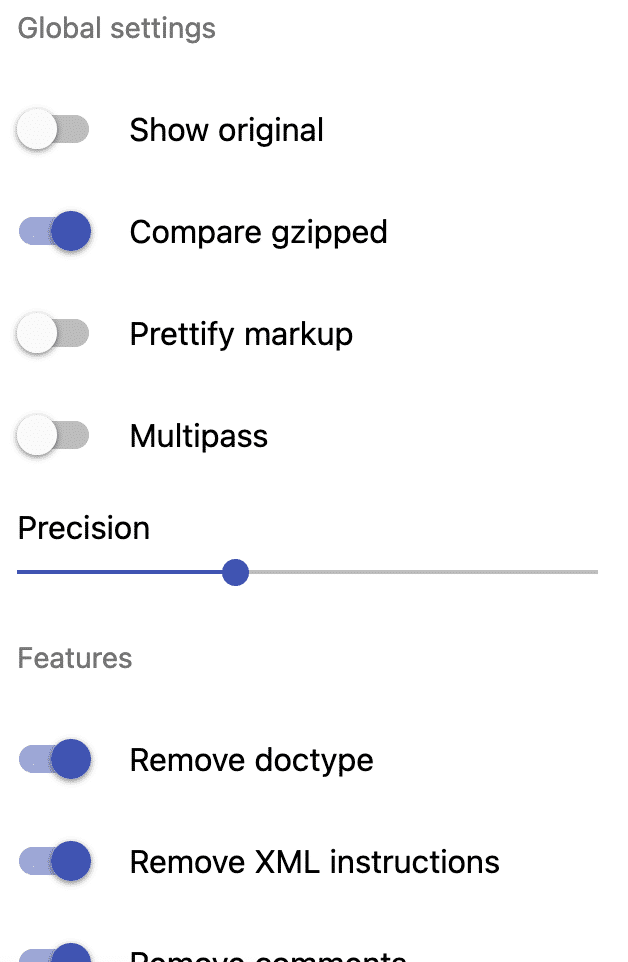
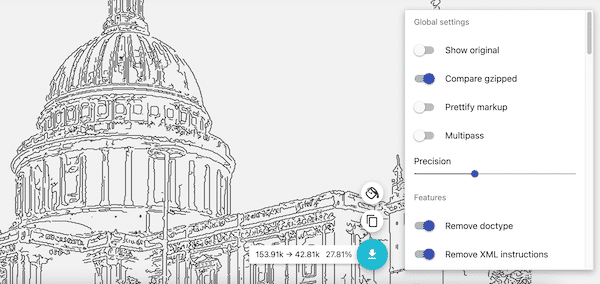
.svgfile, or paste the SVG markup directly. - Set your target size. In the settings panel you can enter an exact width and height in pixels, or apply a scale percentage (50%, 200%, and so on).
- Preview. The on-screen preview updates instantly so you can confirm the artwork still looks right.
- Download. Save the resized SVG back to your computer.
Resizing SVG online this way is ideal when you already have a vector file and only need to change its dimensions — no desktop install, no account, nothing to learn. It is also the safe choice for one-off tweaks on a borrowed laptop.
How to Resize SVG in Desktop Software (Super Vectorizer Pro)
If your source is a raster image — a scanned sketch, a product photo, a client's low-res logo — you first need to convert the bitmap to vector before any clean resizing makes sense. Super Vectorizer Pro handles the raster-to-vector tracing on both macOS and Windows, and it lets you control output dimensions:
- Import your PNG, JPG, BMP, or TIFF and let the app trace it into vector paths.
- Set the export canvas in pixels, millimetres, or inches depending on the job.
- Scale the traced artwork up or down while you preview the result on screen.
- The licensed version exports the final SVG; the free trial lets you preview vectorization results so you can confirm the trace before buying.
The advantage over an online resize is control. You are not just changing numbers on an existing file — you are deciding how the vectorization itself should look, then shipping it at the exact size your project needs.
Exact Dimensions: Web vs Print
The "right" size depends entirely on where the SVG lands. Here are the most common targets we see:
| Use case | Recommended size | Notes |
|---|---|---|
| Favicon | 16 × 16, 32 × 32, 180 × 180 | Apple touch icon uses 180 px |
| Header / logo | 120–250 px wide | Height auto; keep aspect ratio |
| Hero banner | 1200 px wide | SVG scales, but set a max for layout |
| Print (300 DPI) | mm or inches at 300 DPI | Size = print size × 300 ÷ 25.4 |
| Cutter / plotter | Mat size (e.g. 300 × 300 mm) | Match machine canvas exactly |
Desktop App vs Online Tool: Which Should You Use?
Both approaches resize SVG files perfectly because vectors never degrade. Pick based on what you start with and how much control you need.
Super Vectorizer Pro (Desktop)
- Turns a bitmap into a scalable vector first, then sizes it
- Set dimensions in px, mm, or inches with live preview
- Fine-tune path detail for each image
- Free trial to preview vectorization results before you buy
SVG Mini (Online, Free)
- Resize an existing SVG in seconds, no download
- Exact pixel size or scale percentage
- Runs in any browser on Mac, Windows, or Linux
- Best for quick one-off dimension changes
Side-by-Side: Resize SVG Methods
| Factor | Desktop app | Online tool | Winner |
|---|---|---|---|
| Starting from a photo | Trace + resize in one app | Not possible (needs a vector first) | Desktop |
| Speed for a finished SVG | Launch + open file | Upload + download, ~10 seconds | Online |
| Precise mm / inch output | Native unit controls | Usually pixel-only | Desktop |
| Privacy for sensitive files | Stays on your machine | Uploads to a server | Desktop |
Common Mistakes When You Resize SVG Files
- Expecting a smaller file from a smaller size. Shrinking dimensions does not simplify paths, so the SVG text weight barely changes. Use a dedicated SVG compressor to actually cut file size.
- Forgetting the aspect ratio. Entering a mismatched width and height squashes your artwork. Lock the ratio or compute it first.
- Resizing a raster embedded in an SVG. If your "SVG" is really a PNG wrapped in SVG tags, scaling still blurs. Re-trace the source as a true vector.
- Hard-coding huge sizes for the web. A 4000 px logo slows layout. Let CSS scale a modest SVG instead.
Frequently Asked Questions
Does resizing an SVG reduce its quality?
No. An SVG stores vector paths as mathematical coordinates, so when you resize SVG files the renderer simply recomputes those coordinates at the new scale. The edges stay perfectly crisp at 16 px or 16,000 px. Quality loss only happens if the SVG is secretly a raster image wrapped in SVG tags — in that case you should vectorize the source first.
Can I set an exact pixel size when I resize SVG online?
Yes. Free online tools such as SVG Mini let you type a precise width and height in pixels, or apply a scale percentage like 150%. The preview updates instantly so you can confirm the result before downloading the resized file.
What is the best free online SVG resizer?
For an existing vector file, a browser-based utility like SVG Mini is the fastest option — upload, set dimensions, download, done. If you are starting from a photo or scanned image, you first need a raster-to-vector tool (desktop or online) to create the SVG, and only then can you resize it cleanly.
Will resizing SVG reduce the file size?
Usually not by much. Changing dimensions does not remove path data, so the markup size stays similar. To genuinely shrink an SVG, simplify its paths, strip editor metadata, and compress it with an optimizer — then set the display size separately with CSS.
Can I resize an SVG without any software?
Yes. Open a free online SVG resizer in any browser, upload your file, enter the target size, and download it. No installation is required. This is the most convenient route for a quick dimension change on a file you already have as a true vector.
Turn Any Image Into a Scalable, Resizable SVG
Tried Super Vectorizer Pro free trial to preview vectorization results — convert photos and logos into crisp vectors you can resize to any dimension without quality loss.
Compatible with macOS 10.10+ (M1/M2/M3) & Windows 7/8/10/11
Related Articles
Try These Free Online Tools
No download required — convert, compress & optimize SVGs right in your browser
SVG Resizer (Mini)
Set exact pixel dimensions or scale any SVG in seconds
SVG Compressor OnlineSVG Compressor (Mini)
Reduce SVG file size by up to 80% without losing quality
SVG Compressor OnlineSVG Optimizer
Clean up SVG code, remove redundant data and optimize for web
SVG Optimizer OnlinePNG to SVG Converter
Convert PNG, JPG, BMP images to scalable vector graphics instantly
PNG to SVG ConverterJPG to SVG Converter
Turn JPEG photos into crisp vector artwork in seconds
JPG to SVG ConverterAll Free Tools
Browse our complete collection of free online conversion tools
Browse All Free Tools