
Looking for a free SVG converter that actually delivers clean, production-ready vector output? You're not alone. Designers, crafters, and developers increasingly need to convert PNG, JPG, and other raster formats into SVG — the web standard for scalable graphics. The problem? Most "free" tools either slap a watermark on your file, cap your resolution, or produce messy paths that take more time to clean up than tracing manually. In this guide, we tested nine of the most popular free SVG converter options available in 2026 — including Super Vectorizer Pro, online auto-tracers, and open-source software — so you can pick the one that genuinely saves you time.
Ready to convert your images? Try Super Vectorizer Pro free trial to preview vectorization results.
Compatible with macOS 10.10+ (M1/M2/M3) & Windows 7/8/10/11
Why You Need a Free SVG Converter
SVG (Scalable Vector Graphics) has become the go-to format for logos, icons, illustrations, and any artwork that must look sharp at every size. Unlike raster images — PNG, JPG, BMP — SVG files store shapes as mathematical paths, not pixels. That means they scale infinitely without getting blurry or pixelated, and file sizes are often dramatically smaller for simple graphics.
Here are the most common reasons people search for a free SVG converter:
- Web design — SVG is the only image format that stays crisp on Retina displays and responsive layouts.
- Cricut & Silhouette — Cutting machines require vector files; a free SVG converter bridges the gap from your sketch or photo.
- Logo redesign — Clients hand you a low-res PNG of their logo and expect print-quality output. Vectorization is the fastest fix.
- App & game assets — Icons and UI elements need to work at 16 px and 512 px alike.
- 3D printing & laser cutting — CAM software reads SVG paths, not raster pixels.
The challenge is that free SVG converter tools vary wildly in output quality. Some use basic centerline tracing that only works for line art; others apply full-color vectorization but produce thousands of tiny paths that bloat file size. Knowing which tool fits your source image type is half the battle.
9 Free SVG Converter Tools Compared
We tested each converter with the same source image — a 400 × 400 px PNG logo with 6 colors and some fine detail — and rated them on output quality, ease of use, and whether the "free" version imposes real limitations. Here's the overview:
| Tool | Platform | Output Quality | Free Limits | Best For |
|---|---|---|---|---|
| Super Vectorizer Pro Best | Mac / Windows | ★★★★★ | Free trial (preview) | Logos, photos, complex art |
| Vectorizer.ai | Online | ★★★★☆ | 2 free conversions | Quick one-off traces |
| Inkscape (Trace Bitmap) | Mac / Win / Linux | ★★★★☆ | Fully free, open-source | Users comfortable with UI |
| Adobe Express SVG | Online | ★★★☆☆ | Requires Adobe account | Quick web conversions |
| Autotracer.org | Online | ★★★☆☆ | 2 free/day | Simple line art |
| Convertio SVG | Online | ★★☆☆☆ | 100 MB limit | Basic format swap only |
| SVGConverter.com | Online | ★★★☆☆ | Watermark on free | Medium-quality traces |
| Vector Magic | Online / Desktop | ★★★★★ | No free output | Preview only |
| PNG2SVG.com | Online | ★★☆☆☆ | Fully free | Quick pixel-to-SVG |
Top 3 Free SVG Converter Tools in Detail
1. Super Vectorizer Pro — Best Overall Free SVG Converter
Super Vectorizer Pro is a desktop application for Mac and Windows that delivers professional-grade vectorization with a generous free trial. Unlike browser-based tools that compress your upload or limit resolution, Super Vectorizer Pro processes images locally — meaning there's no file-size cap, no queue, and your designs stay private. The app supports multi-color vectorization, skeletonization for line art, and one-click export to SVG, EPS, PDF, and DXF.
What sets it apart as a free SVG converter is the trial: you can test all tracing algorithms and preview the vectorization result before purchasing. For designers working with logos, icons, or artwork destined for Cricut cutting machines, the quality-to-effort ratio is unmatched.
2. Inkscape — Best Open-Source Free SVG Converter
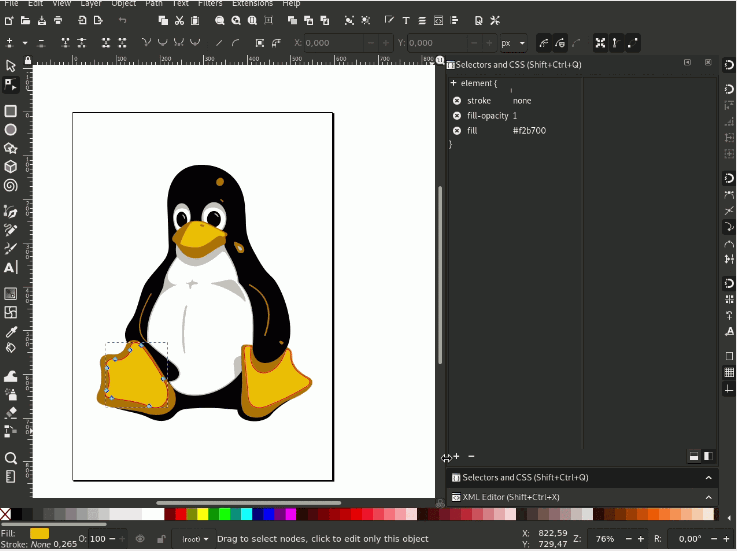
Inkscape is the most established free SVG converter in the open-source world. Its "Trace Bitmap" feature (Path → Trace Bitmap) supports brightness cutoff, edge detection, and multiscan color tracing. The results are solid for moderate-complexity images, though you'll often spend a few minutes cleaning up stray nodes with the Node tool.
Pros: completely free forever, full SVG editing, cross-platform. Cons: the tracing dialog has a learning curve, and batch processing requires extensions. If you're comfortable with a feature-rich editor and don't mind tweaking settings, Inkscape is a reliable PNG to SVG converter for Mac and Windows.
3. Vectorizer.ai — Best Online Quick Trace
Vectorizer.ai uses AI-powered tracing that handles photos, sketches, and logos with impressive accuracy. The free tier gives you two full-resolution SVG downloads — after that, it's subscription-only. For a one-time rush job where you need a free SVG converter that "just works" from a browser tab, it's hard to beat. Just don't plan on using it daily without paying.
Our Verdict: Desktop vs. Online Free SVG Converter
Both categories have legitimate strengths. Here's how they compare when you weigh the factors that matter most for real projects.
Desktop Apps (Super Vectorizer Pro, Inkscape)
- Process large files without upload limits
- Privacy — images never leave your machine
- Per-image control over trace settings
- Advanced tracing options (skeletonization, color reduction)
- Offline capability — no internet required
Online Tools (Vectorizer.ai, Autotracer)
- No installation needed — works from any browser
- Instant results for quick one-off conversions
- Platform-agnostic (Chromebook, iPad, etc.)
- Often faster for simple images with few colors
How to Use a Free SVG Converter: Step-by-Step
Regardless of which tool you choose, the vectorization workflow follows the same basic pattern. Here's a quick guide using Super Vectorizer Pro as the example — the principles apply to any free SVG converter.
- Prepare your source image. Crop excess whitespace, increase contrast if needed, and remove complex backgrounds. A clean input gives a clean SVG output.
- Import the image. Drag and drop your PNG, JPG, or BMP file into the app window.
- Choose the tracing mode. Use "Color" for multi-colored artwork, "Line" for black-and-white sketches, or "Skeletonization" for thin line art.
- Adjust parameters. Tweak the color count, path smoothing, and noise reduction sliders until the preview matches your intent.
- Export as SVG. Save the result. You can also export to EPS, PDF, or DXF if your workflow requires a different vector format.
When a Free SVG Converter Isn't Enough
Free tools cover 80% of everyday vectorization needs. But there are scenarios where you'll hit a wall:
- High-volume batch processing — Converting 50+ images per day? Most online free SVG converter tools throttle you after a handful. Desktop apps handle unlimited volume.
- Photorealistic vectorization — Photos with gradients and thousands of colors require advanced algorithms that basic auto-tracers can't handle. Professional PNG to SVG converters with multi-pass tracing produce far cleaner results.
- Precision editing — If you need to manually adjust every Bézier curve, you'll want a full vector editor, not just a converter. Inkscape or Super Vectorizer Pro's built-in path editor bridge this gap.
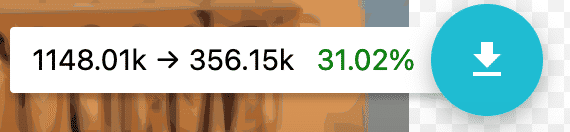
- Production SVG for web — After conversion, SVG files often contain redundant metadata, editor-specific attributes, and unnecessary precision. Run your output through an SVG compressor online to strip bloat and reduce file size by 40–80%.
In these cases, upgrading from a free SVG converter to a purpose-built desktop tool pays for itself within the first week — especially if you're billing clients by the hour.
Frequently Asked Questions
Is there a truly free SVG converter with no watermark?
Yes. Inkscape is fully free and open-source with no watermarks or limits. Super Vectorizer Pro offers a free trial that lets you preview vectorization results before purchasing. Among online tools, PNG2SVG.com and Convertio offer free output, though the quality varies. Read the fine print — many "free" converters watermark your SVG until you pay.
Can I convert PNG to SVG for Cricut for free?
Absolutely. You can use Super Vectorizer Pro to convert PNG to SVG, then import the SVG into Cricut Design Space. Inkscape's Trace Bitmap tool also works well for free conversion. For Cricut projects, choose a free online tool that supports single-color (monochrome) tracing, which is ideal for cut files.
What's the best free SVG converter for Mac?
Super Vectorizer Pro is native to macOS (including M1/M2/M3 chips) and delivers the best output quality among free-to-try options. Inkscape runs on Mac via X11/XQuartz but feels less polished. For a browser-based free SVG converter, Vectorizer.ai works on any platform with a modern browser.
Why does my converted SVG look different from the original PNG?
Vectorization is an approximation — the converter traces edges and color regions, not individual pixels. If your PNG has subtle gradients, fine texture, or low contrast, the tracing algorithm may simplify or miss details. Pre-processing your image (increasing contrast, reducing colors, removing noise) dramatically improves SVG output accuracy.
Can I batch convert multiple images to SVG for free?
Online free SVG converter tools rarely support batch processing. Inkscape offers batch workflows via command-line scripts. Super Vectorizer Pro processes one file at a time with a live preview, which helps you verify settings before exporting.
How do I optimize my SVG after conversion?
After converting with any free SVG converter, run the SVG through SVG Compressor Online to strip redundant metadata, simplify paths, and reduce precision. This typically shrinks file size by 40–80% with no visible quality loss — essential for web use where every kilobyte counts.
Convert Your Images to SVG Today
Download Super Vectorizer Pro — free trial to preview results, then unlock full export. Available for Mac & Windows.
Compatible with macOS 10.10+ (M1/M2/M3) & Windows 7/8/10/11
Whether you choose a desktop app like Super Vectorizer Pro or a quick browser-based free online tool, the key is matching the converter to your image type. Logos and line art need precision tracing; photos need color-aware algorithms; Cricut projects need clean single-color paths. Pick the right free SVG converter for the job, and you'll spend less time cleaning up paths and more time creating. Try converting your first image on Mac today — it's free.
Related Articles
Try These Free Online Tools
No download required — convert, compress & optimize SVGs right in your browser
PNG to SVG Converter
Convert PNG, JPG, BMP images to scalable vector graphics instantly
PNG to SVG ConverterSVG Compressor (Mini)
Reduce SVG file size by up to 80% without losing quality
SVG Compressor OnlineSVG Optimizer
Clean up SVG code, remove redundant data and optimize for web
SVG Optimizer OnlineJPG to SVG Converter
Turn JPEG photos into crisp vector artwork in seconds
JPG to SVG ConverterEPS to SVG Converter
Convert EPS vector files to web-friendly SVG format
EPS to SVG ConverterAll Free Tools
Browse our complete collection of free online conversion tools
Browse All Free Tools