
If you work on a Mac and regularly deal with raster images that need to become vectors, you have probably asked: "What is the best way to convert Vector Magic alternative for Mac on Mac?" Whether you are preparing artwork for large-format printing, creating cut files for Cricut, or digitizing a hand-drawn logo, the right tool makes all the difference.
In this guide, we compare every practical method to convert raster to vector on macOS — from one-click desktop apps like Super Vectorizer Pro, to free open-source alternatives, to Adobe Illustrator's built-in tracing. By the end, you will know exactly which workflow fits your needs and budget.
See how your images矢量化 on Mac before you buy. Download Super Vectorizer Pro free trial to preview vectorization results instantly.
Compatible with macOS 10.10+ (M1/M2/M3) & Windows 7/8/10/11
What Does "Raster to Vector" Actually Mean?
A raster image (PNG, JPG, BMP, TIFF, WebP) is a grid of pixels. When you zoom in, you see individual squares. A vector image (SVG, AI, EPS, PDF) is made of mathematical paths — lines and curves defined by control points. Zoom in as much as you want and the edges stay perfectly sharp.
Converting raster to vector on Mac means tracing those pixels to create path data. The process is called vectorization or image tracing. The output is typically an SVG file, which you can open in Illustrator, Inkscape, Figma, or any web browser.
Method 1: Super Vectorizer Pro (Mac Native, Recommended)
Super Vectorizer Pro is a Mac-first desktop application built specifically for raster-to-vector conversion. Unlike Illustrator (which is a general-purpose design tool with a tracing feature bolted on), Super Vectorizer Pro is purpose-built for this single task — and it shows in the results.
Step-by-step on Mac:
- Download and open Super Vectorizer Pro (free trial to preview vectorization results).
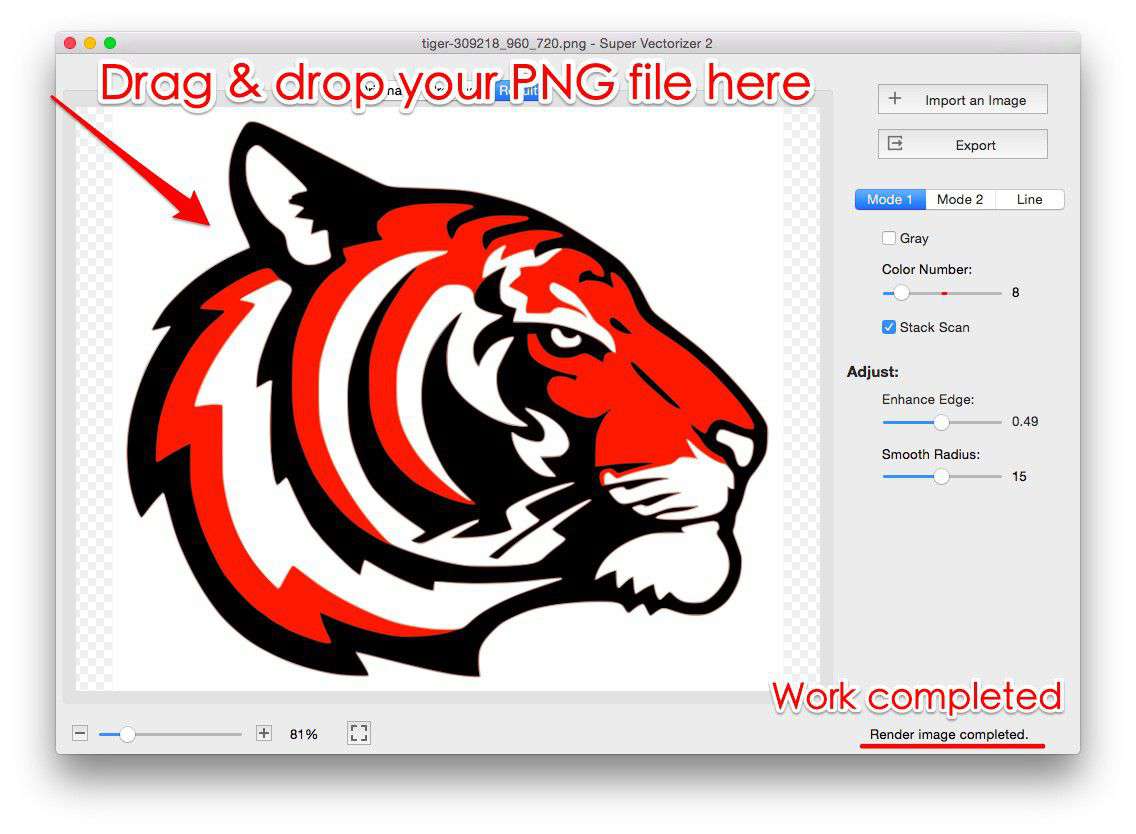
- Drag your raster image (PNG, JPG, BMP, TIFF, GIF, WebP, HEIC) into the app window.
- The app automatically detects the image type. For photos with gradients, use "Photo" mode. For logos and line art, use "Logo" or "Line Art" mode.
- Use the Detail Slider to adjust tracing precision. Move right for more detail (more nodes), left for smoother paths (fewer nodes).
- Click Check Result to overlay the vector paths on your original image. Zoom in to verify edge accuracy.
- With the free trial, you can preview the full result. To export SVG, AI, PDF, DXF, or other formats, purchase is required.
Super Vectorizer Pro runs natively on Apple Silicon (M1/M2/M3) and Intel Macs (macOS 10.10+). It is also available for Windows, making it easy to switch between platforms.
Method 2: Inkscape (Free, Open Source)
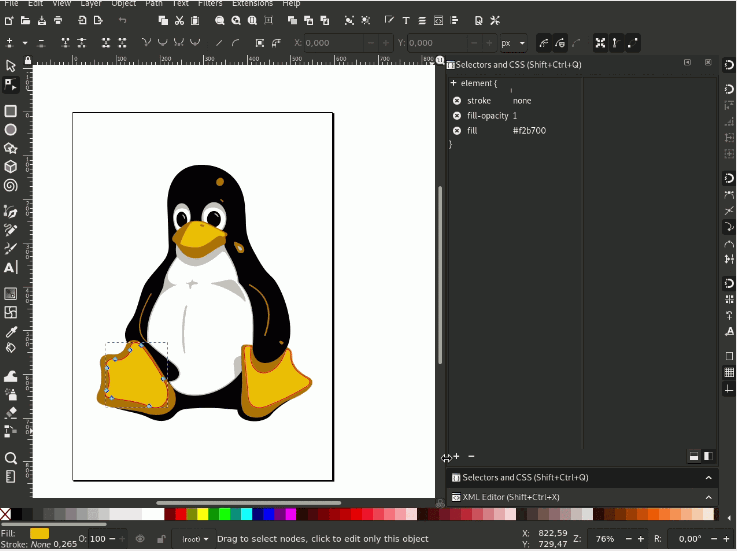
Inkscape is a free, open-source vector graphics editor that runs on Mac, Windows, and Linux. Its Trace Bitmap feature (Path → Trace Bitmap) can handle basic raster-to-vector conversion at no cost.
How to use Inkscape on Mac:
- Download Inkscape for Mac from inkscape.org (requires XQuartz on older macOS versions).
- Open your raster image (File → Import).
- Select the image, then go to Path → Trace Bitmap.
- Choose tracking options: Single scan (creates one path) vs Multiple scans (creates layers for each color).
- Click OK. The vector paths will be created on top of your image. Drag the original image aside to see the result.
- Save as SVG (File → Save As → Plain SVG).
Limitations: Inkscape's tracing algorithm is less sophisticated than Super Vectorizer Pro. Complex images with gradients or fine details may produce messy paths with excessive nodes. The Mac version also requires XQuartz, which can feel clunky compared to native apps.
Method 3: Adobe Illustrator (Industry Standard, Subscription)
Illustrator's Image Trace feature is powerful but requires a Creative Cloud subscription ($22.99/month as of 2026). If you already have Illustrator, it is a perfectly viable option for raster-to-vector on Mac.
Steps in Illustrator:
- Place your raster image (File → Place).
- Select the image. In the top toolbar, click Image Trace.
- Choose a preset: "High Fidelity Photo", "3 Color", "Line Art", etc.
- Click Expand to convert the trace into editable vector paths.
- Clean up paths with the Direct Selection tool. Save as SVG (File → Export → Export As → SVG).
Verdict: Great if you already pay for Creative Cloud. Expensive if you only need occasional raster-to-vector conversion.
Method 4: Free Online Converters (Quick, No Install)
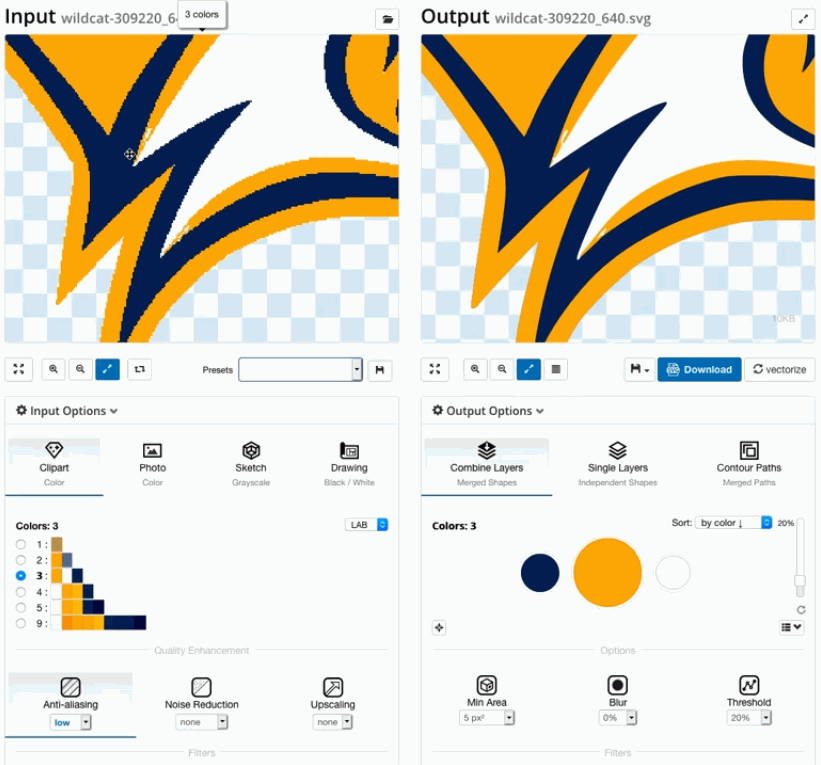
For one-off conversions, free online tools let you upload a raster image and download an SVG without installing anything. The trade-offs are privacy (your image is uploaded to a server) and limited control over output quality.
Best free online options for Mac users:
- SVGVector Free Online Converter — Supports PNG, JPG, BMP, GIF to SVG. No registration. Access at svgvector.com.
- Vectorizer.ai — AI-powered, handles photos and logos well. Free tier limited to low-resolution output.
- Autotracer.org — Free, supports many input formats. Output quality is basic but acceptable for simple graphics.
Comparison Table: Raster to Vector Tools on Mac
| Tool | Cost | Ease of Use | Output Quality | Best For |
|---|---|---|---|---|
| Super Vectorizer Pro | Paid (free trial) | Very Easy | Excellent | Daily Mac workflow |
| Adobe Illustrator | $22.99/month | Medium | Excellent | Existing CC users |
| Inkscape | Free | Medium | Good | Tight budget |
| Online Converters | Free (limited) | Very Easy | Medium | One-off simple images |
| Vectorizer.ai | Free / Paid tiers | Easy | Very Good | AI-enhanced tracing |
Tips for Better Raster-to-Vector Results on Mac
1. Prepare Your Source Image
The single biggest factor in output quality is the source image. Before vectorizing, crop away irrelevant background, increase contrast (so edges are clearly defined), and remove noise or JPEG artifacts. Photoshop's Camera Raw Filter or Smart Sharpen can help prepare tricky images.
2. Choose the Right Number of Colors
When vectorizing, more colors = more complex paths = larger file size. For logo work, limit to the actual brand colors (usually 1-3). For photos, "Full Color" mode works but produces very large SVG files. Consider simplifying the color palette before vectorizing.
3. Simplify Paths After Conversion
Auto-traced SVGs often have hundreds of unnecessary nodes along straight edges. After converting raster to vector on your Mac, open the SVG in Illustrator or Inkscape and use Object → Path → Simplify to reduce node count. This makes the file smaller and easier to edit.
When Should You Use Raster vs. Vector on Mac?
Not every image should be vectorized. Here is a quick decision guide:
- Vectorize if: Logo, icon, line art, text-based graphic, simple illustration, cut file for Cricut/Silhouette, artwork that needs to scale to billboard size.
- Keep as raster if: Photograph with complex gradients, painting with brush textures, image with no clear edges, file where file size matters more than scalability.
Our Verdict: Best Raster to Vector Workflow on Mac (2026)
For most Mac users, Super Vectorizer Pro offers the best combination of quality, speed, and price. It is purpose-built for the task, runs natively on Apple Silicon, and handles one-at-a-time conversions with a live preview. Illustrator is the runner-up if you already subscribe. Inkscape is the best free option but feels dated on macOS.
Super Vectorizer Pro (Mac)
- Native Apple Silicon (M1/M2/M3) support
- Intuitive Mac-style interface
- Multiple vectorization modes for different image types
- Per-image parameter control built in
- Free trial to preview results
Adobe Illustrator
- Industry-standard design tool
- Powerful Image Trace with many presets
- Seamless integration with Photoshop/InDesign
- Expensive subscription for casual users
Image → SVG: Format-Specific Conversion Notes
- macOS users get a native workflow: convert raster to vector, then open the SVG in Illustrator, Affinity Designer, or Sketch without format friction.
- The converter runs entirely in the browser on your Mac — no Rosetta, no Intel/Apple Silicon split, just a tab.
- Keep the source on your machine; nothing is uploaded, so confidential designs stay local.
- After tracing, the SVG is fully editable — recolor, reshape, or combine with other vector layers in your Mac app of choice.

Frequently Asked Questions
Is there a completely free way to convert raster to vector on Mac?
Yes. Inkscape is free and open-source, and it includes a Trace Bitmap feature that can handle basic raster-to-vector conversion. For simple graphics and logos, the results are acceptable. However, Inkscape requires XQuartz on Mac and the interface feels less polished than commercial alternatives. For occasional use, it is a solid free option.
Can Super Vectorizer Pro handle HEIC files from iPhone?
Yes. Super Vectorizer Pro supports HEIC input, which means you can convert photos taken on your iPhone directly to SVG without first converting them to JPG or PNG. This is a significant advantage over many online tools that do not support HEIC format.
What is the best format to save my vectorized image on Mac?
SVG is the best choice for web use and compatibility with most modern design tools. If you need to open the file in Adobe Illustrator, AI or PDF format may be preferable. For CAD applications or laser cutting, DXF is the standard. Super Vectorizer Pro can export to all of these formats from the same traced result, so you don't need to re-trace for each use case.
Does raster-to-vector conversion work well for photographs?
It depends on the photo. Simple logos and graphics with flat colors vectorize very well. Photographs with complex gradients and textures produce very large SVG files with thousands of paths, and the result may not look as good as the original. For photos, vectorization works best if you simplify the color palette first or use an artistic filter to reduce detail.
Convert Raster to Vector on Your Mac Today
Download Super Vectorizer Pro free trial and preview your results in seconds. Native support for M1/M2/M3 Macs and Windows.
Compatible with macOS 10.10+ (M1/M2/M3) & Windows 7/8/10/11
Related Articles

Try These Free Online Tools
No download required — convert, compress & optimize SVGs right in your browser
PNG to SVG Converter
Turn PNG images into crisp vector artwork in seconds
Free OnlineSVG Compressor (Mini)
Reduce SVG file size by up to 80% without losing quality
Free OnlineJPG to SVG Converter
Convert JPEG photos to scalable vector format
Free OnlineEPS to SVG Converter
Convert EPS illustrations to scalable vector graphics
Free OnlineAll Free Tools
Browse our complete collection of free online conversion tools