
Converting a Vector Magic alternative for Mac format on Mac is one of the most common tasks for designers, developers, and anyone who needs scalable graphics. Whether you're preparing a logo for print, creating assets for a Cricut machine, or optimizing graphics for a website, understanding how to properly convert PNG to vector on Mac is an essential skill. This guide covers every major method available in 2026, from professional desktop applications to free online converters, with detailed comparisons to help you choose the right approach for your specific needs.
Ready to convert your PNG images to vector on Mac? Try Super Vectorizer Pro free trial to preview vectorization results with precision.
Compatible with macOS 10.10+ (M1/M2/M3) & Windows 7/8/10/11
Why Convert PNG to Vector on Mac?
Before diving into the methods, it's important to understand why PNG to vector Mac conversion matters. PNG files are raster images — they're made of pixels. When you scale a PNG up, it becomes blurry and pixelated. Vector graphics, on the other hand, use mathematical paths and can be scaled to any size without losing quality. This makes vector format essential for logos, illustrations, signage, and any graphic that needs to appear at multiple sizes.
On Mac specifically, the ecosystem offers several advantages for vector conversion: powerful native rendering APIs, excellent color management through ColorSync, and the ability to run both specialized desktop applications and high-quality open-source tools. Whether you're using an Intel Mac or the latest M3 chip, the methods covered in this guide will work efficiently on your machine.
Method 1: Super Vectorizer Pro (Best Desktop App for Mac)
Super Vectorizer Pro is a dedicated vector conversion application built specifically for macOS and Windows. It uses advanced edge detection algorithms to trace raster images and convert them into clean vector paths. The application is designed to handle a wide variety of image types, from simple logos to complex photographs.
Here's the step-by-step process to convert PNG to vector on Mac using Super Vectorizer Pro:
- Download and install — Get the free trial from the official website. The trial allows you to preview vectorization results in full quality. Note: the trial version does not export files; you can see exactly how your image will be converted before deciding whether to purchase.
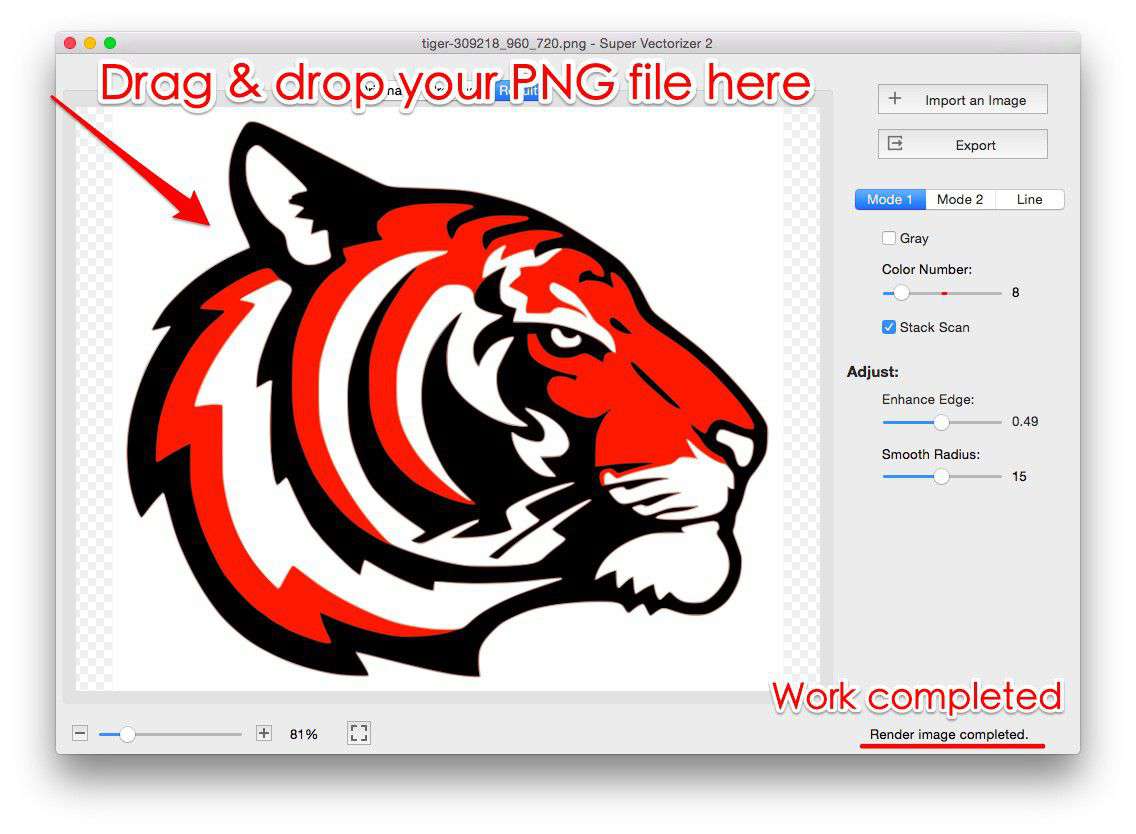
- Import your PNG image — Drag and drop your PNG file into the application window, or use the File → Open menu. The app supports PNG, JPG, BMP, GIF, TIFF, and many other raster formats.
- Choose a preset — Super Vectorizer Pro offers multiple presets optimized for different image types: Logo, Sketch, Photo, and Custom. Each preset adjusts the tracing sensitivity and path simplification settings automatically.
- Adjust tracing parameters — Use the sliders to fine-tune the result. The "Sensitivity" slider controls how closely the vector paths follow the original image edges. Higher sensitivity captures more detail but may produce more complex paths. The "Noise" slider helps filter out small artifacts in the source image.
- Preview the result — The app shows a real-time preview of the vectorized result. You can zoom in to inspect details and make sure edges are clean. This preview capability in the free trial lets you verify the quality before committing.
- Export (after purchase) — Once you're satisfied with the preview, purchasing the full version enables export to SVG, PDF, EPS, DXF, and other vector formats.
Method 2: Online PNG to Vector Converters (Free, No Download)
If you don't want to install desktop software, several online tools can convert PNG to vector on Mac directly in your browser. These tools are convenient for quick, one-off conversions, though they may have file size limits and privacy considerations for sensitive images.
SVGVector's free online PNG to SVG converter is a browser-based tool that uses VTracer (a professional vector-tracing engine) to perform vectorization entirely on your Mac — no files are uploaded to a server. This makes it both fast and privacy-friendly. Simply paste an image URL or select a file from your Mac, adjust the settings, and download the resulting SVG file immediately.
Other online options include Vectornator (now Linearity Curve) web tools, and various open-source implementations. The key advantage of browser-based tools is that they work on any Mac, including those where you can't install new applications. The trade-off is that complex images may take longer to process, and very large files may exceed browser memory limits.
Method 3: Inkscape (Free Open-Source Desktop App)
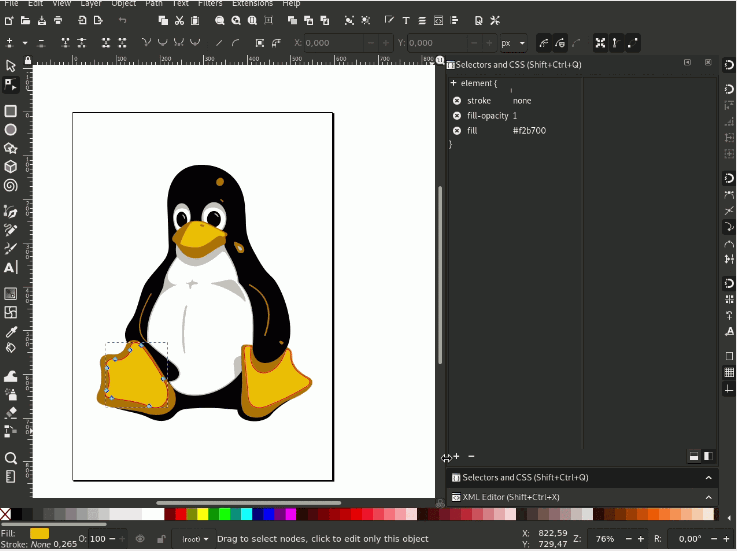
Inkscape is a free, open-source vector graphics editor that runs on Mac, Windows, and Linux. It includes a "Trace Bitmap" feature that can convert PNG to vector directly. To use this method: install Inkscape via Homebrew (brew install --cask inkscape) or download from the official website, import your PNG image, select it, then choose Path → Trace Bitmap. Inkscape offers multiple tracing modes including brightness cutoff, edge detection, and color quantization.
The main advantage of Inkscape is that it's completely free and open-source, with no trial limitations. The downside is that the user interface can be complex for beginners, and the tracing quality may not match dedicated commercial applications for certain types of images. Inkscape is however excellent if you need to do additional editing on the vector result after conversion.
Method 4: Adobe Illustrator (Industry Standard)
Adobe Illustrator is the industry-standard vector graphics application, available through a Creative Cloud subscription. Its "Image Trace" feature is powerful and highly customizable. To convert PNG to vector in Illustrator: place your PNG image, select it, and click the "Image Trace" button in the Properties panel. You can then choose from presets (like "High Fidelity Photo" or "3 Color Logo") and adjust advanced settings.
Illustrator produces excellent results, especially for complex images. However, the subscription cost (approximately $22.99/month as of 2026) makes it impractical if you only need occasional PNG to vector conversion. It's also a large application that requires significant disk space and system resources. For professional designers who already use Creative Cloud, Illustrator's Image Trace is an excellent choice.
Desktop App vs Online Tool: Which Should You Use?
Both approaches have their place. Here's a detailed comparison to help you decide which method fits your workflow.
Super Vectorizer Pro (Desktop)
- Handles large files without browser memory limits
- Advanced edge detection with adjustable parameters
- Per-image control over trace settings
- Works offline — no internet required
- Native Mac optimizations for M1/M2/M3 chips
- Free trial lets you preview results before purchasing
Online Converters (Browser-based)
- No installation required — works immediately
- Completely free for basic conversions
- Privacy-friendly options process files locally in browser
- Accessible from any Mac with a web browser
- Good for quick, simple conversions
Comparison Table: PNG to Vector Tools for Mac
| Feature | Super Vectorizer Pro | Inkscape | Illustrator | Online Tools |
|---|---|---|---|---|
| Cost | One-time purchase | Free (Open Source) | Subscription | Free |
| Mac Native | Yes (M1/M2/M3) | Yes (via XQuartz) | Yes | N/A (Browser) |
| Batch Processing | Yes | With extensions | Yes (Actions) | No |
| Trial Export | No (preview only) | N/A (fully free) | 7-day trial | N/A (fully free) |
| Output Formats | SVG, PDF, EPS, DXF | SVG, PDF, EPS, AI | All major formats | Usually SVG only |
| Best For | Regular Mac users | Occasional use | Professional designers | Quick one-off tasks |
Tips for Best Results When Converting PNG to Vector on Mac
Getting clean vector results depends heavily on the quality of your source PNG image. Here are expert tips to achieve the best outcome when you convert PNG to vector on Mac:
- Start with high-resolution source images — The more pixels in your PNG, the more detail the vectorization algorithm can capture. A 2000×2000 pixel PNG will produce much better results than a 200×200 pixel image.
- Use images with clear edges — Vectorization works best on images with high contrast and well-defined edges. Blurry or heavily anti-aliased images are harder to trace accurately.
- Remove backgrounds beforehand — If your PNG has a solid color background, remove it before vectorization. This prevents the background from being traced as part of the vector. Tools like remove.bg or the built-in background removal in Preview (macOS Sonoma+) can help.
- Choose the right preset — Don't use a "Photo" preset for a simple logo, and don't use a "Logo" preset for a detailed photograph. Matching the preset to your image type makes a significant difference in output quality.
- Simplify complex paths — After vectorization, the resulting SVG may contain thousands of paths. Use the "simplify path" feature in your vector editor to reduce complexity without visibly affecting quality. This is especially important for web use.
Frequently Asked Questions
PNG → SVG: Format-Specific Conversion Notes
- PNG to vector on Mac keeps everything local: the trace runs in-browser and the SVG drops straight into your design tool.
- Transparent PNGs stay transparent in the SVG, so mockups and UI assets keep their cutouts.
- For app icons and UI glyphs, the Poster preset yields clean, scalable shapes that look sharp at any @2x/@3x size.
- Once vectorized, a single SVG replaces multiple PNG resolutions — smaller repos, sharper renders.
Can I convert PNG to vector on Mac for free?
Yes, there are several free methods. Inkscape is a fully free desktop application that includes PNG-to-vector tracing. Online converters like SVGVector's free tool also work at no cost. Super Vectorizer Pro offers a free trial that lets you preview the vectorization result, though exporting requires purchasing the full version. For occasional use, the free options may be sufficient. For regular work, a dedicated tool like Super Vectorizer Pro offers better speed and quality.
What's the best format to save my vector as?
SVG is the best choice for web use and for importing into most modern design tools. PDF is ideal if you need to share the vector with someone who may not have specialized software. EPS is useful for compatibility with older printing workflows. DXF is the standard for laser cutting and CNC routing. Super Vectorizer Pro can export to all of these formats, making it a versatile choice regardless of your intended use case.
Why does my converted vector look different from the original PNG?
Vectorization is fundamentally an interpretation process — the software analyzes the pixels in your PNG and creates mathematical paths that approximate the original image. Some detail is always lost in this process, especially for photographic images. For logos and illustrations with clean edges, the results can be nearly identical. For photos, the vector version will be more of an artistic interpretation. Adjusting the tracing sensitivity and using the right preset can help minimize unwanted differences.
Can I convert multiple PNG files to vector at once on Mac?
No. Super Vectorizer Pro processes one PNG file at a time. For batch conversion, use an online batch tool or an Inkscape script. If you prefer to review and adjust each image, Super Vectorizer Pro's one-at-a-time workflow with live preview is a good fit.
Convert PNG to Vector on Mac with Professional Results
Super Vectorizer Pro gives you a free trial to preview vectorization results with precision. See exactly how your image will convert before you buy.
Compatible with macOS 10.10+ (M1/M2/M3) & Windows 7/8/10/11
Related Articles
Try These Free Online Tools
No download required — convert, compress & optimize SVGs right in your browser
PNG to SVG Converter
Turn PNG images into crisp vector artwork in seconds
Free OnlineSVG Compressor (Mini)
Reduce SVG file size by up to 80% without losing quality
Free OnlineJPG to SVG Converter
Convert JPEG photos to scalable vector format
Free OnlineEPS to SVG Converter
Convert EPS illustrations to scalable vector graphics
Free OnlineAll Free Tools
Browse our complete collection of free online conversion tools