
You converted your PNG or JPG to SVG — great! But now you need to change a color, simplify a path, add some text, or clean up the SVG code before using it on your website. That's where an free SVG editor online free tool comes in. Unlike desktop vector graphics software (Adobe Illustrator, Inkscape, CorelDRAW), online SVG editors run entirely in your web browser. No downloads, no installation, no licensing fees. In this guide, we'll cover what online SVG editors can and can't do, the best free options available in 2026, step-by-step editing workflows, and when you should choose a desktop app instead.
Want to preview how your image vectorizes before editing? Try Super Vectorizer Pro free trial to see vectorization results first.
Compatible with macOS 10.10+ (M1/M2/M3) & Windows 7/8/10/11
Our Verdict
Online SVG editors are great for quick fixes, but for complex edits and vectorization, a desktop app offers more power and privacy.
Best Desktop: Super Vectorizer Pro
- Full vectorization and editing pipeline
- Works offline for privacy
- Free trial to preview results
- Mac and Windows native apps
Best Online: SVG-Edit
- Runs in any browser, zero install
- Good for simple path edits
- Free and open source
- Limited for complex vectorization
What Is an Online SVG Editor?
An online SVG editor is a web-based tool that lets you open, view, modify, and export SVG (Scalable Vector Graphics) files directly in your browser. Think of it as a lightweight version of Adobe Illustrator or Inkscape that runs on the web. You upload or paste your SVG, make changes using editing tools (select, draw, reshape, recolor), and then download the modified SVG.
The key advantage is accessibility — you can edit SVGs from any device with a web browser: Windows PC, Mac, Chromebook, iPad, or even a smartphone. The key limitation is capability — browser-based editors can't match the full feature set of desktop vector graphics software, especially for complex illustration work.
What Can You Do with a Free Online SVG Editor?
Modern online SVG editors have become surprisingly capable. Here's what you can typically accomplish:
- Edit path data: Select and modify individual vector paths, adjust control points, simplify complex paths.
- Change colors: Recolor shapes, gradients, and strokes. Some editors offer color palette tools and hex color input.
- Add and edit text: Insert text elements, change fonts, adjust size and alignment.
- Resize and transform: Scale, rotate, skew, and flip SVG elements. Change the overall canvas/viewport size.
- Group and ungroup: Organize SVG elements into groups for easier management.
- Import and place images: Embed or link raster images within the SVG.
- Export and download: Save the edited SVG, sometimes with optimization options (remove metadata, minify code).
- View and edit SVG code: Some editors include a code view where you can directly edit the SVG XML.
Best Free Online SVG Editors in 2026
Here are the top browser-based SVG editors you can use for free today:
1. SVG-Edit (open source, full-featured)
SVG-Edit is a long-standing open-source project that provides a surprisingly complete vector editing experience in the browser. It supports layers, path editing, text tools, shape tools, and direct SVG code editing. Because it's open source, there's no registration, no usage limits, and no privacy concerns about uploaded files (it can run entirely locally).
2. Method Draw (clean interface, easy to use)
Method Draw is a simplified fork of SVG-Edit with a cleaner, more modern interface. It strips away some of the more advanced features in favor of usability. Great for quick edits: change a color, move some paths, resize the canvas. The interface will feel familiar if you've used any vector graphics software.
3. Vectr (real-time collaboration)
Vectr is a free vector graphics editor available both as a web app and desktop application. The online version is excellent for collaborative editing — multiple people can work on the same SVG simultaneously. It includes shape tools, pen tool, text, and a library of free design assets.
4. Boxy SVG (Chrome app, powerful)
Boxy SVG started as a Chrome app and has evolved into a powerful SVG editor with a desktop-class feature set. The web version is capable but the Chrome app version is more fully-featured. Supports CSS styling, SVG animations, and advanced path operations.
5. Canva SVG Editor (design-focused)
Canva added SVG editing to its web design platform. It's less of a traditional vector editor and more of a design tool that happens to handle SVG files. Good for adding SVG elements to larger design projects, less ideal for precise path editing.
Comparison Table: Free Online SVG Editors
| Editor | Best For | Path Editing | Code View | Free Limit |
|---|---|---|---|---|
| SVG-Edit | Advanced editing | ✓ Full | ✓ Yes | UnlimitedBest |
| Method Draw | Quick edits | ✓ Good | ✓ Yes | Unlimited |
| Vectr | Collaboration | ✓ Basic | ✗ No | Unlimited |
| Boxy SVG | Power users | ✓ Full | ✓ Yes | Limited free |
| Canva | Design projects | ✗ Basic | ✗ No | Freemium |
Step-by-Step: How to Edit an SVG Online for Free
Here's the general workflow for editing an SVG file using a free online editor:
Step 1: Choose Your Editor
For this walkthrough, we'll use Method Draw (method.ac) because it has the gentlest learning curve. Open the website in your browser — no account needed.
Step 2: Import Your SVG
Click "File" → "Import Image" (or drag and drop your SVG file directly onto the canvas). The editor will parse the SVG and display it as editable vector objects. If your SVG was generated by a converter (like our PNG to SVG converter), it may contain many small paths — this is normal.
Step 3: Select the Element to Edit
Use the Selection tool (arrow icon) to click on the part of the SVG you want to modify. Selected elements show control handles. If the SVG has grouped elements, you may need to double-click to enter the group and select individual paths.
Step 4: Make Your Edits
Depending on what you need to change:
- To change color: Select the element, then use the fill/stroke color picker in the toolbar.
- To modify a path: Switch to the Path tool, then drag control points to reshape the path.
- To resize: Select the element and drag the corner handles. Hold Shift to maintain proportions.
- To add text: Select the Text tool, click on the canvas, and type your text.
- To delete elements: Select and press Delete/Backspace.
Step 5: Optimize Before Export (Important!)
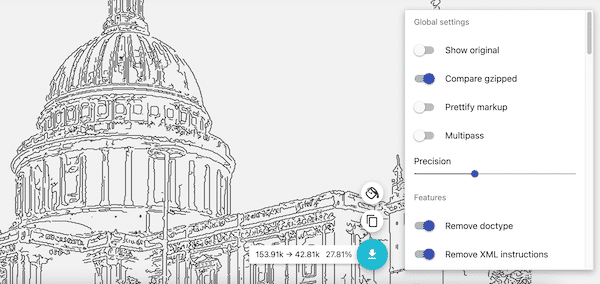
SVGs produced by converters or edited in a browser editor often contain redundant data: editor metadata, unused definitions, excessively precise floating-point numbers. Before downloading, use an SVG optimizer to clean up the code. This can reduce file size by 30-70% without any visual change.
Step 6: Download Your Edited SVG
Click "File" → "Save Image" (or "Export"). Choose a filename and the editor will download the SVG to your device. Open it in a browser to verify the result looks correct.
Common SVG Editing Tasks After Conversion
When you convert an image to SVG using automated tools, the result often needs cleanup. Here are the most common post-conversion edits:
Cleaning Up Excess Paths
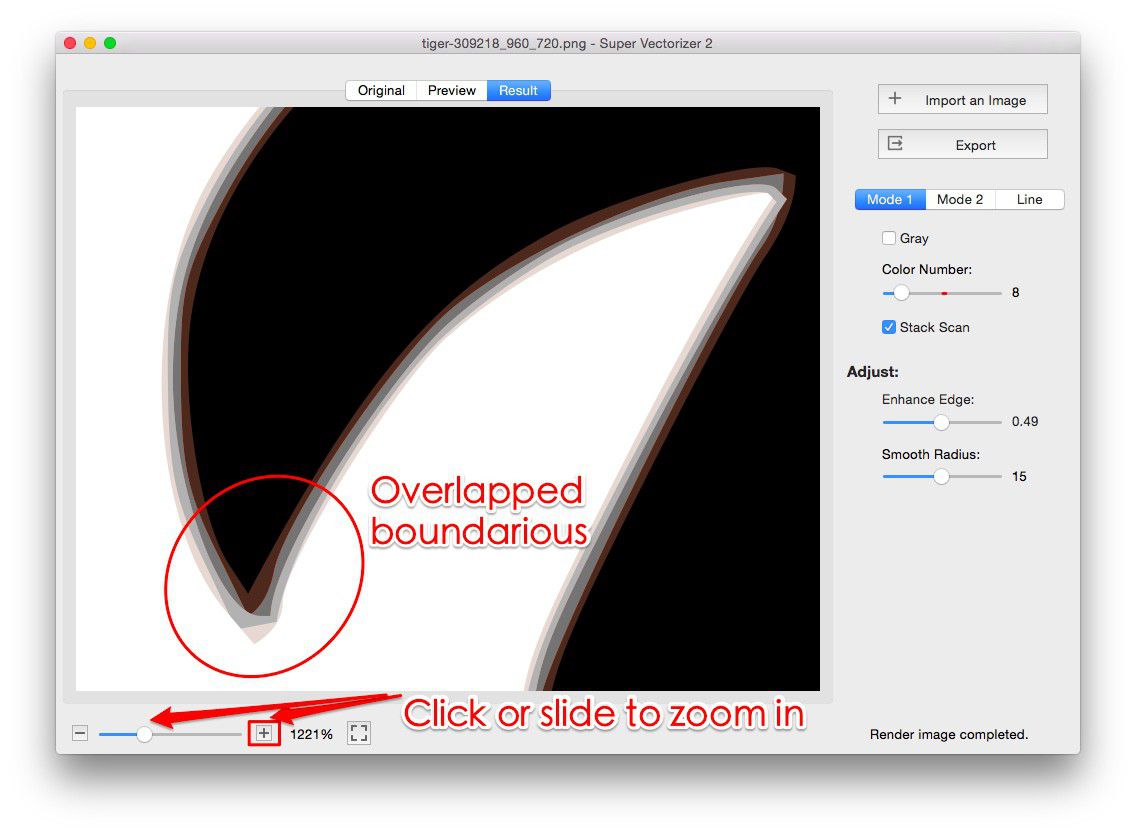
Automated vectorization can produce SVGs with hundreds of tiny paths, especially in areas that should be a single solid shape. Use the Path Simplify tool (available in SVG-Edit and Method Draw) to reduce path complexity. Alternatively, manually select and delete unnecessary small paths.
Fixing Color Mismatches
Vectorization algorithms sometimes choose slightly wrong colors, especially in gradients. Select the affected paths and use the color picker to apply the correct color. For gradients, you may need to recreate them manually using the Gradient tool.
Adding a Transparent Background
Some converters embed a white background rectangle in the SVG. To make the background transparent: select the background rectangle and delete it, or set its fill to "none" in the code view.
Simplifying for Web Use
For web use, you want the smallest possible SVG that still looks good. After editing, run the SVG through an optimizer that:
- Removes editor metadata and comments
- Collapses unnecessary group nesting
- Rounds floating-point numbers to 2-3 decimal places
- Removes unused definitions and hidden elements
Online SVG Editor vs Desktop Software: Which Should You Use?
When to Use Each Tool Type
Use Online SVG Editor When...
- You need a quick edit on a device without design software
- You're on a Chromebook or locked-down work computer
- You want to collaborate with someone in real-time
- The edit is simple (change color, resize, add text)
- You don't want to learn complex desktop software
Use Desktop Software (Illustrator/Inkscape) When...
- You're creating complex illustrations from scratch
- You need precise print-ready output (CMYK colors, bleed marks)
- You're editing SVGs with thousands of paths
- You need advanced features (mesh gradients, pattern fills, blends)
- You edit SVGs regularly as part of your job
Can You Edit SVGs in a Browser Without Uploading?
Yes! This is an important privacy consideration. Some online SVG editors (notably SVG-Edit and Method Draw) can run entirely in your browser using JavaScript — no file upload to a server required. Look for versions that let you load SVG from your local file system using the File API, keeping your data private. Avoid editors that require uploading files to a server if you're working with sensitive or confidential SVG files.
SVG Code Editing: When to Skip the Visual Editor
For certain tasks, editing the SVG code directly is faster and more precise than using a visual editor. You can do this in any text editor (including the code view in browser-based SVG editors). Common direct-code edits include:
- Changing a specific hex color across the entire SVG (find and replace)
- Adding or modifying CSS classes for styling
- Adding accessibility attributes (aria-label, title, desc elements)
- Removing specific elements by ID or class
- Adding animation elements (animate, animateTransform)

The Future of Online SVG Editing
Browser-based SVG editing is improving rapidly thanks to advances in web technologies (Canvas API, WebAssembly, WebGL). Expect these developments in the coming years:
- AI-assisted editing: Tools that automatically detect and fix common SVG issues (overlapping paths, unnecessary nodes, non-optimal groupings).
- WebAssembly-powered performance: Desktop-class editing performance in the browser, handling SVGs with 10,000+ paths smoothly.
- Integrated conversion + editing: Workflows where you convert an image to SVG and then seamlessly edit it in the same tool, without downloading and re-uploading.
- Real-time collaborative editing: Multiple people editing the same SVG simultaneously, with live cursors and change tracking (already available in Vectr, coming to more editors).
Frequently Asked Questions
Is there a truly free online SVG editor with no registration?
Yes. SVG-Edit (svg-edit.github.io) and Method Draw (method.ac) are both completely free, open-source, and require no registration. Your files are processed in the browser and never uploaded to a server. Other editors like Vectr are free but require account creation for some features.
Can I edit SVG files on an iPad or Chromebook?
Yes, this is one of the main advantages of online SVG editors. Since they run in the browser, they work on any device with a modern web browser. Some editors are more touch-friendly than others — Vectr and Canva have reasonably good tablet interfaces, while SVG-Edit and Method Draw are optimized for mouse/keyboard input.
Will editing an SVG online reduce its quality?
Editing an SVG doesn't reduce its quality in the way that re-saving a JPG does (SVG is a vector format, not pixel-based). However, some online editors may simplify paths or round coordinates when saving, which can very slightly alter the appearance. Always keep a backup of your original SVG before editing.
Can I convert an image to SVG and then edit it in the same workflow?
Yes. A typical workflow is: convert your PNG/JPG to SVG using a converter tool, download the SVG, then open it in an online SVG editor to clean up paths, adjust colors, or add elements. Some advanced tools (like Super Vectorizer Pro) include basic editing features, but for detailed edits you'll want a dedicated SVG editor.
Do online SVG editors work with Cricut Design Space files?
Cricut Design Space accepts SVG files, and SVGs edited in online editors will generally import correctly. However, Cricut has specific requirements: paths should be clean (not excessively complex), and the SVG should use basic SVG features (no advanced filters or clipping paths that Cricut might not support). After editing, always test-import into Design Space before using for cutting.
Convert First, Edit Second — The Complete SVG Workflow
Super Vectorizer Pro helps you convert images to SVG with a free trial to preview results. After conversion, edit your SVGs with any free online editor for the perfect final result.
Compatible with macOS 10.10+ (M1/M2/M3) & Windows 7/8/10/11
Related Articles
Try These Free Online Tools
No download required — convert, compress & optimize SVGs right in your browser
PNG to SVG Converter
Convert PNG, JPG, BMP images to scalable vector graphics instantly
PNG to SVG ConverterSVG Compressor (Mini)
Reduce SVG file size by up to 80% without losing quality
SVG Compressor OnlineSVG Optimizer
Clean up SVG code, remove redundant data and optimize for web
SVG Optimizer OnlineJPG to SVG Converter
Turn JPEG photos into crisp vector artwork in seconds
JPG to SVG ConverterEPS to SVG Converter
Convert EPS vector files to web-friendly SVG format
EPS to SVG ConverterAll Free Tools
Browse our complete collection of free online conversion tools
Browse All Free Tools