
Need to convert image to SVG free? You're not alone. Every day, thousands of designers, developers, and hobbyists search for free ways to transform raster images (PNG, JPG, BMP, GIF, WebP) into scalable SVG vector format. Whether you're preparing artwork for a website, creating cut files for Cricut, or vectorizing a logo for print, this guide covers every free method available in 2026.
In this comprehensive guide, we'll compare free online converters, free desktop software, and freemium tools that let you convert image to SVG without spending a dime. We'll also show you when it's worth upgrading to a paid tool for professional results.
Want to preview professional-grade vectorization for free? Try Super Vectorizer Pro's free trial to preview vectorization results.
Compatible with macOS 10.10+ (M1/M2/M3) & Windows 7/8/10/11
Why Convert Image to SVG?
Before diving into free tools, let's understand why you'd want to convert image to SVG in the first place:
- Scalability: SVG vectors are mathematically defined, so they scale infinitely without losing quality. Perfect for responsive web design.
- Smaller file sizes: For simple graphics, SVG files are often smaller than equivalent PNGs.
- SEO benefits: Search engines can read SVG text content, unlike embedded images.
- Accessibility: SVG supports ARIA labels and screen readers.
- Editability: You can open SVG in any text editor or vector graphics software and modify individual elements.
Method 1: Free Online Converters (No Download Required)
The easiest way to convert image to SVG free is using an online converter. These tools work in your browser — just upload, convert, and download.
SVGVector Free Online Converter
SVGVector's free converter supports PNG, JPG, BMP, GIF, and WebP input formats. It's completely free with no registration required.
How to use:
- Visit the free converter page
- Upload your image (drag-and-drop or file picker)
- Adjust conversion settings (colors, detail level)
- Click "Convert" and download your SVG
Pros: No installation, supports multiple formats, instant results.
Cons: Limited control over output quality, file size limits for free tier.
Other Free Online Options
- Vectorizer.AI: AI-powered converter with excellent results for logos and simple graphics. Free tier limited to low-resolution output.
- Convertio: Supports 300+ formats including image-to-SVG. Free tier allows 100MB/day.
- Online-Convert.com: Basic converter with optional settings for color precision and smoothing.
Method 2: Free Desktop Software
If you need more control over the conversion process, free desktop software is the way to go.
Inkscape (Windows, Mac, Linux)
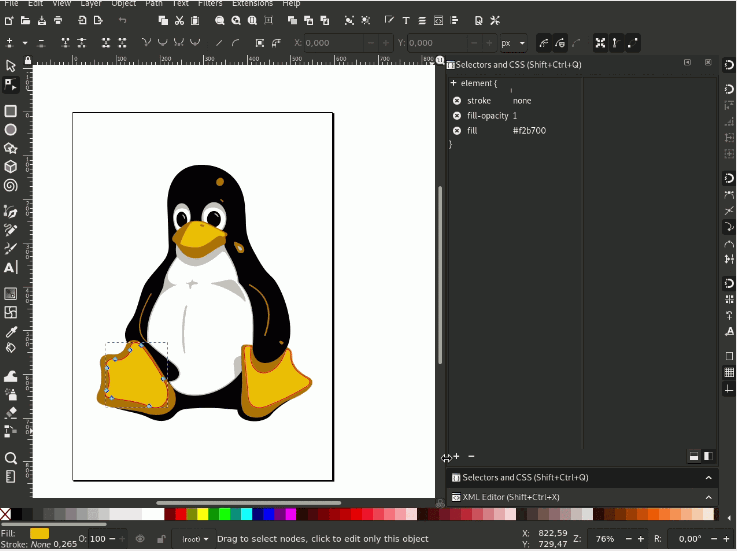
Inkscape is the most powerful free vector graphics editor. Its Trace Bitmap feature can convert raster images to SVG with customizable settings.
Steps to convert image to SVG free with Inkscape:
- Download and install Inkscape (completely free, open-source)
- Open your raster image (File → Open)
- Select the image, then go to Path → Trace Bitmap
- Choose tracking mode: single scan (one path) or multiple scans (per color)
- Adjust settings and click "OK"
- Save as SVG (File → Save As → SVG)
Pros: Full control over tracing, completely free, active community.
Cons: Steep learning curve, interface can feel clunky.
GIMP + Inkscape Workflow
For best results, preprocess your image in GIMP (free Photoshop alternative) to increase contrast and remove background before tracing in Inkscape.
Method 3: Freemium Desktop Software (Free Trial)
Freemium tools offer professional-grade conversion with free trial periods.
Super Vectorizer Pro (Mac & Windows)
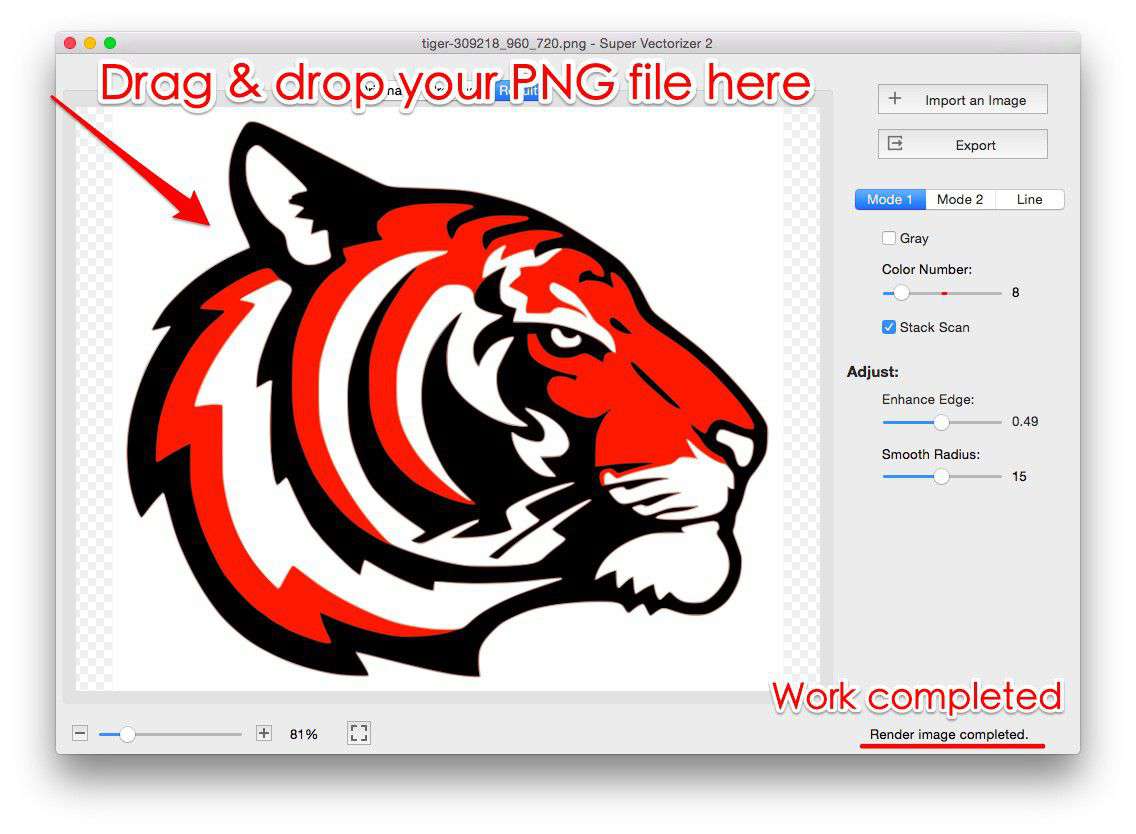
Super Vectorizer Pro is a dedicated raster-to-vector converter with a free trial that lets you preview results instantly. While the trial doesn't export, it's the best way to see professional-grade vectorization before committing.
Key features:
- One-click vectorization with smart algorithm
- Supports 100+ input formats including HEIC and TIFF
- Adjustable detail/smoothing sliders
- Per-image control over trace settings
- Export to SVG, AI, PDF, DXF, EPS
Our Verdict: Best Free Image to SVG Converter
For quick, one-off conversions, free online converters are the most convenient. For regular use or complex images, Inkscape (free) or Super Vectorizer Pro (freemium) deliver significantly better results. The free trial of Super Vectorizer Pro lets you preview professional output before purchasing.
Best Free Online Converter
- No download or installation required
- Works on any device with a browser
- Instant results for simple images
- Good for occasional use
Best Free Desktop Software
- Inkscape: Full-featured, completely free
- Better control over output quality
- No file size or daily limits
- Learning curve but worth it for regular use
Free Image to SVG Converter Comparison
| Tool | Cost | Platform | Best For | Output Quality |
|---|---|---|---|---|
| SVGVector Free Online | Free | Web (any OS) | Quick conversions | ★★★☆☆ |
| Inkscape | Free (Open Source) | Mac/Win/Linux | Regular use, full control | ★★★★☆ |
| Super Vectorizer Pro (Free Trial) | Freemium (free preview) | Mac/Windows | Professional results | ★★★★★ |
| Vectorizer.AI | Free tier + Paid | Web | AI-enhanced conversion | ★★★★☆ |
Step-by-Step: Convert Image to SVG Free (Online Method)
Let's walk through converting a PNG logo to SVG using a free online converter:
- Prepare your image: Crop away irrelevant background, ensure high contrast between subject and background.
- Choose a converter: For this tutorial, we'll use SVGVector's free online converter.
- Upload: Drag your PNG/JPG file into the converter.
- Adjust settings: Set the number of colors (2-3 for logos, more for photos).
- Preview: Check the preview to ensure edges are clean.
- Download: Click download and save your SVG file.
- Optimize: Run the SVG through an optimizer (like SVG Mini) to reduce file size.
Frequently Asked Questions
Can I really convert image to SVG free without watermarks?
Yes. Many free converters (including SVGVector's free online tool) don't add watermarks to converted SVGs. However, some free tiers limit resolution or file size. Always check the output before using it commercially.
What's the best free tool to convert image to SVG on Mac?
For Mac users, Inkscape (free) and SVGVector Free Online are the best free options. If you need professional results, Super Vectorizer Pro offers a free trial that lets you preview vectorization quality before purchasing.
Do free converters support transparent backgrounds?
Most free converters preserve transparency if your source image has a transparent background (PNG with alpha channel). If your image has a white background, use a free tool like Remove.bg to remove the background before converting to SVG.
Why does my free converted SVG look pixelated?
If your SVG looks pixelated, the converter likely embedded the raster image inside an SVG wrapper instead of truly vectorizing it. Use a proper vectorization tool (like Inkscape's Trace Bitmap or Super Vectorizer Pro) to create genuine vector paths.
Ready to Convert Your Images to SVG?
Try Super Vectorizer Pro free trial — preview professional vectorization results instantly. Available for Mac and Windows.
Compatible with macOS 10.10+ (M1/M2/M3) & Windows 7/8/10/11
Related Articles
Try These Free Online Tools
No download required — convert, compress & optimize SVGs right in your browser
Image to SVG Converter
Convert PNG, JPG, BMP to SVG instantly in your browser
PNG to SVG ConverterSVG Compressor
Reduce SVG file size by up to 80% without quality loss
SVG Compressor OnlineSVG Optimizer
Clean SVG code, remove hidden metadata, optimize for web
SVG Optimizer OnlineAll Free Tools
Browse our complete collection of free online converters
Browse All Free Tools