
If you have ever needed to convert 50 PNG logos to SVG, or process 200 product images for your e-commerce site, you already know the pain of doing it one by one. A batch SVG converter automates this entirely — drag in a folder, choose your settings once, and let the software handle the rest. In this guide, we'll cover everything you need to know about bulk image-to-SVG conversion: when to use it, which tools deliver the best results, step-by-step tutorials for both desktop and online workflows, and the trade-offs you need to understand before committing to a solution.
Need to preview vectorization quality on your batch before committing? Try Super Vectorizer Pro free trial to preview results on your own images.
Compatible with macOS 10.10+ (M1/M2/M3) & Windows 7/8/10/11
Our Verdict
Batch conversion saves time but most online tools limit you to one file at a time. Desktop apps handle folders of images without upload limits.
Best for Batch: Super Vectorizer Pro
- Process multiple images through desktop workflow
- No file size or upload limits
- Free trial to preview results
- Consistent settings across all files
Best Online: SVGOMG + Scripts
- Browser-based for single files
- Can chain with command-line tools (SVGO)
- Free and open source
- Manual workflow for batches
What Is a Batch SVG Converter?
A batch SVG converter is a tool that processes multiple raster images (PNG, JPG, BMP, GIF, TIFF, WebP) into SVG vector format in a single automated run. Instead of opening each file individually, adjusting trace settings, and exporting, you configure the conversion parameters once and apply them to an entire folder or ZIP archive.
Batch conversion matters because SVG vectorization is rarely a one-off task in professional workflows. Design agencies, e-commerce businesses, print shops, and web development teams regularly face scenarios where dozens or hundreds of images need conversion. Doing this manually doesn't just waste time — it introduces inconsistency, as different operators may apply different trace settings to similar images.
Who Needs Bulk Image-to-SVG Conversion?
Several types of users benefit significantly from batch SVG converters:
- E-commerce businesses: Converting product catalog images from PNG to SVG for crisp display at any zoom level, reducing bandwidth with smaller file sizes.
- Print shops: Preparing customer-submitted logos (often PNG/JPG) for large-format printing, where raster images would appear pixelated.
- Web development teams: Converting icon sets and UI assets to SVG for sharp rendering on high-DPI (Retina) displays.
- Sign making & CNC shops: Processing vector artwork for cutting machines that require clean SVG paths.
- Game developers: Converting sprite sheets and texture assets to scalable vector format for resolution-independent rendering.
- Marketing agencies: Rebranding projects often require converting an entire library of legacy PNG logos to SVG for modern web use.
Desktop vs Online Batch SVG Converters: Detailed Comparison
The most important decision you'll make is whether to use a desktop application or an online bulk conversion tool. Each has distinct advantages depending on your specific needs.
Desktop App vs Online Batch Converter
Desktop apps offer precision and privacy; online tools offer convenience and zero installation. Here's the detailed breakdown.
Desktop Batch Converter Advantages
- Process unlimited images without file size or count restrictions
- Full control over vectorization parameters (colors, detail level, path accuracy)
- Works offline — no internet required after installation
- Private and secure — files never leave your computer
- Supports more input formats (HEIC, TIFF, PSD, AI)
- Export to multiple formats simultaneously (SVG, PDF, EPS, DXF)
- Preview results before batch export to catch issues early
Online Batch Converter Advantages
- No installation required — works in any browser
- Accessible from any device (including Chromebooks and tablets)
- Often free for small batches
- No system requirements — works on low-spec computers
- Easy sharing — send a link instead of transferring files
Comparison Table: Desktop vs Online Batch SVG Conversion
| Feature | Desktop App (Super Vectorizer Pro) | Online Batch Tool | Winner |
|---|---|---|---|
| Privacy/Security | Files stay on your computer | Files uploaded to server | Desktop |
| Batch Size Limit | Unlimited | Typically 10-50 files | Desktop |
| Output Quality Control | Full parameter control | Limited presets | Desktop |
| Setup Time | 5-10 minutes (install) | 0 minutes | Online |
| Internet Required | No | Yes | Desktop |
| Cost (1000 images) | One-time license | Subscription or per-image fee | Desktop |
How to Batch Convert Images to SVG on Mac (Step-by-Step)
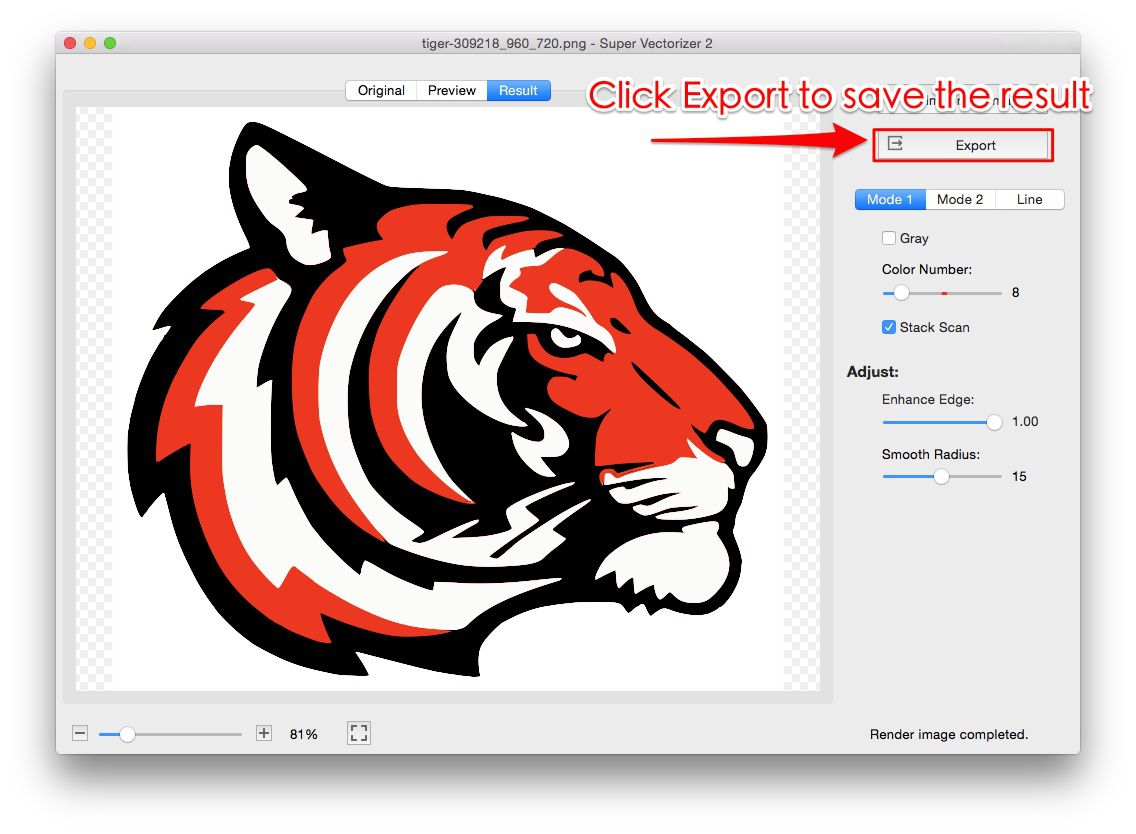
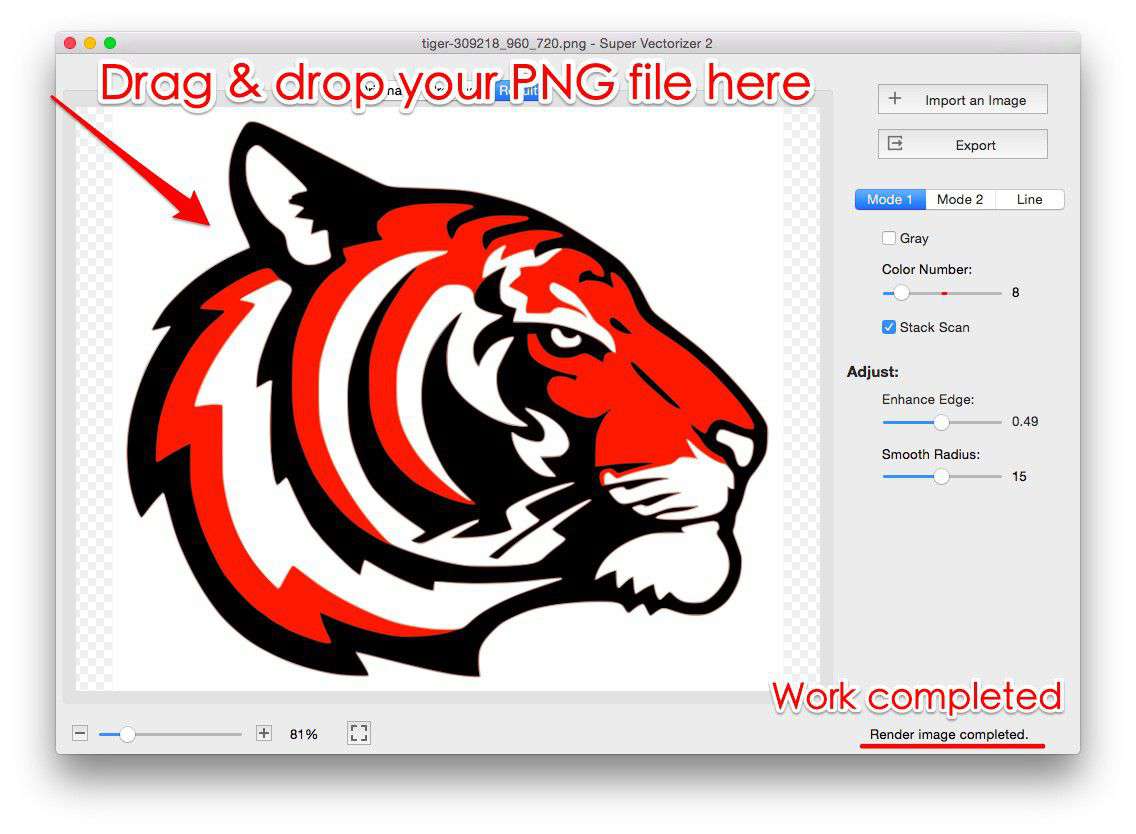
Super Vectorizer Pro for Mac does not support batch processing, but you can use it to preview vectorization quality on individual images from your batch. Here's how to evaluate one file at a time:
Step 1: Download and Install
Download Super Vectorizer Pro for Mac from the official website. The free trial allows you to preview vectorization results on one image at a time before purchasing — you can verify quality on your actual images before committing.
Step 2: Prepare Your Image Folder
Organize all images you want to convert into a single folder. The online image vectorizerer works best when images are similar in type (e.g., all logos, or all product photos) because you can apply the same trace settings to all of them.
Step 3: Open Super Vectorizer Pro and Preview One Image
Launch the application and look for the batch processing option. Select your prepared folder, and the app will load all compatible images.
Step 4: Configure Vectorization Settings
This is the most important step. Choose the number of colors for vectorization (1-40+), the detail level, and the output format. For logos, 2-6 colors usually produces the cleanest results. For photographs, higher color counts preserve more detail.
Step 5: Preview Individual Results
Before running the full batch, preview a few representative images to ensure the settings produce the desired output. Adjust if needed.
Step 6: Run Batch Conversion
Click "Start Batch" and let the software process all images. Progress is shown in real-time. After processing, you can export the vectorized results.
How to Batch Convert Images to SVG on Windows
The Windows version of Super Vectorizer Pro follows a similar workflow. The key difference is in the user interface layout, optimized for Windows usability patterns. All the same vectorization algorithms are available, but files are processed one at a time.
Online Batch SVG Converters: How They Work
Online batch converters use server-side processing. You upload your images (or a ZIP file), the server runs vectorization algorithms on each image, and you download the results as individual SVG files or a ZIP archive. Popular online options include Vector Magic batch (paid subscription), VectoSolve batch, and various free tools with limitations.
The main limitation of online batch converters is the trade-off between convenience and control. You typically can't fine-tune the vectorization parameters for each image type, and large batches may be rejected or throttled.
Best Practices for Batch SVG Conversion
To get the best results from any batch SVG converter, follow these guidelines:
- Group similar images together: Logos, photos, line art, and screenshots each need different trace settings. Create separate batches for each type.
- Start with a test batch: Run 5-10 representative images first to verify settings before processing hundreds.
- Check edge cases: Images with very fine details, gradients, or unusual color palettes may need manual adjustment after batch processing.
- Use consistent naming: Batch converters typically preserve filenames. Make sure your source files are named logically before conversion.
- Consider output format: SVG is best for web use. If you also need PDF or EPS for print, choose a tool that can export multiple formats in one pass.
Common Batch Conversion Problems and Solutions
Even with the best batch SVG converter, you may encounter issues. Here's how to handle the most common ones:
Problem: Inconsistent Quality Across Images
Cause: Images have different characteristics (some are high contrast, some have gradients, some have fine details).
Solution: Split into sub-batches by image type and apply appropriate settings to each group.
Problem: File Size Too Large After Conversion
Cause: High-detail images produce SVGs with thousands of paths.
Solution: Reduce the color count or detail level in trace settings. Then use an SVG compressor (like SVG Compressor Online) to further reduce file size.
Problem: Some Images Don't Convert Properly
Cause: Corrupted source files, unsupported formats, or images that are too small/low resolution.
Solution: Remove problematic images from the batch and process them individually with custom settings.
When to Choose Desktop Over Online for Batch Conversion
Choose a desktop batch SVG converter when:
- You're processing sensitive or confidential images (NDAs, unreleased products)
- You have more than 50-100 images to convert
- You need precise control over output quality
- You'll be doing batch conversion regularly (not a one-time task)
- Your images are large (over 5MB each) or numerous (thousands)
Choose an online batch converter when:
- You have fewer than 20 images and don't want to install software
- The images are not sensitive (no confidentiality concerns)
- You're doing a one-time conversion and may never need it again
- You're on a device where you can't install software (school computer, work laptop with restrictions)
SVG Batch Conversion for Specific Use Cases
For Cricut and Laser Cutting
When batch converting for cutting machines, pay special attention to path cleanliness. Cricut Design Space and laser cutter software struggle with SVGs that have too many nodes or overlapping paths. After batch conversion with your chosen tool, review files for clean, cut-ready paths. If an individual file needs cleanup, Super Vectorizer Pro's "automatic tracing" mode typically produces clean paths suitable for cutting.
For Web Use
Batch-converted SVGs for web use should be optimized after conversion. Run them through an SVG optimizer to remove redundant metadata, collapse unnecessary groups, and reduce file size without losing visual quality.
For Print
Print workflows often need PDF or EPS output, not just SVG. Choose a batch converter that can export to multiple vector formats simultaneously to avoid re-processing.
Future of Batch SVG Conversion: What's Coming in 2026-2027
Batch SVG conversion is evolving rapidly. Expect these developments in the near future:
- AI-powered parameter selection: Tools that automatically detect the optimal trace settings for each image in a batch, eliminating the need for manual configuration.
- Cloud-desktop hybrid: Desktop apps that offload heavy batch processing to the cloud when local resources are insufficient, while maintaining privacy through end-to-end encryption.
- Format-aware conversion: Batch converters that detect the source format (PNG vs JPG vs HEIC) and automatically adjust trace strategy for optimal results.
- Integrated optimization: Batch conversion followed by automatic SVG optimization (path simplification, metadata removal) in a single workflow.
Frequently Asked Questions
Can I batch convert images to SVG for free?
Some online tools offer free batch conversion for small numbers of images (typically 5-20). For larger batches or professional quality, desktop software provides better results and more control. Super Vectorizer Pro offers a free trial that lets you preview vectorization results on individual files before purchasing.
How long does batch SVG conversion take?
Processing time depends on the number of images, their size, and the complexity of the vectorization. A desktop app on a modern Mac or Windows computer can typically process 100 medium-sized PNGs in 3-8 minutes. Online tools may take longer due to upload time and server queue delays.
Will batch conversion preserve image quality?
SVG vectorization preserves the visual appearance of your images at any scale. However, the quality of the vectorization depends on the trace settings. Batch conversion applies the same settings to all images, so some images may need individual adjustment for optimal results. Previewing results before the full batch run helps catch quality issues early.
What's the best format to use after batch conversion?
SVG is the best format for web use, editing in vector graphics software, and most modern applications. If you need the vectors for print, also export to PDF or EPS. Super Vectorizer Pro can export the current image to SVG, PDF, EPS, or DXF, so you can pick the right format for each use case.
Can I batch convert HEIC or TIFF images to SVG?
Yes, but support depends on the converter. Super Vectorizer Pro for Mac supports HEIC (native to macOS) and TIFF as input formats for conversion. Many online tools only accept PNG and JPG, so check format support before choosing a tool.
Ready to Batch Convert Your Images to SVG?
Super Vectorizer Pro lets you preview vectorization results on your own images with a free trial. Configure once, apply to hundreds — desktop-grade quality and privacy.
Compatible with macOS 10.10+ (M1/M2/M3) & Windows 7/8/10/11
Related Articles
Try These Free Online Tools
No download required — convert, compress & optimize SVGs right in your browser
PNG to SVG Converter
Convert PNG, JPG, BMP images to scalable vector graphics instantly
PNG to SVG ConverterSVG Compressor (Mini)
Reduce SVG file size by up to 80% without losing quality
SVG Compressor OnlineSVG Optimizer
Clean up SVG code, remove redundant data and optimize for web
SVG Optimizer OnlineJPG to SVG Converter
Turn JPEG photos into crisp vector artwork in seconds
JPG to SVG ConverterEPS to SVG Converter
Convert EPS vector files to web-friendly SVG format
EPS to SVG ConverterAll Free Tools
Browse our complete collection of free online conversion tools
Browse All Free Tools