
Choosing the best SVG converter in 2026 isn't as simple as picking the first tool that appears in search results. With the rise of AI-powered vectorization, the growing capabilities of desktop applications, and an expanding ecosystem of free online tools, the landscape has never been more competitive — or more confusing.
Whether you're a graphic designer preparing logos for client delivery, a Cricut hobbyist creating cut files, an engineer converting technical drawings, or a web developer optimizing SVG assets for performance, the tool you choose directly impacts the quality of your output and the efficiency of your workflow.
In this comprehensive guide, we tested five of the most popular SVG conversion tools available in 2026: Super Vectorizer Pro (Mac & Windows desktop app), Vector Magic (desktop + online), Adobe Illustrator (industry standard), Inkscape (open source), and several leading online converters. We evaluated each on conversion quality, format support, ease of use, processing speed, and overall value.
Want to see the difference for yourself? Try Super Vectorizer Pro free trial to preview vectorization results on your own images.
Compatible with macOS 10.10+ (M1/M2/M3) & Windows 7/8/10/11
How We Tested the Best SVG Converters in 2026
To provide an objective comparison, we tested each tool with a standardized set of six images representing common real-world use cases:
- Corporate logo (PNG with transparent background, 400×400px)
- Photograph (JPG landscape, 1920×1080px, complex gradients)
- Line art (PNG hand-drawn sketch, 1200×1200px)
- Icon set (PNG 64×64px favicon)
- Text-heavy image (PNG screenshot with small text)
- Multi-color illustration (PNG digital art with 20+ colors)
Each tool was rated on five criteria (scale 1-10):
| Criteria | Weight | Description |
|---|---|---|
| Vector Quality | 35% | Smoothness of curves, accuracy of colors, preservation of details |
| Format Support | 20% | Number of input formats accepted (PNG, JPG, BMP, TIFF, PDF, etc.) |
| Ease of Use | 15% | Learning curve, UI clarity, number of clicks to complete conversion |
| Speed | 15% | Processing time for a 1200×1200px image |
| Value | 15% | Price relative to features and output quality |
1. Super Vectorizer Pro — Best Desktop App for Mac & Windows
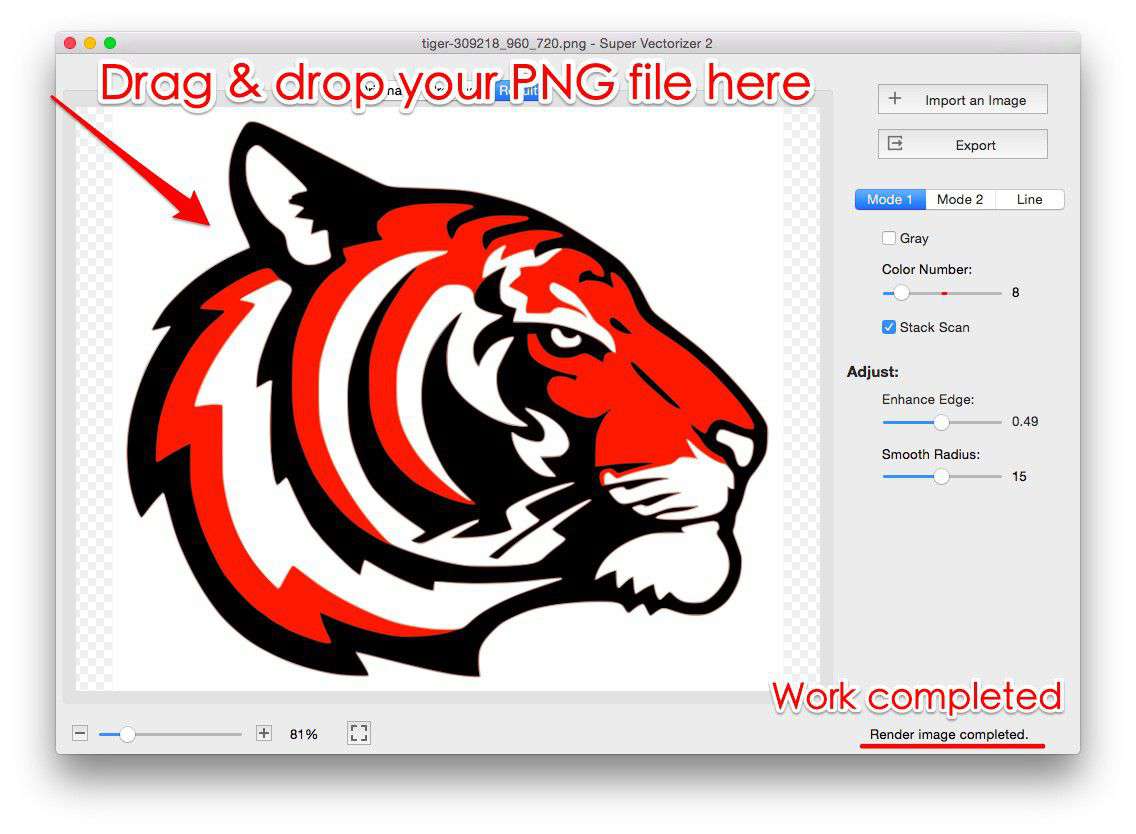
Super Vectorizer Pro is a dedicated vector conversion application for macOS and Windows. Unlike general-purpose design tools, it's built specifically for the task of converting raster images (PNG, JPG, BMP, TIFF, GIF, and more) into clean, scalable SVG files.
What We Liked
- Excellent vector quality — The proprietary tracing algorithm produces smooth curves even on challenging images like hand-drawn sketches
- Broad format support — Converts PNG, JPG, BMP, TIFF, GIF, TGA, and more to SVG, PDF, DXF, AI, and EPS output formats
- Color depth control — Adjustable color slider lets you fine-tune the level of detail in the output SVG
- Per-image control — Tune color count and smoothing for each file (better results on tricky artwork)
- Transparent background handling — Correctly preserves alpha transparency in PNG inputs
- No internet required — All processing happens locally on your machine (better privacy and speed)
What Could Be Better
- Trial version allows previewing results but does not export (you can evaluate quality before purchasing)
- Interface is functional but not as polished as Adobe Illustrator
Best For
Designers and small businesses who need reliable, high-quality vector conversions on a regular basis — especially those working with logos, icons, and line art. The cross-platform support (Mac + Windows) makes it accessible to most users.
2. Vector Magic — The Established Competitor
Vector Magic has been a well-known name in vector conversion for over a decade. It offers both a desktop application and an online converter, giving users flexibility in how they work.
What We Liked
- Good vector quality — Produces clean results on logos and simple graphics
- Online version available — No installation required for quick conversions
- Step-by-step wizard — Guides beginners through the conversion process
What Could Be Better
- Online version has file size limits — Free tier limited to small images
- Pricing — Subscription model can be expensive for occasional users
- Slower development — Fewer updates and new features compared to newer tools
Best For
Users who want a well-established tool and don't mind a subscription cost. The online version is convenient for one-off conversions.
3. Adobe Illustrator — The Professional's Choice
Adobe Illustrator is the industry-standard vector graphics editor. Its Image Trace feature can convert raster images to vectors, and because it's a full design tool, you have complete control over the output.
What We Liked
- Maximum control — Adjust every parameter of the tracing process
- Integrated workflow — Trace and edit in the same application
- Excellent for complex artwork — When manually adjusted, can produce the best possible results
What Could Be Better
- Steep learning curve — Not beginner-friendly
- Expensive — Requires an Adobe Creative Cloud subscription ($22.99/month as of 2026)
- Overkill for simple conversions — Using Illustrator just to convert a PNG to SVG is like using a professional camera to take a quick selfie
Best For
Professional designers who already use Adobe Creative Cloud and need to integrate vector conversion into a larger design workflow.
4. Inkscape — The Best Free Option
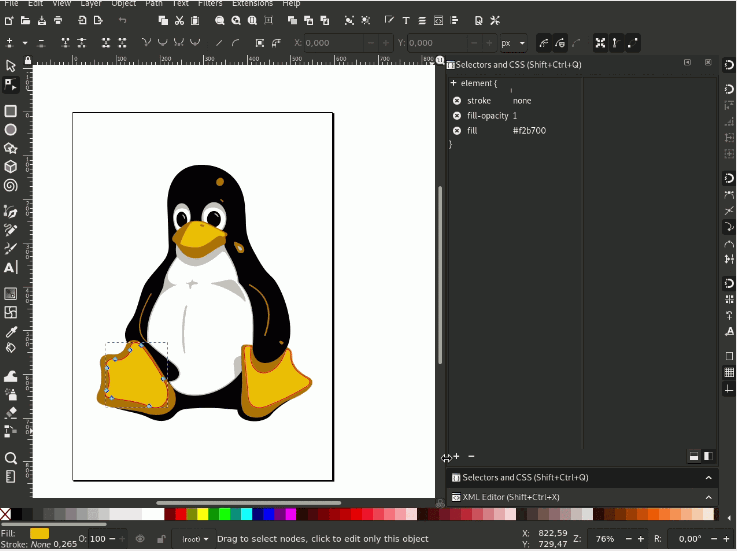
Inkscape is a free, open-source vector graphics editor. Its "Trace Bitmap" feature uses Potrace to convert raster images to SVG paths. It's capable software, but it requires patience to learn.
What We Liked
- Completely free — No cost, no watermarks, no limits
- Cross-platform — Runs on Linux, Windows, and macOS
- Active community — Extensive tutorials and forums
What Could Be Better
- Interface feels dated — Not as polished as commercial alternatives
- Steep learning curve — Many menus and options to understand
- Limited color tracing — Potrace (the underlying engine) handles black-and-white tracing well but struggles with color images
Best For
Budget-conscious users who don't mind investing time in learning a new tool. Also good for Linux users who don't have access to commercial Mac/Windows software.
Side-by-Side Comparison: Best SVG Converters 2026
| Feature | Super Vectorizer Pro | Vector Magic | Adobe Illustrator | Inkscape |
|---|---|---|---|---|
| Platform | Mac + Windows | Desktop + Online | Mac + Windows | Mac + Win + Linux |
| Price | One-time purchase | Subscription | Subscription | Free (Open Source) |
| Batch Processing | Yes Best | Limited | Yes (via actions) | Yes (via extensions) |
| Color Tracing Quality | Excellent | Good | Excellent (manual adjust) | Fair |
| Learning Curve | Easy | Easy | Steep | Steep |
| Output Formats | SVG, PDF, DXF, AI, EPS | SVG, EPS, PDF | All major formats | SVG, PDF, EPS, PNG |
| Overall Score | 8.7/10 | 7.9/10 | 8.3/10 | 7.2/10 |
Our Verdict: Which SVG Converter Should You Choose?
The best SVG converter depends on your specific needs, budget, and technical comfort level. Here's our recommendation for different user types.
Choose Super Vectorizer Pro if...
- You want the best balance of quality, ease of use, and price
- You want to fine-tune each conversion instead of applying one setting to everything
- You work on both Mac and Windows
- You want a one-time purchase (no subscription)
- You need multiple output formats (SVG, PDF, DXF, AI, EPS)
Choose Alternatives if...
- You already have an Adobe Creative Cloud subscription (use Illustrator)
- You have zero budget and plenty of time (try Inkscape)
- You only need to convert one image occasionally (use an online tool)
- You need advanced design editing beyond conversion (use Illustrator or Inkscape)
How to Choose the Best SVG Converter for YOUR Needs
Beyond our top picks, here are the key questions to ask when evaluating any SVG converter:
1. What file formats do you need to convert?
Not all converters support all input formats. If you work with TIFF files from a professional camera, or HEIC files from an iPhone, check that your chosen tool supports them. Super Vectorizer Pro supports 100+ input formats, making it one of the most versatile options.
2. Do you need batch processing?
If you have hundreds of images to convert, doing them one-by-one in an online tool will take forever. Dedicated batch applications or scripts can process an entire folder in minutes. Super Vectorizer Pro focuses on high-quality one-at-a-time vector tracing.
3. What's your budget?
Free tools like Inkscape or online converters are fine for occasional use. But if you convert images weekly, a one-time purchase of $30-50 for a dedicated tool will pay for itself in time saved within a month.
4. How important is privacy?
Online converters require uploading your images to a server. For sensitive or confidential images (client logos, unreleased product designs), a desktop application that processes files locally is the safer choice.
Frequently Asked Questions
What is the best free SVG converter in 2026?
Inkscape is the best free desktop application for SVG conversion. For quick online conversions without installing software, Vector Magic's online tool and Adobe Express (free tier) are popular options. However, free tools often have limitations — file size caps, watermarks, or lower output quality. For professional results, a dedicated paid tool like Super Vectorizer Pro is worth the investment.
Can I convert PNG to SVG without losing quality?
SVG is a vector format, while PNG is a raster (pixel-based) format. Converting PNG to SVG doesn't "preserve" quality — it recreates the image using mathematical paths. The quality of the conversion depends on the tool's tracing algorithm. Good converters like Super Vectorizer Pro produce smooth, accurate vectors that look crisp at any size, but they can't recover detail that wasn't in the original PNG.
Is there a completely free SVG converter with no watermarks?
Yes — Inkscape is completely free and open-source, with no watermarks, no file size limits, and no registration required. It runs on Windows, macOS, and Linux. The main downside is the learning curve; it's not as intuitive as commercial alternatives. For a simpler free option, online converters like SVGConverter.com offer free tiers, though they may add watermarks to output files or limit the number of daily conversions.
What's the best SVG converter for Cricut?
For Cricut users, the most important factor is clean SVG paths that won't cause cutting problems. Super Vectorizer Pro produces clean, simplified paths that work well with Cricut Design Space. Inkscape is also a good free option. Avoid online converters that produce overly complex paths with thousands of nodes — these can cause Cricut to struggle or produce jagged cuts. For a detailed guide on Cricut-specific SVG conversion, see our Cricut SVG converter guide.
Ready to Convert Your Images to SVG?
Try Super Vectorizer Pro free trial to preview vectorization results on your own images. See the quality for yourself before purchasing.
Compatible with macOS 10.10+ (M1/M2/M3) & Windows 7/8/10/11
Related Articles
Try These Free Online Tools
No download required — convert, compress & optimize SVGs right in your browser
PNG to SVG Converter
Convert PNG, JPG, BMP images to scalable vector graphics instantly
PNG to SVG ConverterSVG Compressor (Mini)
Reduce SVG file size by up to 80% without losing quality
SVG Compressor OnlineSVG Optimizer
Clean up SVG code, remove redundant data and optimize for web
SVG Optimizer OnlineJPG to SVG Converter
Turn JPEG photos into crisp vector artwork in seconds
JPG to SVG ConverterEPS to SVG Converter
Convert EPS vector files to web-friendly SVG format
EPS to SVG ConverterAll Free Tools
Browse our complete collection of free online conversion tools
Browse All Free Tools