
BMP (Windows Bitmap) is one of the oldest image formats still in use. If you've ever received a logo, clip art, or scanned image as a .bmp file, you've probably noticed two things: the file is huge, and it looks terrible when you try to resize it. That's because BMP is a raster format — it stores images as a grid of pixels, with no scalability. Converting BMP to SVG (Scalable Vector Graphics) solves both problems: the file size drops dramatically, and the image becomes infinitely scalable. In this guide, we'll cover every method to convert BMP to SVG — from free online converters to professional desktop software like Super Vectorizer Pro.
Ready to convert your BMP files? Try Super Vectorizer Pro free trial to preview vectorization results.
Compatible with macOS 10.10+ (M1/M2/M3) & Windows 7/8/10/11
Why Convert BMP to SVG?
BMP was designed in the 1980s for a world of 640×480 monitors. Today, it's a format you'll encounter mostly with legacy software, Windows clipboard outputs, and some specialized equipment. Here's why converting to SVG makes sense:
| Feature | BMP (Raster) | SVG (Vector) |
|---|---|---|
| File Size (same image) | 5-20 MB (uncompressed) | 50-500 KB |
| Scalability | Pixelates when resized | Infinite (mathematical paths) |
| Web Use | Poor (large, slow) | Excellent (small, fast) |
| Editing | Requires pixel editing (Photoshop) | Editable in any vector app (Illustrator, Inkscape) |
| Cricut / Laser Use | Requires tracing in-app | Ready to cut (clean paths) |
Method 1: Super Vectorizer Pro (Best for Quality)
Super Vectorizer Pro is a desktop application for Mac and Windows that converts raster images (including BMP) to SVG and other vector formats. It's the best choice when you need consistent, high-quality results across multiple files.
Step 1: Open Your BMP File
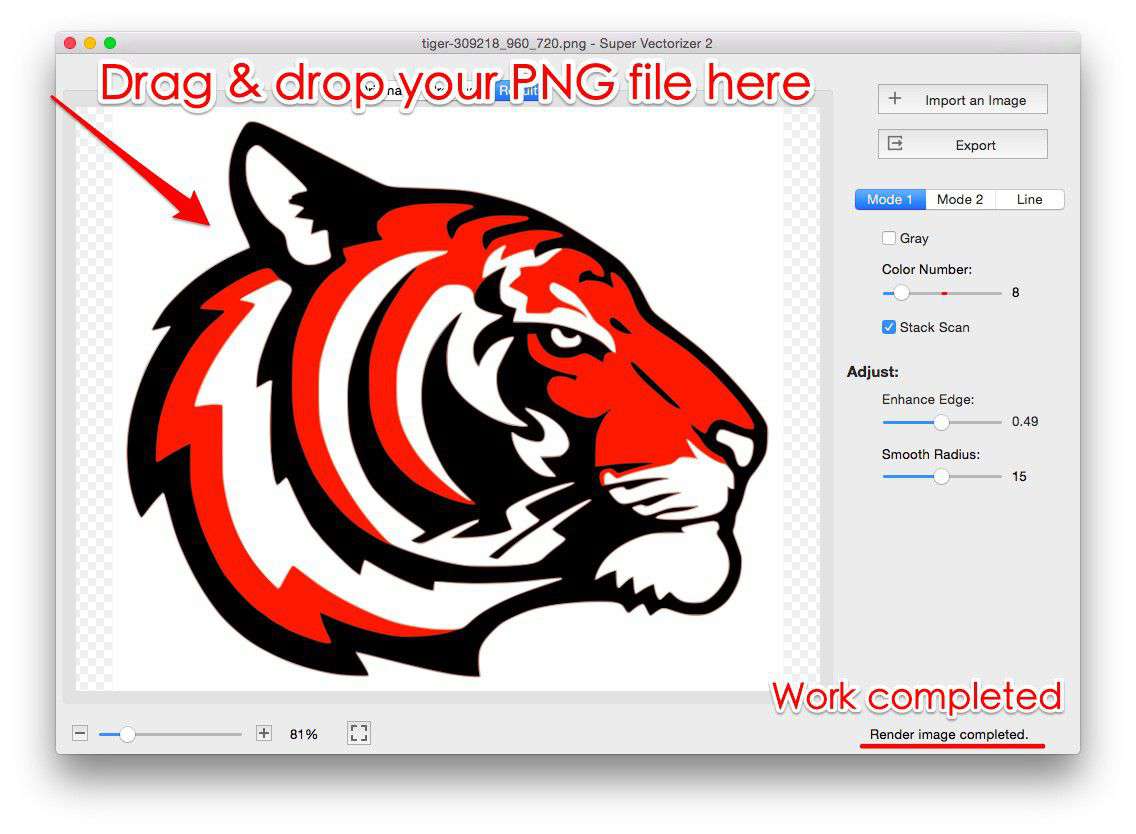
Launch Super Vectorizer Pro and drag your BMP file into the window. The app supports 24-bit and 32-bit BMP files. If your BMP has transparency (32-bit), the app preserves it during conversion.
Step 2: Select Trace Mode
For BMP files, the most effective modes are:
- Auto-detect: The app analyzes the image and picks the best mode automatically. Good starting point.
- Line Art / Black & White: Best for logos, text, and silhouettes with few colors.
- Full Color: Best for clip art, icons, and images with multiple colors.
Step 3: Adjust Detail Level
Use the detail slider to control how closely the vector follows the original BMP. Higher detail = more nodes. For web use, a medium setting usually produces the best balance of quality and file size. For cutting applications (Cricut, laser), lean toward lower detail to keep paths smooth.
Step 4: Preview and Refine
The preview panel shows exactly what the SVG will look like. Zoom in to check small details. If edges look jagged, increase the detail slightly. If there are too many tiny nodes, decrease it.
Step 5: Export
Choose SVG as the output format and click export. Note: the free trial allows you to preview results — export requires the full version. This lets you verify quality before purchasing.
Method 2: Free Online BMP to SVG Converters
If you only have a few BMP files to convert, online tools are convenient. SVGVector's free online converter supports BMP uploads and outputs SVG directly in your browser.
Advantages of online converters:
- No software installation required
- Works on any operating system (including ChromeOS and Linux)
- Instant access — no registration needed for basic use
Limitations to be aware of:
- File size limits (typically 5-10 MB per file)
- BMP files are often large — you may need to compress the BMP first
- Less control over output quality compared to desktop software
- Requires uploading files to a server (privacy consideration for sensitive images)
Method 3: Inkscape (Free Desktop Software)
Inkscape is a free, open-source vector graphics editor that includes a "Trace Bitmap" feature. It's more capable than online converters but has a steeper learning curve than Super Vectorizer Pro.
Inkscape workflow for BMP to SVG:
- Open Inkscape and import your BMP (File → Import)
- Select the imported image and go to Path → Trace Bitmap
- Choose "Brightness cutoff" for black-and-white images, or "Colors" for multi-color images
- Adjust the "Scans" (color levels) and "Smooth" settings
- Click "OK" — Inkscape creates a vector path on top of your image
- Delete the original BMP layer, then save as SVG (File → Save As → Plain SVG)
Inkscape is powerful but the trace results often require manual cleanup — especially for detailed BMP images. Super Vectorizer Pro's advantage is producing cleaner paths with less manual work.
Which BMP to SVG Method Should You Use?
Choose based on how many files you have and how much control you need over the output quality.
Use Super Vectorizer Pro when:
- You want control over trace settings for each file
- You need print-quality vectors (high detail preservation)
- You want clean paths with minimal node count
- You work with BMP files regularly
- You need multiple output formats (SVG, PDF, DXF, AI)
Use Online / Inkscape when:
- You have 1-2 BMP files (one-off conversion)
- File size is under 5 MB
- You don't mind manual cleanup of paths
- You can't install desktop software
- You're converting simple, high-contrast images
BMP to SVG for Specific Use Cases
For Web Design
After converting BMP to SVG, run the SVG through an optimizer like SVG Compressor Online to remove redundant data. A BMP that started at 8 MB can often become a 80 KB SVG — a 99% size reduction that loads instantly on websites.
For Cricut / Cutting Machines
BMP files with sharp contrasts (black text on white, silhouettes) convert best. After BMP-to-SVG conversion, import the SVG into Cricut Design Space and use the "Contour" tool to hide any internal paths you don't want to cut.
For Print
Vectorized BMPs print at any size without quality loss. This is especially valuable for logos that were only available as BMP files. Convert to SVG, then export to PDF or EPS for professional printing.
BMP → SVG: Format-Specific Conversion Notes
- Uncompressed = huge. A BMP stores every pixel raw, so a 4000×4000 BMP can exceed 50 MB. The converter downsamples the longest edge to 1500 px before tracing, so upload a reasonably sized BMP or pre-resize to keep the upload fast.
- Bit depth matters. 24-bit BMP (no alpha) and 32-bit BMP (with alpha) trace differently. 32-bit transparency is preserved in the SVG; 1-bit/4-bit indexed BMPs may show banding that Filter speckles can clean up.
- Scans and faxes. BMP is the default export of many scanners and fax tools. These are often high-contrast black-on-white — ideal for the B&W preset with adaptive binarization. Raise Filter speckles to drop paper texture and speckles.
- Legacy software. Many Windows clipboard outputs and old design tools emit BMP. Converting to SVG shrinks the file dramatically (often 90%+ smaller) and makes it editable in any vector app.
Frequently Asked Questions
Can I convert a BMP to SVG without losing quality?
Yes — but with an important caveat. Vectorization creates a mathematical representation of your image, not a pixel-perfect copy. For logos, text, and illustrations (the most common BMP use cases), the SVG will actually look better than the original BMP because it's resolution-independent. For photographs, vectorization produces a stylized result (like a painting) rather than a photo-realistic one. If you need to preserve photo realism, SVG isn't the right format — use PNG or WebP instead. For logos, clip art, and line art, BMP-to-SVG conversion with Super Vectorizer Pro produces excellent quality that surpasses the original.
Why is my BMP file so large, and does that affect conversion?
BMP uses no compression — every pixel is stored as raw data. A 1000×1000 pixel BMP at 24-bit color depth is always exactly 3 MB, regardless of image content. This doesn't directly affect conversion quality, but it makes uploading to online converters slow or impossible. Before converting, consider resizing the BMP to your actual use dimensions (e.g., if you only need a 500×500 pixel SVG, resize the BMP first). Super Vectorizer Pro handles large BMPs locally, so file size is less of a concern with the desktop app.
Can I batch convert multiple BMP files to SVG at once?
No. Super Vectorizer Pro processes one BMP file at a time. For true batch conversion, use an online batch converter, CloudConvert, or an Inkscape script. Super Vectorizer Pro is better suited when you want to preview and refine each image individually.
What if my BMP has transparency — will the SVG preserve it?
It depends on the converter. 32-bit BMP files can include an alpha channel (transparency). Super Vectorizer Pro preserves transparency during conversion — the resulting SVG uses SVG's native transparency support. Free online converters vary: some flatten transparency to white, others preserve it. If transparency is important for your use case, test with a small file first or use the desktop app for guaranteed results. After conversion, you can verify transparency by opening the SVG in any modern browser — transparent areas will show the page background.
Convert BMP to SVG with Professional Results
Super Vectorizer Pro handles BMP, PNG, JPG, TIFF, WebP, and more — with full format support and precise control. Try the free trial and preview your results.
Compatible with macOS 10.10+ (M1/M2/M3) & Windows 7/8/10/11
Related Articles
Try These Free Online Tools
No download required — convert, compress & optimize SVGs right in your browser
PNG to SVG Converter
Turn PNG images into crisp vector artwork in seconds
Free OnlineSVG Compressor (Mini)
Reduce SVG file size by up to 80% without losing quality
Free OnlineJPG to SVG Converter
Convert JPEG photos to scalable vector format
Free OnlineEPS to SVG Converter
Convert EPS illustrations to scalable vector graphics
Free OnlineAll Free Tools
Browse our complete collection of free online conversion tools