
You have a raster image — a PNG create an SVG logo from an image, a JPG photo, or a BMP icon — and you need to turn it into a clean, scalable SVG file. Maybe you want to use it on a website and need it to look crisp at any size. Maybe you are preparing files for a Cricut cutter or a Glowforge laser. Or maybe you just want Smaller file sizes and infinite scalability.
Whatever your reason, creating SVG from an image is a process called vectorization (or image tracing). It converts the pixel-based raster data of your image into mathematical paths that can scale to any size without quality loss. This guide covers every major method to create SVG from image in 2026 — from free online tools you can use in your browser, to professional desktop software for Mac and Windows.
Ready to create SVG files from your images? Try Super Vectorizer Pro free trial to preview vectorization results instantly.
Compatible with macOS 10.10+ (M1/M2/M3) & Windows 7/8/10/11
Understanding the Vectorization Process
Before jumping into tools, it helps to understand what "creating SVG from image" actually involves. When you vectorize an image, software analyzes the raster pixels and attempts to trace them with vector paths. The quality of the result depends on several factors:
Image Type Matters
- Logos and icons (solid colors, sharp edges): These vectorize exceptionally well. The paths are clean, the file size stays small, and the result looks identical to the original at any scale.
- Line art and sketches (black lines on white background): Also vectorize very well. The high contrast makes it easy for software to identify paths accurately.
- Photographs (continuous tones, complex gradients): These are the hardest to vectorize well. A photograph converted to SVG will either look like a low-quality JPEG (if saved as an embedded raster image inside SVG) or turn into an unrecognizable mosaic of color patches (if fully traced). For photos, SVG is usually not the right format.
- Screenshots and UI mockups: These can work well if they have flat colors and clear boundaries. The result is often useful for web design workflows.
Vectorization Methods
There are two broad approaches to creating SVG from image:
- Automatic tracing: The software analyzes the image and generates vector paths automatically. This is fast and works well for logos, icons, and line art. All the tools covered in this guide use automatic tracing.
- Manual tracing: A designer manually draws vector paths over the image, typically using Adobe Illustrator's Pen tool. This gives the best results but takes significant time and skill. Manual tracing is only necessary for complex artwork where automatic tracing produces unacceptable results.
Our Verdict: Best Method by Use Case
For most users creating SVG from images, Super Vectorizer Pro (desktop) gives the best balance of quality and ease of use. For quick one-off conversions, SVG Mini Online (free, browser-based) is the fastest option. For photographs or highly detailed artwork, consider whether SVG is truly the right format before investing time in vectorization.
Desktop App (Super Vectorizer Pro)
- Full control over detail and color settings
- Tune settings per image for cleaner results
- Supports 40+ input formats (PNG, JPG, BMP, WebP, TIFF, etc.)
- Preview results before exporting
- Export to SVG, PDF, AI, DXF, and more
Free Online Tools
- No installation required
- Completely free for basic use
- Works on any operating system
- Good for simple logos and icons
- No advanced settings or batch processing
Method 1: Create SVG from Image with Super Vectorizer Pro (Mac & Windows)
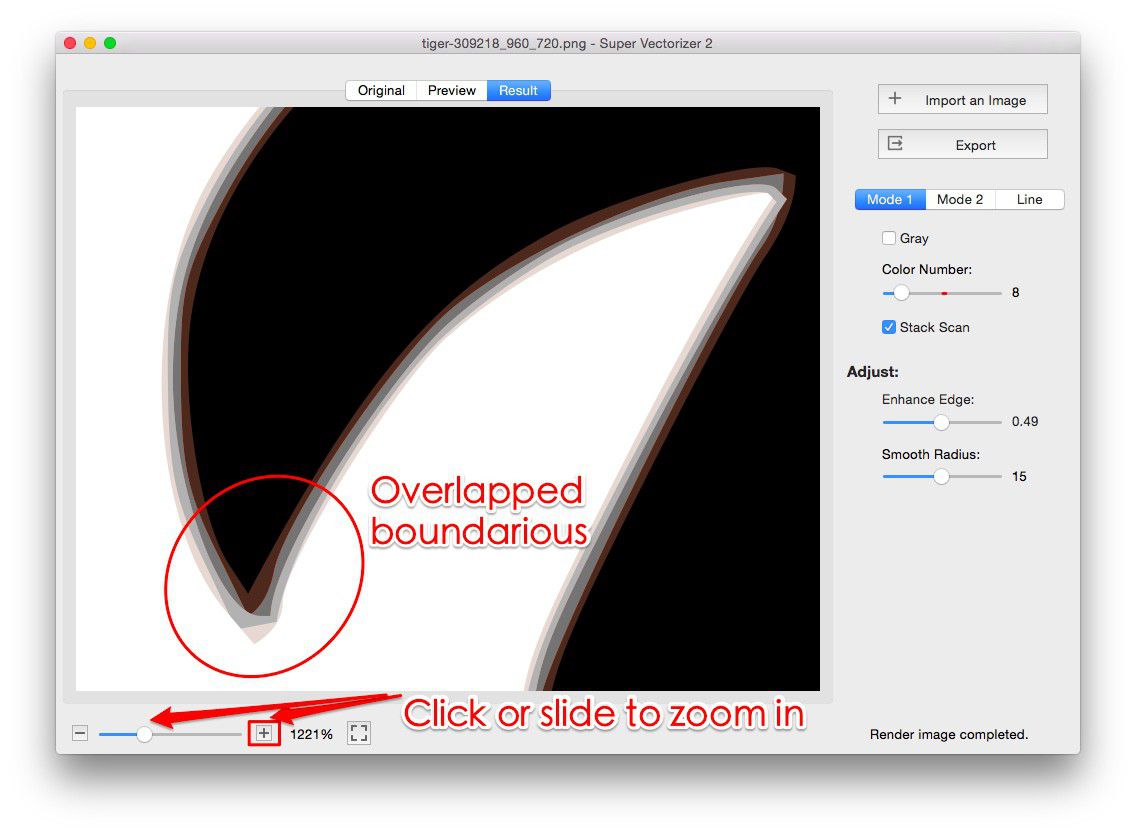
Super Vectorizer Pro is a desktop vectorization application for macOS and Windows. It is purpose-built for converting raster images into clean SVG (and other vector) files. Here is the complete step-by-step process:
- Download and install Super Vectorizer Pro from the official website. The free trial lets you preview vectorization results for any image.
- Open your image. Drag and drop your PNG, JPG, BMP, or other raster file directly into the Super Vectorizer Pro window. The software immediately begins analyzing the image.
- Choose a vectorization type. Super Vectorizer Pro offers several modes:
- Full Color — preserves all colors in the original image
- Full Color (No Background) — same as above but removes the background
- Black and White — best for line art and sketches
- Colorful — optimized for logos and icons with distinct color regions
- Adjust the Detail Slider. This controls how closely the vector paths follow the original image. Higher detail = more anchor points = larger file size. For most web use, a medium setting gives the best balance.
- Preview the result. Zoom in to check that edges are clean and details are preserved. The free trial lets you preview the full result so you can verify quality before purchasing.
- Export to SVG. Once you are satisfied with the preview, purchase unlocks the export function. Choose SVG as the output format, pick a save location, and click Export.
Method 2: Create SVG from Image with Free Online Tools
If you only need to convert an image occasionally, or you are on a device where you cannot install software, free online converters are a good option. Here are the best ones in 2026:
SVG Mini Online (Recommended Free Option)
SVG Compressor Online is a free browser-based tool that converts PNG, JPG, BMP, and GIF image to SVG for Mac and PC format. It requires no registration, no installation, and works on any device with a web browser.
- Open SVG Mini Online in your browser.
- Drag your image file into the upload area.
- Wait for the conversion to complete (usually under 5 seconds).
- Download the resulting SVG file.
The main limitation of online tools is that they use generic tracing algorithms. For simple logos and icons, the results are often good enough. For detailed images, a desktop app like Super Vectorizer Pro gives you much more control over the output quality.
Other Free Online Options
- Vectorizer.io — popular free online tracer with adjustable settings. Free tier has a file size limit.
- Convertio — supports many input formats. Files are uploaded to the server for processing (privacy consideration).
- CloudConvert — reliable online converter with API support. Free tier has monthly limits.
Method 3: Create SVG from Image in Adobe Illustrator
If you already have access to Adobe Illustrator (part of Adobe Creative Cloud), you can use its built-in Image Trace feature. This is the most widely-used professional method, though it requires a paid subscription.
- Open Adobe Illustrator and create a new document.
- Place your image (File → Place) on the artboard.
- Select the image, then go to Window → Image Trace to open the Image Trace panel.
- Choose a preset: "High Fidelity Photo" for detailed images, "3 Colors" or "6 Colors" for logos, "Black and White" for line art.
- Adjust the "Threshold," "Paths," "Corners," and "Noise" sliders to fine-tune the result.
- Click "Expand" to convert the trace into editable vector paths.
- File → Export → Export As → choose SVG format.
Illustrator gives you the most control over the tracing process, but the learning curve is steep, and the subscription cost is significant if you only need to convert images occasionally.
Comparison Table: 5 Ways to Create SVG from Image
| Method | Cost | Best For | Output Quality | Winner |
|---|---|---|---|---|
| Super Vectorizer Pro | Paid (Free Trial) | Regular use, batch processing | Excellent | Best Overall |
| Adobe Illustrator Image Trace | Subscription | Professional designers | Excellent | Most Control |
| SVG Mini Online | Free | Occasional use, simple images | Good | Best Free |
| Vectorizer.io | Free (tiered) | Web-based workflow | Good | — |
| Inkscape (Trace Bitmap) | Free (Open Source) | Linux users, offline free use | Moderate | — |
Tips for Creating High-Quality SVG from Images
Regardless of which tool you use, these tips will help you get better results:
Start with the Highest-Quality Source Image
Vectorization cannot invent detail that is not in the original image. If your source is a 50×50 pixel favicon that has been upscaled with bilinear interpolation, no tool can produce a clean SVG from it. Use the original, highest-resolution version of your image whenever possible.
Remove the Background Before Vectorizing
If your image has a solid-color background (especially white), removing it before vectorization produces much cleaner results. The tracer will not waste paths trying to trace the background, and the resulting SVG will have real transparency. Many tools, including Super Vectorizer Pro, have a "No Background" mode that handles this automatically.
Simplify Complex Images Before Tracing
If your image has hundreds of tiny details (like a detailed illustration with many small elements), consider simplifying it first. You can often get a better-looking SVG by manually removing unimportant details than by trying to trace everything at maximum detail.
Frequently Asked Questions
Can I create SVG from any image?
Technically, yes — any raster image can be traced into SVG format. But the quality of the result varies dramatically depending on the image type. Logos, icons, and line art produce excellent SVG files. Photographs and images with complex gradients produce SVG files that are either very large (if fully traced in color) or look like low-quality approximations (if traced with fewer colors). For photographs, SVG is usually not the best format — consider WebP or AVIF instead.
Do I need to pay for software to create SVG from image?
Not necessarily. Free online tools like SVG Mini Online can handle simple images at no cost. For more control and better results on complex images, paid desktop software like Super Vectorizer Pro or Adobe Illustrator is worth the investment. Super Vectorizer Pro offers a free trial that lets you preview results before purchasing, so you can test whether it meets your needs.
Why does my converted SVG look different from the original image?
This usually happens for one of three reasons: (1) The tracing algorithm simplified areas of the image to reduce path count. Try increasing the "detail" or "colors" setting. (2) The background was not removed, so the tracer included background elements in the SVG. Enable "remove background" or "no background" mode. (3) The original image is a photograph with continuous tones. SVG uses solid-color shapes, so photographs converted to SVG always involve some approximation. For photos, consider whether SVG is the right format.
What is the best format to save my SVG as after creating it?
SVG is itself a format — you do not need to "save it as" something else. However, if you need compatibility with specific software, Super Vectorizer Pro can also export to PDF, AI, DXF, EPS, and other vector formats. For web use, SVG is the best choice. For print, PDF or AI may be preferred by your print provider. For CNC or laser cutting, DXF is the standard format.
Create Clean SVG Files from Any Image
Super Vectorizer Pro supports 40+ input formats and gives you full control over vectorization quality. Try the free trial to preview your results before exporting.
Compatible with macOS 10.10+ (M1/M2/M3) & Windows 7/8/10/11
Related Articles
Try These Free Online Tools
No download required — convert, compress & optimize SVGs right in your browser
PNG to SVG Converter
Convert PNG, JPG, BMP images to scalable vector graphics instantly
PNG to SVG ConverterSVG Compressor (Mini)
Reduce SVG file size by up to 80% without losing quality
SVG Compressor OnlineSVG Optimizer
Clean up SVG code, remove redundant data and optimize for web
SVG Optimizer OnlineJPG to SVG Converter
Turn JPEG photos into crisp vector artwork in seconds
JPG to SVG ConverterEPS to SVG Converter
Convert EPS vector files to web-friendly SVG format
EPS to SVG ConverterAll Free Tools
Browse our complete collection of free online conversion tools
Browse All Free Tools