
You have a raster image — a PNG logo, a JPG photo, or a BMP icon — and you need it in vector format. Maybe you want to scale it without pixelation, or prepare it for a Cricut cutter, or simply reduce file size for your website. The problem? Professional vector tracing software can be expensive.
Good news: there are legitimate ways to vectorize an image for free, or at least try before you buy. In this guide, we tested and ranked 6 methods — from completely free online image vectorizer tools to free trials of professional software that let you preview results before committing.
Try Super Vectorizer Pro free trial to preview professional vectorization results on your own images.
Compatible with macOS 10.10+ (M1/M2/M3) & Windows 7/8/10/11
Our Verdict: Best Free Vectorization Methods
SVG Mini Online is the best completely free option for simple images. For evaluating professional-quality results before buying, Super Vectorizer Pro's free trial lets you preview vectorization with accurate tracing algorithms. Inkscape is the best free desktop software if you're willing to learn its interface.
Free Trial (Preview First)
- Preview professional-quality results for free
- No commitment — try before you buy
- Evaluate accuracy with your own images
- Super Vectorizer Pro trial available for Mac & Windows
Completely Free Tools
- No cost, no registration required
- SVG Mini Online works in any browser
- Inkscape is free and open-source
- Limited output formats and accuracy
Method 1: SVG Mini Online (Best Completely Free Option)
SVG Compressor Online is a free browser-based tool that converts images to SVG format. It's the best option if you need a quick, no-cost solution and don't mind the SVG-only output limitation.
How to use SVG Mini Online:
- Visit svgvector.com/svg-mini-online.html in your browser
- Click "Choose File" and select your PNG, JPG, BMP, GIF, or TIF image
- Click "Upload and Convert"
- Preview the SVG result in your browser
- Click "Download SVG" to save the file
Pros: Completely free, no registration, no software installation, works on any operating system.
Cons: SVG output only (no EPS, PDF, AI, or DXF), less accurate than desktop software for complex images, requires internet connection.
Best for: Simple images like logos, icons, and clipart that need to be converted to SVG format.
Method 2: Super Vectorizer Pro Free Trial (Preview Professional Results)
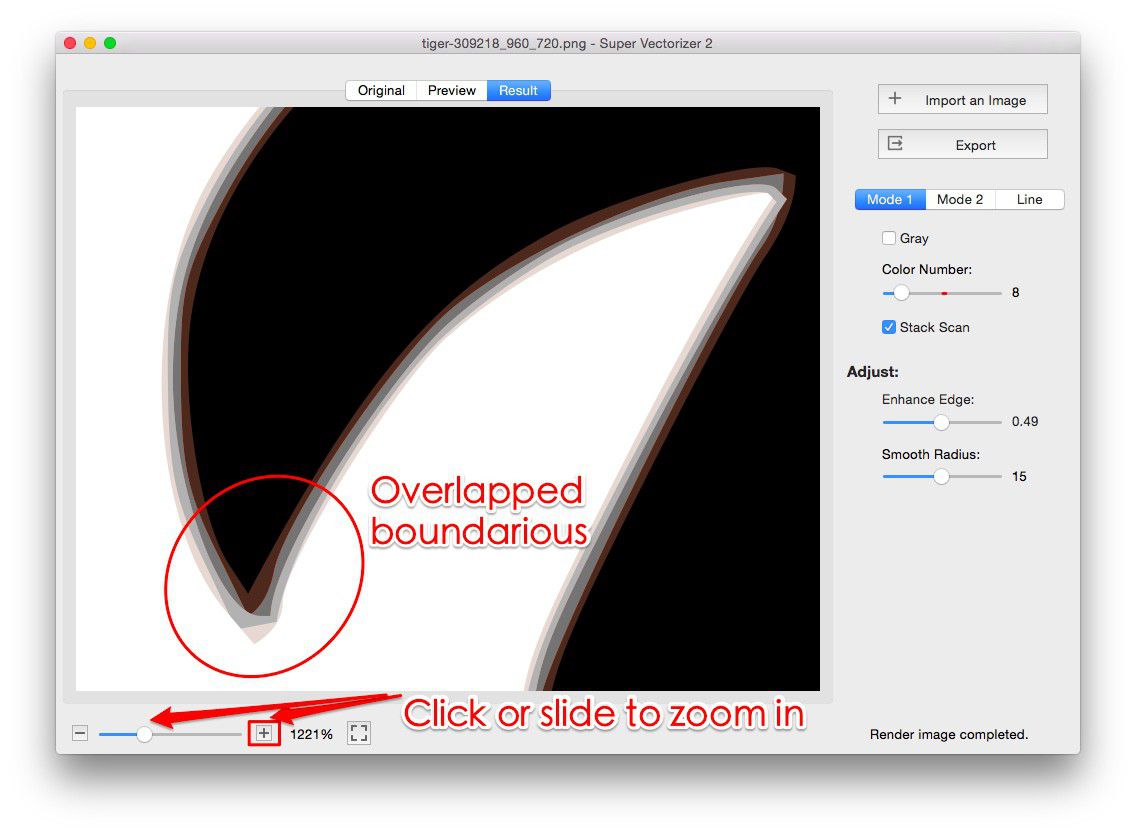
Super Vectorizer Pro offers a free trial that allows you to preview vectorization results in real-time. This is an excellent way to evaluate professional-grade tracing quality before deciding to purchase.
How to use the free trial:
- Download Super Vectorizer Pro free trial for Mac or Windows
- Install and launch the application
- Drag your PNG, JPG, or other raster image into the app window
- The software automatically traces your image and displays the vector result
- Adjust parameters (color count, detail level, noise removal) to fine-tune the result
- Preview the result — the trial lets you evaluate quality before purchasing
Important: The free trial allows previewing results but does not export files. To save your vector output, you'll need to purchase the full version. This trial model lets you verify the software meets your needs before committing.
Pros: Professional-quality tracing, 70+ input and output formats, real-time preview, native Mac and Windows versions, excellent value.
Cons: Trial version does not export files; purchase required for the full version.
Best for: Users who want to evaluate professional vector tracing quality before purchasing software.
Method 3: Inkscape (Best Free Desktop Software)
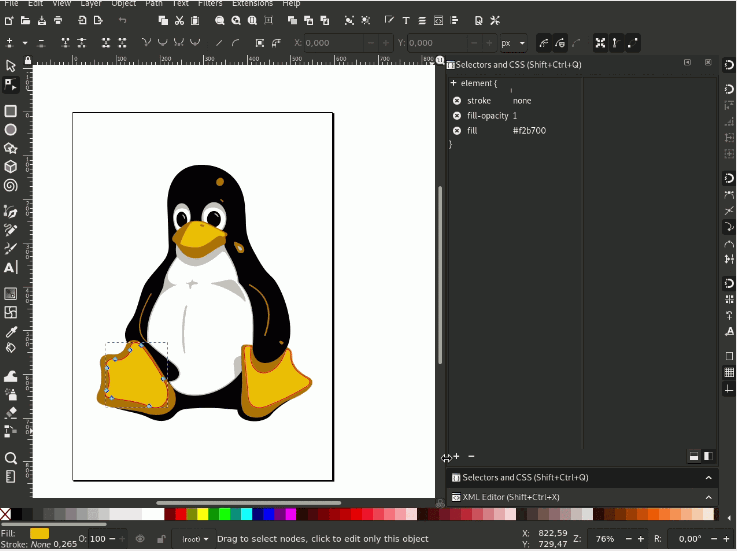
Inkscape is a free, open-source vector graphics editor. Its "Trace Bitmap" feature uses the Potrace algorithm to convert raster images to vectors. While the interface takes some getting used to, it's a powerful free alternative.
How to use Inkscape to vectorize an image:
- Download and install Inkscape from inkscape.org (free)
- Open Inkscape and import your image (File → Import)
- Select the image, then go to Path → Trace Bitmap
- Choose a tracing method: Brightness cutoff, Edge detection, or Color quantization
- Adjust the threshold/detail sliders and click "OK"
- The vectorized version will appear on top of your original image
- Delete the original raster image and save as SVG
Pros: Completely free, full vector editing capabilities, works on Mac/Windows/Linux, active community support.
Cons: Interface feels dated, learning curve for beginners, tracing results may require manual cleanup.
Best for: Budget-conscious users who need full vector editing and are willing to invest time learning the software.
Method 4: Adobe Illustrator Free Trial
Adobe Illustrator's Image Trace feature is one of the most powerful vectorization tools available. Adobe offers a 7-day free trial of the full Creative Cloud suite.
How to use Illustrator's free trial:
- Sign up for a free 7-day trial at adobe.com
- Download and install Adobe Illustrator
- Open your raster image (File → Open)
- Select the image and click "Image Trace" in the Properties panel
- Choose a preset (3-color, 6-color, High Fidelity Photo, etc.)
- Click "Expand" to convert the trace to editable vector paths
- Save as AI, SVG, EPS, or PDF
Pros: Industry-standard quality, extensive editing capabilities after tracing, multiple preset options.
Cons: Only 7-day trial, requires credit card for trial signup, expensive subscription after trial ends ($22.99/month), steep learning curve.
Best for: Users who already plan to use Adobe Creative Cloud and want to test Illustrator's capabilities.
Method 5: Vector Magic Online (Limited Free Trial)
Vector Magic offers an online vectorization service with a limited free trial (2 free conversions). It's known for producing high-quality traces with minimal user intervention.
How to use Vector Magic's free trial:
- Visit vectormagic.com
- Upload your image (drag and drop or click to upload)
- The service automatically traces your image
- Download the result (limited to 2 free conversions)
Pros: High-quality automatic tracing, minimal user input required, produces clean results.
Cons: Only 2 free conversions, then requires purchase ($9.95 per month or $295 one-time for desktop version), fewer format options than Super Vectorizer Pro.
Best for: Users who need high-quality results for a small number of images and don't mind paying for additional conversions.
Method 6: GIMP + Inkscape (Completely Free Workflow)
For a completely free workflow, you can use GIMP (for image preparation) together with Inkscape (for vector tracing). This combination gives you professional-grade tools at zero cost.
The workflow:
- Open your image in GIMP and use "Color to Alpha" or "Threshold" to simplify it
- Export the prepared image as PNG
- Open the PNG in Inkscape and use Path → Trace Bitmap
- Clean up the vector result and save as SVG
Pros: 100% free, no registration, fully open-source, powerful when used together.
Cons: Steep learning curve for both tools, more steps involved, results may require manual cleanup.
Best for: Users on a zero budget who are willing to learn open-source software.
Comparison: Free Vectorization Methods Ranked for 2026
| Method | Cost | Ease of Use | Output Quality | Output Formats |
|---|---|---|---|---|
| SVG Mini Online | Free | Very Easy | Good for simple images | SVG only |
| Super Vectorizer Pro Trial | Free trial (preview only) | Very Easy | Excellent | 70+ (after purchase) |
| Inkscape | Free | Moderate | Good (with manual cleanup) | SVG, PDF, EPS, etc. |
| Adobe Illustrator Trial | Free for 7 days | Moderate | Excellent | AI, SVG, EPS, PDF |
| Vector Magic Online | 2 free conversions | Very Easy | Excellent | AI, EPS, SVG, PDF, DXF |
| GIMP + Inkscape | Free | Difficult | Good (with effort) | Multiple |
Tips for Better Free Vectorization Results
Regardless of which free method you choose, these tips will help you get better vectorization results:
- Start with a high-quality source image: The better your input, the better the vector output. Use the highest resolution available.
- Simplify the image first: If your image has unnecessary detail, simplify it in a photo editor before vectorizing.
- Use images with clear edges: Vector tracing works best on images with distinct shapes and clear edges — logos, icons, and illustrations.
- Avoid photographs with gradients: Vector tracing struggles with complex gradients and fine details. For photos, consider other approaches.
- Reduce colors before tracing: Fewer colors = cleaner vector output. Use posterize or color quantization first.
- Clean up the result: Free tools may produce messy vector paths. Use a vector editor to simplify and clean up the result.
Frequently Asked Questions
Can I really vectorize images completely for free?
Yes, you can use SVG Mini Online, Inkscape, or the GIMP+Inkscape workflow for completely free vectorization. However, free tools often have limitations in output formats, accuracy, or ease of use. For professional results, a paid tool or at least a free trial preview (like Super Vectorizer Pro) is recommended to evaluate quality first.
What's the catch with free online vector converters?
Free online tools are often limited to SVG output only, have file size limits, may have lower accuracy than desktop software, and usually require an internet connection. Some display ads or have waiting times. For occasional simple conversions, they're perfectly adequate.
Is the Super Vectorizer Pro trial completely free?
Yes, the trial is free to download and use. It allows you to preview vectorization results in real-time, so you can evaluate whether the software meets your needs. The only limitation is that the trial does not export files — you'll need to purchase the full version to save your vector output.
Which free method produces the best quality?
For completely free methods, Inkscape with manual cleanup produces the best quality. For evaluating professional quality before buying, Super Vectorizer Pro's free trial shows excellent results. If you have a Creative Cloud subscription or can use the 7-day trial, Adobe Illustrator's Image Trace is arguably the best quality available.
Can I vectorize a photo for free?
Vectorizing photographs is challenging because vectors use solid colors and mathematical paths — they don't handle complex gradients and fine details well. For photos, free tools will produce a "posterized" effect with distinct color regions. This can be artistically interesting, but it won't look like a smooth photograph. For realistic photo tracing, consider using the photo as a reference and manually tracing over it in a vector editor.
Want to See Professional Vectorization Quality for Free?
Download Super Vectorizer Pro free trial to preview your images transformed into crisp, scalable vectors. Purchase the full version to export in 70+ formats including SVG, PDF, EPS, AI, and DXF.
Compatible with macOS 10.10+ (M1/M2/M3) & Windows 7/8/10/11
Related Articles
Try These Free Online Tools
No download required — convert, compress & optimize SVGs right in your browser
PNG to SVG Converter
Convert PNG, JPG, BMP images to scalable vector graphics instantly
PNG to SVG ConverterSVG Compressor (Mini)
Reduce SVG file size by up to 80% without losing quality
SVG Compressor OnlineSVG Optimizer
Clean up SVG code, remove redundant data and optimize for web
SVG Optimizer OnlineJPG to SVG Converter
Turn JPEG photos into crisp vector artwork in seconds
JPG to SVG ConverterEPS to SVG Converter
Convert EPS vector files to web-friendly SVG format
EPS to SVG ConverterAll Free Tools
Browse our complete collection of free online conversion tools
Browse All Free Tools