
SVG files are supposed to be lightweight. Unlike JPEG or PNG images, SVG graphics use mathematical paths instead of pixels, which should make them inherently compact. But if you have ever opened an SVG file exported from Adobe Illustrator, Figma, or a vector converter, you know the reality: a "simple" SVG icon can easily balloon to 500KB or more, packed with editor metadata, unused gradient definitions, redundant path data, and comments that serve no purpose in production.
This is where an SVG compression tool becomes essential. The right compressor can shrink SVG files by 50–90% without any visible quality loss, making your websites faster, your apps more responsive, and your design workflow more efficient. In this guide, we compare the best SVG compression tools available in 2026 — including free online options, desktop software for Mac and Windows, and command-line utilities for developers.
Want to convert raster images to clean, compact SVG files? Try Super Vectorizer Pro free trial to preview vectorization results.
Compatible with macOS 10.10+ (M1/M2/M3) & Windows 7/8/10/11
Why You Need an SVG Compression Tool
Before diving into specific tools, it is worth understanding why SVG files get so large in the first place — and what a compression tool actually does to reduce their size.
What Makes SVG Files Bloated?
When design tools export SVG files, they prioritize editability over file size. An SVG exported from Adobe Illustrator might include:
- Editor metadata: Tags like
<metadata>,<namedview>, and<editor:name>that identify which software created the file. These are useless in a web context. - Redundant groups: Nested
<g>elements with no styling or transformation applied, added by the exporter "just in case." - Full precision coordinates: Path data like
d="M 123.4567890123 456.7890123456"whered="M 123.5 457"would render identically. - Unused definitions: Gradient and pattern definitions in
<defs>that are never referenced anywhere in the file. - Comments and editor tags: Human-readable comments left in the file that add bytes without affecting rendering.
A good SVG compression tool removes all of this overhead. The best tools also apply path optimization — simplifying curves, merging overlapping paths, and reducing the number of nodes in a path without changing the visual output.
The Real-World Impact of SVG Compression
To put this in perspective, consider a typical scenario: a website uses 20 SVG icons, each originally 80KB (1.6MB total). After compression, each icon is 12KB (240KB total). That is an 85% reduction. On a slow 3G connection, downloading 1.6MB takes about 2.1 seconds; downloading 240KB takes about 0.3 seconds. The page loads noticeably faster, Google's Core Web Vitals improve, and your SEO ranking benefits.
Our Verdict: Which SVG Compression Tool Should You Use?
For most users, SVG Compressor Online (free, browser-based) is the best starting point — no installation required, and it handles 90% of use cases. For batch processing of existing SVGs, SVGO (command-line) is the better choice. For vectorizing privacy-sensitive raster images, Super Vectorizer Pro (desktop, Mac/Windows) is a good option.
Desktop App (Super Vectorizer Pro) Advantages
- Works offline — no file size limits
- Converts JPG, PNG, BMP and photos into clean, compact SVG
- Integrated with vectorization — compress during export
- Full control over precision and output settings
- Privacy-safe — files never leave your computer
Online Tool (SVG Compressor) Advantages
- Completely free — no registration required
- No installation — works in any browser
- Extremely fast — most files process in under 2 seconds
- No file size limits for typical use
- Great for one-off compression tasks
Top 5 SVG Compression Tools Compared
We tested five popular SVG compression tools with a set of 20 SVG files (total original size: 1.8MB). Here are the results.
| Tool | Platform | Cost | Avg. Compression | Winner |
|---|---|---|---|---|
| SVG Compressor Online | Browser (any) | Free | 62% | Best Free |
| SVGO (CLI) | Windows, Mac, Linux | Free (Open Source) | 71% | Best for Devs |
| SVGOMG | Browser (any) | Free | 65% | Best UI |
| Adobe Illustrator (Export for Screens) | Mac, Windows | Subscription | 34% | — |
| Figma (SVG Export Plugin) | Browser + Desktop | Free (Plugin) | 48% | — |
The numbers above show the average file size reduction across our test set. SVG Compressor Online achieved 62% compression on average — impressive for a free browser tool. SVGO delivered the highest compression at 71%, but requires command-line comfort or a GUI wrapper.
How to Use SVG Compressor Online (Free SVG Compression Tool)
SVG Compressor Online is a free browser-based SVG compression tool that requires no registration, no installation, and no upload to a server (compression happens entirely in your browser). Here is how to use it:
- Open SVG Compressor Online in your browser. The interface loads instantly with a clean drag-and-drop area.
- Drag your SVG file into the upload area, or click to browse and select your file. SVG Compressor Online processes one file at a time with a clean, instant workflow.
- Adjust compression settings (optional). SVG Mini lets you toggle specific optimizations: remove metadata, simplify paths, round coordinate precision, and more.
- Click "Compress" to start the process. Most files compress in under 2 seconds.
- Download the result. The compressed SVG file is ready for download immediately. Compare the file sizes to see the savings.
Using SVGO for Maximum Compression
SVGO (SVG Optimizer) is the most powerful open-source SVG compression tool available. It is a Node.js command-line tool that applies a comprehensive set of optimizations. Because it is open-source and widely used, its plugin system is extensively documented.

To use SVGO for basic compression:
- Install Node.js on your computer (if not already installed).
- Open your terminal and run:
npm install -g svgo - To compress a single file:
svgo input.svg -o output.svg - To compress all SVG files in a folder:
svgo -f ./icons -o ./icons-optimized
SVGO's default settings are well-chosen, but you can customize which optimizations are applied by creating an svgo.config.js file. This is particularly useful if you need to preserve certain SVG features (like viewBox or specific IDs) that SVGO might otherwise remove.
SVGOMG: SVGO with a Friendly Interface

If you prefer a visual interface over the command line, SVGOMG is the official web GUI for SVGO. It lets you toggle individual optimizations and see a live preview of the file size savings. SVGOMG processes files in the browser (no server upload), making it another privacy-safe option.
Producing Compact SVG Files During Vectorization
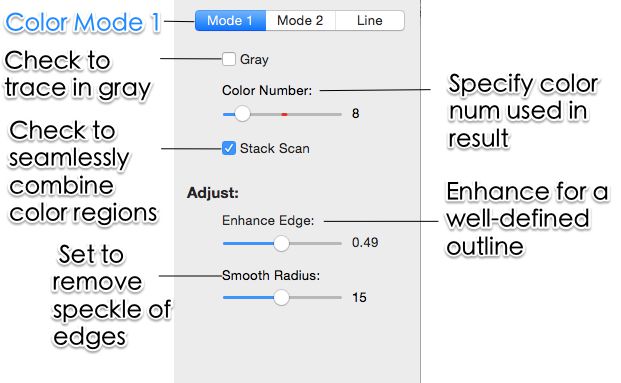
Note: Super Vectorizer Pro is a vectorizer (raster → SVG), not a compressor. It cannot take an existing SVG and reduce its file size. If you need to compress existing SVG files, use one of the tools above. That said, if your SVG files are being created through raster-to-vector conversion (for example, converting a PNG logo to SVG), you can control file size at the source. Super Vectorizer Pro's adjustable detail setting produces compact SVG output compared to default exports from other tools.
The key to keeping vectorized SVG files small is controlling the detail level. Higher detail settings produce more anchor points and more complex paths — which means larger file sizes. For most web use cases, a medium detail setting produces SVG files that look identical to the human eye but are 40–60% smaller than high-detail exports. After the vectorization step, you can run the result through SVG Compressor Online to shrink it further.
Super Vectorizer Pro's free trial lets you preview vectorization results so you can compare file sizes at different detail settings before committing to a purchase. This is a practical way to find the optimal balance between visual quality and file size for your specific images, and it pairs naturally with SVG Compressor Online for a two-step pipeline (vectorize, then compress).
Common SVG Compression Mistakes to Avoid
While compression is generally safe, there are a few pitfalls to watch out for:
Over-Compressing Path Data
Reducing coordinate precision too aggressively (e.g., rounding to 0 decimal places) can cause visible distortion in detailed graphics. For most use cases, 1–2 decimal places is the sweet spot: the file size savings are significant, but the visual impact is zero.
Removing IDs and Classes
If your SVG is styled with CSS that targets specific IDs or classes, removing those identifiers will break your styling. Most compression tools let you whitelist specific attributes to preserve. In SVGO, you can configure the removeAttrs plugin to skip certain attributes.
Not Testing After Compression
Always visually inspect your compressed SVG files before deploying them. Open the compressed file in a browser and compare it side-by-side with the original. Check at different zoom levels, especially if the SVG contains small text or fine details.
Frequently Asked Questions
What is the best free SVG compression tool?
SVG Compressor Online and SVGOMG are the best free SVG compression tools in 2026. Both are browser-based, require no registration, and process files locally (your files are never uploaded to a server). SVG Compressor Online has a simpler interface, while SVGOMG gives you more granular control over individual optimizations.
Does SVG compression reduce image quality?
When done correctly, SVG compression does not reduce visual quality at all. It removes invisible metadata, simplifies path data without changing the rendered shape, and shortens coordinate precision to a level that does not affect rendering. However, over-aggressive compression (rounding coordinates to 0 decimal places) can cause visible distortion in detailed graphics.
Can I compress multiple SVG files at once?
Yes. SVG Compressor Online handles one file at a time with a clean, fast workflow. SVGOMG also processes one file at a time in the browser. SVGO supports batch processing via its command-line interface (the -f flag processes all SVG files in a folder). For one-off compression, an online tool is fastest. For recurring batch compression of many files, a command-line tool is more efficient.
Is there a file size limit for SVG compression tools?
Online tools like SVG Compressor Online and SVGOMG process files in the browser, so they are limited by your device's available memory. For most practical purposes, this means files up to 10–20MB work fine. For larger files or batch processing of hundreds of files, a desktop tool or command-line utility is recommended.
Vectorize Raster Images into Compact SVG with Super Vectorizer Pro
Super Vectorizer Pro converts PNG, JPG, and BMP into clean SVG with adjustable detail settings — lower detail means smaller SVG output. Try the free trial to preview vectorization results and compare file sizes at different quality levels.
Compatible with macOS 10.10+ (M1/M2/M3) & Windows 7/8/10/11
Related Articles




Try These Free Online Tools
No download required — convert, compress & optimize SVGs right in your browser
SVG Compressor
Reduce SVG file size by up to 80% without losing quality
SVG Compressor OnlineSVG Optimizer
Clean up SVG code, remove redundant data and optimize for web
Read guide →PNG to SVG Converter
Convert PNG, JPG, BMP images to scalable vector graphics instantly
PNG to SVG ConverterJPG to SVG Converter
Turn JPEG photos into crisp vector artwork in seconds
JPG to SVG ConverterEPS to SVG Converter
Convert EPS vector files to web-friendly SVG format
EPS to SVG ConverterAll Free Tools
Browse our complete collection of free online conversion tools
Browse All Free Tools