
You have a crisp SVG file, but your print shop or client demands EPS. This is a common scenario in 2026: SVG is the web standard, but EPS remains entrenched in print workflows, legacy design software, and some corporate environments. Converting SVG to EPS requires understanding both formats — their strengths, limitations, and how to preserve your design during conversion.
This guide covers everything you need to know about SVG to EPS conversion. We'll compare online converters, desktop software, and command-line tools. You'll learn when EPS is actually necessary (and when PDF or SVG will work fine), how to avoid common conversion pitfalls, and which method delivers the best results for your specific use case. If you're starting from a raster image (PNG/JPG), you may need to vectorize it first before converting to EPS.
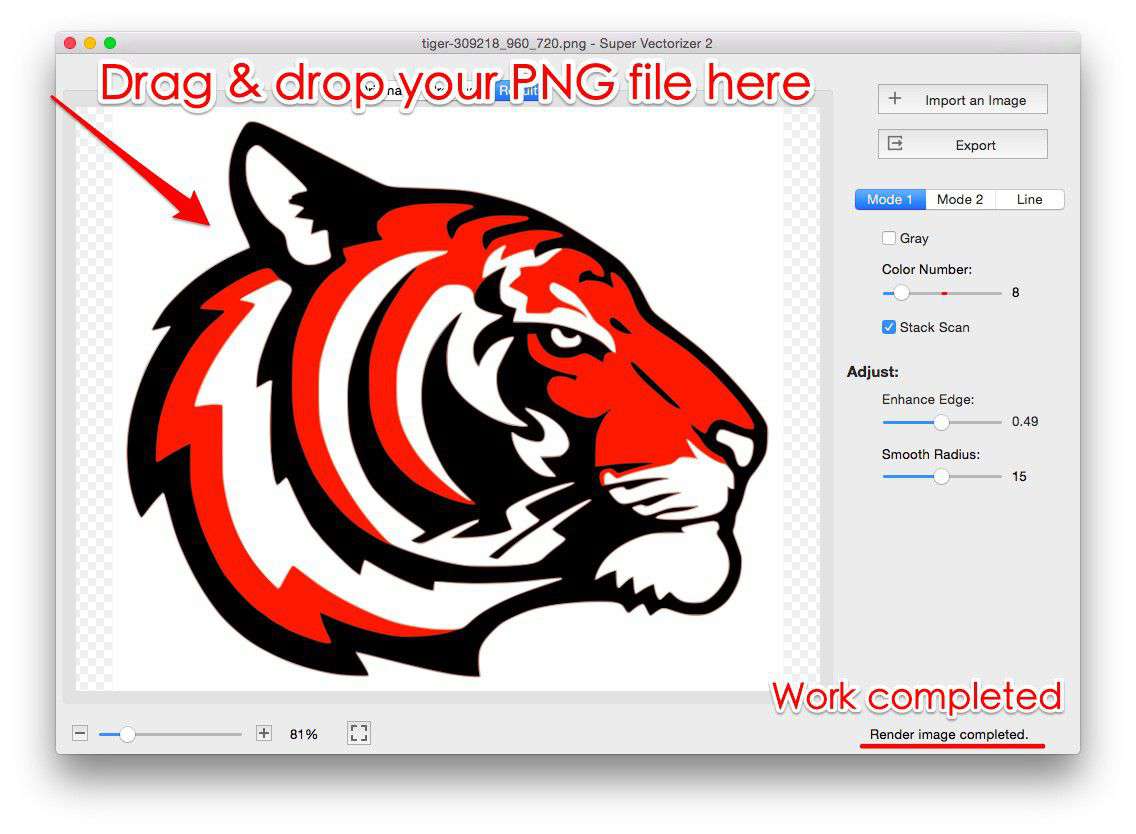
Starting from a PNG or JPG? Vectorize it first with Super Vectorizer Pro free trial.
Compatible with macOS 10.10+ (M1/M2/M3) & Windows 7/8/10/11
SVG vs EPS: What's the Difference?
Before converting, it's worth understanding what each format does best. SVG (Scalable Vector Graphics) is an XML-based vector format designed for the web. EPS (Encapsulated PostScript) is a legacy vector format designed for print workflows.
| Feature | SVG | EPS |
|---|---|---|
| Primary use | Web, screen display | Print, legacy workflows |
| Text editability | Excellent (XML text) | Good (embedded fonts) |
| Gradient support | Native | Limited (depends on version) |
| Transparency | Full support | Limited in older versions |
| File size | Small (text-based) | Larger (binary or ASCII) |
| Software support | Browsers, design tools | Legacy print software, Illustrator |
When you need EPS: Your print shop specifically requests it, you're working with legacy design software (older versions of CorelDRAW, QuarkXPress), or you need a format that embeds both vector and raster data in a print-ready package.
When you DON'T need EPS: Modern print shops accept PDF (which is often better than EPS). If your printer accepts PDF or even high-resolution SVG, skip the conversion — you'll avoid potential compatibility issues.
Method 1: Adobe Illustrator (Best Quality)
Adobe Illustrator remains the gold standard for SVG to EPS conversion. It preserves the most detail, handles gradients and effects correctly, and gives you full control over the output.
Steps:
- Open your SVG file in Adobe Illustrator.
- Go to File → Save As (or File → Export → Export As).
- Choose EPS from the format dropdown.
- In the EPS options dialog, select:
- Version: Illustrator CS6 (or newer, depending on your recipient's software)
- Preview Format: TIFF (color)
- Transparency: Preserve (if your SVG uses transparency)
- Click OK to save.
Pros: Best quality, full control over EPS version and options, handles complex SVGs well.
Cons: Requires a paid Adobe subscription ($22.99/month in 2026), learning curve for beginners.
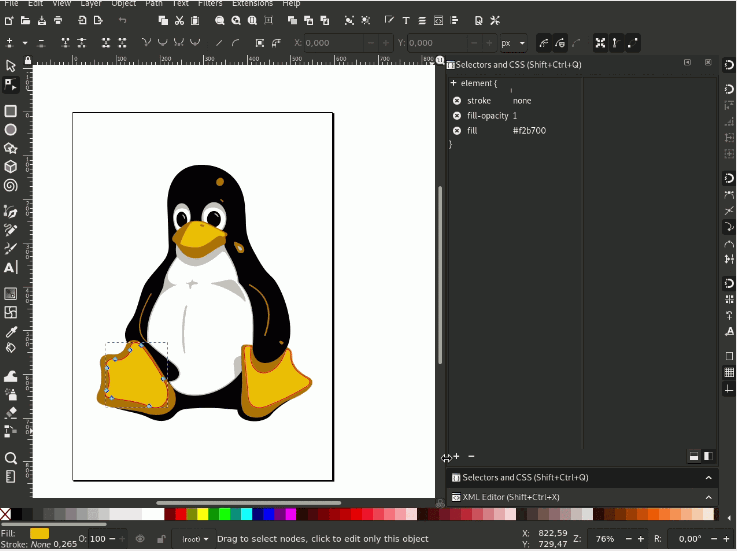
Method 2: Inkscape (Free Desktop Alternative)
Inkscape is a free, open-source vector editor that handles SVG to EPS conversion reasonably well. It's the best free desktop option for users who don't have Illustrator.
Steps:
- Download and install Inkscape (free).
- Open your SVG file in Inkscape.
- Go to File → Save As.
- Choose Encapsulated PostScript (*.eps) from the format list.
- Adjust settings in the export dialog (resolution, bounding box).
- Click Save.
Pros: Completely free, works on Mac/Windows/Linux, good for simple to moderate SVGs.
Cons: Struggles with complex gradients and filters, smaller user base for troubleshooting.
Method 3: Online Converters (Fastest for Simple Files)
Several online tools can convert SVG to EPS without installing software. These are convenient for simple SVGs but may struggle with complex files.
Top online SVG to EPS converters in 2026:
- CloudConvert: Supports SVG to EPS with quality settings. Free tier: 25 conversions/day.
- Zamzar: Simple interface, email delivery. Free tier: 2 files/day (max 50MB).
- AnyConv: No registration required. Limited to 100MB files.
- Convertio: Supports batch conversion. Free tier: 10 files/day (max 100MB each).
Pros: No software installation, fast for simple files, accessible from any device.
Cons: File size limits, privacy concerns (uploading designs to third-party servers), inconsistent results with complex SVGs.
Method 4: Command-Line Tools (For Developers & Batch Processing)
If you need to convert hundreds of SVG files to EPS, command-line tools are the most efficient option.
Using Inkscape from the command line:
inkscape input.svg --export-filename=output.eps --export-type=epsUsing Cairo (via Node.js):
npm install canvas
node -e "const {createCanvas}=require('canvas');/* conversion logic */"
Pros: Automation-friendly, handles batch conversions, free.
Cons: Requires technical knowledge, setup time for non-developers.
Our Verdict: Best Method by Use Case
Choose Adobe Illustrator for mission-critical print jobs, Inkscape for free desktop conversion, online tools for quick one-offs, and command-line tools for batch automation.
Use Adobe Illustrator When...
- Quality is the top priority
- You already have a Creative Cloud subscription
- The SVG has complex gradients/effects
- You need precise control over EPS settings
Use Inkscape When...
- You need a free solution
- The SVG is moderately complex
- You prefer desktop software over online tools
- You're on Linux (Illustrator isn't available)
Common SVG to EPS Conversion Issues (and Fixes)
Even with the best tools, SVG to EPS conversion can introduce problems. Here's how to fix the most common issues:
- Gradient banding: EPS has limited gradient support compared to SVG. Fix: Simplify gradients in your SVG before converting, or use a solid color fallback.
- Missing fonts: If your SVG uses web fonts, they may not embed correctly in EPS. Fix: Convert text to paths in Illustrator (Type → Create Outlines) before saving as EPS.
- Transparency issues: Older EPS versions don't support transparency. Fix: Flatten transparency in Illustrator before export, or use EPS level 3 or higher.
- Oversized files: Complex SVGs with many paths can produce enormous EPS files. Fix: Simplify paths in your SVG before conversion, or adjust the EPS export settings to downsample embedded rasters.
EPS Color Space and Font Considerations
When converting SVG to EPS, color spaces and embedded fonts are the two most common sources of trouble. SVG uses sRGB by default, while EPS files often use CMYK for print workflows. If your EPS file will be used in a professional print pipeline, convert the colors to CMYK during or after export using a tool like Adobe Illustrator or Ghostscript.
Fonts are trickier. SVG can reference web fonts via CSS @font-face, but EPS expects fonts to be either embedded as outlines or available on the system. The safest approach is to convert all text to outlines (paths) before exporting to EPS. This eliminates font substitution issues entirely but makes the text non-editable. If text editability is required, ensure the EPS embeds the font subsets rather than referencing them externally.
Gradients and transparency also behave differently in EPS. SVG supports alpha transparency natively, but older EPS versions (Level 2 and earlier) do not. If your SVG uses transparency effects, blending modes, or filters, they may be flattened or rasterized during conversion. Test the output in the target application to confirm visual fidelity.
Frequently Asked Questions
Can I convert SVG to EPS for free?
Yes. Inkscape (free, open-source) can convert SVG to EPS on Mac, Windows, and Linux. Online converters like CloudConvert and Zamzar also offer free tiers with daily limits. For one-off conversions of simple SVGs, these free options work well. For complex files or commercial work, Adobe Illustrator produces the most reliable results.
Will converting SVG to EPS reduce quality?
It can. EPS is an older format with limitations compared to SVG — particularly for gradients, transparency, and filters. To minimize quality loss: use the newest EPS version your recipient supports, preserve transparency if your SVG uses it, and convert text to paths to avoid font embedding issues. For print, EPS at 300+ DPI is usually sufficient.
My print shop asks for EPS — do I really need it?
Often, no. Many modern print shops accept PDF (which handles gradients and transparency better than EPS) or even high-resolution SVG. Ask your print shop: "Do you accept PDF or SVG?" If they insist on EPS, then you'll need to convert. Also ask which EPS version they prefer — newer isn't always better if they use legacy equipment.
Can I convert SVG to EPS in Super Vectorizer Pro?
Super Vectorizer Pro is designed for raster-to-vector conversion (PNG/JPG to SVG), not for converting between vector formats. For SVG to EPS conversion, use Adobe Illustrator, Inkscape, or an online converter. If your source file is a raster image (not SVG), vectorize it first in Super Vectorizer Pro, then export as SVG, and finally convert that SVG to EPS using Illustrator or Inkscape.
Starting from a Raster Image (PNG/JPG)?
Vectorize it first with Super Vectorizer Pro, then export to SVG and convert to EPS using Illustrator or Inkscape. Try the free trial to preview vectorization results.
Compatible with macOS 10.10+ (M1/M2/M3) & Windows 7/8/10/11
Related Articles
Try These Free Online Tools
No download required — convert, compress & optimize SVGs right in your browser
PNG to SVG Converter
Convert PNG, JPG, BMP images to scalable vector graphics instantly
PNG to SVG ConverterSVG Compressor (Mini)
Reduce SVG file size by up to 80% without losing quality
SVG Compressor OnlineSVG Optimizer
Clean up SVG code, remove redundant data and optimize for web
SVG Optimizer OnlineEPS to SVG Converter
Convert EPS vector files to web-friendly SVG format
EPS to SVG ConverterSVG to PDF Converter
Convert SVG files to PDF format for printing and sharing
Learn more →All Free Tools
Browse our complete collection of free online conversion tools
Browse All Free Tools