
SVG (Scalable Vector Graphics) files are perfect for web graphics, logos, and illustrations because they scale infinitely without losing quality. But when it comes time to share your work with clients, print designs, or archive projects, PDF is often the better format. PDF files are universally compatible, preserve formatting across devices, and are easier to print at high resolution.
In this guide, we'll walk you through everything you need to know about converting SVG to PDF online. We'll cover the best free tools, step-by-step tutorials for each method, quality tips, and common pitfalls to avoid. Whether you need a quick one-time conversion or a reliable workflow for batch processing, you'll find the right solution here.
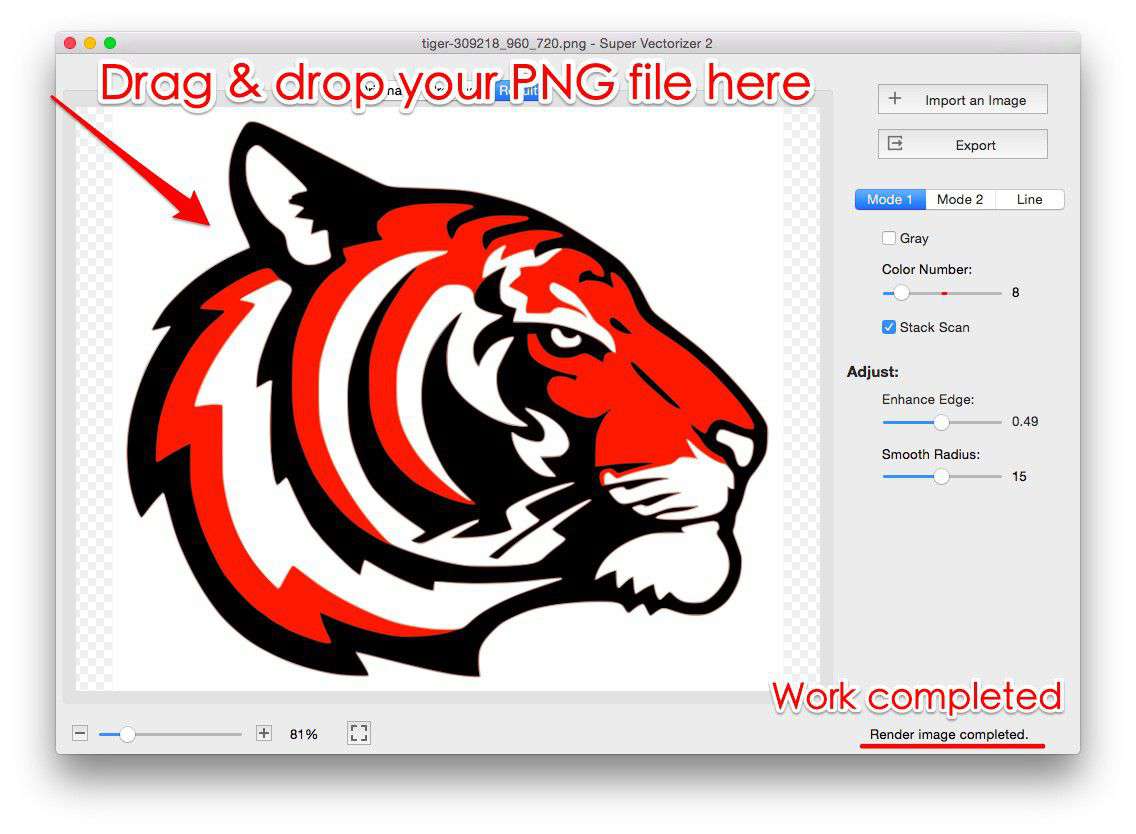
If you're starting with a raster image (PNG, JPG, BMP) and need to convert it to SVG first, Super Vectorizer Pro offers a free trial to preview vectorization results with professional-grade tracing accuracy.
Need to convert PNG or JPG to SVG first? Try Super Vectorizer Pro free trial to preview vectorization results.
Compatible with macOS 10.10+ (M1/M2/M3) & Windows 7/8/10/11
If you're on macOS, check out our PDF to SVG on Mac guide for desktop-specific steps.
Why Convert SVG to PDF?
Before diving into the how-to, let's understand why you might need to convert SVG to PDF in the first place. While SVG is excellent for web and vector editing, PDF has distinct advantages in several scenarios:
1. Universal Compatibility
PDF files can be opened on any device — Windows, Mac, Linux, iOS, Android — without specialized software. SVG files, on the other hand, require a browser or vector graphics editor to view properly. When sharing with clients or colleagues who may not have design software, PDF is the safer choice.
2. Print-Ready Format
Professional printing services almost always prefer PDF files. PDFs embed fonts, preserve colors (CMYK support), and maintain precise layout control. If you're sending SVG artwork to a print shop, converting to PDF first ensures what you see is what you get.
3. File Size Optimization
For complex SVG files with lots of paths and effects, the file size can become unwieldy. PDF compression can significantly reduce file size while maintaining visual quality, making files easier to email or upload.
4. Security and Archiving
PDF files can be password-protected, encrypted, and digitally signed. They're also the standard format for long-term archiving (PDF/A). If you need to preserve a snapshot of your SVG artwork for legal or archival purposes, PDF is the way to go.
Method 1: Online SVG to PDF Converters (Free & Fast)
Online converters are the most convenient option for quick, one-off conversions. No software installation required — just upload your SVG, click convert, and download the PDF. Here are the best free online SVG to PDF converter tools in 2026:
CloudConvert (Recommended)
CloudConvert is a versatile online file conversion platform that supports over 200 formats, including SVG to PDF. It offers high-fidelity conversion, preserves vector quality, and allows batch processing (up to 25 files at once for free users). The interface is clean, and files are automatically deleted after 24 hours for privacy.
How to use CloudConvert:
- Go to cloudconvert.com/svg-to-pdf
- Click "Select File" and upload your SVG
- Adjust optional settings (page size, margin, DPI)
- Click "Convert" and wait for processing
- Download your PDF file
FreeConvert
FreeConvert offers a straightforward SVG to PDF conversion tool with no registration required for files under 1GB. It uses high-quality rendering engines and supports custom page sizes. The free tier allows up to 5 conversions per day.
PDFCandy
PDFCandy's SVG to PDF tool is completely free with no watermarks. It preserves the original SVG's aspect ratio and offers basic customization options like page orientation and margins. Files are deleted immediately after download.
Method 2: Browser Print to PDF (No Extra Tools)
Did you know you can convert SVG to PDF without any online tool? Every modern browser (Chrome, Edge, Firefox, Safari) has a "Print to PDF" feature that works perfectly for SVG files.
Step-by-step:
- Open your SVG file in a web browser (drag and drop, or right-click → Open With → Browser)
- Press
Ctrl+P(Windows) orCmd+P(Mac) to open the print dialog - Change the printer destination to "Save as PDF" or "Microsoft Print to PDF"
- Adjust settings: paper size, margins (set to "None" for full-bleed), scale (100% or fit to page)
- Click "Save" and choose your output location
This method is free, requires no extra software, and gives you precise control over page layout. The downside is that it may not handle very complex SVGs perfectly — for those, Method 1 or 3 is better.
Method 3: Using Vector Graphics Software (Best Quality)
For professional use where quality is critical, using dedicated vector graphics software gives you the most control over the output. Both Super Vectorizer Pro (for Mac/Windows) and Adobe Illustrator allow you to export SVG files to PDF with customizable settings.
Using Adobe Illustrator:
- Open your SVG file in Illustrator
- Go to File → Save As or File → Export → Export As
- Choose "PDF (*.PDF)" as the format
- In the PDF save dialog, choose a preset (High Quality Print, Smallest File Size, etc.)
- Click "Save PDF"
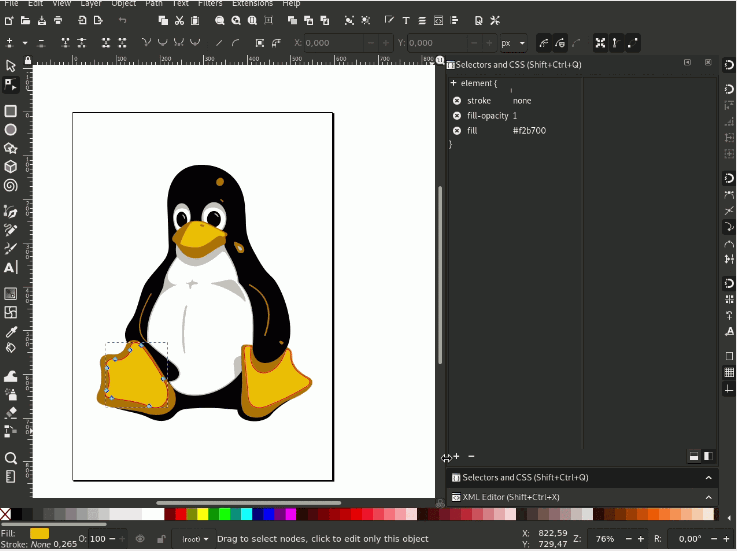
Using Inkscape (Free):
- Open your SVG in Inkscape
- Go to File → Save As
- Choose "PDF (*.pdf)" as the file type
- Adjust export settings (export area, dpi, text mode)
- Click "Save"
Comparison: Best SVG to PDF Conversion Methods
| Method | Cost | Quality | Batch Support | Best For |
|---|---|---|---|---|
| CloudConvert | Free (25 files/day) | Excellent | Yes | Regular users |
| Browser Print | Free | Good | No | Quick one-offs |
| FreeConvert | Free (5/day) | Very Good | No | Occasional use |
| Illustrator | Paid | Excellent | Yes | Professionals |
| Inkscape | Free | Very Good | With script | Budget users |
| PDFCandy | Free | Good | No | Simple needs |
Tips for High-Quality SVG to PDF Conversion
Use the Right DPI Setting
For web use, 72-96 DPI is sufficient. For print, use 300 DPI or higher. Most online converters default to 96 DPI — check the advanced settings if you need higher resolution.
Preserve Vector Quality
When converting SVG to PDF, make sure the tool preserves vector data rather than rasterizing. Rasterization converts vectors to pixels, losing the scalability advantage. CloudConvert and Illustrator both preserve vectors by default.
Handle Fonts Correctly
If your SVG uses custom fonts, they may not display correctly in the PDF if the viewer doesn't have the same fonts installed. The solution is to embed fonts in the PDF (most professional tools do this automatically) or convert text to outlines/paths before conversion.
Check Color Spaces
SVG files typically use RGB color space (for screens), while print PDFs should use CMYK. If you're converting for print, use a tool that supports RGB-to-CMYK conversion, or convert colors in your vector editor before exporting.
Common Problems & Solutions
Problem: PDF Looks Blurry or Pixelated
Cause: The SVG was rasterized during conversion.
Solution: Use a tool that preserves vector data (CloudConvert, Illustrator). Avoid "screenshot" style converters that just capture the SVG as an image.
Problem: Fonts Display Incorrectly
Cause: Fonts weren't embedded in the PDF.
Solution: Use a tool with font embedding (most professional tools), or convert text to paths in your vector editor before conversion.
Problem: Colors Look Different
Cause: Color space mismatch (RGB vs CMYK) or missing color profiles.
Solution: Ensure both SVG and PDF use the same color space, and embed color profiles (sRGB for web, Coated FOGRA39 for print).
Problem: File Size is Too Large
Cause: Uncompressed PDF or embedded raster images.
Solution: Use PDF compression (most online tools have this option), or optimize the SVG before conversion (remove hidden layers, simplify paths).
Our Verdict: Best Method for Most Users
For most users, CloudConvert offers the best balance of quality, convenience, and cost. It's free for up to 25 conversions per day, preserves vector quality, supports batch processing, and requires no registration. For professional print work, Adobe Illustrator or Super Vectorizer Pro give you the most control over output settings.
CloudConvert Advantages
- Free for up to 25 files per day
- Preserves vector quality (no rasterization)
- Supports batch conversion
- No registration required
- Files auto-deleted after 24 hours
- API available for developers
Desktop Software Advantages
- More output customization options
- Works offline (no internet required)
- Better for sensitive/confidential files
- Can handle very large or complex files
Frequently Asked Questions
Is there a completely free SVG to PDF converter with no limits?
Yes, several options are completely free with no registration: PDFCandy, browser Print-to-PDF, and Inkscape (desktop). CloudConvert and FreeConvert have daily free limits (25 and 5 files respectively) but are free to start. For unlimited free conversions, Inkscape is your best bet — it's open-source and has no usage restrictions.
Will converting SVG to PDF reduce quality?
It depends on the conversion method. If the tool preserves vector data (CloudConvert, Illustrator, Inkscape), quality is maintained perfectly — PDFs can contain vector data just like SVGs. However, if the converter rasterizes the SVG (converts it to pixels), quality will be lost, especially when zooming in. Always choose a tool that explicitly states it preserves vectors.
Can I convert SVG to PDF in bulk/batch?
Yes. CloudConvert supports batch conversion (up to 25 files for free users, more on paid plans). Adobe Illustrator can batch-export using Actions or Scripts. Inkscape supports batch processing via command-line. For quick batch needs, CloudConvert's web interface is the easiest option.
How do I make sure my PDF is print-ready?
For print-ready PDFs: (1) Use 300 DPI or higher, (2) Convert colors to CMYK color space, (3) Embed all fonts, (4) Add bleed if needed (typically 3-5mm), (5) Use PDF/X-1a or PDF/X-4 standard. Adobe Illustrator's "High Quality Print" preset handles most of these automatically. For online tools, CloudConvert offers a "print quality" option.
Can I convert password-protected or encrypted SVGs?
SVG files don't typically have password protection (they're text-based XML). However, if your SVG is embedded in a password-protected ZIP or PDF, you'll need to extract it first. If you're trying to convert an SVG that's part of a secured PDF, you'll need to unlock the PDF first using PDF unlocking tools (many free options available online).
Convert Images to SVG First?
If you have a PNG, JPG, or other raster image that you want to convert to PDF, convert it to SVG first for the best quality. Super Vectorizer Pro offers a free trial to preview professional-grade vectorization results.
Compatible with macOS 10.10+ (M1/M2/M3) & Windows 7/8/10/11
Related Articles
Try These Free Online Tools
No download required — convert, compress & optimize SVGs right in your browser
PNG to SVG Converter
Convert PNG, JPG, BMP images to scalable vector graphics instantly
PNG to SVG ConverterSVG Compressor (Mini)
Reduce SVG file size by up to 80% without losing quality
SVG Compressor OnlineSVG Optimizer
Clean up SVG code, remove redundant data and optimize for web
SVG Optimizer OnlineJPG to SVG Converter
Turn JPEG photos into crisp vector artwork in seconds
JPG to SVG ConverterEPS to SVG Converter
Convert EPS vector files to web-friendly SVG format
EPS to SVG ConverterAll Free Tools
Browse our complete collection of free online conversion tools
Browse All Free Tools