
SVG is the perfect format for logos, icons, and line art because it scales to any size without losing sharpness. But the moment you try to drop that crisp vector into a PowerPoint slide, an email, a social post, or a CMS that only accepts raster uploads, you hit a wall — SVG simply isn't supported everywhere. That's when you need to convert SVG to JPG: the process of rasterizing a vector graphic into a universal, pixel-based image that opens on every device and platform. If your SVG started life as a bitmap, tools like Super Vectorizer Pro can rebuild it as clean vector art first, then you can export a JPG whenever a raster copy is required.
In this guide we'll cover why the conversion matters, the three main methods to turn SVG into JPG, exact step-by-step instructions for each, the quality settings that actually move the needle, and the most common problems (and how to fix them). By the end you'll know exactly which SVG to JPG converter fits your workflow.
Want to build a clean SVG from a PNG, JPG, or photo first? Try Super Vectorizer Pro free trial to preview vectorization results.
Compatible with macOS 10.10+ (M1/M2/M3) & Windows 7/8/10/11
Our Verdict: Online vs Desktop for SVG to JPG
Because converting SVG to JPG is a rasterization task (not a tracing task), a lightweight browser tool is usually all you need. Desktop software only wins when you need automation, scripting, or offline batch processing.
Online SVG to JPG Converter BEST
- No install, works on Mac, Windows, and mobile
- Adjustable width, DPI, and JPG quality in seconds
- Private, browser-based rendering for sensitive files
- Perfect for one-off exports and quick sharing
Desktop Software (Inkscape / ImageMagick)
- Works fully offline — good for restricted networks
- Scriptable for bulk and automated conversion
- Fine control over color profiles and DPI
- Steeper learning curve for casual users
What Is an SVG File — and Why Convert It to JPG?
SVG (Scalable Vector Graphics) stores an image as mathematical paths, curves, and fills rather than a grid of pixels. That's why it stays razor-sharp at 16×16 px or 16 feet. JPG, by contrast, is a raster format built from pixels and uses lossy compression that keeps file sizes tiny. The trade-off: a vector to JPG conversion throws away scalability in exchange for universal compatibility.
You'll typically want to rasterize an SVG when:
- Sharing on social media — Instagram, Facebook, and X accept JPG/PNG, never SVG.
- Emailing a preview — most mail clients block SVG for security reasons.
- Printing or importing into Office — Word, PowerPoint, and Google Slides handle JPG far more reliably.
- Generating thumbnails or fallbacks — older browsers and some CMS editors don't render SVG.
- Reducing payload — a flat JPG of a simple icon is often smaller than the equivalent SVG markup.
Method 1: Convert SVG to JPG Online (Step-by-Step)
The fastest route is a free online SVG to JPG converter. Here's the typical flow:
- Open a browser-based converter (for example SVGVector's free image tools).
- Upload or drag your
.svgfile into the drop zone. - Set the output width (e.g., 2000 px) and JPG quality (80–92% is the sweet spot).
- Choose a background color — white is the safe default because JPG has no transparency.
- Click Convert and download your JPG.
Online converters are ideal because there's nothing to install and the rendering happens locally in many privacy-focused tools, so your artwork never leaves the device. This is the method we recommend for 90% of users.
Method 2: Convert SVG to JPG with Desktop Software (Mac & Windows)
If you already own vector software, you can export directly:
- Inkscape (free, Mac/Windows/Linux): Open the SVG, then File → Export PNG and re-save as JPG, or use File → Save a Copy and pick JPEG. Inkscape gives you precise DPI and canvas-size control.
- Adobe Illustrator: Open the SVG, then File → Export → Export As and choose JPG. Use the "Use Artboards" option to frame the graphic exactly.
- macOS Preview: Open the SVG in Safari, then File → Export as PDF, open the PDF in Preview, and export to JPG. A handy no-extra-software trick for quick jobs.
Super Vectorizer Pro is the tool to reach for when your starting point is a raster photo or PNG and you first need a clean SVG. Its free trial lets you preview the vectorization result; from there you can export the SVG and then make a JPG copy with any of the methods above.
Method 3: Command-Line Conversion (ImageMagick & rsvg-convert)
For developers and anyone processing hundreds of files, the command line is unbeatable:
- ImageMagick:
convert input.svg -background white -flatten -quality 90 output.jpg - rsvg-convert (librsvg):
rsvg-convert -w 2000 -b white input.svg -o output.pngthen convert PNG→JPG. - Sharp (Node.js): Great for server-side pipelines that rasterize SVG to JPG on the fly.
Note the -background white -flatten flags — without them, transparent areas can render as black in JPG.
SVG to JPG Quality Settings That Actually Matter
Getting a clean result comes down to three knobs:
| Setting | What it does | Recommended value |
|---|---|---|
| Output width / DPI | Controls pixel dimensions of the raster | 150–300 DPI for print, 1920–2560 px for web |
| JPG quality | Higher = sharper but larger file | 85–92% for photos, 95%+ for flat art |
| Background color | Fills transparent regions (JPG has none) | White for most uses; match brand color when needed |
Common SVG to JPG Problems (and Fixes)
- Blurry output: You exported at too low a resolution. Re-run at a higher width/DPI — SVG is infinite-resolution, so the JPG can be as sharp as you ask for.
- File is huge: Lower the JPG quality slider to 85% or reduce dimensions; a flat logo rarely needs more than 1200 px.
- Colors look off: Embed or assign an sRGB color profile so the JPG matches what you saw on screen.
- Text renders as outlines/boxes: The SVG referenced a web font that isn't installed; convert text to paths in the source before rasterizing.
SVG to JPG vs PNG: Which Should You Export?
If your graphic has transparency or you want lossless quality, PNG is the better export. Choose JPG when file size matters more than perfect fidelity — photographs, gradients, and shadow-heavy illustrations all compress beautifully as JPG. (We cover the full decision in our SVG vs PNG guide.) For a high-resolution PNG instead, see our SVG to PNG converter article.
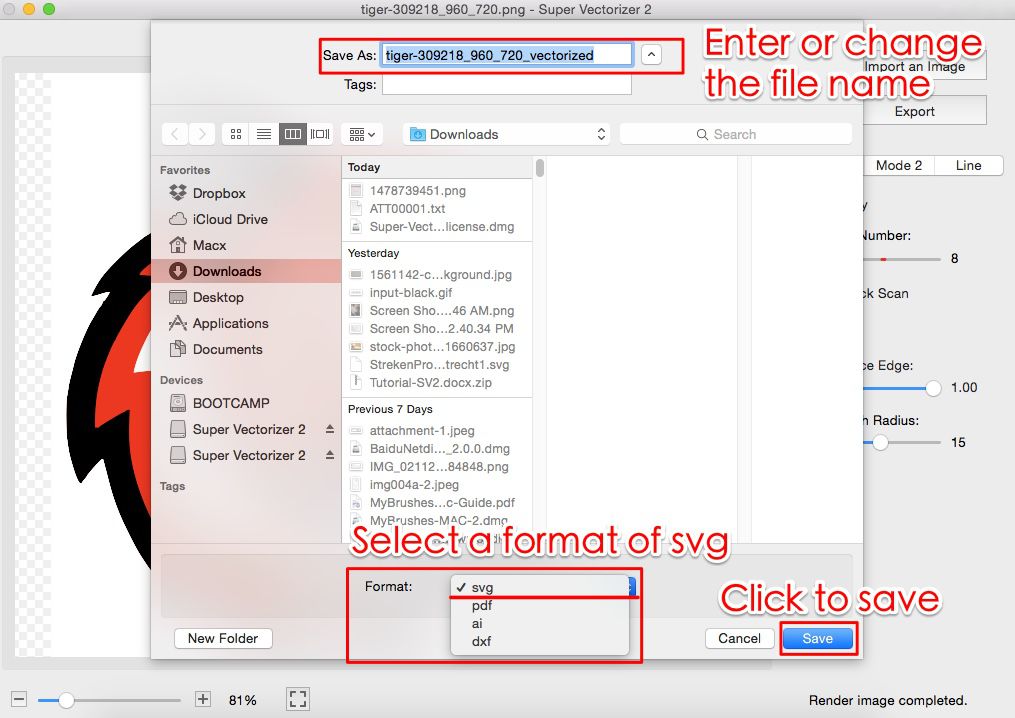
Choosing the Right JPG Quality Settings
When exporting SVG to JPG, the quality setting determines the balance between file size and visual fidelity. A quality of 85 is the sweet spot for most web use — it produces files roughly half the size of quality 100 with imperceptible visual difference. For photographs embedded within an SVG, quality 80 is acceptable. For flat illustrations with solid colors, you can go as low as 70 before banding becomes visible in gradients.
Always set the output resolution based on the intended display size. A common mistake is exporting at the SVG's internal coordinate dimensions (which may be 24x24 for an icon) without specifying a raster DPI. Export at 2x or 3x the display pixel dimensions to ensure crisp rendering on high-DPI screens. For print, use 300 DPI at the physical output size.
If the SVG contains transparency, remember that JPG does not support alpha channels. Transparent areas will be filled with white (or black, depending on the tool). If you need transparency, use PNG or WebP instead. If you must use JPG, add a background rectangle behind the artwork in the SVG before conversion to control the fill color explicitly.
Frequently Asked Questions
Is there a free way to convert SVG to JPG?
Yes. Several free online converters let you upload an SVG and download a JPG at no cost and with no signup. Desktop tools like Inkscape and command-line utilities like ImageMagick are also completely free and work offline.
Will I lose quality when I rasterize an SVG to JPG?
Only if you export at a low resolution or aggressive compression. Because SVG is resolution-independent, you can render it to JPG at any size you like — set a high output width and 85–95% quality to keep the result crisp.
What happens to transparent areas in the JPG?
JPG has no alpha channel, so transparent pixels must be filled with a solid color. Most converters let you pick white or a custom background; if you need to keep transparency, export to PNG instead.
Can I batch convert many SVGs to JPG at once?
Absolutely. Online tools with batch upload, Inkscape's command-line mode, and ImageMagick loops all handle bulk conversion. For recurring jobs, a one-line ImageMagick script is the most efficient approach.
Should I convert SVG to JPG or to PNG?
Pick JPG when you want the smallest file and the graphic has no transparency (logos on white, photos, gradients). Pick PNG when you need lossless quality or must preserve see-through backgrounds. See our SVG vs PNG comparison for the full breakdown.
Start From a Clean SVG
Turn any PNG, JPG, or photo into a sharp vector with Super Vectorizer Pro — download the free trial to preview your vectorization results, then export SVG and make a JPG copy whenever you need one.
Compatible with macOS 10.10+ (M1/M2/M3) & Windows 7/8/10/11
Related Articles

Try These Free Online Tools
No download required — convert, compress & optimize SVGs right in your browser
PNG to SVG Converter
Convert PNG, JPG, BMP images to scalable vector graphics instantly
PNG to SVG ConverterSVG Compressor (Mini)
Reduce SVG file size by up to 80% without losing quality
SVG Compressor OnlineSVG Optimizer
Clean up SVG code, remove redundant data and optimize for web
SVG Optimizer OnlineJPG to SVG Converter
Turn JPEG photos into crisp vector artwork in seconds
JPG to SVG ConverterEPS to SVG Converter
Convert EPS vector files to web-friendly SVG format
EPS to SVG ConverterAll Free Tools
Browse our complete collection of free online conversion tools
Browse All Free Tools