
SVG (Scalable Vector Graphics) are perfect for the web — they're small, scale infinitely, and look crisp on any screen. But sometimes you need a raster format like PNG. Maybe you're sending a logo to a client who can't open SVG files. Maybe you need to upload an image to a platform that only accepts PNG or JPG. Or maybe you want to create a high-resolution PNG version of your SVG illustration for print.
Whatever the reason, converting SVG to PNG is a common task. In this guide, you'll learn several ways to do it: using our free online converter, using browser tools, using command-line tools, and using desktop software like Super Vectorizer Pro (which can both create SVGs from raster images and export SVG-based graphics to PNG format after previewing results).
Want to create high-quality SVGs first? Try Super Vectorizer Pro free trial to preview vectorization results.
Compatible with macOS 10.10+ (M1/M2/M3) & Windows 7/8/10/11
Our Verdict
SVG to PNG conversion needs high resolution and transparency control. Desktop tools give you better quality settings than most online converters.
Best Desktop: Super Vectorizer Pro
- Export SVG to PNG at any resolution
- Full control over transparency and DPI
- Free trial to preview results
- Works offline on Mac and Windows
Best Online: CloudConvert
- Browser-based conversion
- Adjustable quality and dimensions
- Free tier available
- File upload to server
Why Convert SVG to PNG?
Before we dive into the how, let's understand the why. SVG and PNG serve different purposes:
| Feature | SVG (Vector) | PNG (Raster) |
|---|---|---|
| Scalability | Infinite (no quality loss at any size) | Limited (pixelates when enlarged) |
| File size | Very small for simple graphics | Larger, especially at high resolutions |
| Transparency | Full alpha channel support | Supports transparent background |
| Editing | Editable in code / vector editors | Requires raster image editor |
| Compatibility | May not work in older software | Universal compatibility |
| Best use case | Web graphics, icons, responsive design | Print, social media, legacy platforms |
Common reasons to convert SVG to PNG:
- Social media: Most platforms (Instagram, Facebook, LinkedIn) don't accept SVG uploads. You need PNG.
- Email signatures: Many email clients don't render SVG. PNG is safer.
- Print materials: Printers typically want high-resolution PNG or PDF, not SVG.
- Presentations: PowerPoint and Keynote sometimes have issues with SVG. PNG is more reliable.
- Legacy browsers: Very old browsers (IE8 and earlier) don't support SVG at all.
Method 1: Free Online SVG to PNG Converter (Easiest)
The simplest way to convert SVG to PNG is using our free online tool. No software to install, no registration required.
Step-by-Step: Using SVGVector's Free SVG to PNG Converter
Our free SVG to PNG converter runs entirely in your browser. Your files never leave your computer — they're processed locally using Canvas API.
Step 1: Open the SVG to PNG converter in your browser.
Step 2: Drag and drop your SVG file into the upload area, or click to browse and select your file.
Step 3: Set your export options:
- Scale factor: 1x (original size), 2x (double), 4x (quadruple), or custom DPI. For high-resolution PNGs, use 2x or 4x.
- Background: Transparent (default) or solid color. Choose transparent if you want to preserve the SVG's transparency.
- Output format: PNG (recommended) or JPG (if you don't need transparency).
Step 4: Click "Convert" — the tool renders the SVG on an HTML canvas and exports the result as a PNG.
Step 5: Download your PNG file. For batch conversion, you can upload up to 20 SVG files at once.
Method 2: Browser Method (No Tools Required)
If you only need to convert a single SVG and don't want to use any online tool, you can do it directly in your browser.
Using Chrome or Edge
- Open your SVG file in Chrome (drag and drop, or right-click → Open With → Chrome).
- Open DevTools (F12 or right-click → Inspect).
- Find the
<svg>element in the Elements panel. - Right-click the SVG element → Copy → Copy element.
- Open a new tab and paste the SVG code into the console, or use a Canvas-based approach (more complex).
Easier browser method:
- Open your SVG in a new browser tab.
- Take a screenshot at the desired resolution (use browser zoom to increase SVG size before screenshotting).
- Crop and save as PNG.
This method is quick but imprecise. For professional results, use Method 1 or Method 4 (command-line).
Method 3: Using Inkscape (Free Desktop Software)
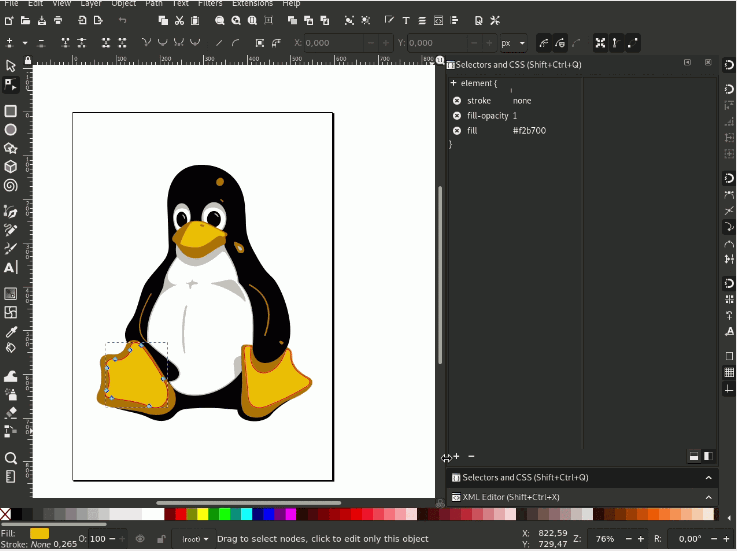
Inkscape is a free, open-source vector graphics editor that can export SVG to PNG at any resolution.
Inkscape Export Steps:
- Open your SVG file in Inkscape.
- Go to File → Export PNG Image (or press Shift+Ctrl+E).
- In the export panel, set the export area (page, drawing, or selection).
- Set the width and height in pixels. For print-quality, use 300 DPI (e.g., a 2-inch wide image at 300 DPI = 600px width).
- Click Export.
Inkscape gives you precise control over the output resolution and export area. It's free and works on Mac, Windows, and Linux.
Method 4: Command-Line (Best for Batch Processing)
If you need to convert hundreds of SVG files, command-line tools are the way to go. Two popular options:
Using ImageMagick
# Convert single SVG to PNG at 2x resolution
magick -density 300 input.svg -resize 200% output.png

# Batch convert all SVGs in a folder
magick mogrify -density 300 -resize 200% -format png *.svg
Using Inkscape CLI
# Export SVG to PNG at 1024px width
inkscape input.svg --export-type=png --export-filename=output.png --export-width=1024

# Batch convert
for f in *.svg; do
  inkscape "$f" --export-type=png --export-filename="${f%.svg}.png" --export-width=1024
done
Using rsvg-convert (fastest)
# Install: brew install librsvg (Mac) or apt install librsvg2-bin (Linux)
rsvg-convert -w 1024 -h 1024 input.svg -o output.png

# Batch convert
for f in *.svg; do
  rsvg-convert -w 1024 "$f" -o "${f%.svg}.png"
done
Which Method Should You Use?
Online Converter — Best For:
- Quick one-off conversions
- No software installation allowed (work computers)
- Privacy-conscious users (our tool runs locally)
- Batch converting up to 20 files
Command-Line — Best For:
- Converting hundreds or thousands of files
- Automated workflows (CI/CD pipelines)
- Server-side conversion (web applications)
- Precise control over output parameters
High-Resolution SVG to PNG: Getting the Best Quality
When converting SVG to PNG, you're essentially taking a "snapshot" of the vector graphic at a specific resolution. Here's how to get the best quality:
Choose the Right Scale Factor
- Web use: 1x or 2x (e.g., if your SVG is 100×100, export at 100×100 or 200×200px)
- Retina/High-DPI displays: 2x or 3x (e.g., 200×200 or 300×300px for a 100×100 SVG)
- Print: 300 DPI minimum. For a 2-inch wide print image, export at 600px width.
- Social media: Check platform requirements. Instagram posts are 1080×1080px.
Transparent Background
By default, SVG to PNG conversion preserves transparency. But if your SVG has a white background rectangle, that will show up in the PNG. To remove it:
- Open the SVG in a text editor or vector editor.
- Find and remove any
<rect fill="white">elements that cover the entire canvas. - Re-save the SVG and convert again.
Alternatively, use our converter's "Transparent background" option, which renders the SVG on a transparent canvas regardless of any background elements.
Batch Convert SVG to PNG (Multiple Files at Once)
Our free online converter supports batch conversion — upload up to 20 SVG files, set your options once, and download all PNGs as a ZIP file.
For larger batches (100+ files):
- Use the command-line methods described in Method 4
- Or use a desktop tool like Inkscape with its batch export feature
- Or write a simple Python script using
cairosvg:
import cairosvg
import os

svg_folder = "path/to/svgs"
png_folder = "path/to/pngs"

for filename in os.listdir(svg_folder):
    if filename.endswith(".svg"):
        svg_path = os.path.join(svg_folder, filename)
        png_path = os.path.join(png_folder, filename.replace(".svg", ".png"))
        cairosvg.svg2png(
            url=svg_path,
            write_to=png_path,
            scale=2.0  # 2x resolution
        )
SVG to PNG Conversion Tools Comparison
| Tool | Platform | Batch Support | Max Resolution | Price |
|---|---|---|---|---|
| SVGVector Online | Any (browser) | Yes (20 files) | Unlimited | Free |
| Inkscape | Mac/Win/Linux | Yes | Unlimited | Free (Open Source) |
| ImageMagick | All (CLI) | Yes | Unlimited | Free (Open Source) |
| Adobe Illustrator | Mac/Win | Yes (via script) | Unlimited | Paid (subscription) |
| Super Vectorizer Pro | Mac/Win | No (one at a time) | High (preview then export) | Paid (one-time) |
Frequently Asked Questions
Does converting SVG to PNG reduce quality?
SVG is a vector format (infinite resolution), while PNG is raster (fixed pixels). When you convert SVG to PNG, you're "locking in" a specific resolution. If you export at a high enough resolution (2x or 4x the display size), the quality loss is imperceptible for most purposes. For print, export at 300 DPI or higher.
Can I convert SVG to PNG with transparent background?
Yes. Our free converter preserves transparency by default. Make sure your SVG doesn't have a solid-color background rectangle — if it does, remove it before converting, or use the "transparent background" option in our tool.
What's the best resolution for SVG to PNG conversion?
It depends on the use case: 72-150 DPI for web, 300 DPI for print, 2x-3x (144-216 DPI) for Retina/high-DPI displays. Our converter lets you set a scale factor (1x, 2x, 4x) to easily get the right resolution.
Is there a file size limit for SVG to PNG conversion?
Our online converter handles SVG files up to 10MB. For larger files, use Inkscape or ImageMagick locally. Note that very complex SVGs (thousands of paths) may take longer to render — simplifying the SVG first (using our SVG optimizer) can help.
Can I convert animated SVG to PNG?
Animated SVGs (using CSS or SMIL animation) will be rendered as a static snapshot when converted to PNG. You can't preserve the animation in a PNG file. If you need to "export" an animated SVG, consider screen-recording it and converting to MP4/WebM video instead.
Convert Your SVG Files to PNG Today
Use our free online SVG to PNG converter — no registration, no upload to server, batch conversion support. Or create high-quality SVGs from raster images with Super Vectorizer Pro.
Compatible with macOS 10.10+ (M1/M2/M3) & Windows 7/8/10/11
Related Articles
Try These Free Online Tools
No download required — convert, compress & optimize SVGs right in your browser
SVG to PNG Converter
Convert SVG files to high-resolution PNG images instantly
Browse All Free ToolsPNG to SVG Converter
Convert PNG, JPG, BMP images to scalable vector graphics
PNG to SVG ConverterSVG Compressor (Mini)
Reduce SVG file size by up to 80% without losing quality
SVG Compressor OnlineSVG Optimizer
Clean up SVG code, remove redundant data and optimize for web
SVG Optimizer OnlineJPG to SVG Converter
Turn JPEG photos into crisp vector artwork in seconds
JPG to SVG ConverterAll Free Tools
Browse our complete collection of free online conversion tools
Browse All Free Tools