
GIF (Graphics Interchange Format) images are everywhere — logos, icons, simple animations, and web graphics. But GIF is a raster format, meaning it's made of pixels that become blurry when scaled. To get scalable, crisp results at any size, you need to convert GIF to SVG (Scalable Vector Graphics). In this guide, we'll show you how to convert GIF to SVG on both Mac and Windows, compare the best tools, and explain when to use desktop software vs online converters.
Whether you're a designer updating legacy web graphics, a developer optimizing assets, or a hobbyist preparing cut files for Cricut, this guide covers everything you need to know about GIF to SVG conversion in 2026.
Get the best GIF to SVG conversion quality. Try Super Vectorizer Pro free trial to preview vectorization results.
Compatible with macOS 10.10+ (M1/M2/M3) & Windows 7/8/10/11
Why Convert GIF to SVG?
GIF and SVG serve very different purposes. Understanding the differences helps you decide when conversion is worth it:
1. Infinite Scalability
SVG is a vector format — it uses mathematical paths instead of pixels. This means SVG graphics scale to any size (from a business card to a billboard) without losing quality. GIFs, being raster images, become pixelated when enlarged beyond their original dimensions.
2. Smaller File Sizes for Simple Graphics
For simple graphics (logos, icons, flat illustrations), SVG often produces smaller file sizes than GIF — especially at high resolutions. An SVG logo might be 2-5 KB, while the same logo as a high-resolution GIF could be 50-100 KB.
3. Better Web Performance
SVGs are natively supported by all modern web browsers. They can be styled with CSS, animated with JavaScript, and optimized for faster loading. GIFs, especially animated ones, can be large and slow down page loading.
4. Editability
Once converted to SVG, you can open the file in vector graphics software (Adobe Illustrator, Inkscape, Figma) and edit individual elements — change colors, adjust paths, or add effects. GIFs are "flat" and cannot be edited in the same way.
5. Print-Ready Graphics
If you need to print a GIF-based logo on merchandise, signage, or marketing materials, converting to SVG first ensures crisp, professional results. Printing directly from a GIF often leads to blurry, low-quality output.
Understanding GIF Limitations for Vectorization
Before converting, it's important to understand GIF's characteristics and how they affect vectorization quality:
GIF Color Limitation (256 Colors Max)
GIF format is limited to maximum of 256 colors per frame. This means GIF images often have flat color areas with sharp edges — which is actually good for vectorization, as the tracing algorithm can easily detect boundaries between colors.
Animated GIFs
Animated GIFs contain multiple frames. When converting an animated GIF to SVG, you have two options: (1) convert each frame separately to individual SVG files, or (2) use SVG animation (SMIL, CSS, or JavaScript) to recreate the animation as a single SVG. Most converters handle only the first frame of an animated GIF — if you need the animation, specialized tools or manual work are required.
Transparency in GIFs
GIF supports one-bit transparency (a pixel is either fully transparent or fully opaque). During vectorization, the transparent areas are typically converted to "empty" space in the SVG, which is usually the desired result. However, some converters may fill transparency with a background color — check the settings to ensure correct handling.
Method 1: Convert GIF to SVG Using Desktop Software
For the highest quality and most control, desktop software is the recommended approach. Super Vectorizer Pro (available for both Mac and Windows) offers professional-grade vectorization with advanced controls.
Step-by-Step: Using Super Vectorizer Pro
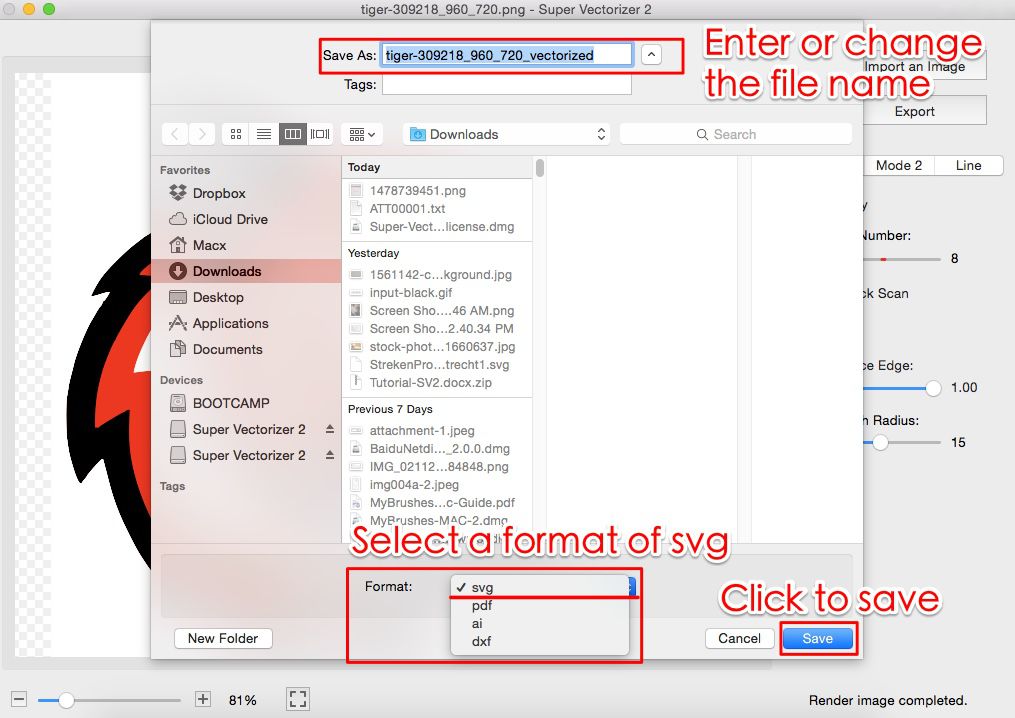
Step 1: Download and install Super Vectorizer Pro. The free trial lets you preview vectorization results before purchasing.
Step 2: Open the application and drag your GIF file into the window (or use File > Open).
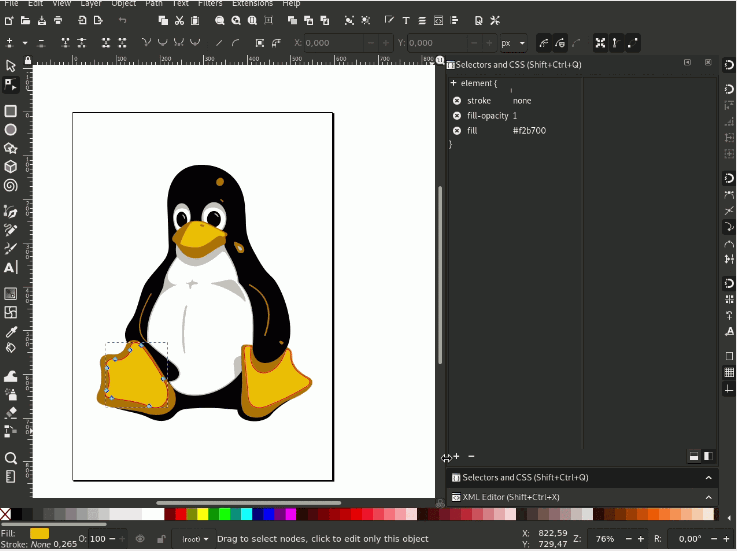
Step 3: The software automatically analyzes your image and applies intelligent vectorization settings. You'll see a real-time preview of the vectorized result.
Step 4: Adjust the settings if needed: change the number of colors, adjust the smoothing level, or modify the path simplification tolerance. The preview updates in real-time.
Step 5: Once satisfied with the preview, you can purchase the full version to export the SVG file. The trial version allows you to preview results but does not export.
Method 2: Convert GIF to SVG Using Online Converters
For quick, one-off conversions, online converters are convenient. Here are the best options for converting GIF to SVG online:
SVGVector Free Online Converter
Supports GIF input format. Upload your GIF, adjust color settings, and download the SVG. No signup required for basic use. The tool handles the 256-color limitation of GIF well, producing clean vector paths.
Convertio
Supports GIF-to-SVG conversion as part of its 300+ format support. Batch conversion is available. Files are deleted after 24 hours for privacy.
CloudConvert
Professional-grade conversion with advanced options. The free tier allows 25 conversions per day. API access is available for developers who need to convert GIF to SVG programmatically.
Comparison: Desktop Software vs Online Converters
GIF to SVG: Desktop vs Online — Our Verdict
The best method depends on your specific needs. Here's our detailed comparison to help you decide.
Desktop Software (Recommended for Quality)
- Handles high-resolution GIFs without file size limits
- Advanced color and path controls for better output
- Processes files locally — no privacy concerns
- Per-file control over trace settings
- Better handling of complex GIFs with gradients
- Free trial available to preview results
Online Converters (Best for Quick Use)
- No installation required
- Free for basic conversions
- Works on any device with a browser
- No system requirements
- Good for simple, low-resolution GIFs
Tips for Better GIF to SVG Conversion
1. Simplify Colors Before Converting
If your GIF has many similar colors, consider reducing the color palette before vectorization. This produces cleaner SVG paths with fewer nodes, resulting in smaller file sizes and better editability.
2. Remove Backgrounds for Logos/Icons
If your GIF has a solid-color background that should be transparent in the final SVG, use a tool with background removal or manually remove it in photo editing software before vectorizing. Some advanced converters can also remove backgrounds during vectorization.
3. Check the Preview Carefully
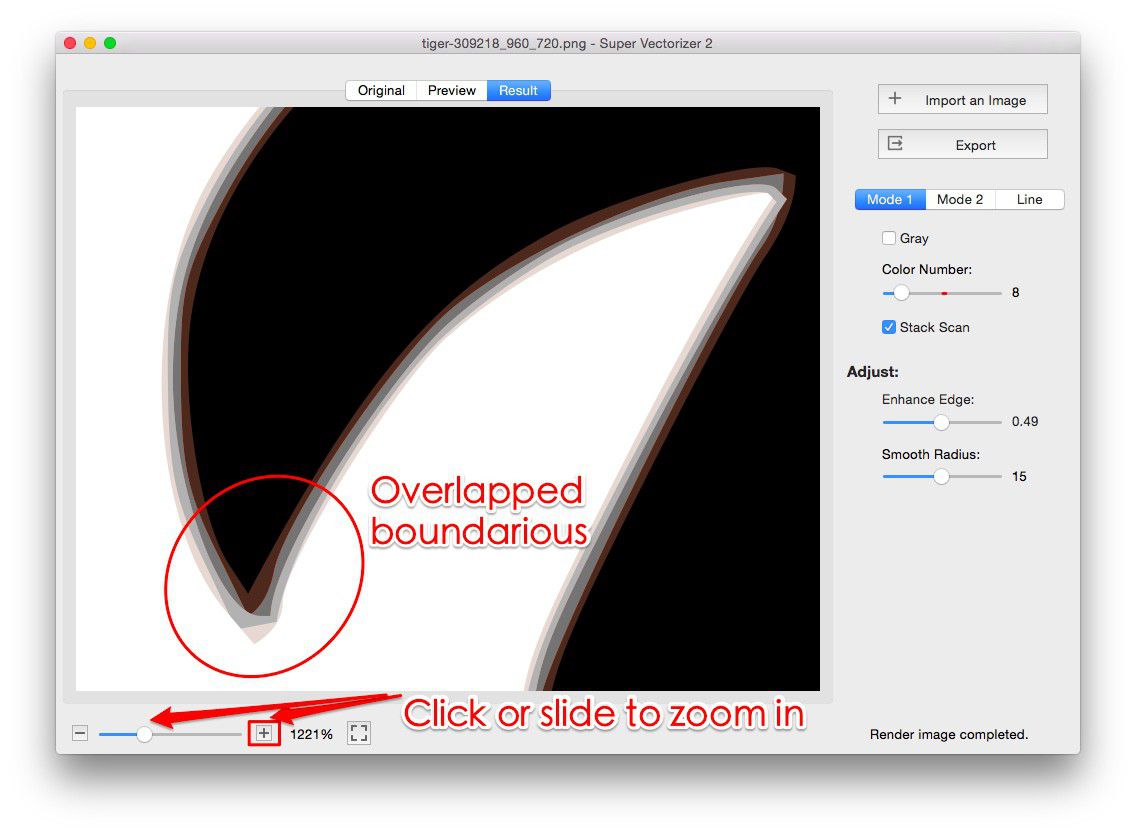
Vectorization is an approximation. After converting, zoom in on the SVG to check for artifacts, jagged edges, or missing details. If the result isn't satisfactory, try adjusting the settings (more colors, less smoothing) and re-converting.
4. Optimize the SVG After Conversion
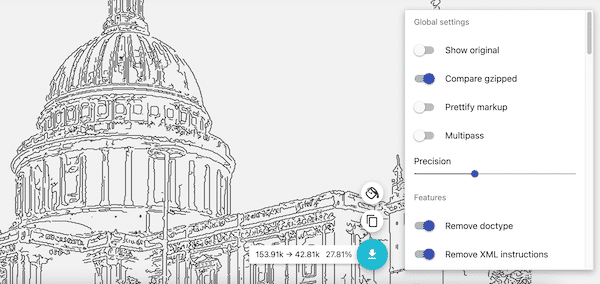
After converting GIF to SVG, use an SVG optimizer (like SVG Compressor Online) to clean up the code, remove redundant metadata, and reduce file size. This is especially important for web use.
5. Handle Animated GIFs Separately
As mentioned earlier, most converters only handle the first frame of an animated GIF. If you need to convert an animated GIF to SVG animation, consider using specialized tools like Snap.svg or manually recreating the animation using SVG SMIL or CSS animations.
Frequently Asked Questions
GIF → SVG: Format-Specific Conversion Notes
- 256-color ceiling. GIF is limited to 256 colors per frame. That's actually helpful for tracing — flat color regions with hard edges vectorize cleanly. If your GIF uses dithering (common for photos saved as GIF), raise Filter speckles to remove the dithered noise before tracing.
- Animation uses only the first frame. Animated GIFs contain many frames; the converter receives a single decoded bitmap. The resulting SVG is a static vector of that one frame. To keep the animation, convert each frame to its own SVG and rebuild motion with CSS or SMIL.
- One-bit transparency. GIF transparency is on/off only. The tracer treats transparent pixels as empty space in the SVG — usually what you want. If a converter fills transparency with white, preview a small file first.
- Polygon mode fits here. Because GIF art is usually flat with hard edges, the Polygon preset (capping colors with Max colors) produces compact, logo-like SVG output.
FAQ: Converting GIF to SVG
Can I convert an animated GIF to an animated SVG?
Most standard converters only convert the first frame of an animated GIF to a static SVG. To convert an animated GIF to an animated SVG, you need specialized tools: you can convert each frame to SVG individually and then use SVG animation techniques (SMIL, CSS animations, or JavaScript libraries like GreenSock) to recreate the animation. Alternatively, some online tools like SVGator support importing animated GIFs and converting them to animated SVGs, though results may vary depending on the complexity of the original animation.
Why does my converted SVG look different from the original GIF?
GIF uses lossless compression with a limited 256-color palette, while SVG uses vector paths. During conversion, the software must "trace" the edges and color areas in the original image. If the GIF has color gradients or photographic elements, the vectorized result may have visible banding or simplified colors. For best results, use a converter with adjustable color settings and preview the result before finalizing.
What's the best format to use instead of GIF for web graphics?
For static graphics, SVG is often the best choice (scalable, small file size for simple graphics, editable). For photographs, PNG or WebP are better (lossless compression, support millions of colors). For animations, consider MP4 video, WebP animation, or SVG animation instead of animated GIFs — these formats offer better compression and quality. Modern websites are moving away from GIF in favor of these more efficient formats.
Can I convert GIF to SVG on a Chromebook or mobile device?
Yes — online converters work on any device with a web browser, including Chromebooks, iPads, and Android phones. Simply open the online converter in your browser, upload the GIF, and download the SVG. For mobile devices, the small screen may make it harder to adjust detailed settings, but basic conversions work fine. Desktop software, however, requires a Mac or Windows computer and cannot run on mobile devices or Chromebooks.
Is there a file size limit when converting GIF to SVG?
Online converters typically limit file sizes to 5-100 MB depending on the service. Desktop software like Super Vectorizer Pro has no inherent file size limit — you're only limited by your computer's RAM. For very large GIFs (high resolution or many frames), desktop software is strongly recommended. If you Must use an online converter for a large file, consider resizing the GIF to a smaller resolution before uploading.
Can I batch convert multiple GIFs to SVG at once?
No — Super Vectorizer Pro processes one GIF at a time. For true batch conversion, use an online batch converter or an Inkscape script. Desktop software is still useful because you avoid upload limits and can adjust settings per file.
Convert Your GIFs to High-Quality SVGs
Super Vectorizer Pro delivers professional-grade GIF to SVG conversion with advanced controls. Download the free trial to preview your results.
Compatible with macOS 10.10+ (M1/M2/M3) & Windows 7/8/10/11
Related Articles
Try These Free Online Tools
No download required — convert, compress & optimize SVGs right in your browser
PNG to SVG Converter
Turn PNG images into crisp vector artwork in seconds
Free OnlineSVG Compressor (Mini)
Reduce SVG file size by up to 80% without losing quality
Free OnlineJPG to SVG Converter
Convert JPEG photos to scalable vector format
Free OnlineEPS to SVG Converter
Convert EPS illustrations to scalable vector graphics
Free OnlineAll Free Tools
Browse our complete collection of free online conversion tools